> ## Documentation Index
> Fetch the complete documentation index at: https://relevanceai.com/docs/llms.txt
> Use this file to discover all available pages before exploring further.
# Changing your password
> How to change your Relevance AI account password
You can now change your Relevance AI account password directly from your profile settings. This allows you to update your password securely while maintaining access to all your projects and resources.
## How to change your password
Follow these steps to change your password:
1. **Log into Relevance AI** at [https://app.relevanceai.com](https://app.relevanceai.com)
2. **Click on your profile picture** in the top right corner, then select **Profile**
3. **Click on the Security tab**
4. **On the password panel**, click the **Edit** button
5. **Enter your current password** for security verification
6. **Enter your new password** and confirm it by entering it again in the confirmation field
7. **Click 'Update Password'** to change your password
### Password requirements
Your new password must meet the following requirements:
* **Minimum 12 characters**
* **At least one lowercase letter**
* **At least one uppercase letter**
* **At least one number**
* **At least one symbol**
* **Maximum 128 characters**
* **Must be different from your previous password**
* **Cannot be a password you've used before**
We recommend saving your password in a secure password manager app to keep it safe and easily accessible.
## If you've forgotten your password
If you can't remember your current password or are logged out, follow these steps to reset it:
1. Head over to our [log in page](https://app.relevanceai.com/auth/reset)
2. Enter your email address
3. Click **'Forgot password'**
4. Enter your email address again on the reset page, then click **'Forgot password'**
5. You will be sent an email with instructions to reset your account password
## Who cannot change their password
Some users are unable to change their password through this method:
### Google sign-in users
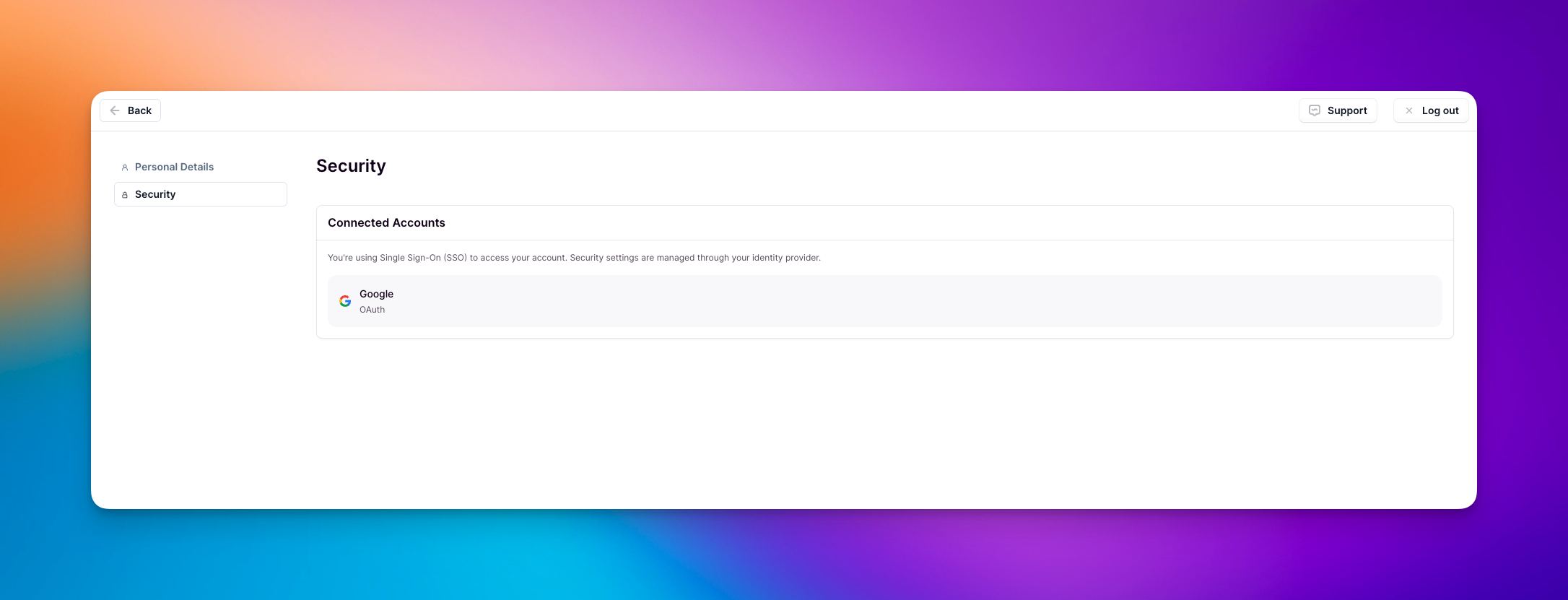
If you signed up for Relevance AI using Google authentication (Sign in with Google), you cannot change your password through this method as your password is managed by Google.
 ### Enterprise users with SSO enforced
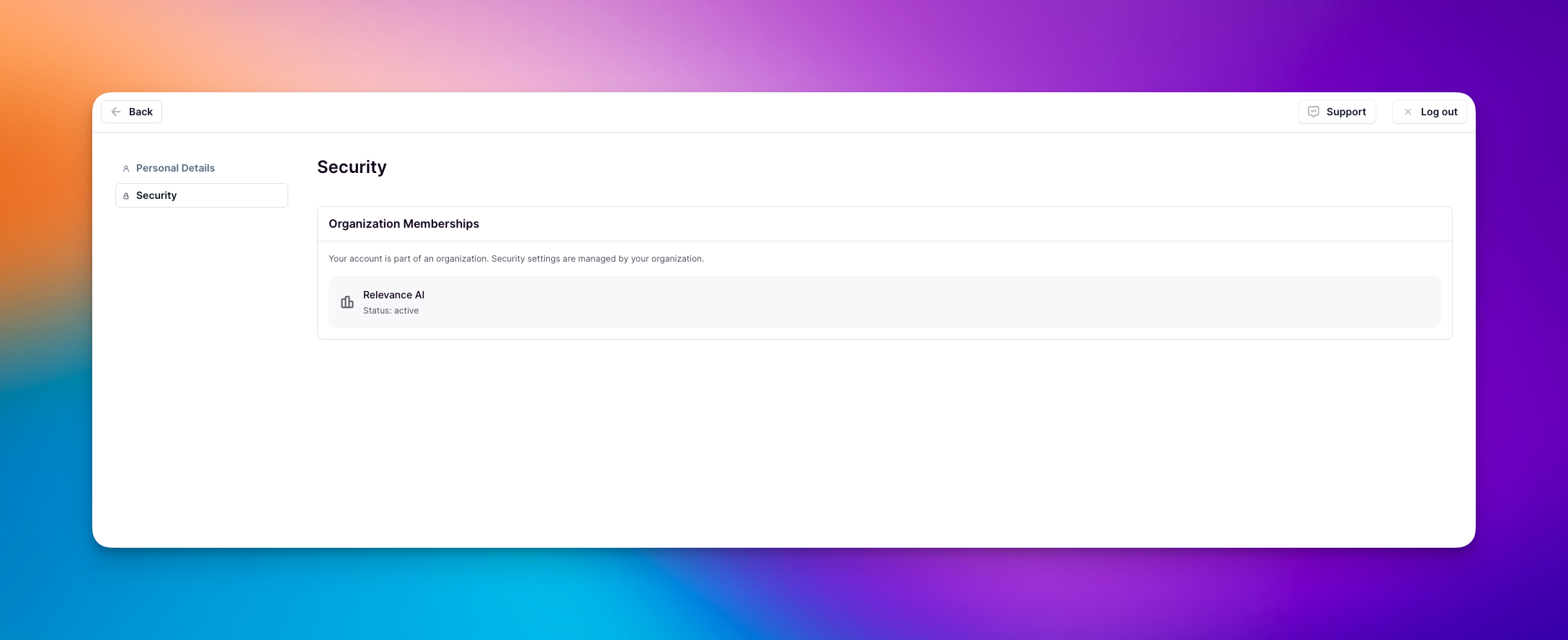
If you are an Enterprise user and your organization's administrator has enforced Single Sign-On (SSO), you cannot change your password through this method. Your password is managed by your organization's identity provider. Contact your organization's administrator for assistance with password changes. SSO enforcement is only available to Enterprise customers.
### Enterprise users with SSO enforced
If you are an Enterprise user and your organization's administrator has enforced Single Sign-On (SSO), you cannot change your password through this method. Your password is managed by your organization's identity provider. Contact your organization's administrator for assistance with password changes. SSO enforcement is only available to Enterprise customers.
 Enterprise users who do not have SSO enforced by their administrators can change their passwords using the standard process described above.
## Frequently asked questions (FAQs)
If you can't remember your current password, follow the "If you've forgotten your password" process described above to reset it via email.
We recommend changing your password regularly for security purposes, especially if you suspect your account may have been compromised.
Make sure your password includes at least 12 characters with a mix of uppercase letters, lowercase letters, numbers, and symbols. The system will prompt you if your password doesn't meet these requirements.
If you signed up with Google authentication, your password is managed by Google. You'll need to change your Google account password through Google's password management system.
If your organization has enforced SSO, your password is managed by your organization's identity provider. Contact your organization's administrator for assistance. If SSO is not enforced, you can change your password using the standard process described above.
If you're experiencing issues with password reset, please reach out to our support team [here](https://relevanceai.com/docs/get-started/support).
Enterprise users who do not have SSO enforced by their administrators can change their passwords using the standard process described above.
## Frequently asked questions (FAQs)
If you can't remember your current password, follow the "If you've forgotten your password" process described above to reset it via email.
We recommend changing your password regularly for security purposes, especially if you suspect your account may have been compromised.
Make sure your password includes at least 12 characters with a mix of uppercase letters, lowercase letters, numbers, and symbols. The system will prompt you if your password doesn't meet these requirements.
If you signed up with Google authentication, your password is managed by Google. You'll need to change your Google account password through Google's password management system.
If your organization has enforced SSO, your password is managed by your organization's identity provider. Contact your organization's administrator for assistance. If SSO is not enforced, you can change your password using the standard process described above.
If you're experiencing issues with password reset, please reach out to our support team [here](https://relevanceai.com/docs/get-started/support).