> ## Documentation Index
> Fetch the complete documentation index at: https://relevanceai.com/docs/llms.txt
> Use this file to discover all available pages before exploring further.
# Update your profile information
> How to update your name and company on your Relevance AI profile
You can update your personal details including your name and company information from your profile settings. These details help personalize your experience across Relevance AI.
## How to update your profile information
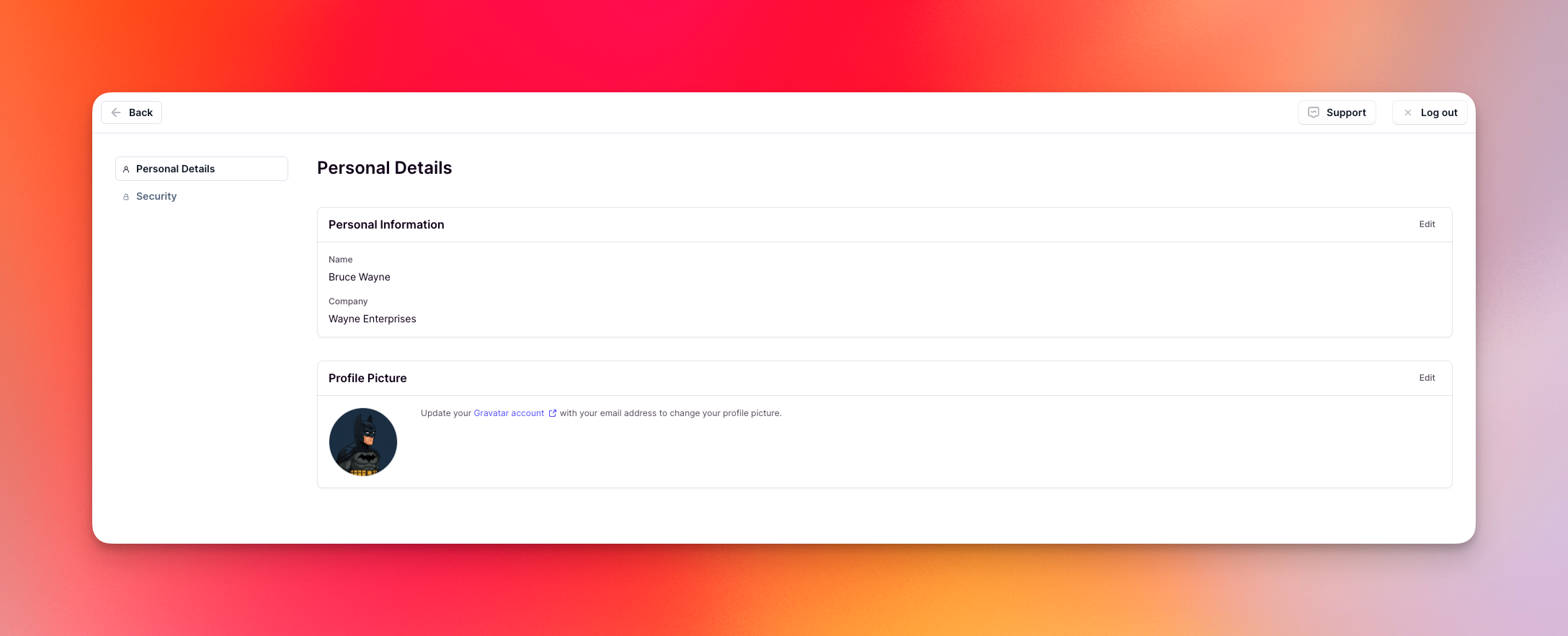 Follow these steps to update your profile information:
1. **Log into Relevance AI** at [https://app.relevanceai.com](https://app.relevanceai.com)
2. **Click on your profile picture** in the top right corner, then select **Profile**
3. You will be on the **Personal Details** page
4. **Click the Edit button** on the Personal Information section
5. **Update your first name, last name, and/or company** as needed
6. **Click 'Save Changes'** to update your profile
### About your name
Your name appears throughout Relevance AI in several places:
* When you call an Agent
* What your collaborators see when you interact with shared resources
* What admins see on their Members page
* Throughout the platform when your account is referenced
### About your company
The company field updates only your personal profile and does not affect your organization or project names in Relevance AI.
To change your organization or project name, please see [Change project and organization name](/admin/project-management/change-project-and-org-name).
## Changing your profile picture
Your profile picture appears throughout Relevance AI when you interact with agents, collaborate with team members, and across the platform. How you update your profile picture depends on how you signed up for Relevance AI.
### For Google sign-in users
If you signed up using Google authentication, your profile picture comes from your Google account. To change it, update your Google profile picture and it will automatically sync to Relevance AI.
### For Enterprise users with SSO enforced
If you're an Enterprise user and your organization has enforced Single Sign-On (SSO), your profile picture comes from your organization's identity provider. To change it, update your profile picture in your organization's identity management system.
### For all other users (Gravatar)
If you signed up with an email and password, you can set your profile picture using [Gravatar](https://gravatar.com).
**What is Gravatar?** Gravatar (Globally Recognized Avatar) is a free service that allows you to use a single profile picture across multiple websites and platforms. Once you set up your Gravatar profile with your email address, any website that supports Gravatar will automatically display your chosen picture.
#### Setting up your Gravatar profile picture
Your Gravatar email address must match your Relevance AI account email address. You can check your current email address on the Security page in your Profile settings. If needed, [change your email address](/admin/account-management/change-email-address) to match your Gravatar account.
Follow these steps to set up your profile picture using Gravatar:
Go to [Gravatar](https://gravatar.com) and create an account (if you don't have one). Use the same email address as your Relevance AI account when creating your Gravatar profile.
Upload a profile picture to your Gravatar account.
Return to Relevance AI and navigate to **Profile** → **Personal Details** → **Profile Picture**.
Click the **Edit** button.
Click **'Retrieve profile picture'** to sync your Gravatar image with Relevance AI.
#### Updating your profile picture
If you've updated your Gravatar profile picture and want to sync the changes to Relevance AI:
Any changes you make to your Gravatar profile picture require you to remove and re-retrieve it in Relevance AI to see the updates.
Go to **Profile** → **Personal Details** → **Profile Picture**.
Click the **Edit** button.
Click **'Remove profile picture'** to remove the current image.
Click **'Retrieve profile picture'** to get your latest Gravatar image.
#### Removing your profile picture
To remove your profile picture:
Go to **Profile** → **Personal Details** → **Profile Picture**.
Click the **Edit** button.
Click **'Remove profile picture'**.
## Frequently asked questions (FAQs)
No, changing your name will only update how your name is displayed across Relevance AI. All your projects, agents, and resources will remain intact and unchanged.
Yes, you can update your name at any time. There are no restrictions on how frequently you can change your display name.
The company field on your profile is personal information that doesn't affect your organization or project structure. To change your organization or project name, see [Change project and organization name](/admin/project-management/change-project-and-org-name).
No, collaborators will not receive a notification. They will simply see your updated name the next time they interact with you or view shared resources.
Make sure you're using the same email address for both your Gravatar account and your Relevance AI account. You can check your Relevance AI email on the Security page. If your emails match and it's still not working, try removing your profile picture and retrieving it again.
The ability to upload profile pictures directly to Relevance AI is on our roadmap and will be available in the future. Currently, you need to use Gravatar, Google, or your organization's SSO provider.
If you signed up with Google, your profile picture is synced from your Google account. You'll need to change your Google profile picture to update it in Relevance AI.
Gravatar is a secure platform owned by Automattic (the company behind WordPress) and is trusted by millions of websites worldwide. However, if you prefer not to use Gravatar, you'll need to wait for us to add the ability to upload profile pictures directly to Relevance AI. This feature is on our roadmap and will be available in the future.
If you're experiencing issues updating your profile, please reach out to our support team [here](https://relevanceai.com/docs/get-started/support).
Follow these steps to update your profile information:
1. **Log into Relevance AI** at [https://app.relevanceai.com](https://app.relevanceai.com)
2. **Click on your profile picture** in the top right corner, then select **Profile**
3. You will be on the **Personal Details** page
4. **Click the Edit button** on the Personal Information section
5. **Update your first name, last name, and/or company** as needed
6. **Click 'Save Changes'** to update your profile
### About your name
Your name appears throughout Relevance AI in several places:
* When you call an Agent
* What your collaborators see when you interact with shared resources
* What admins see on their Members page
* Throughout the platform when your account is referenced
### About your company
The company field updates only your personal profile and does not affect your organization or project names in Relevance AI.
To change your organization or project name, please see [Change project and organization name](/admin/project-management/change-project-and-org-name).
## Changing your profile picture
Your profile picture appears throughout Relevance AI when you interact with agents, collaborate with team members, and across the platform. How you update your profile picture depends on how you signed up for Relevance AI.
### For Google sign-in users
If you signed up using Google authentication, your profile picture comes from your Google account. To change it, update your Google profile picture and it will automatically sync to Relevance AI.
### For Enterprise users with SSO enforced
If you're an Enterprise user and your organization has enforced Single Sign-On (SSO), your profile picture comes from your organization's identity provider. To change it, update your profile picture in your organization's identity management system.
### For all other users (Gravatar)
If you signed up with an email and password, you can set your profile picture using [Gravatar](https://gravatar.com).
**What is Gravatar?** Gravatar (Globally Recognized Avatar) is a free service that allows you to use a single profile picture across multiple websites and platforms. Once you set up your Gravatar profile with your email address, any website that supports Gravatar will automatically display your chosen picture.
#### Setting up your Gravatar profile picture
Your Gravatar email address must match your Relevance AI account email address. You can check your current email address on the Security page in your Profile settings. If needed, [change your email address](/admin/account-management/change-email-address) to match your Gravatar account.
Follow these steps to set up your profile picture using Gravatar:
Go to [Gravatar](https://gravatar.com) and create an account (if you don't have one). Use the same email address as your Relevance AI account when creating your Gravatar profile.
Upload a profile picture to your Gravatar account.
Return to Relevance AI and navigate to **Profile** → **Personal Details** → **Profile Picture**.
Click the **Edit** button.
Click **'Retrieve profile picture'** to sync your Gravatar image with Relevance AI.
#### Updating your profile picture
If you've updated your Gravatar profile picture and want to sync the changes to Relevance AI:
Any changes you make to your Gravatar profile picture require you to remove and re-retrieve it in Relevance AI to see the updates.
Go to **Profile** → **Personal Details** → **Profile Picture**.
Click the **Edit** button.
Click **'Remove profile picture'** to remove the current image.
Click **'Retrieve profile picture'** to get your latest Gravatar image.
#### Removing your profile picture
To remove your profile picture:
Go to **Profile** → **Personal Details** → **Profile Picture**.
Click the **Edit** button.
Click **'Remove profile picture'**.
## Frequently asked questions (FAQs)
No, changing your name will only update how your name is displayed across Relevance AI. All your projects, agents, and resources will remain intact and unchanged.
Yes, you can update your name at any time. There are no restrictions on how frequently you can change your display name.
The company field on your profile is personal information that doesn't affect your organization or project structure. To change your organization or project name, see [Change project and organization name](/admin/project-management/change-project-and-org-name).
No, collaborators will not receive a notification. They will simply see your updated name the next time they interact with you or view shared resources.
Make sure you're using the same email address for both your Gravatar account and your Relevance AI account. You can check your Relevance AI email on the Security page. If your emails match and it's still not working, try removing your profile picture and retrieving it again.
The ability to upload profile pictures directly to Relevance AI is on our roadmap and will be available in the future. Currently, you need to use Gravatar, Google, or your organization's SSO provider.
If you signed up with Google, your profile picture is synced from your Google account. You'll need to change your Google profile picture to update it in Relevance AI.
Gravatar is a secure platform owned by Automattic (the company behind WordPress) and is trusted by millions of websites worldwide. However, if you prefer not to use Gravatar, you'll need to wait for us to add the ability to upload profile pictures directly to Relevance AI. This feature is on our roadmap and will be available in the future.
If you're experiencing issues updating your profile, please reach out to our support team [here](https://relevanceai.com/docs/get-started/support).