> ## Documentation Index
> Fetch the complete documentation index at: https://relevanceai.com/docs/llms.txt
> Use this file to discover all available pages before exploring further.
# Plans and credits
> Understand different plans at Relevance AI, and learn how to manage your subscription
## Understanding Actions
An Action is a single run of a Tool. Each time a tool runs, it counts as an action — whether it's a simple task like sending one email or running a complex workflow with many steps.
Actions are charged when you run a Tool, or when your Agent / Workforce runs a Tool. If the Tool fails, this will still count as one Action.
## Understanding Vendor Credits
Vendor Credits are the cost of running the AI model. This is the cost of the LLM, and the cost of the tools you use.
Pay only for the LLMs you use, with no markup, and credits that never expire while subscribed.
To bypass Vendor Credits entirely, you can bring your own API keys. This is only available on our paid plans and is not available to free users.
## Purchasing additional Actions and Vendor Credits
If you have a paid plan, you can purchase extra Actions and Vendor Credits to use before your next renewal if you run out.
Both Action top-ups and Vendor Credit top-ups roll over, so you won't lose them at renewal. Action top-ups roll over to your next billing cycle, and Vendor Credit top-ups roll over indefinitely while you're subscribed.
### Pricing for top-ups
* **Actions:** \$80 USD per 1,000 Actions
* **Vendor Credits:** \$20 USD per 10,000 Vendor Credits
### How to purchase additional Actions and Vendor Credits
You'll need to be an Organization admin to purchase additional Actions and Vendor Credits.
To purchase additional Actions and Vendor Credits:
1. Click the Credit & Action Counter in the bottom left of the home screen
2. In the top right of the modal, click the **Buy credits** button
3. This will take you to a page where you can buy both Vendor Credits and Actions
4. Enter the amount of Vendor Credits and Actions you want to purchase:
* Vendor Credits must be in increments of 10,000
* Actions must be in increments of 1,000
5. Click **Next**
6. Proceed to enter your payment information
## Monitoring Actions and Vendor Credits usage
You can also set usage alerts to receive email notifications when your credit and action usage reaches a specified limit. [Learn more about usage alerts](/admin/project-management/usage-alerts).
### At an Organization level
To check your Actions and Vendor Credits consumption at an Organization level:
1. Click 'Settings' in the sidebar
2. Navigate to Plan & Billing
You'll only have access to this section if you are an admin of your Organization.
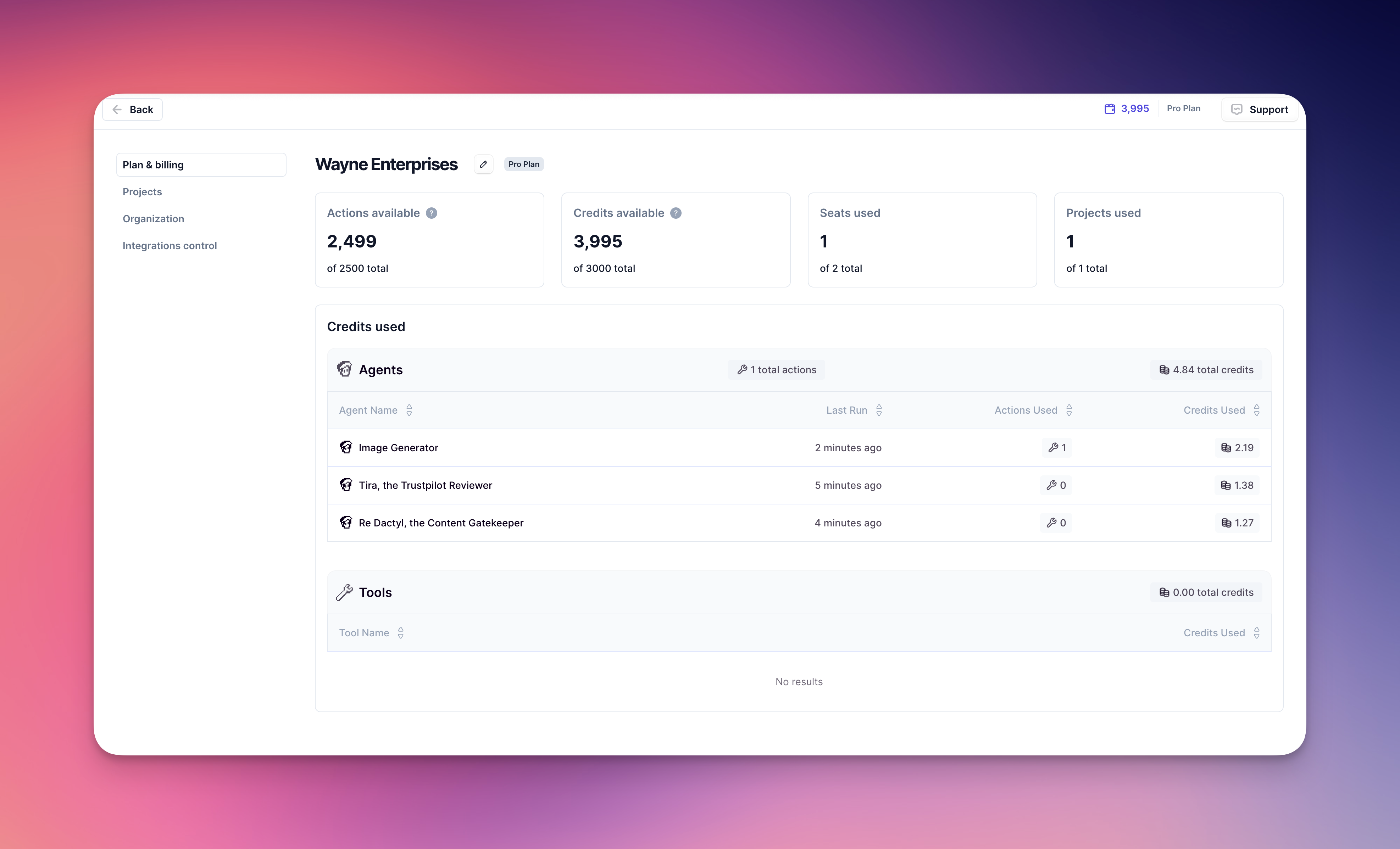 From this page, you will be able to see credit usage across your entire Organization, and view this by Agent or see a detailed view of your credit expenses.
### At an individual Agent level
You can also see how many Actions and Vendor Credits your Agent used, broken down by each Tool and your Agent's LLM cost.
From this page, you will be able to see credit usage across your entire Organization, and view this by Agent or see a detailed view of your credit expenses.
### At an individual Agent level
You can also see how many Actions and Vendor Credits your Agent used, broken down by each Tool and your Agent's LLM cost.
1. First, access the run of your Agent you want to view credits on, on the Run screen
2. Click the number next to 'Credits used'
3. This will open a pop-up that will show you how much each Tool cost, as well as your Agent LLM cost and the base run cost
### How many Vendor Credits and Actions do I have left?
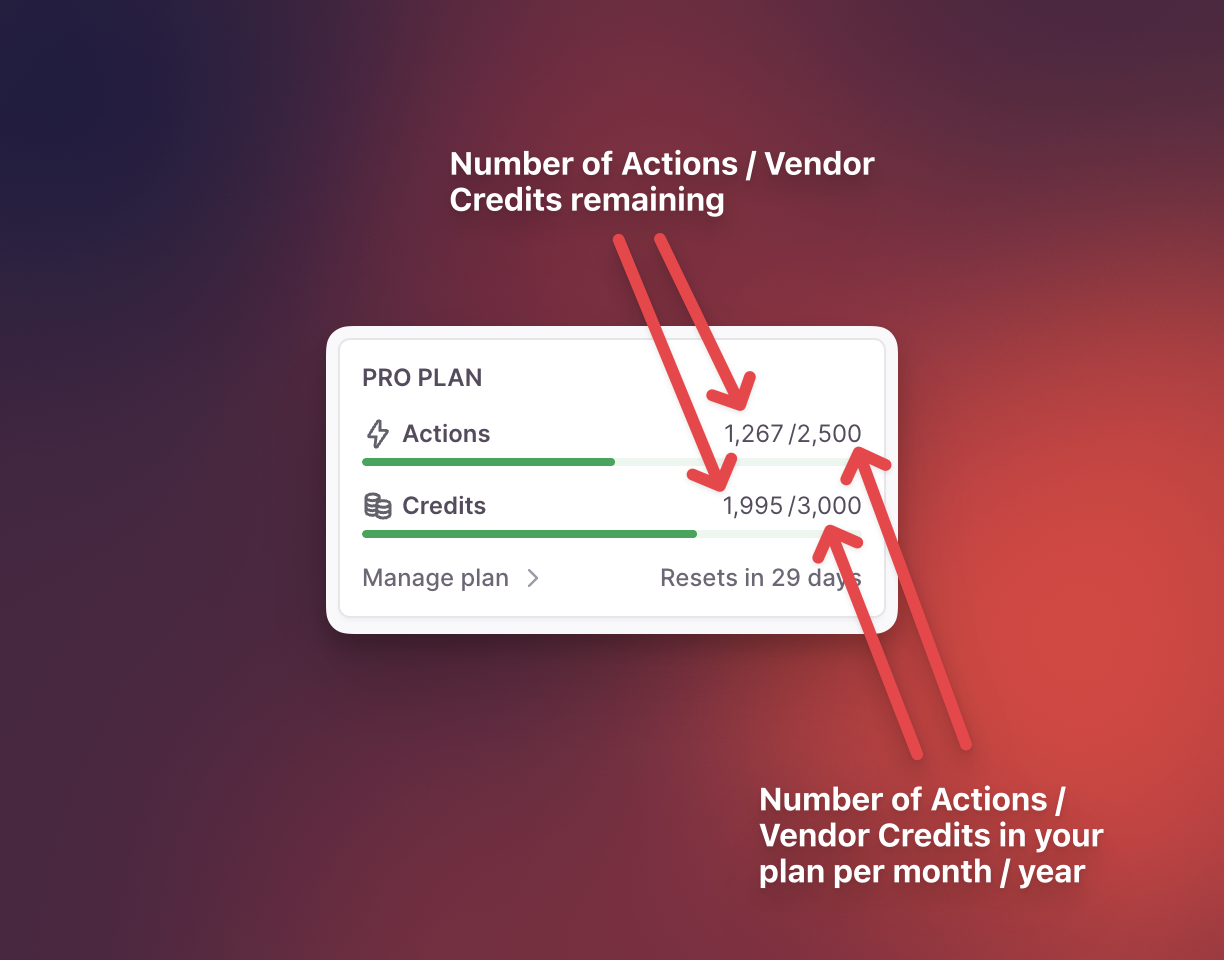 You can view how many Actions and Vendor Credits you have left in the bottom left of Relevance AI. The credits counter will show you a total of the **number of Actions and Vendor Credits you have left remaining** over the **number of Actions and Vendor Credits you receive in your plan per month / year**.
The color of the counter also indicates how many credits you have remaining based on how many you have in your billing period. If your counter is green, this means you're in a good position! If the counter turns red, you should consider adding more credits if you think you're going to run out before your next renewal, or consider upgrading to a higher plan in the future.
For example, in the image above, this user is on a Pro plan, billed monthly. They currently receive 2500 Actions per month, and 3000 Vendor Credits. They have 1267 Actions and 1995 Vendor Credits left.
## Monitoring concurrency usage
Concurrency is a system capacity metric — it measures how many tasks are running simultaneously across your Organization, not how many credits or actions you consume. Each subscription tier has a specific concurrent task limit. When you reach this limit, additional tasks are queued until capacity becomes available.
For detailed information about concurrent task limits for each subscription tier, see the [System Quotas](/admin/system-limits#concurrent-tasks) page.
A time-series area chart displays your Organization's concurrency usage over time, helping you identify peak usage periods and determine when to upgrade for increased capacity. You can view this same chart in two places:
* On the **Plan & Billing** page: click 'Settings' in the sidebar, then open Plan & Billing.
* On the **Analytics** page, where the same chart shows organization-wide concurrency data, so you can correlate agent activity with overall concurrency patterns.
## Credit allocation and reset
For paid plans, Vendor Credits and Actions will be topped up at your next renewal date.
**Vendor Credits rollover:** All Vendor Credits roll over indefinitely while you're subscribed. This includes both the Vendor Credits included in your plan and any Vendor Credit top-ups you purchase. You'll never lose unused Vendor Credits as long as you maintain an active subscription.
**Actions rollover:** Actions included in your plan will reset to your plan's default amount at each renewal. However, any Action top-ups you purchase will roll over to your next billing cycle. This means purchased Action top-ups carry forward, but your base plan Actions reset.
This only applies to Free, Pro and Team plans. Enterprise customers should contact their Account Manager to check the rollover behavior for their Enterprise Organization.
For free users, you will be given 1000 Vendor Credits when you sign up to Relevance AI, and 200 Actions a month. To access more Vendor Credits, you'll need to upgrade to a subscription.
## Paying for plans
At this time, we only offer the ability to pay for subscriptions using a credit card. We do not support debit cards at this time.
## Managing and updating payment methods
You'll need to be an Organization admin to manage payment methods.
To add, update, or remove payment methods:
1. Click the **Manage plan / credits counter** section at the bottom left of the dashboard
2. Click **Manage payment methods**
3. From here, you can add a new card, update an existing payment method, or remove old payment methods
## Cancelling your subscription
You can easily cancel your subscription if you are an organization admin by following this tutorial:
You can view how many Actions and Vendor Credits you have left in the bottom left of Relevance AI. The credits counter will show you a total of the **number of Actions and Vendor Credits you have left remaining** over the **number of Actions and Vendor Credits you receive in your plan per month / year**.
The color of the counter also indicates how many credits you have remaining based on how many you have in your billing period. If your counter is green, this means you're in a good position! If the counter turns red, you should consider adding more credits if you think you're going to run out before your next renewal, or consider upgrading to a higher plan in the future.
For example, in the image above, this user is on a Pro plan, billed monthly. They currently receive 2500 Actions per month, and 3000 Vendor Credits. They have 1267 Actions and 1995 Vendor Credits left.
## Monitoring concurrency usage
Concurrency is a system capacity metric — it measures how many tasks are running simultaneously across your Organization, not how many credits or actions you consume. Each subscription tier has a specific concurrent task limit. When you reach this limit, additional tasks are queued until capacity becomes available.
For detailed information about concurrent task limits for each subscription tier, see the [System Quotas](/admin/system-limits#concurrent-tasks) page.
A time-series area chart displays your Organization's concurrency usage over time, helping you identify peak usage periods and determine when to upgrade for increased capacity. You can view this same chart in two places:
* On the **Plan & Billing** page: click 'Settings' in the sidebar, then open Plan & Billing.
* On the **Analytics** page, where the same chart shows organization-wide concurrency data, so you can correlate agent activity with overall concurrency patterns.
## Credit allocation and reset
For paid plans, Vendor Credits and Actions will be topped up at your next renewal date.
**Vendor Credits rollover:** All Vendor Credits roll over indefinitely while you're subscribed. This includes both the Vendor Credits included in your plan and any Vendor Credit top-ups you purchase. You'll never lose unused Vendor Credits as long as you maintain an active subscription.
**Actions rollover:** Actions included in your plan will reset to your plan's default amount at each renewal. However, any Action top-ups you purchase will roll over to your next billing cycle. This means purchased Action top-ups carry forward, but your base plan Actions reset.
This only applies to Free, Pro and Team plans. Enterprise customers should contact their Account Manager to check the rollover behavior for their Enterprise Organization.
For free users, you will be given 1000 Vendor Credits when you sign up to Relevance AI, and 200 Actions a month. To access more Vendor Credits, you'll need to upgrade to a subscription.
## Paying for plans
At this time, we only offer the ability to pay for subscriptions using a credit card. We do not support debit cards at this time.
## Managing and updating payment methods
You'll need to be an Organization admin to manage payment methods.
To add, update, or remove payment methods:
1. Click the **Manage plan / credits counter** section at the bottom left of the dashboard
2. Click **Manage payment methods**
3. From here, you can add a new card, update an existing payment method, or remove old payment methods
## Cancelling your subscription
You can easily cancel your subscription if you are an organization admin by following this tutorial:
1. Click 'Manage plan' at the bottom of the platform
2. Click 'Cancel subscription'
3. On the pop-up that opens, click 'Cancel subscription' *again* to make sure the cancellation goes through
4. You should then be directed to a pop-up confirming that you've cancelled successfully
## Invoices and receipts
Invoices and receipts for payment will be sent to the user at your company who purchased the subscription / credits at the time of purchase. You'll also be sent a receipt / invoice at every renewal.
To find your invoices and receipts in the platform:
1. Click 'Settings' while logged into Relevance AI
2. Click 'Invoice management'
3. From here, you can view and download your invoices and receipts
You'll only have access to Invoice management if you are an admin of your Organization.
### Organization name on invoices
The organization name that appears on your invoices is the same as your organization name in Relevance AI. If you need to change the organization name on your invoices, you can [update your organization name](/admin/project-management/change-project-and-org-name) in the platform.
### Updating other invoice details
For changes to other invoice details such as billing addresses or tax information, [contact our support team](/get-started/support). The easiest way to do this is to forward your latest invoice along with the details you'd like updated.
## Frequently asked questions (FAQs)
Understanding what carries over to your next billing cycle:
Vendor Credits included in your plan and any Vendor Credit top-ups you purchase will roll over indefinitely while you're subscribed. You'll never lose unused Vendor Credits.
Actions included in your plan will reset to your plan's default amount at renewal. However, any Action top-ups you purchase will roll over to your next billing cycle.
This means if you purchase additional Actions or Vendor Credits as top-ups, those will carry forward, but your base plan Actions will reset to the standard amount for your subscription tier.
Yes! You can purchase additional Actions and Vendor Credits if you have a subscription.
Actions are priced at $80 USD per 1,000 Actions, and Vendor Credits are priced at $20 USD per 10,000 Vendor Credits.
Both Action top-ups and Vendor Credit top-ups roll over. This is different from your plan's included Actions, which reset at renewal. Purchased Action top-ups will carry forward to your next billing cycle, and Vendor Credit top-ups roll over indefinitely.
Yes! You can bring your own API keys to bypass Vendor Credits entirely. This is only available on our paid plans and is not available to free users.
In September 2025 we moved to a new pricing model that splits Credits into Actions (what your agents do) and Vendor Credits (AI model costs). All customers have now been transitioned to the new pricing model, so you'll see Actions and Vendor Credits in the platform rather than Credits. For a full breakdown of the changes, see our [pricing and packaging changes FAQ](/admin/subscriptions/new-pricing).