> ## Documentation Index
> Fetch the complete documentation index at: https://relevanceai.com/docs/llms.txt
> Use this file to discover all available pages before exploring further.
# Scheduled Triggers
> Set your Agent to run on a schedule or send messages at specific times
Scheduled triggers let your Agent act on its own based on time — either by running tasks on a recurring schedule or by sending messages at specific future times. Use them to automate reports, follow-ups, reminders, and any workflow that needs to happen without manual input.
## Recurring schedules
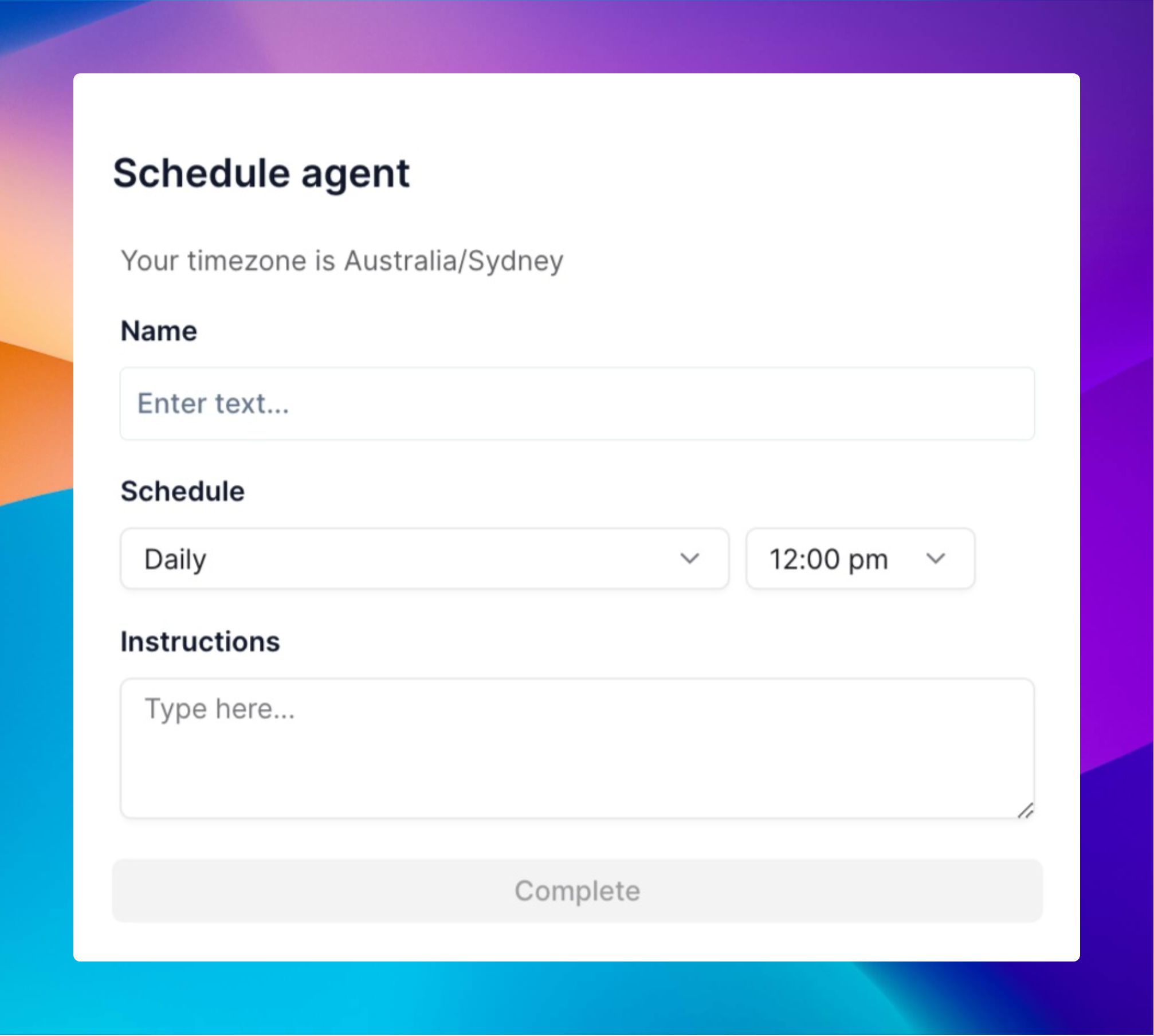 Recurring schedules run your Agent automatically at set intervals — daily, weekly, monthly, or on a custom cadence.
### Setting up a recurring schedule
1. Go to your agent in the Relevance AI dashboard
2. Click 'Edit Agent'
3. Navigate to the 'Triggers' section
4. Select 'Recurring Schedule'
5. Choose your schedule type
### Schedule types
#### Simple schedule options
| Schedule Type | What It Does | Perfect For |
| ------------- | ----------------------------------- | ------------------------------------ |
| **Daily** | Runs every day at a time you choose | Morning reports, daily check-ins |
| **Weekly** | Runs on specific days each week | Team updates, weekly newsletters |
| **Monthly** | Runs on chosen dates each month | Monthly reports, regular maintenance |
| **Custom** | Runs on specific dates you select | One-off tasks or irregular schedules |
#### Advanced: cron expressions
For more precise control over scheduling, you can use **Cron expressions**. Relevance AI uses **AWS EventBridge cron format**, which requires **six fields**:
```
minute hour day-of-month month day-of-week year
```
**Cron Expression Format:**
| Field | Values | Wildcards |
| ---------------- | --------------- | -------------- |
| **Minute** | 0-59 | , - \* / |
| **Hour** | 0-23 | , - \* / |
| **Day-of-month** | 1-31 | , - \* ? / L W |
| **Month** | 1-12 or JAN-DEC | , - \* / |
| **Day-of-week** | 1-7 or SUN-SAT | , - \* ? L # |
| **Year** | 1970-2199 | , - \* / |
**Special Characters:**
* `*` (asterisk) - all values
* `?` (question mark) - no specific value (used in day-of-month or day-of-week)
* `-` (dash) - range of values
* `,` (comma) - additional values
* `/` (forward slash) - increments
* `L` - last day of month or week
* `W` - nearest weekday
* `#` - nth occurrence of a day in a month
**Common Cron Expression Examples:**
```
0 10 * * ? * # Every day at 10:00 AM
0 0 * * MON * # Every Monday at midnight
0 9 1 * ? * # First day of every month at 9:00 AM
0 0 * * MON-FRI * # Weekdays at midnight
*/15 * * * ? * # Every 15 minutes
0 9,17 * * ? * # Daily at 9:00 AM and 5:00 PM
0 0 1,15 * ? * # 1st and 15th of every month at midnight
0 8 ? * 2 * # Every Monday (day 2) at 8:00 AM
0 10 L * ? * # Last day of every month at 10:00 AM
0 9 ? * 2#1 * # First Monday of every month at 9:00 AM
```
AWS EventBridge cron expressions use 6 fields, unlike traditional Unix cron which uses 5 fields. Always include the year field, and use `?` for either day-of-month or day-of-week when specifying the other.
### Tips
* **Start small**: Begin with one simple recurring task before setting up complex schedules
* **Test thoroughly**: Run your agent manually first to ensure it works as expected
* **Monitor initially**: Check the first few automated runs to confirm everything works correctly
* **Use cron for precision**: When you need exact timing control, use cron expressions instead of simple schedules
***
## Scheduled messages
Recurring schedules run your Agent automatically at set intervals — daily, weekly, monthly, or on a custom cadence.
### Setting up a recurring schedule
1. Go to your agent in the Relevance AI dashboard
2. Click 'Edit Agent'
3. Navigate to the 'Triggers' section
4. Select 'Recurring Schedule'
5. Choose your schedule type
### Schedule types
#### Simple schedule options
| Schedule Type | What It Does | Perfect For |
| ------------- | ----------------------------------- | ------------------------------------ |
| **Daily** | Runs every day at a time you choose | Morning reports, daily check-ins |
| **Weekly** | Runs on specific days each week | Team updates, weekly newsletters |
| **Monthly** | Runs on chosen dates each month | Monthly reports, regular maintenance |
| **Custom** | Runs on specific dates you select | One-off tasks or irregular schedules |
#### Advanced: cron expressions
For more precise control over scheduling, you can use **Cron expressions**. Relevance AI uses **AWS EventBridge cron format**, which requires **six fields**:
```
minute hour day-of-month month day-of-week year
```
**Cron Expression Format:**
| Field | Values | Wildcards |
| ---------------- | --------------- | -------------- |
| **Minute** | 0-59 | , - \* / |
| **Hour** | 0-23 | , - \* / |
| **Day-of-month** | 1-31 | , - \* ? / L W |
| **Month** | 1-12 or JAN-DEC | , - \* / |
| **Day-of-week** | 1-7 or SUN-SAT | , - \* ? L # |
| **Year** | 1970-2199 | , - \* / |
**Special Characters:**
* `*` (asterisk) - all values
* `?` (question mark) - no specific value (used in day-of-month or day-of-week)
* `-` (dash) - range of values
* `,` (comma) - additional values
* `/` (forward slash) - increments
* `L` - last day of month or week
* `W` - nearest weekday
* `#` - nth occurrence of a day in a month
**Common Cron Expression Examples:**
```
0 10 * * ? * # Every day at 10:00 AM
0 0 * * MON * # Every Monday at midnight
0 9 1 * ? * # First day of every month at 9:00 AM
0 0 * * MON-FRI * # Weekdays at midnight
*/15 * * * ? * # Every 15 minutes
0 9,17 * * ? * # Daily at 9:00 AM and 5:00 PM
0 0 1,15 * ? * # 1st and 15th of every month at midnight
0 8 ? * 2 * # Every Monday (day 2) at 8:00 AM
0 10 L * ? * # Last day of every month at 10:00 AM
0 9 ? * 2#1 * # First Monday of every month at 9:00 AM
```
AWS EventBridge cron expressions use 6 fields, unlike traditional Unix cron which uses 5 fields. Always include the year field, and use `?` for either day-of-month or day-of-week when specifying the other.
### Tips
* **Start small**: Begin with one simple recurring task before setting up complex schedules
* **Test thoroughly**: Run your agent manually first to ensure it works as expected
* **Monitor initially**: Check the first few automated runs to confirm everything works correctly
* **Use cron for precision**: When you need exact timing control, use cron expressions instead of simple schedules
***
## Scheduled messages
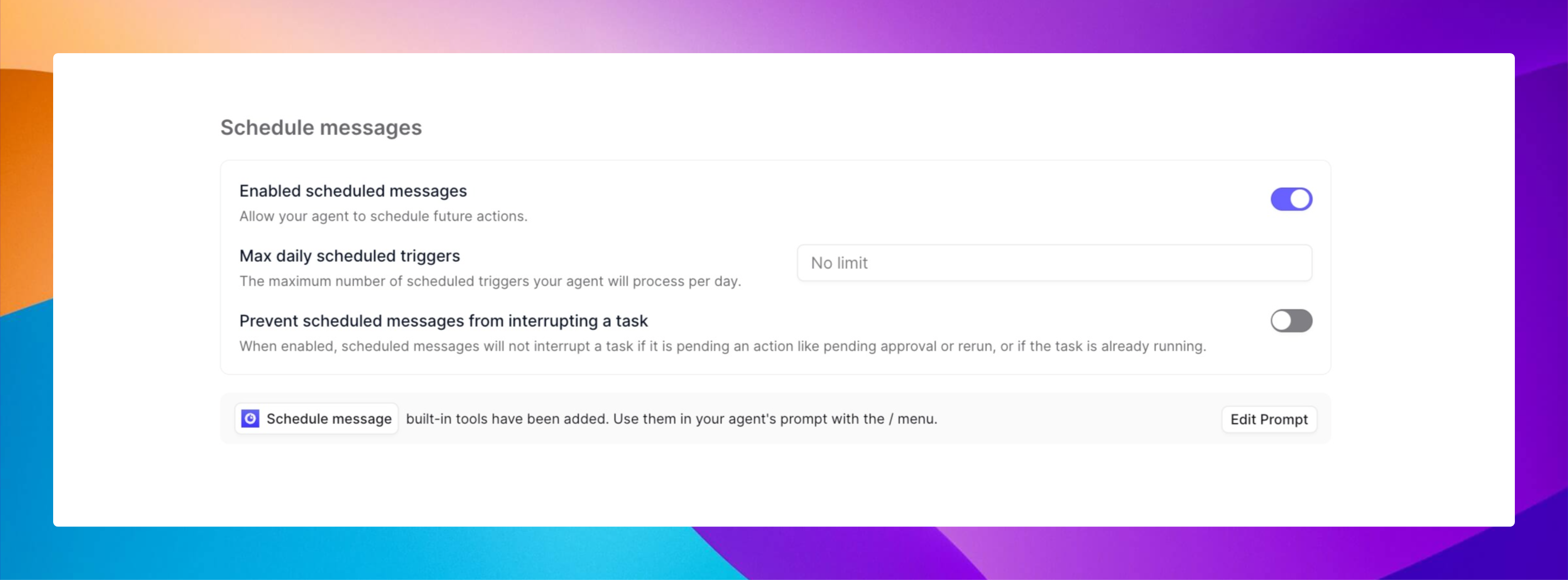 Scheduled messages let your Agent send messages at specific future times — follow-ups, reminders, check-ins, or any time-based outreach. You can edit or reschedule these messages directly in Task View.
### Setting up Scheduled Messages
1. Navigate to the **Build** page
2. Look for the **Triggers** section
3. Scroll to the bottom and turn on the **Enabled Scheduled Messages** toggle
4. Add instructions in your agent's core instructions about when to schedule messages
Once turned on, your agent will understand time-based requests like "send a follow-up tomorrow at 9 AM" or "remind me about this next Tuesday."
You can guide your agent's scheduling behaviour by adding instructions to your agent's **Prompt** like:
```
When someone asks about upcoming events, schedule a reminder 24 hours before each event.
If someone has a deadline, schedule a check-in halfway to the deadline.
For multi-step processes, schedule messages at each milestone to keep people on track.
```
### Scheduled messages settings
#### Enabled Scheduled Messages (toggle)
Turn this on to allow your Agent to schedule actions or messages for the future. Without this enabled, your Agent can only respond in real-time and won't be able to set future reminders, follow-ups, or scheduled notifications.
#### Max daily Scheduled Triggers
Set a limit on how many scheduled actions your Agent can process in a single day. Leaving it at "No limit" means the Agent can schedule and send as many future messages as needed. If you want to control costs, manage system load, or prevent overactivity, you can set a specific maximum number.
#### Prevent Scheduled Messages from interrupting a Task
When this is enabled, your Agent won't interrupt an active task (like when it's waiting for approvals or processing another action) just to send a scheduled message. Instead, the scheduled message will wait and be delayed by at least the time you specify (default is 1,440 minutes, or 24 hours).
This prevents your Agent from getting confused, stuck, or behaving unpredictably when juggling multiple actions.
#### Schedule Message Tool
A built-in tool your Agent can use when writing prompts. Use the `/schedule message` shortcut inside your Agent's instructions to tell it exactly when and what to schedule automatically during conversations.
**Example:**
> "After summarizing today's emails, schedule a check-in message tomorrow at 10 AM."
## Frequently asked questions (FAQs)
The system logs errors and can send notifications based on your settings. You can view error details in your agent's task history.
Yes, you can disable schedules without deleting them when you need a pause. Simply toggle off the schedule in your agent's Triggers settings.
Go back to the Recurring Schedule section in your agent's Triggers settings and update the schedule as needed. Changes take effect immediately.
Scheduled runs use your account's configured timezone. You can adjust this in your agent's schedule settings to ensure tasks run at the correct local time.
Scheduled messages let your Agent send messages at specific future times — follow-ups, reminders, check-ins, or any time-based outreach. You can edit or reschedule these messages directly in Task View.
### Setting up Scheduled Messages
1. Navigate to the **Build** page
2. Look for the **Triggers** section
3. Scroll to the bottom and turn on the **Enabled Scheduled Messages** toggle
4. Add instructions in your agent's core instructions about when to schedule messages
Once turned on, your agent will understand time-based requests like "send a follow-up tomorrow at 9 AM" or "remind me about this next Tuesday."
You can guide your agent's scheduling behaviour by adding instructions to your agent's **Prompt** like:
```
When someone asks about upcoming events, schedule a reminder 24 hours before each event.
If someone has a deadline, schedule a check-in halfway to the deadline.
For multi-step processes, schedule messages at each milestone to keep people on track.
```
### Scheduled messages settings
#### Enabled Scheduled Messages (toggle)
Turn this on to allow your Agent to schedule actions or messages for the future. Without this enabled, your Agent can only respond in real-time and won't be able to set future reminders, follow-ups, or scheduled notifications.
#### Max daily Scheduled Triggers
Set a limit on how many scheduled actions your Agent can process in a single day. Leaving it at "No limit" means the Agent can schedule and send as many future messages as needed. If you want to control costs, manage system load, or prevent overactivity, you can set a specific maximum number.
#### Prevent Scheduled Messages from interrupting a Task
When this is enabled, your Agent won't interrupt an active task (like when it's waiting for approvals or processing another action) just to send a scheduled message. Instead, the scheduled message will wait and be delayed by at least the time you specify (default is 1,440 minutes, or 24 hours).
This prevents your Agent from getting confused, stuck, or behaving unpredictably when juggling multiple actions.
#### Schedule Message Tool
A built-in tool your Agent can use when writing prompts. Use the `/schedule message` shortcut inside your Agent's instructions to tell it exactly when and what to schedule automatically during conversations.
**Example:**
> "After summarizing today's emails, schedule a check-in message tomorrow at 10 AM."
## Frequently asked questions (FAQs)
The system logs errors and can send notifications based on your settings. You can view error details in your agent's task history.
Yes, you can disable schedules without deleting them when you need a pause. Simply toggle off the schedule in your agent's Triggers settings.
Go back to the Recurring Schedule section in your agent's Triggers settings and update the schedule as needed. Changes take effect immediately.
Scheduled runs use your account's configured timezone. You can adjust this in your agent's schedule settings to ensure tasks run at the correct local time.