> ## Documentation Index
> Fetch the complete documentation index at: https://relevanceai.com/docs/llms.txt
> Use this file to discover all available pages before exploring further.
# Evals
> Test and evaluate your AI Agents with scenario-based evaluations and reusable Checks
**Rollout Status**: Evals is rolling out progressively, starting with Enterprise customers. If you don't see this feature in your account yet, reach out to your account manager to discuss access.
The Evals section is your command center for testing and evaluating AI Agent performance. Located in the **Evaluate** tab (next to the Build and Use tabs) in the Agent builder, Evals lets you create test sets, define reusable Checks, run automated evaluations, and monitor live Agent quality — all without manual testing. Evals apply to both individual Agents and Workforces, including the sub-agents and tools inside a Workforce.
 ## What you can do with Evals
Build test sets with scenarios that simulate real user interactions, then attach Checks to score every conversation automatically.
Define evaluation criteria once in the Checks tab and attach them to scenarios, Monitor dashboards, or ad-hoc evaluations of completed tasks.
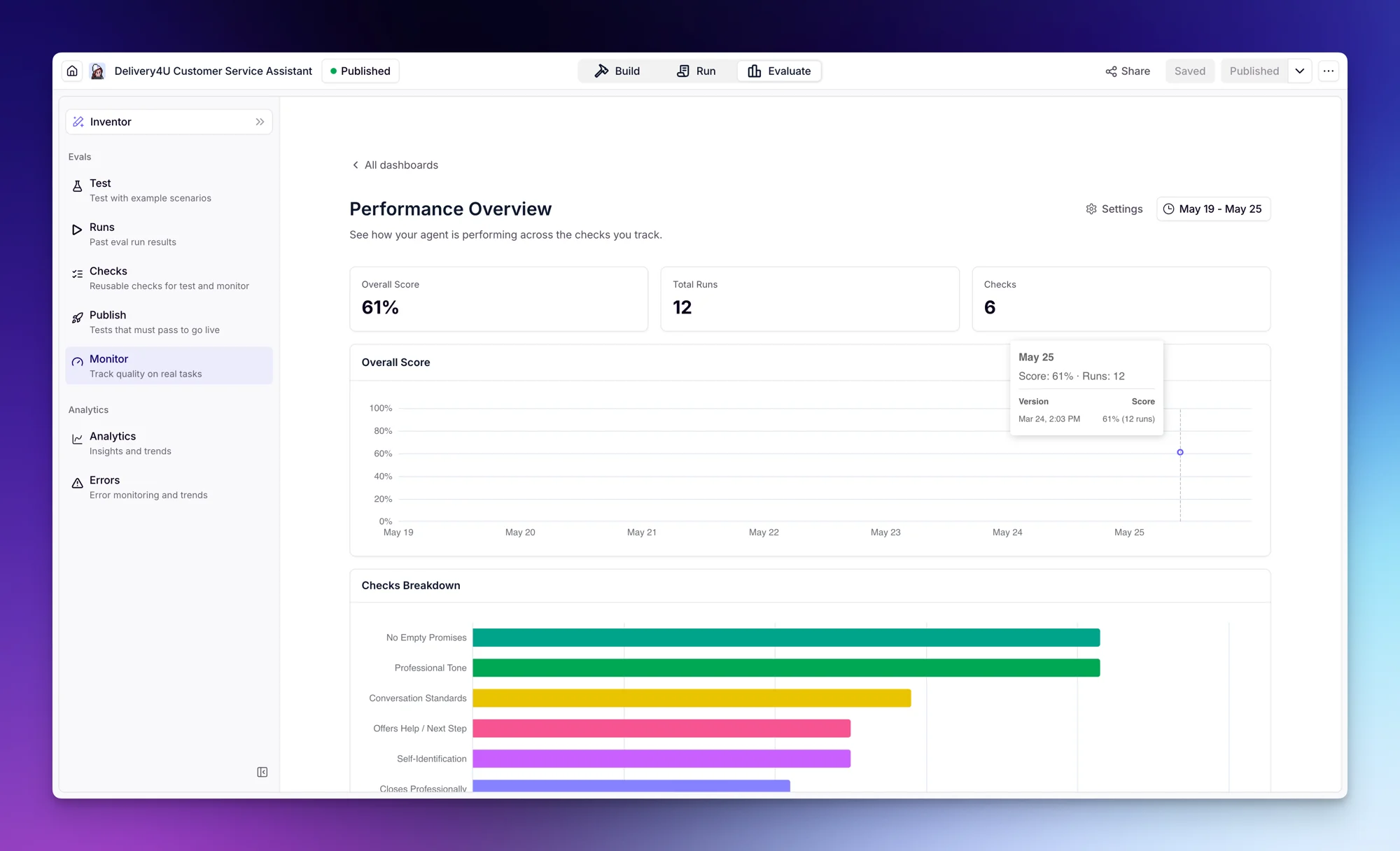
Create Monitor dashboards that score live Agent tasks against your Checks, with sample-rate controls and per-Check trend charts over time.
***
## Evals sections
The Evals area has five sections, shown in the left sidebar of the Evaluate tab:
* **Test** — Create and manage test sets. Each test set holds scenarios that simulate users; running a scenario produces a conversation with your Agent that gets scored by attached Checks.
* **Runs** — Past evaluation run results. Browse average scores, tasks evaluated, progress status, cost (Credits and Actions), and creation date for every run.
* **Checks** — The reusable set of evaluation criteria. Create a Check once, then attach it to scenarios, to Monitor dashboards, or to one-off evaluations of completed tasks.
* **Publish** — Choose which test sets must pass before your Agent can be published. Set a minimum pass rate and optionally block publishing on failure.
* **Monitor** — Track live Agent quality on real tasks. Create one or more Monitor dashboards, attach Checks, set a sample rate, and watch scores trend over time.
***
## Understanding Checks
Checks are the reusable evaluation criteria that score Agent conversations. You create a Check once in the **Checks** tab and then attach it wherever you need it:
* **To a scenario** in a test set — the Check runs every time that scenario is evaluated.
* **To a Monitor dashboard** — the Check runs on a sampled portion of live Agent tasks.
* **To a one-off evaluation** of already-completed tasks selected from the Agent's task list.
The Checks tab has filters that show where each Check is currently used — **All checks**, **Scenarios**, **Dashboard**, and **Unused** — so you can quickly find Checks that aren't attached anywhere yet.
### Check types
When creating a Check, you choose one of the following types:
Uses an LLM to evaluate conversations against a prompt you define.
| Field | Description |
| ------------------------------- | -------------------------------------------------------------------------------------------------------------------------------------------------------------------------------------------------------------------------------------------------------------------------------------------------------------------------------------------------------------------------------------- |
| **Evaluation Prompt** | Describe the criteria for passing |
| **Judge model** | Select which model evaluates the conversation |
| **Truncate long conversations** | When enabled, conversations that exceed the judge model's context window are trimmed from the oldest messages first, and the eval runs on the remaining portion. When disabled, oversized conversations fail with an error instead. Note that trimming removes early context, which can affect score accuracy if your evaluation criteria depend on the beginning of the conversation. |
Checks whether the Agent's response includes specific text.
| Field | Description |
| ----------------- | ----------------------------------------- |
| **Required text** | The text that must appear in the response |
Checks whether the Agent's response exactly matches an expected value.
| Field | Description |
| ------------------ | -------------------------------------------- |
| **Expected value** | The exact message the Agent should have sent |
Checks whether a specific tool was used during the conversation.
| Field | Description |
| -------------- | ---------------------------------------------------------------- |
| **Tool** | Select the tool to check for |
| **Position** | Whether the tool was used anywhere, used first, or used last |
| **Comparison** | Check if the tool was used at least, exactly, or at most X times |
When evaluating a Workforce, you can scope a Tool Usage Check to a specific node — a sub-agent or tool in the Workforce — so you can assert that a particular sub-agent used a given tool.
To create a Check from the Checks tab:
## What you can do with Evals
Build test sets with scenarios that simulate real user interactions, then attach Checks to score every conversation automatically.
Define evaluation criteria once in the Checks tab and attach them to scenarios, Monitor dashboards, or ad-hoc evaluations of completed tasks.
Create Monitor dashboards that score live Agent tasks against your Checks, with sample-rate controls and per-Check trend charts over time.
***
## Evals sections
The Evals area has five sections, shown in the left sidebar of the Evaluate tab:
* **Test** — Create and manage test sets. Each test set holds scenarios that simulate users; running a scenario produces a conversation with your Agent that gets scored by attached Checks.
* **Runs** — Past evaluation run results. Browse average scores, tasks evaluated, progress status, cost (Credits and Actions), and creation date for every run.
* **Checks** — The reusable set of evaluation criteria. Create a Check once, then attach it to scenarios, to Monitor dashboards, or to one-off evaluations of completed tasks.
* **Publish** — Choose which test sets must pass before your Agent can be published. Set a minimum pass rate and optionally block publishing on failure.
* **Monitor** — Track live Agent quality on real tasks. Create one or more Monitor dashboards, attach Checks, set a sample rate, and watch scores trend over time.
***
## Understanding Checks
Checks are the reusable evaluation criteria that score Agent conversations. You create a Check once in the **Checks** tab and then attach it wherever you need it:
* **To a scenario** in a test set — the Check runs every time that scenario is evaluated.
* **To a Monitor dashboard** — the Check runs on a sampled portion of live Agent tasks.
* **To a one-off evaluation** of already-completed tasks selected from the Agent's task list.
The Checks tab has filters that show where each Check is currently used — **All checks**, **Scenarios**, **Dashboard**, and **Unused** — so you can quickly find Checks that aren't attached anywhere yet.
### Check types
When creating a Check, you choose one of the following types:
Uses an LLM to evaluate conversations against a prompt you define.
| Field | Description |
| ------------------------------- | -------------------------------------------------------------------------------------------------------------------------------------------------------------------------------------------------------------------------------------------------------------------------------------------------------------------------------------------------------------------------------------- |
| **Evaluation Prompt** | Describe the criteria for passing |
| **Judge model** | Select which model evaluates the conversation |
| **Truncate long conversations** | When enabled, conversations that exceed the judge model's context window are trimmed from the oldest messages first, and the eval runs on the remaining portion. When disabled, oversized conversations fail with an error instead. Note that trimming removes early context, which can affect score accuracy if your evaluation criteria depend on the beginning of the conversation. |
Checks whether the Agent's response includes specific text.
| Field | Description |
| ----------------- | ----------------------------------------- |
| **Required text** | The text that must appear in the response |
Checks whether the Agent's response exactly matches an expected value.
| Field | Description |
| ------------------ | -------------------------------------------- |
| **Expected value** | The exact message the Agent should have sent |
Checks whether a specific tool was used during the conversation.
| Field | Description |
| -------------- | ---------------------------------------------------------------- |
| **Tool** | Select the tool to check for |
| **Position** | Whether the tool was used anywhere, used first, or used last |
| **Comparison** | Check if the tool was used at least, exactly, or at most X times |
When evaluating a Workforce, you can scope a Tool Usage Check to a specific node — a sub-agent or tool in the Workforce — so you can assert that a particular sub-agent used a given tool.
To create a Check from the Checks tab:
1. Go to the **Evaluate** tab and select **Checks** from the left sidebar.
2. Click **+ New Check**.
3. Select a **Type** (LLM Judge, Text Includes, Text Equals, or Tool Usage).
4. Enter a **Name** for the Check (e.g., "Professional tone").
5. Configure the type-specific settings (see table above).
6. Click **Create Check**.
Checks attached to a scenario are always included when you run that scenario. Additional Checks from the Checks tab are not auto-included — select the ones you want under **Additional global checks** in the run modal (Run Test Set, Run Scenario, or Evaluate Selected Tasks) before kicking off the run.
***
## Creating a test set with a scenario
Follow these steps to create your first test set:
1. Open your Agent in the builder and click the **Evaluate** tab. Select **Test** from the left sidebar.
2. Click the **+ New test set** button. Enter a name for your test set and click **Create**.
3. Click on the test set you just created to open it.
4. Click the **+ Add scenario** button to add a scenario to your test set.
5. Fill in the scenario details:
| Field | Description | Example |
| ----------------------------- | -------------------------------------------------------------------------------------------------------------- | ------------------------------------------------------------------------- |
| **Scenario name** | A descriptive name for this scenario | "Response empathy" |
| **Scenario description** | Describe a persona and situation — the AI generates realistic messages from this | "You are an impatient customer who wants quick answers about their bill." |
| **Run X times** | How many times to execute this scenario | 3 |
| **Up to X messages** | Maximum conversation length, where each message is one back-and-forth between the simulated user and the Agent | 10 |
| **+ Set exact first message** | Optional — pin the simulated user's opening message instead of letting the AI generate it | "Hi, I need help with my bill." |
6. Attach Checks to define how this scenario is scored. You can either pick existing Checks from the Checks tab or create new ones inline:
| Field | Description | Example |
| ------------------------ | ------------------------------------------------------------------- | -------------------------------------------------------------------------------------------------------------------------- |
| **Type** | The Check type | LLM Judge |
| **Name** | Name of the evaluation criterion | "Empathy shown" |
| **Type-specific config** | Settings based on the chosen type (see [Check types](#check-types)) | *Evaluation Prompt*: "Did the Agent acknowledge the customer's frustration and express empathy before offering solutions?" |
Newly created Checks land in the Checks tab and can be reused on other scenarios or Monitor dashboards.
7. (Optional) Add **Tool simulations** to emulate Tool usage without actually calling the underlying Tools. Tool simulations are configured per scenario:
* Select a Tool to simulate.
* Provide a prompt describing what the Tool should return (a fake response is generated based on your prompt).
* In the **Advanced** dropdown, you can select a **Simulation model** to control which model generates the simulated response.
When evaluating a Workforce, Tool simulations can be configured per node, so each sub-agent uses its own simulated Tool responses.
8. Click **Save test scenario** to save your configuration.
You can add multiple scenarios to a single test set to evaluate different aspects of your Agent's behavior. Each scenario can have its own description, message cap, run count, attached Checks, and Tool simulations.
### Managing scenarios
Scenarios can be reorganized across test sets as your testing strategy evolves. Each scenario has a dropdown menu (the three-dot icon next to the scenario name) with three operations:
| Operation | What it does | When to use it |
| ------------- | ------------------------------------------------------- | --------------------------------------------------------- |
| **Move** | Relocates the scenario to another test set | Reorganizing test sets or consolidating related scenarios |
| **Copy** | Creates a duplicate of the scenario in another test set | Reusing a scenario as a baseline in a different test set |
| **Duplicate** | Creates a copy of the scenario in the same test set | Quickly creating a variation of an existing scenario |
### Example scenarios
Here are some example scenarios you might create:
**Scenario name**: Response empathy
**Description**: You are a long-time customer who was recently charged twice for the same order. You've already contacted support once without resolution and are feeling frustrated but willing to give the Agent a chance to help. Express your concerns clearly and see if the Agent acknowledges your situation before jumping to solutions.
**Up to**: 10 messages
**Check**: Empathy shown (LLM Judge)
* *Evaluation Prompt*: Did the Agent acknowledge the customer's frustration and express empathy before offering solutions? The response should show understanding of the emotional state and validate their concerns.
**Scenario name**: Product expertise
**Description**: You are a procurement manager at a mid-sized company evaluating solutions for your team. You need specific details about enterprise pricing tiers, integration capabilities with existing tools like Salesforce and HubSpot, and data security certifications. Ask clarifying questions and compare features against competitors you're also considering.
**Up to**: 15 messages
**Check**: Accurate information (LLM Judge)
* *Evaluation Prompt*: Did the Agent provide accurate product information without making claims that cannot be verified? Responses should be factual, reference actual product capabilities, and acknowledge when information needs to be confirmed by a sales representative.
**Scenario name**: Escalation request
**Description**: You are a paying customer who has experienced a service outage affecting your business operations. You've already troubleshooted with the knowledge base articles and need to speak with a senior support engineer or account manager. Be firm but professional in your request, and provide context about the business impact.
**Up to**: 5 messages
**Check**: Appropriate escalation (LLM Judge)
* *Evaluation Prompt*: Did the Agent acknowledge the severity of the situation, validate the customer's need for escalation, and initiate a handoff to a human representative while maintaining a professional and empathetic tone throughout?
***
## Running evaluations
You can run an entire test set or an individual scenario from within a test set by clicking the **Run** button on either.
You can select specific scenarios within a test set to run a subset at once, or run all scenarios in the test set together. Note that you cannot bulk-select and run multiple test sets at the same time.
1. Enter a name for the run (e.g., "Scenario run - Jan 14, 12:14 PM"). A default name with timestamp is provided.
2. Checks already attached to the scenarios are always included. To add Checks from the Checks tab, select the ones you want under **Additional global checks**.
3. Click **Run** to begin. The simulator generates conversations with your Agent based on your scenario prompts and the selected Checks score each conversation.
***
## Understanding results
After running an evaluation, you'll see a detailed results screen:
### Run summary
The top of the results page shows key metrics:
| Metric | Description |
| ----------------- | ------------------------------------------------- |
| **Average Score** | Overall pass rate across all scenarios and Checks |
| **Tasks** | How many Agent tasks were evaluated |
| **Agent Version** | The version of the Agent that was tested |
### Scenario results
Each scenario displays:
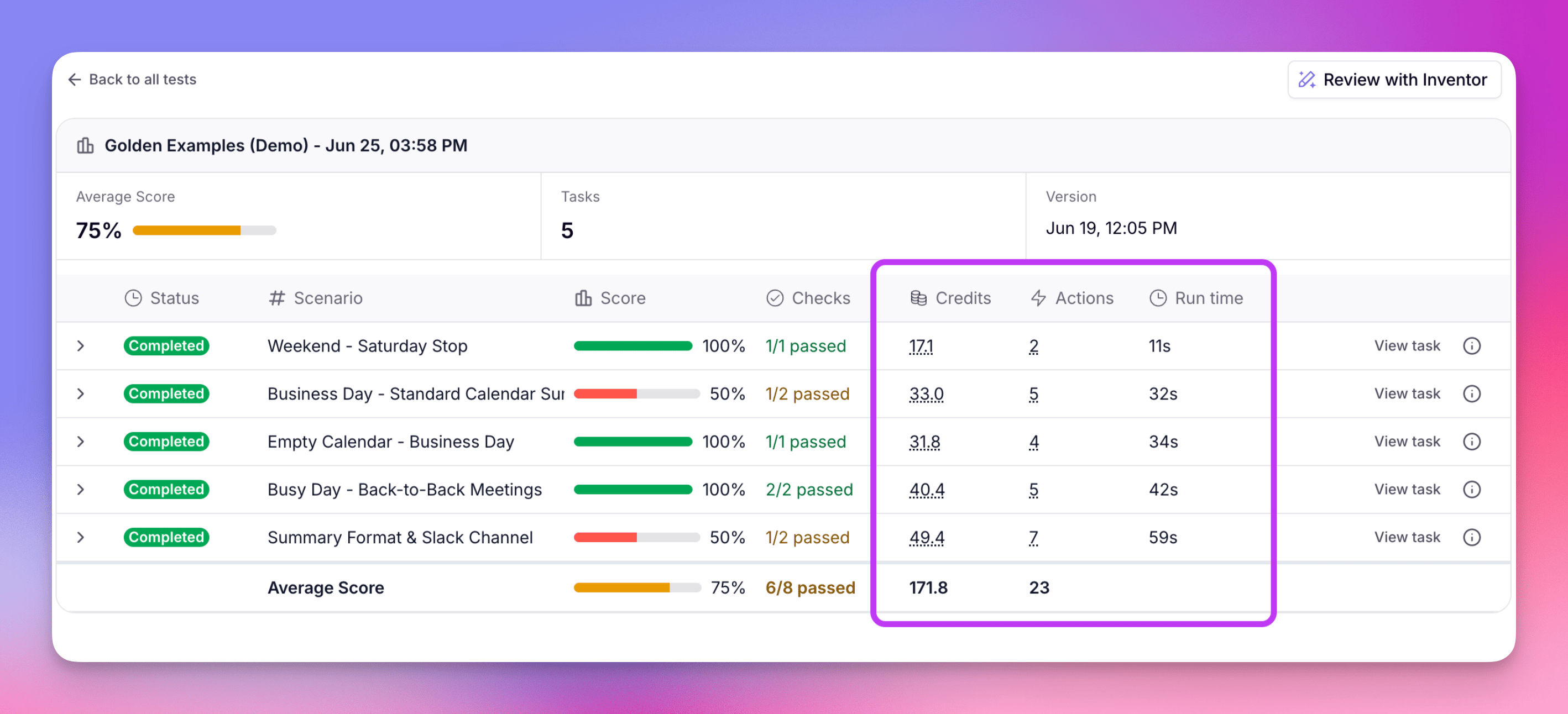
| Column | Description |
| ------------ | -------------------------------------------------------------------------- |
| **Status** | Running, Completed, or Failed |
| **Name** | The scenario name |
| **Score** | Percentage of Checks that passed (shown with progress bar) |
| **Checks** | Pass/fail count (e.g., "1/1 passed") |
| **Credits** | Credits consumed for this scenario |
| **Actions** | Actions consumed for this scenario — each Check plus the agent's tool runs |
| **Run time** | How long the scenario took to complete |
### Viewing conversation details
Click **View Conversation** on any scenario to see:
1. **The full conversation** between the simulated user and your Agent.
2. **Check verdicts** from every Check included in the run, with detailed explanations of why each Check passed or failed.
For example, an "Empathy shown" Check might show:
> **Pass**: The Agent demonstrated strong empathy throughout the conversation. Key examples include: acknowledging the customer's frustration with being transferred multiple times ("I completely understand how upsetting it must be to feel like you're not getting the help you need"), validating her experience with the double charge ("I truly understand how frustrating it is to be charged twice"), and directly addressing her skepticism by saying "I completely understand your concerns, especially given your previous experience."
***
## Monitor
The **Monitor** section continuously scores live Agent tasks against Checks from the Checks tab. Unlike Test, which runs simulated conversations, Monitor evaluates the real conversations your Agent is having.
Monitor is organized into **dashboards** — you can create more than one (for example, one focused on tone, another on tool-use accuracy) and configure each independently.
### Creating a Monitor dashboard
1. Go to the **Evaluate** tab and select **Monitor** from the left sidebar.
2. Click **+ New dashboard** and give it a name.
3. Attach one or more Checks from the Checks tab.
4. Set a **Sample rate** — the percentage of incoming tasks to evaluate.
5. (Optional) Set a **Filter tasks** option to control which task statuses trigger evaluations. Leave blank to evaluate all tasks.
6. Save the dashboard.
Once configured, qualifying tasks are automatically scored at the sample rate you've set.
### Viewing dashboard insights
Each Monitor dashboard shows:
| Metric | Description |
| ----------------- | --------------------------------------------------------------------- |
| **Overall score** | Aggregate score across all evaluated tasks in the selected date range |
| **Total runs** | Number of tasks evaluated |
| **Checks** | Which Checks are attached to the dashboard |
You also get:
* **Overall score timeseries** to spot regressions or improvements over time.
* **Per-Check charts** so you can see which criteria are slipping.
* **Version markers** that line up score changes with Agent publishes.
* **A list of evaluation runs** with score, name, and a drill-in to the full conversation.
To adjust dashboard settings after initial setup, click the **Settings** button in the top right corner of the dashboard.
***
## Publish
The **Publish** section lets you choose which test sets must pass before your Agent can be published. If the results don't meet your minimum pass rate, publishing can be blocked.
You can configure Publish from the **Publish** section in the Evaluate tab.
### Test sets to run
Select which test sets to run before publishing. Click **Add test sets** to choose them — all scenarios in the selected test sets will be evaluated.
### Publish settings
Configure how evaluations affect the publish process:
| Setting | Description |
| --------------------------------------- | ------------------------------------------------------------------------------------------------------------------------------------------------------------------------------------------------------------- |
| **Minimum pass rate (%)** | The minimum score percentage required for the evaluation to pass (e.g., 100%) |
| **Allow publishing even if eval fails** | When unchecked (the default), the Agent will only be published if the evaluation score meets or exceeds the minimum pass rate. When checked, the Agent publishes regardless of whether the evaluation passes. |
Once configured, click **Save**. When you next publish your Agent, the selected test sets will run automatically and the results will be checked against your minimum pass rate.
***
## Cost and billing
 Evaluations are billed in credits and actions. Each scenario reports what it consumed:
| Column | What it shows |
| ------------ | ------------------------------------------------------------------------------------------------------------------------------------------------------------------------------------------------------------------------------------------------------------------------------------------------- |
| **Credits** | Vendor credits consumed by the scenario — the user-simulation LLM calls, the agent's own run, and any LLM-based Checks. Click the value to open the full breakdown. |
| **Actions** | Actions consumed by the scenario — one for each Check, plus the actions from the agent's own tool runs during the conversation. The evaluation run itself isn't charged a separate action. This column only appears on usage-based plans; on legacy plans the action cost is included in Credits. |
| **Run time** | The wall-clock duration of the scenario's conversation, measured from its first message to its last. A timing metric, not a charge, and shown per scenario only (the Average Score row doesn't total it). |
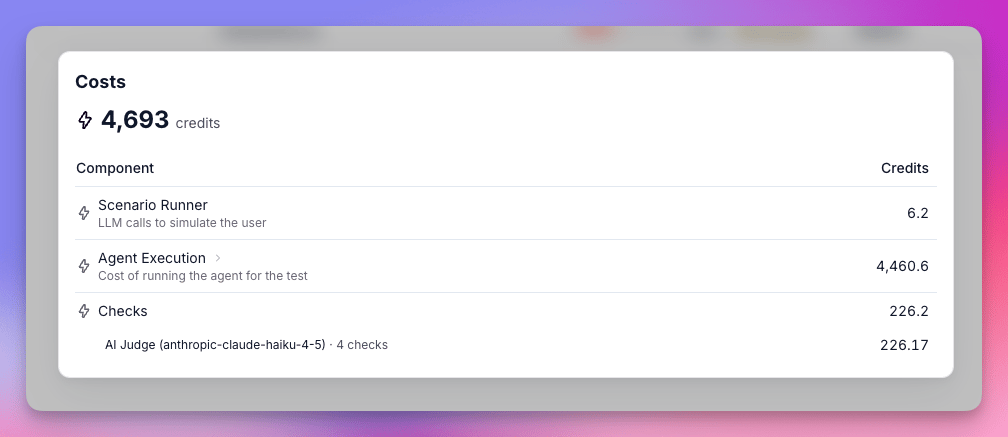
Clicking a **Credits** or **Actions** value opens a breakdown of where that scenario's cost went. It separates the user simulation, the agent's own run, and the Checks that scored the conversation, so you can see which part drives the cost — usually the agent's own execution. The breakdown is split across three components:
Evaluations are billed in credits and actions. Each scenario reports what it consumed:
| Column | What it shows |
| ------------ | ------------------------------------------------------------------------------------------------------------------------------------------------------------------------------------------------------------------------------------------------------------------------------------------------- |
| **Credits** | Vendor credits consumed by the scenario — the user-simulation LLM calls, the agent's own run, and any LLM-based Checks. Click the value to open the full breakdown. |
| **Actions** | Actions consumed by the scenario — one for each Check, plus the actions from the agent's own tool runs during the conversation. The evaluation run itself isn't charged a separate action. This column only appears on usage-based plans; on legacy plans the action cost is included in Credits. |
| **Run time** | The wall-clock duration of the scenario's conversation, measured from its first message to its last. A timing metric, not a charge, and shown per scenario only (the Average Score row doesn't total it). |
Clicking a **Credits** or **Actions** value opens a breakdown of where that scenario's cost went. It separates the user simulation, the agent's own run, and the Checks that scored the conversation, so you can see which part drives the cost — usually the agent's own execution. The breakdown is split across three components:
 | Component | What it covers |
| ------------------- | ------------------------------------------------------------------------------------------------------------------------------------------------------------------------------------------------------------------------------------------------------------------------------ |
| **Scenario Runner** | The LLM calls used to simulate the user. Uses credits only. |
| **Agent Execution** | The agent's own run during the test. Uses credits, plus the actions from each tool the agent runs. These actions were already billed when the agent ran — they're shown here for attribution, not charged again. Workforces have no action-level data, so only credits appear. |
| **Checks** | Each Check that scores the conversation, broken down by model. Each Check uses credits and counts as one action. |
***
## Best practices
Begin with a few core scenarios that test your Agent's primary use cases. Add complexity as you learn what matters most.
Write detailed Check prompts. Vague criteria lead to inconsistent scoring. Include specific examples of what passing looks like.
Create scenarios for difficult situations: angry customers, off-topic requests, requests to bypass rules, etc.
Stand up a Monitor dashboard with your most important Checks so you catch regressions on real conversations, not just simulated ones.
Use the **Unused** filter to clean up Checks that aren't attached anywhere. Group related scenarios into dedicated test sets and reorganize with Move, Copy, and Duplicate as your strategy evolves.
Match the sample rate to your task volume. A low-traffic Agent can run at 100%; high-volume Agents can sample lower to keep costs in check without losing the signal.
***
## Frequently asked questions (FAQs)
You can add as many scenarios as needed to a single test set. Each scenario is evaluated independently and can have its own attached Checks.
Each scenario supports up to 10 Checks. This applies to scenario-level Checks defined within the scenario itself. Checks added via **Additional global checks** at run time are counted separately.
Evaluations consume both Actions and Vendor Credits. Each Check costs 1 Action, while Vendor Credits cover the LLM costs of the task run, the user simulator, and any LLM-based Check. Each scenario shows its full breakdown in the results — see [Cost and billing](#cost-and-billing) for details.
Yes, you can run the same scenarios again at any time. Each run is saved in your Runs history, allowing you to compare results across different Agent versions.
All Checks live in the **Checks** tab under Evaluate. From there you can attach them to scenarios (for evaluation runs), to Monitor dashboards (for live tasks), or to one-off evaluations of completed tasks. The **Scenarios**, **Dashboard**, and **Unused** filters show where each Check is currently attached.
Yes, with configuration. The LLM Judge Check includes a **Truncate long conversations** toggle in the **Advanced** section when creating a Check. When enabled, conversations that exceed the judge model's context window are trimmed and evaluated. When disabled, those conversations fail with an error rather than producing a partial result.
The oldest messages are removed from the start of the conversation until it fits within the judge model's context window. The judge is notified that truncation occurred and evaluates the remaining portion. If your evaluation criteria depend on early context — such as the user's original request or instructions given at the start of the conversation — the result may be less accurate. In those cases, disabling truncation and selecting a model with a larger context window is preferable.
Yes. Each scenario has a dropdown menu (three-dot icon) with three options: **Move** relocates the scenario to another test set, **Copy** creates a duplicate in another test set, and **Duplicate** creates a copy in the same test set.
Evals is rolling out progressively, starting with Enterprise customers. If you don't see the Evaluate tab in the Agent builder, reach out to your account manager to discuss access.
| Component | What it covers |
| ------------------- | ------------------------------------------------------------------------------------------------------------------------------------------------------------------------------------------------------------------------------------------------------------------------------ |
| **Scenario Runner** | The LLM calls used to simulate the user. Uses credits only. |
| **Agent Execution** | The agent's own run during the test. Uses credits, plus the actions from each tool the agent runs. These actions were already billed when the agent ran — they're shown here for attribution, not charged again. Workforces have no action-level data, so only credits appear. |
| **Checks** | Each Check that scores the conversation, broken down by model. Each Check uses credits and counts as one action. |
***
## Best practices
Begin with a few core scenarios that test your Agent's primary use cases. Add complexity as you learn what matters most.
Write detailed Check prompts. Vague criteria lead to inconsistent scoring. Include specific examples of what passing looks like.
Create scenarios for difficult situations: angry customers, off-topic requests, requests to bypass rules, etc.
Stand up a Monitor dashboard with your most important Checks so you catch regressions on real conversations, not just simulated ones.
Use the **Unused** filter to clean up Checks that aren't attached anywhere. Group related scenarios into dedicated test sets and reorganize with Move, Copy, and Duplicate as your strategy evolves.
Match the sample rate to your task volume. A low-traffic Agent can run at 100%; high-volume Agents can sample lower to keep costs in check without losing the signal.
***
## Frequently asked questions (FAQs)
You can add as many scenarios as needed to a single test set. Each scenario is evaluated independently and can have its own attached Checks.
Each scenario supports up to 10 Checks. This applies to scenario-level Checks defined within the scenario itself. Checks added via **Additional global checks** at run time are counted separately.
Evaluations consume both Actions and Vendor Credits. Each Check costs 1 Action, while Vendor Credits cover the LLM costs of the task run, the user simulator, and any LLM-based Check. Each scenario shows its full breakdown in the results — see [Cost and billing](#cost-and-billing) for details.
Yes, you can run the same scenarios again at any time. Each run is saved in your Runs history, allowing you to compare results across different Agent versions.
All Checks live in the **Checks** tab under Evaluate. From there you can attach them to scenarios (for evaluation runs), to Monitor dashboards (for live tasks), or to one-off evaluations of completed tasks. The **Scenarios**, **Dashboard**, and **Unused** filters show where each Check is currently attached.
Yes, with configuration. The LLM Judge Check includes a **Truncate long conversations** toggle in the **Advanced** section when creating a Check. When enabled, conversations that exceed the judge model's context window are trimmed and evaluated. When disabled, those conversations fail with an error rather than producing a partial result.
The oldest messages are removed from the start of the conversation until it fits within the judge model's context window. The judge is notified that truncation occurred and evaluates the remaining portion. If your evaluation criteria depend on early context — such as the user's original request or instructions given at the start of the conversation — the result may be less accurate. In those cases, disabling truncation and selecting a model with a larger context window is preferable.
Yes. Each scenario has a dropdown menu (three-dot icon) with three options: **Move** relocates the scenario to another test set, **Copy** creates a duplicate in another test set, and **Duplicate** creates a copy in the same test set.
Evals is rolling out progressively, starting with Enterprise customers. If you don't see the Evaluate tab in the Agent builder, reach out to your account manager to discuss access.