> ## Documentation Index
> Fetch the complete documentation index at: https://relevanceai.com/docs/llms.txt
> Use this file to discover all available pages before exploring further.
# Triggers
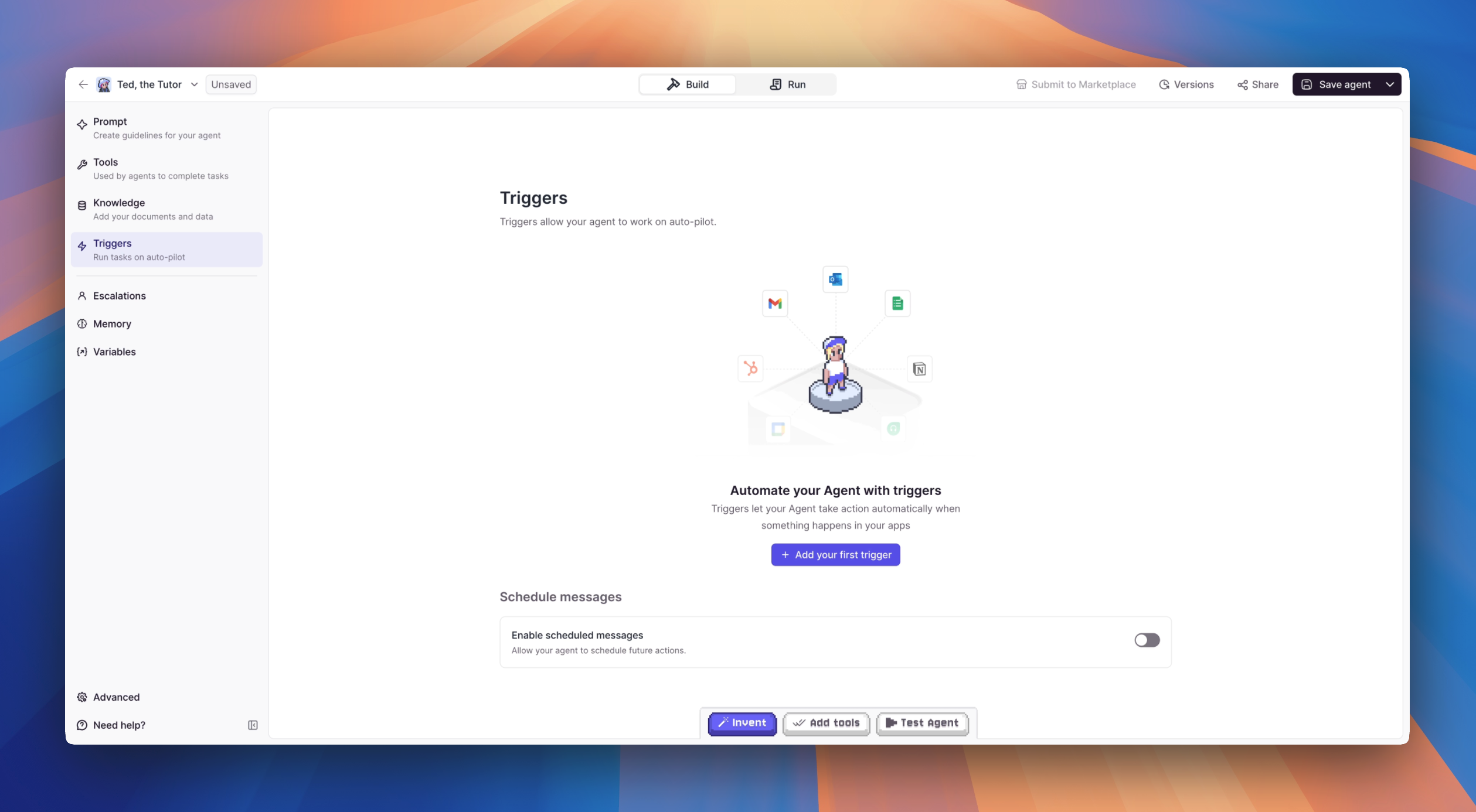 Triggers allow your Agent to start workflows automatically based on specific events. For example, connecting a Gmail trigger will let your Agent process each new email as soon as it arrives in your inbox. Based on your **Prompt** instructions, the Agent can then take action whenever an email "triggers" it.
You can trigger your Agent through three different methods:
* **Scheduled Events**: Set your agent to run at specific times or intervals
* **External Actions**: Configure your agent to respond to specific events or inputs
* **Manual Activation**: Allow users to directly engage with the agent when needed
## Setting up a trigger
1. Navigate to the **Agents** page and select the agent you want to configure
2. In the sidebar on the left, click **Triggers**
3. Click the **Add trigger** button
4. Choose from the available trigger types — integration triggers, scheduled triggers, or build-your-own options like webhooks, SDK, API, or Tools
5. Follow the configuration steps for your chosen trigger type
6. Once configured, your trigger will appear in the Triggers section of your agent
You can add multiple triggers to a single agent. Each trigger operates independently, so your agent can respond to emails, run on a schedule, and accept API requests all at the same time.
## Managing your triggers
Once you've set up triggers, you can control them without deleting your configuration.
### Pausing and resuming triggers
You can pause any trigger type — integration triggers (Gmail, Slack, LinkedIn, WhatsApp, etc.), scheduled triggers, webhooks, and all others. Pausing stops the trigger from firing while preserving all your configuration, so you don't need to delete and recreate triggers when you want to temporarily disable them.
#### To pause or resume a single trigger
1. Go to your agent's **Triggers** section in agent settings or the agent builder sidebar
2. Find the trigger you want to pause
3. Click the pause button next to the trigger
4. To resume, click the resume button
#### To pause or resume all triggers at once
Use the **Pause all** or **Resume all** buttons at the top of the Triggers section to quickly control all triggers for your agent.
### Visual status indicators
Active triggers display with a standard appearance, while paused triggers show a visual indicator so you can quickly see which triggers are currently active and which are paused.
### Where to manage triggers
You can pause and resume triggers from two locations:
* **Agent settings**: Navigate to your agent and open the Triggers section
* **Agent builder sidebar**: Access trigger controls directly while building your agent
### Common use cases for pausing triggers
* **Testing**: Pause production triggers while testing changes to your agent
* **Maintenance**: Temporarily disable triggers during system updates or configuration changes
* **Cost control**: Pause high-volume triggers during periods when you don't need them active
* **Debugging**: Isolate specific triggers to troubleshoot issues
* **Seasonal workflows**: Pause triggers that are only relevant during certain times of the year
## Trigger types
### Integration triggers
We have 1,000+ integrations you can connect to and set up to trigger your Agent, including external triggers like Zapier.
View all available integration triggers and premium options.
### Scheduled triggers
Set your Agent to run on a recurring schedule or send messages at specific times.
Set up recurring schedules and scheduled messages.
### Build your own triggers
Connect to custom webhooks, APIs, and SDKs to trigger your Agent programmatically.
Trigger your Agent from a custom webhook.
Trigger your Agent with direct HTTP requests from any language.
Build a JavaScript or TypeScript app that talks to your Agent.
Use a specific Tool to trigger your Agent.
## Choosing the right trigger
| I want to... | Use this trigger |
| ------------------------------------------------------- | ----------------------------------- |
| React to emails, Slack messages, or CRM updates | **Integration Triggers** |
| Run a report every morning or weekly | **Scheduled Triggers** |
| Send follow-ups or reminders at a future time | **Scheduled Messages** |
| Connect a third-party service like Zapier | **Integration Triggers** (external) |
| Receive data from my own app or website | **Webhook Trigger** |
| Trigger my Agent over HTTP from any language | **API Trigger** |
| Build a JavaScript or TypeScript app on top of my Agent | **JavaScript SDK** |
| Combine data from multiple sources before triggering | **Tools as Triggers** |
## Frequently asked questions (FAQs)
Yes. Each Trigger operates independently, so your Agent can respond to integration events, run on a schedule, and accept API requests all at the same time.
The Trigger sends a message to your Agent, which then processes it based on your Prompt instructions and executes its configured Tools.
Yes. You can pause any trigger type from your agent's Triggers section — this works for integration triggers (Gmail, Slack, LinkedIn, WhatsApp, etc.), scheduled triggers, webhooks, and all other trigger types.
Pausing preserves all your configuration, so you don't need to delete and recreate triggers. You can pause individual triggers or use the **Pause all** button to disable all triggers at once. Visual status indicators show which triggers are active and which are paused.
This is useful for testing, maintenance, cost control, or any time you need to temporarily disable triggers without losing your setup.
Triggers allow your Agent to start workflows automatically based on specific events. For example, connecting a Gmail trigger will let your Agent process each new email as soon as it arrives in your inbox. Based on your **Prompt** instructions, the Agent can then take action whenever an email "triggers" it.
You can trigger your Agent through three different methods:
* **Scheduled Events**: Set your agent to run at specific times or intervals
* **External Actions**: Configure your agent to respond to specific events or inputs
* **Manual Activation**: Allow users to directly engage with the agent when needed
## Setting up a trigger
1. Navigate to the **Agents** page and select the agent you want to configure
2. In the sidebar on the left, click **Triggers**
3. Click the **Add trigger** button
4. Choose from the available trigger types — integration triggers, scheduled triggers, or build-your-own options like webhooks, SDK, API, or Tools
5. Follow the configuration steps for your chosen trigger type
6. Once configured, your trigger will appear in the Triggers section of your agent
You can add multiple triggers to a single agent. Each trigger operates independently, so your agent can respond to emails, run on a schedule, and accept API requests all at the same time.
## Managing your triggers
Once you've set up triggers, you can control them without deleting your configuration.
### Pausing and resuming triggers
You can pause any trigger type — integration triggers (Gmail, Slack, LinkedIn, WhatsApp, etc.), scheduled triggers, webhooks, and all others. Pausing stops the trigger from firing while preserving all your configuration, so you don't need to delete and recreate triggers when you want to temporarily disable them.
#### To pause or resume a single trigger
1. Go to your agent's **Triggers** section in agent settings or the agent builder sidebar
2. Find the trigger you want to pause
3. Click the pause button next to the trigger
4. To resume, click the resume button
#### To pause or resume all triggers at once
Use the **Pause all** or **Resume all** buttons at the top of the Triggers section to quickly control all triggers for your agent.
### Visual status indicators
Active triggers display with a standard appearance, while paused triggers show a visual indicator so you can quickly see which triggers are currently active and which are paused.
### Where to manage triggers
You can pause and resume triggers from two locations:
* **Agent settings**: Navigate to your agent and open the Triggers section
* **Agent builder sidebar**: Access trigger controls directly while building your agent
### Common use cases for pausing triggers
* **Testing**: Pause production triggers while testing changes to your agent
* **Maintenance**: Temporarily disable triggers during system updates or configuration changes
* **Cost control**: Pause high-volume triggers during periods when you don't need them active
* **Debugging**: Isolate specific triggers to troubleshoot issues
* **Seasonal workflows**: Pause triggers that are only relevant during certain times of the year
## Trigger types
### Integration triggers
We have 1,000+ integrations you can connect to and set up to trigger your Agent, including external triggers like Zapier.
View all available integration triggers and premium options.
### Scheduled triggers
Set your Agent to run on a recurring schedule or send messages at specific times.
Set up recurring schedules and scheduled messages.
### Build your own triggers
Connect to custom webhooks, APIs, and SDKs to trigger your Agent programmatically.
Trigger your Agent from a custom webhook.
Trigger your Agent with direct HTTP requests from any language.
Build a JavaScript or TypeScript app that talks to your Agent.
Use a specific Tool to trigger your Agent.
## Choosing the right trigger
| I want to... | Use this trigger |
| ------------------------------------------------------- | ----------------------------------- |
| React to emails, Slack messages, or CRM updates | **Integration Triggers** |
| Run a report every morning or weekly | **Scheduled Triggers** |
| Send follow-ups or reminders at a future time | **Scheduled Messages** |
| Connect a third-party service like Zapier | **Integration Triggers** (external) |
| Receive data from my own app or website | **Webhook Trigger** |
| Trigger my Agent over HTTP from any language | **API Trigger** |
| Build a JavaScript or TypeScript app on top of my Agent | **JavaScript SDK** |
| Combine data from multiple sources before triggering | **Tools as Triggers** |
## Frequently asked questions (FAQs)
Yes. Each Trigger operates independently, so your Agent can respond to integration events, run on a schedule, and accept API requests all at the same time.
The Trigger sends a message to your Agent, which then processes it based on your Prompt instructions and executes its configured Tools.
Yes. You can pause any trigger type from your agent's Triggers section — this works for integration triggers (Gmail, Slack, LinkedIn, WhatsApp, etc.), scheduled triggers, webhooks, and all other trigger types.
Pausing preserves all your configuration, so you don't need to delete and recreate triggers. You can pause individual triggers or use the **Pause all** button to disable all triggers at once. Visual status indicators show which triggers are active and which are paused.
This is useful for testing, maintenance, cost control, or any time you need to temporarily disable triggers without losing your setup.