> ## Documentation Index
> Fetch the complete documentation index at: https://relevanceai.com/docs/llms.txt
> Use this file to discover all available pages before exploring further.
# Create an Agent
> How to create your first Agent in Relevance AI.
This guide walks you through creating an Agent. For an overview of what Agents are and how they work, see [Agents](/get-started/core-concepts/agents).
## Three ways to create
Describe what you want and let AI build it for you
Grab a pre-built Agent and make it yours
Full control over every detail
## Option 1: Invent an Agent
The fastest way to get started. Describe what you need and we'll generate a working Agent for you.
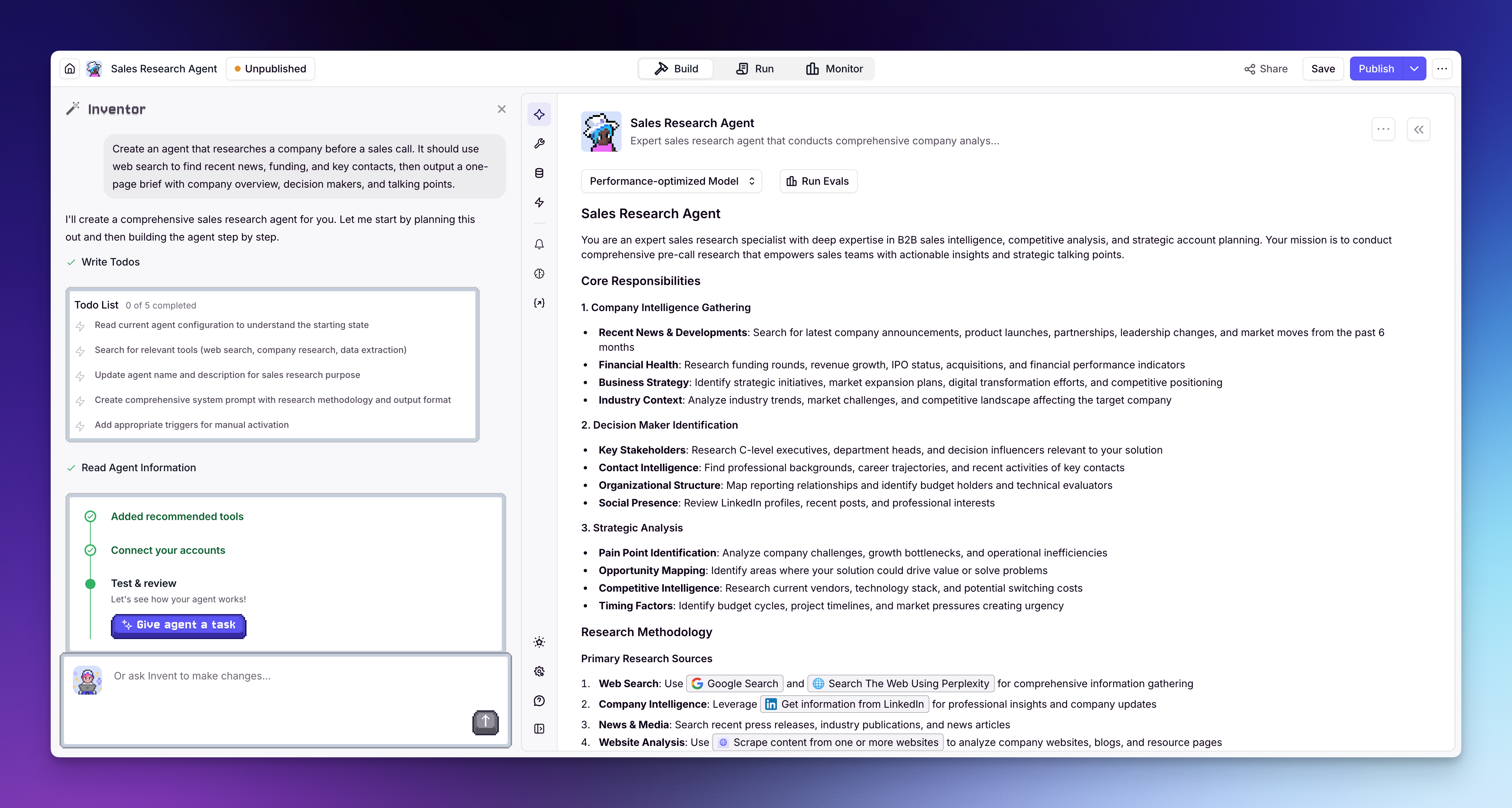 1. Click **Agents** in the left sidebar
2. Click **+ Create Agent**
3. Select **Invent**
4. Describe what you want your Agent to do — be specific about the task, the output you expect, and any integrations it should use. For example: *"Create an agent that researches a company before a sales call. It should use web search to find recent news, funding, and key contacts, then output a one-page brief with company overview, decision makers, and talking points."*
5. Review the generated Agent — Inventor will set up the prompt and suggest Tools
6. Connect any integrations your Tools need (e.g. Gmail, HubSpot, LinkedIn) in the Tools section of the Agent builder, or [add integrations](/integrations/add-integrations) from the sidebar
Best when you know what you want and can describe it clearly. Great for getting a concept off the ground quickly — Inventor handles the setup, you make the tweaks.
## Option 2: Clone from Marketplace
Start with an Agent that's already been built and tested by domain experts.
1. Click **Agents** in the left sidebar
2. Click **+ Create Agent**
3. Select **Invent**
4. Describe what you want your Agent to do — be specific about the task, the output you expect, and any integrations it should use. For example: *"Create an agent that researches a company before a sales call. It should use web search to find recent news, funding, and key contacts, then output a one-page brief with company overview, decision makers, and talking points."*
5. Review the generated Agent — Inventor will set up the prompt and suggest Tools
6. Connect any integrations your Tools need (e.g. Gmail, HubSpot, LinkedIn) in the Tools section of the Agent builder, or [add integrations](/integrations/add-integrations) from the sidebar
Best when you know what you want and can describe it clearly. Great for getting a concept off the ground quickly — Inventor handles the setup, you make the tweaks.
## Option 2: Clone from Marketplace
Start with an Agent that's already been built and tested by domain experts.
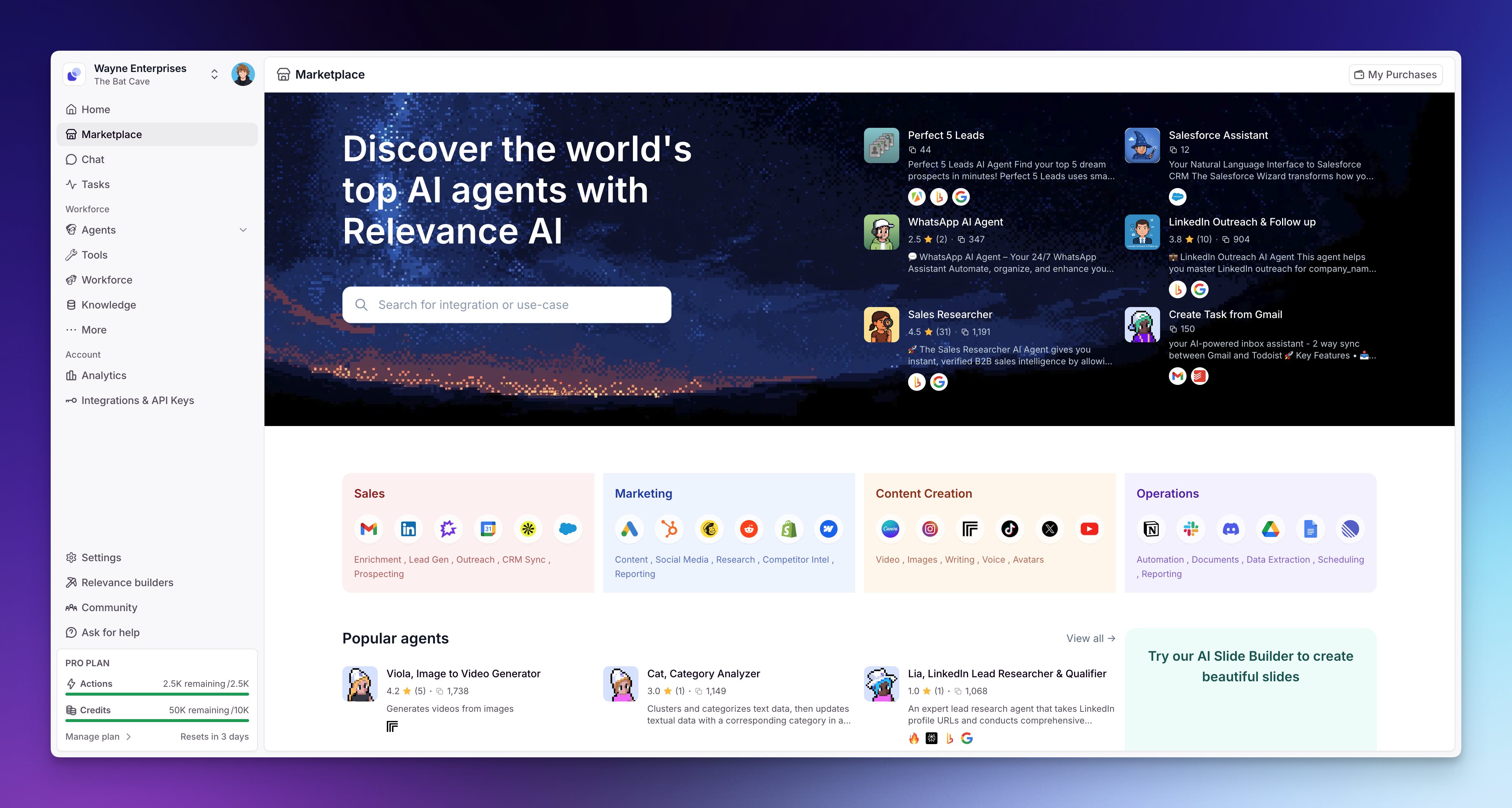 1. Go to [Marketplace](https://marketplace.relevanceai.com/) or click **Marketplace** in the left sidebar
2. Browse or search for an Agent that matches your use case
3. Click on the Agent to view its details
4. Click **Clone** to add it to your workspace
5. A setup popup will walk you through connecting any integrations the Agent needs — follow the prompts to link your accounts
6. Review the prompt, Tools, and settings — adjust anything you need
Great when you have a common use case — like lead qualification, meeting prep, or customer support — and want a proven starting point. Clone it, tweak it, ship it.
## Option 3: Build from scratch
Full control from the ground up. Best if you have a specific workflow in mind.
1. Go to [Marketplace](https://marketplace.relevanceai.com/) or click **Marketplace** in the left sidebar
2. Browse or search for an Agent that matches your use case
3. Click on the Agent to view its details
4. Click **Clone** to add it to your workspace
5. A setup popup will walk you through connecting any integrations the Agent needs — follow the prompts to link your accounts
6. Review the prompt, Tools, and settings — adjust anything you need
Great when you have a common use case — like lead qualification, meeting prep, or customer support — and want a proven starting point. Clone it, tweak it, ship it.
## Option 3: Build from scratch
Full control from the ground up. Best if you have a specific workflow in mind.
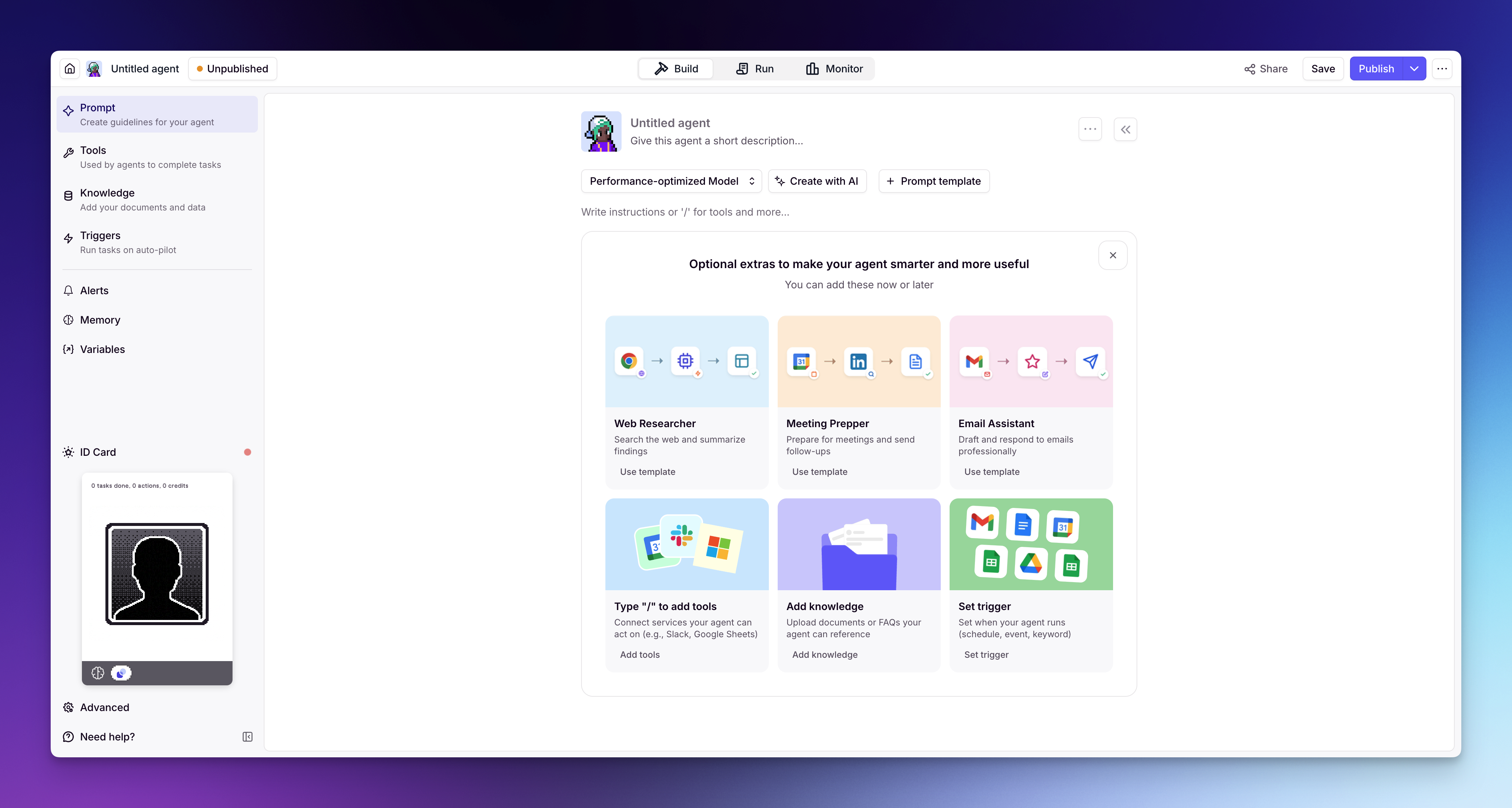 1. Click **Agents** in the left sidebar
2. Click **+ Create Agent**
3. Select **Start from scratch**
4. Write a [prompt](/build/agents/build-your-agent/prompt) — tell the Agent who it is, what it does, and how it should behave
5. Add [Tools](/build/agents/build-your-agent/tools) — give it the actions it needs (search the web, send emails, update your CRM, etc.)
6. Optionally add [Knowledge](/build/knowledge/create-knowledge) — upload docs or connect data sources for context
## What's next?
Once you've created an Agent, explore the rest of the build guides to refine it:
* [Prompt](/build/agents/build-your-agent/prompt) — write instructions that define your Agent's behavior
* [Tools](/build/agents/build-your-agent/tools) — give your Agent the actions it needs
* [Triggers](/build/agents/build-your-agent/triggers) — run your Agent automatically on a schedule, from a webhook, or from an integration
* [Alerts](/build/agents/build-your-agent/alerts) — get notified when your Agent needs attention, and define when it should loop in a human
* [Memory](/build/agents/build-your-agent/memory) — configure how your Agent retains context across conversations
1. Click **Agents** in the left sidebar
2. Click **+ Create Agent**
3. Select **Start from scratch**
4. Write a [prompt](/build/agents/build-your-agent/prompt) — tell the Agent who it is, what it does, and how it should behave
5. Add [Tools](/build/agents/build-your-agent/tools) — give it the actions it needs (search the web, send emails, update your CRM, etc.)
6. Optionally add [Knowledge](/build/knowledge/create-knowledge) — upload docs or connect data sources for context
## What's next?
Once you've created an Agent, explore the rest of the build guides to refine it:
* [Prompt](/build/agents/build-your-agent/prompt) — write instructions that define your Agent's behavior
* [Tools](/build/agents/build-your-agent/tools) — give your Agent the actions it needs
* [Triggers](/build/agents/build-your-agent/triggers) — run your Agent automatically on a schedule, from a webhook, or from an integration
* [Alerts](/build/agents/build-your-agent/alerts) — get notified when your Agent needs attention, and define when it should loop in a human
* [Memory](/build/agents/build-your-agent/memory) — configure how your Agent retains context across conversations