> ## Documentation Index
> Fetch the complete documentation index at: https://relevanceai.com/docs/llms.txt
> Use this file to discover all available pages before exploring further.
# Introduction to Evals
> Test and evaluate Agents and Workforces with simulated conversations and reusable scoring criteria
Evals is where you test and measure performance. It works on both Agents and Workforces, and lives in the **Evaluate** tab of the Agent or Workforce builder, next to **Build** and **Run**. Use it to create Test sets, define reusable scoring criteria, run evaluations, and monitor quality on live conversations.
## Why use Evals?
Any time you put an Agent to work, you want to be sure it's accomplishing your business outcomes. That might be increasing marketing qualified leads, or reducing the time it takes to respond to a lead. Evals gives you the confidence that your Agent is hitting the mark with its target audience — and that it still does after the next change.
You write Tests that simulate the users and situations you care about, and Evals scores each one against success criteria you define. Agents and Workforces are non-deterministic — the same input can produce a different answer, and a change to a prompt, a Tool, or a model can shift behavior somewhere you weren't looking — so holding the Tests and the criteria steady is what makes one version's score comparable to the next.
Build Test sets holding Tests that simulate real user conversations, then attach criteria to score every one automatically.
Define a criterion once in the **Checks** tab and attach it to Tests, Monitor dashboards, or ad-hoc evaluations of completed tasks.
Create Monitor dashboards that score live tasks against the same criteria, with sample-rate controls and per-criterion trend charts over time.
***
## Overview of Evals
Evals has five core features, each with its own section in the left sidebar of the Evaluate tab:
* **Test** — Create and manage Test sets. Each Test set holds Tests that simulate users; running a Test produces a conversation with the Agent or Workforce that gets scored by the criteria you attach.
* **Runs** — Past evaluation run results. Browse average scores, tasks evaluated, progress status, cost (Credits and Actions), and creation date for every run.
* **Checks** — Your library of scoring criteria; each one is called a Check. Create a Check once, then attach it to Tests, to Monitor dashboards, or to one-off evaluations of completed tasks.
* **Publish** — Choose which Test sets must pass before your Agent or Workforce can be published. Set a minimum pass rate and optionally block publishing on failure.
* **Monitor** — Track quality on real tasks. Create one or more Monitor dashboards, attach Checks, set a sample rate, and watch scores trend over time.
***
## Cost and billing
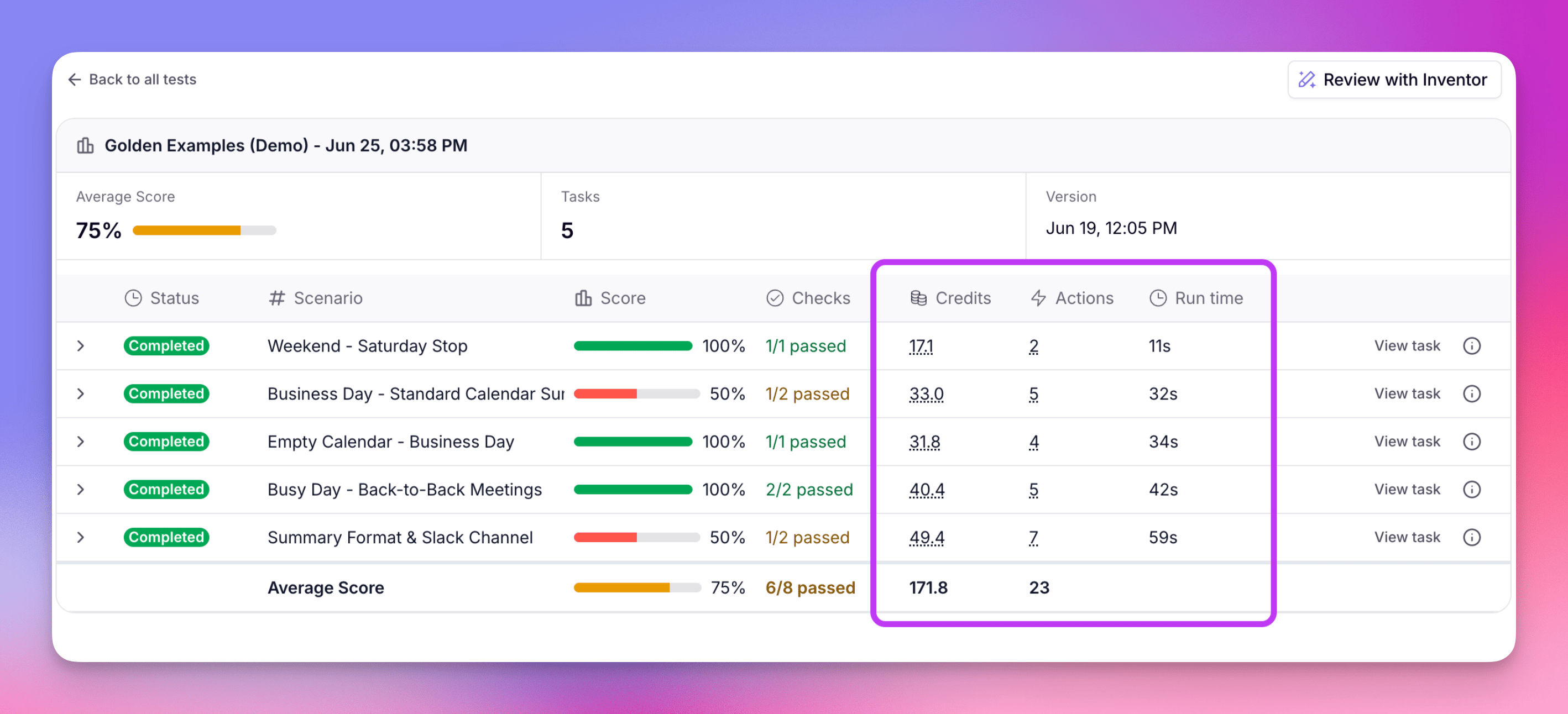
Evaluations are billed in credits and actions. Each Test reports what it consumed in the results view.
### Cost columns
 | Column | What it shows |
| ------------ | ------------------------------------------------------------------------------------------------------------------------------------------------------------------------------------------------------------------------------------------------------------------------------------- |
| **Credits** | Vendor credits consumed by the Test — the user-simulation LLM calls, the Agent or Workforce's own run, and any LLM-based Checks. Click the value to open the full breakdown. |
| **Actions** | Actions consumed by the Test — one for each Check, plus the actions from its own Tool runs during the conversation. The evaluation run itself isn't charged a separate action. This column only appears on usage-based plans; on legacy plans the action cost is included in Credits. |
| **Run time** | The wall-clock duration of the Test's conversation, measured from its first message to its last. A timing metric, not a charge, and shown per Test only (the Average Score row doesn't total it). |
### Cost breakdown
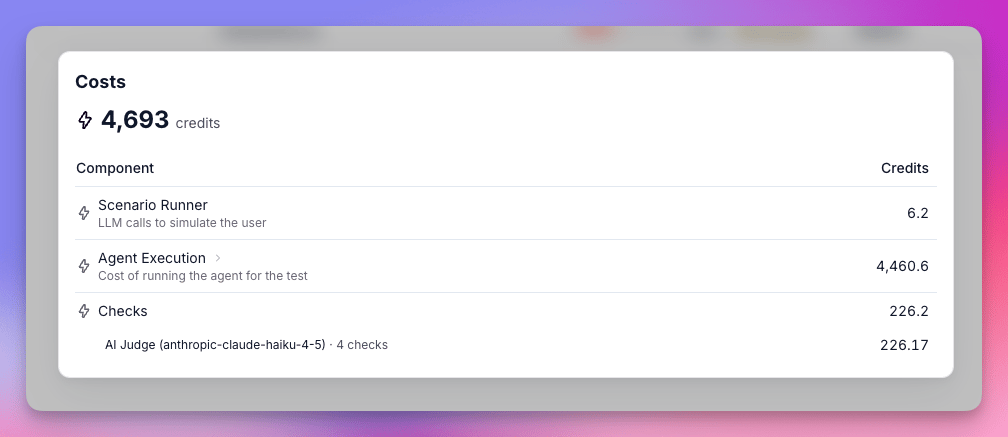
Clicking a **Credits** or **Actions** value opens a breakdown of where that Test's cost went. It separates the user simulation, the Agent or Workforce's own run, and the Checks that scored the conversation, so you can see which part drives the cost — usually its own execution.
| Column | What it shows |
| ------------ | ------------------------------------------------------------------------------------------------------------------------------------------------------------------------------------------------------------------------------------------------------------------------------------- |
| **Credits** | Vendor credits consumed by the Test — the user-simulation LLM calls, the Agent or Workforce's own run, and any LLM-based Checks. Click the value to open the full breakdown. |
| **Actions** | Actions consumed by the Test — one for each Check, plus the actions from its own Tool runs during the conversation. The evaluation run itself isn't charged a separate action. This column only appears on usage-based plans; on legacy plans the action cost is included in Credits. |
| **Run time** | The wall-clock duration of the Test's conversation, measured from its first message to its last. A timing metric, not a charge, and shown per Test only (the Average Score row doesn't total it). |
### Cost breakdown
Clicking a **Credits** or **Actions** value opens a breakdown of where that Test's cost went. It separates the user simulation, the Agent or Workforce's own run, and the Checks that scored the conversation, so you can see which part drives the cost — usually its own execution.
 | Component | What it covers |
| ------------------- | ----------------------------------------------------------------------------------------------------------------------------------------------------------------------------------------------------------------------------------------------------------------------------- |
| **Scenario Runner** | The LLM calls used to simulate the user. Uses credits only. |
| **Agent Execution** | The Agent or Workforce's own run during the Test. Uses credits, plus the actions from each Tool it runs. These actions were already billed when it ran — they're shown here for attribution, not charged again. Workforces have no action-level data, so only credits appear. |
| **Checks** | Each Check that scores the conversation, broken down by model. Each Check uses credits and counts as one action. |
***
Next: Learn how to [create Tests](/docs/build/agents/evals/test-sets) — the simulated conversations your Agent gets evaluated against.
## Frequently asked questions (FAQs)
Evals is available on every plan. The **Evaluate** tab sits next to **Build** and **Run** in the Agent or Workforce builder — if it isn't there, [contact support](/docs/get-started/support).
Evaluations consume both Actions and Vendor Credits. Each Check costs 1 Action, while Vendor Credits cover the LLM costs of the task run, the user simulator, and any LLM-based Check. Each Test shows its full breakdown in the results — see [Cost columns](#cost-columns) above for details.
| Component | What it covers |
| ------------------- | ----------------------------------------------------------------------------------------------------------------------------------------------------------------------------------------------------------------------------------------------------------------------------- |
| **Scenario Runner** | The LLM calls used to simulate the user. Uses credits only. |
| **Agent Execution** | The Agent or Workforce's own run during the Test. Uses credits, plus the actions from each Tool it runs. These actions were already billed when it ran — they're shown here for attribution, not charged again. Workforces have no action-level data, so only credits appear. |
| **Checks** | Each Check that scores the conversation, broken down by model. Each Check uses credits and counts as one action. |
***
Next: Learn how to [create Tests](/docs/build/agents/evals/test-sets) — the simulated conversations your Agent gets evaluated against.
## Frequently asked questions (FAQs)
Evals is available on every plan. The **Evaluate** tab sits next to **Build** and **Run** in the Agent or Workforce builder — if it isn't there, [contact support](/docs/get-started/support).
Evaluations consume both Actions and Vendor Credits. Each Check costs 1 Action, while Vendor Credits cover the LLM costs of the task run, the user simulator, and any LLM-based Check. Each Test shows its full breakdown in the results — see [Cost columns](#cost-columns) above for details.