> ## Documentation Index
> Fetch the complete documentation index at: https://relevanceai.com/docs/llms.txt
> Use this file to discover all available pages before exploring further.
# Tasks
> Learn what a Task is, where to view your Tasks, and how to read one in the Run tab
A Task is a single run of work carried out by an Agent or a Workforce: a conversation with an Agent, or a workflow a Workforce runs. It's made up of the messages exchanged and the Tool runs along the way. You can view Tasks in a variety of places, but the two main ones are the Run tab of the Agent and Workforce builders and the Tasks page.
## Where you can view Tasks
The Agent and Workforce builders each have a Run tab showing that Agent or Workforce's Tasks, where you can also start new ones.
Every Task across all your Agents and Workforces in one list, for monitoring and acting in bulk.
## What's inside a Task
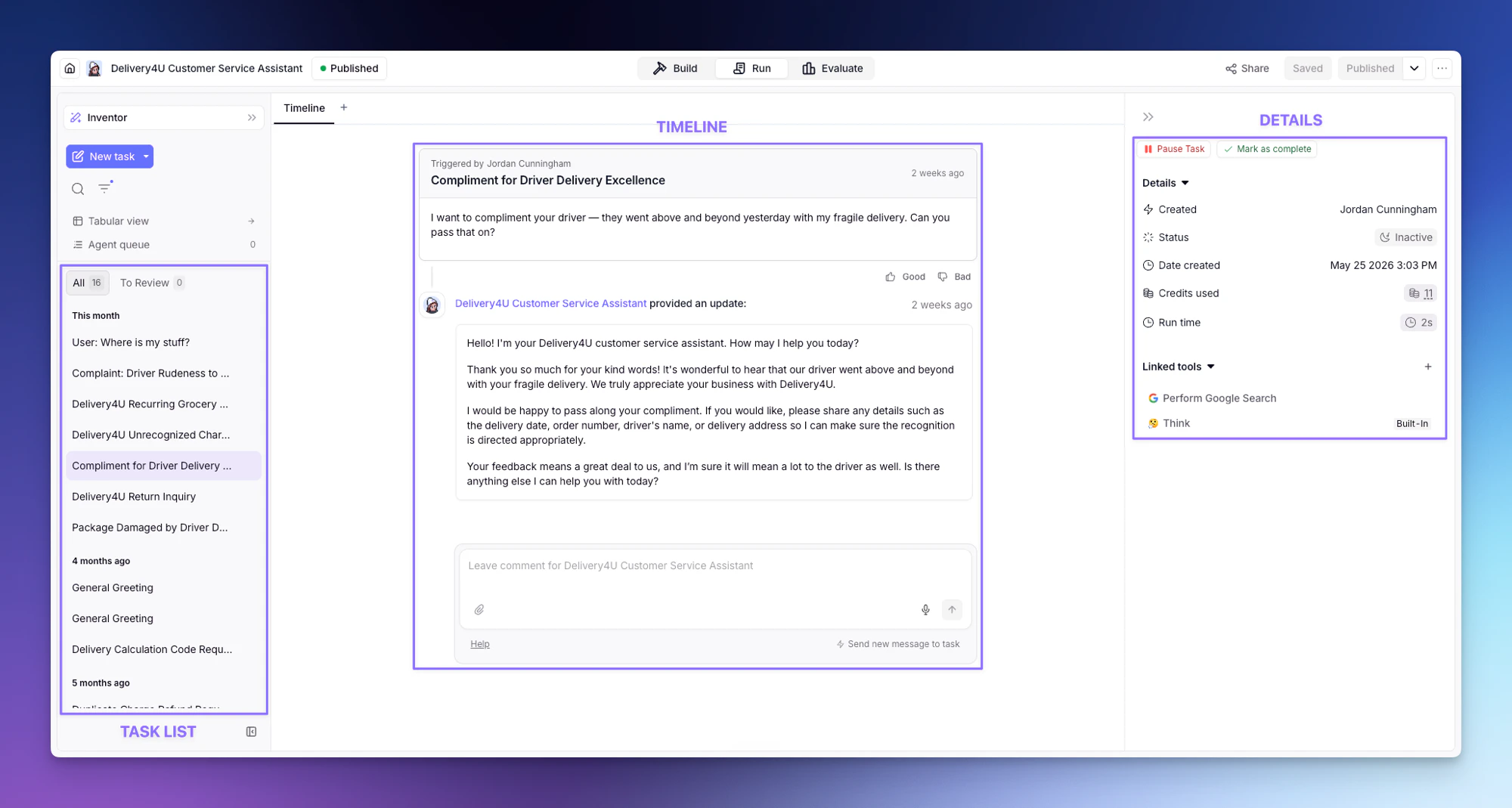
A Task is made up of the messages exchanged, the steps the Agent took, and the details of the run. The most common place to see all of it is the Run tab, where you interact with an Agent inside the Agent builder. The same Task can also open through an embed or in [Relevance Chat](/get-started/chat/introduction).
 ### Task list
The left side lists every conversation for the Agent, grouped by recency, with **All** and **To Review** tabs, search and filters, a **Tabular view**, and the **Agent queue**. Start a fresh one with **New task**.
### Timeline
The center shows the Task thread (the messages exchanged and the Tool runs), with a comment box at the bottom to message the Task directly.
### Details
The right side has **Pause Task** and **Mark as complete**, plus the Task's **Created** by, **Status**, **Date created**, **Credits used**, **Run time**, and **Linked tools**.
## Filtering Tasks
The Task list has a filter builder for narrowing down to exactly the Tasks you need. You can filter by:
* **Status** — Task state like Running, Completed, Paused, or Timed out
* **Agent** — Tasks from a specific Agent
* **Tool usage** — which Tools the Task used
* **Errors** — failure type: **Agent has errored** (the Agent itself stopped on an error) or **Has active tool failures** (a Tool failed mid-run, even if the Agent kept going)
* **Metadata, date, and more** — custom fields, time range, who triggered the Task, and other conditions
Combine the two error filters to catch every kind of failure, including Tool failures that never surfaced as an obvious error.
## Viewing Tasks across all your Agents
The views above each focus on a single Agent or Workforce. To monitor and troubleshoot every Task across all your Agents and Workforces from one place, head to the [Tasks page](/build/agents/give-your-agent-tasks/tasks-page). It's where you triage escalations, errors, and approvals, and act in bulk when a whole group needs the same fix. Selecting any Task there opens the same conversation (its messages and Tool runs) in a side panel.
### Task list
The left side lists every conversation for the Agent, grouped by recency, with **All** and **To Review** tabs, search and filters, a **Tabular view**, and the **Agent queue**. Start a fresh one with **New task**.
### Timeline
The center shows the Task thread (the messages exchanged and the Tool runs), with a comment box at the bottom to message the Task directly.
### Details
The right side has **Pause Task** and **Mark as complete**, plus the Task's **Created** by, **Status**, **Date created**, **Credits used**, **Run time**, and **Linked tools**.
## Filtering Tasks
The Task list has a filter builder for narrowing down to exactly the Tasks you need. You can filter by:
* **Status** — Task state like Running, Completed, Paused, or Timed out
* **Agent** — Tasks from a specific Agent
* **Tool usage** — which Tools the Task used
* **Errors** — failure type: **Agent has errored** (the Agent itself stopped on an error) or **Has active tool failures** (a Tool failed mid-run, even if the Agent kept going)
* **Metadata, date, and more** — custom fields, time range, who triggered the Task, and other conditions
Combine the two error filters to catch every kind of failure, including Tool failures that never surfaced as an obvious error.
## Viewing Tasks across all your Agents
The views above each focus on a single Agent or Workforce. To monitor and troubleshoot every Task across all your Agents and Workforces from one place, head to the [Tasks page](/build/agents/give-your-agent-tasks/tasks-page). It's where you triage escalations, errors, and approvals, and act in bulk when a whole group needs the same fix. Selecting any Task there opens the same conversation (its messages and Tool runs) in a side panel.