> ## Documentation Index
> Fetch the complete documentation index at: https://relevanceai.com/docs/llms.txt
> Use this file to discover all available pages before exploring further.
# Meeting Auto-Scheduling Agent
> Automate meeting coordination with AI-powered scheduling
Meeting Auto-Scheduling Agents are digital teammates that actively negotiate optimal meeting times by understanding context, preferences, and priorities. They process thousands of scheduling permutations in seconds while coordinating across teams, time zones, and calendars. No more back-and-forth emails.
## Key features
Understands scheduling requests in plain English
Finds times during working hours for all participants across time zones
Handles hard conflicts, soft conflicts, and priority-based scheduling
Proposes alternatives when meetings need to move
Adapts to individual and team scheduling patterns over time
Adds breaks between consecutive meetings
Respects organizational hierarchy and meeting importance
Works with Google Calendar, Outlook, and major meeting platforms
## How to set up an agent for meeting auto-scheduling
### Triggers for meeting scheduling agents
To enable your scheduling agent, you'll need a Google Calendar integration with read/write access to check availability and create events, plus a Gmail trigger to monitor your inbox and kick off the agent when scheduling requests arrive.
### Add tools to your scheduling agent
To build a calendar scheduling agent, you'll need these basic tools to get started:
Find open slots in your sales team's calendars
Reply with available time options to prospects
Automatically generate video links for each demo
Avoid double-booking or scheduling too many demos in one day
#### How to add these tools to your agent
1. Go to **Tools** in your Agent Builder
2. Click **+ Add Tool**
3. Click **New Tool**
4. Click **Build from Scratch**
5. Click **Add Step**
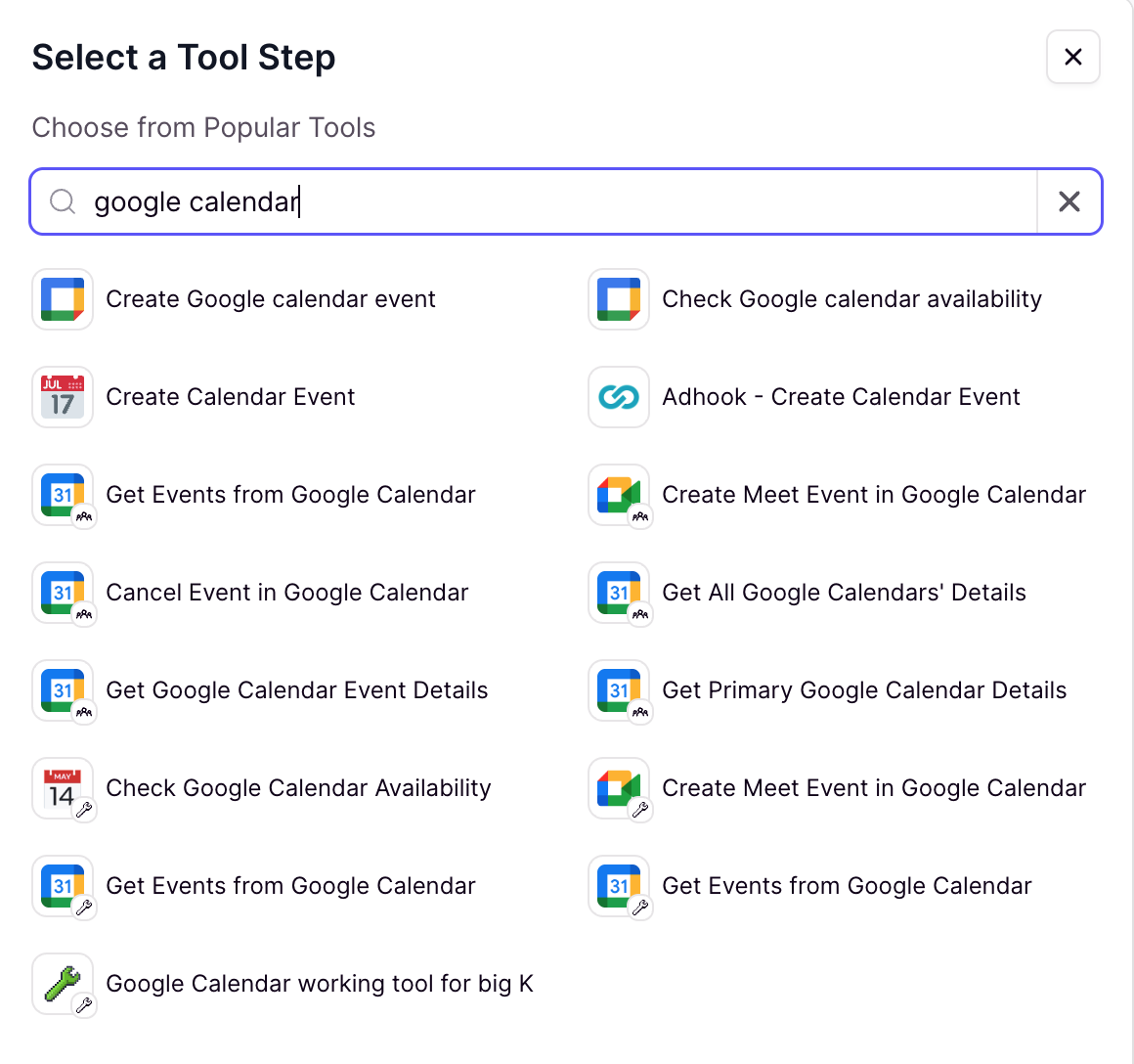
6. Search for your calendar provider (e.g., "google calendar" or "outlook")
7. Select the tools you need from the results
Search for your specific calendar provider to discover available built-in tools.
 ## Use case example: Automating demo requests for sales
**Scenario**
Your sales team receives numerous demo requests via email. Instead of manually checking calendars and coordinating schedules, an AI agent can handle the entire process automatically.
***
**How it works:**
Automatically detects demo requests from incoming emails
Reviews your calendar in real-time to find open slots
Handles timezone differences automatically to suggest appropriate meeting times
Suggests 30-minute meeting slots across two different days (avoiding weekends)
* Books immediately if a specific time is requested and available
* Proposes 2-3 times per day when flexibility is needed
* Sends professional confirmation emails
***
**Ready to use this agent?**
[Clone from Relevance AI Marketplace →](https://marketplace.relevanceai.com/)
## Use case example: Automating demo requests for sales
**Scenario**
Your sales team receives numerous demo requests via email. Instead of manually checking calendars and coordinating schedules, an AI agent can handle the entire process automatically.
***
**How it works:**
Automatically detects demo requests from incoming emails
Reviews your calendar in real-time to find open slots
Handles timezone differences automatically to suggest appropriate meeting times
Suggests 30-minute meeting slots across two different days (avoiding weekends)
* Books immediately if a specific time is requested and available
* Proposes 2-3 times per day when flexibility is needed
* Sends professional confirmation emails
***
**Ready to use this agent?**
[Clone from Relevance AI Marketplace →](https://marketplace.relevanceai.com/)