> ## Documentation Index
> Fetch the complete documentation index at: https://relevanceai.com/docs/llms.txt
> Use this file to discover all available pages before exploring further.
# Build with Relevance AI
> An overview of building agents, tools, and workforces in Relevance AI.
Relevance AI has two main experiences — the builder platform for creating, and Chat for using.
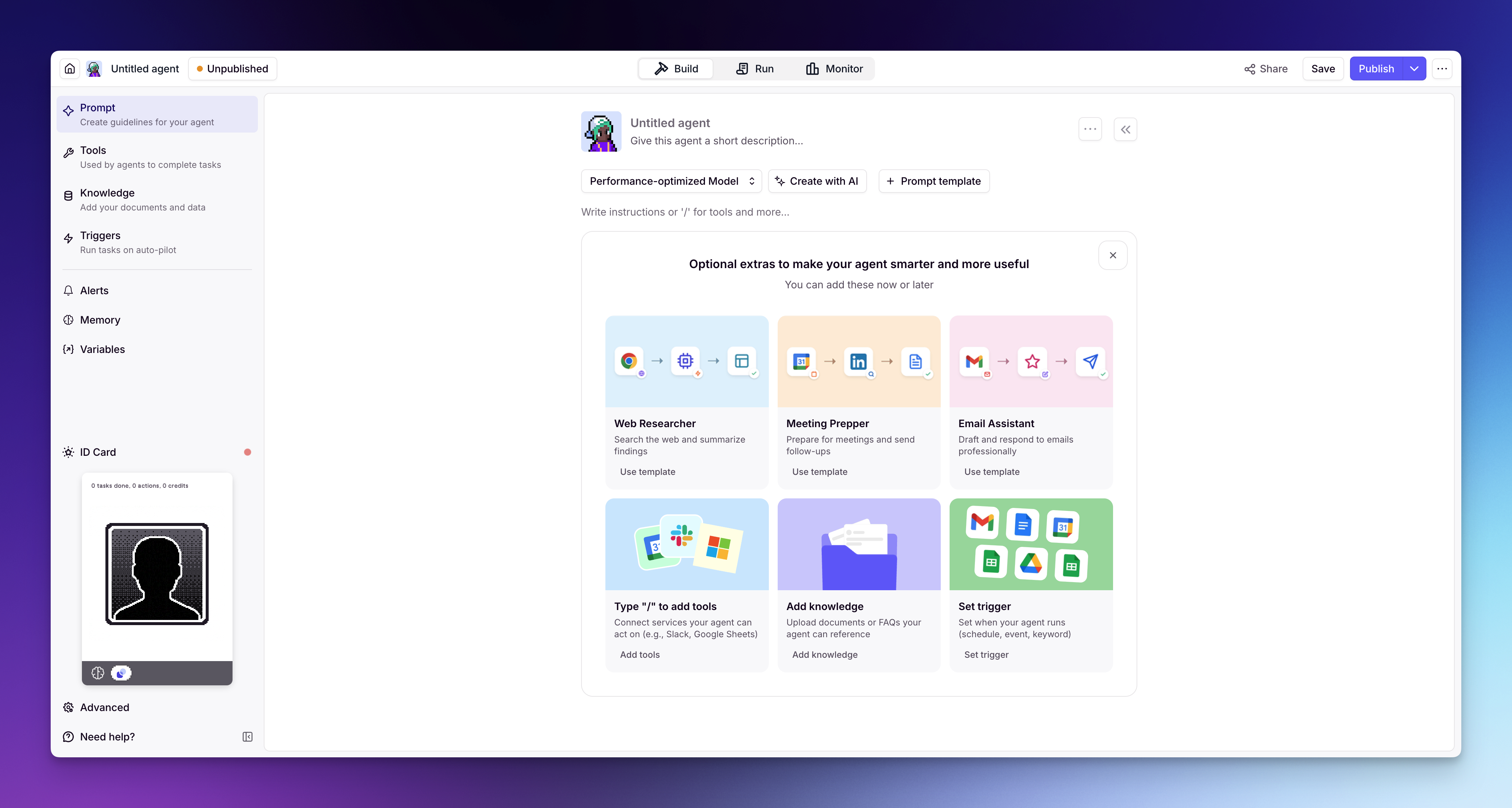
The **[builder platform](https://app.relevanceai.com)** is where you create and configure everything — agents, tools, workforces, and knowledge. You'll also find the [Marketplace](/get-started/marketplace/introduction) here, where you can clone pre-built agents and tools instead of starting from scratch. This section of the docs covers the builder platform and all of its features.
**[Relevance Chat](/get-started/chat/introduction)** is a conversational interface where you and your team interact with your agents directly. You can @ mention agents, use multiple agents in a single conversation, and give your team access to your agents — all through a familiar chat experience.
This section focuses on building. To learn more about Chat, head to the [Relevance Chat](/get-started/chat/introduction) page in Getting Started.
 ## How it all fits together
You create [agents](/build/agents/create-an-agent) that use your tools and knowledge to autonomously complete tasks, following the instructions and guardrails you set.
You build [tools](/build/tools/create-a-tool) that define what your agents can do — call an API, send an email, search your CRM, run custom code, or chain steps together into a workflow.
You connect multiple agents into a [workforce](/build/workforces/create-a-workforce) on a visual canvas — they collaborate and hand off work to each other.
You connect [knowledge](/build/knowledge/create-knowledge) so agents have access to your data — documents, spreadsheets, databases, websites — and can respond with accuracy.
## Ways to create
When creating agents and tools, you have two approaches:
Describe what you want in plain language and the platform generates it for you. Invent sets up the prompt, suggests tools, and gets you a working agent or tool fast — you make the tweaks.
Full step-by-step control over every setting and configuration. Ideal when you need precision, have a specific workflow in mind, or want to fine-tune behavior.
## What's next?
If you want to dive into the specifics of how to build and configure each component, the rest of this section covers everything. Start with [building an agent's prompt](/build/agents/build-your-agent/prompt), then explore how to create [custom tools](/build/tools/customize-tool/tool-style-guide), connect [knowledge sources](/build/knowledge/create-knowledge), and wire it all together in a [workforce](/build/workforces/build-an-ai-workforce/add-triggers).
## How it all fits together
You create [agents](/build/agents/create-an-agent) that use your tools and knowledge to autonomously complete tasks, following the instructions and guardrails you set.
You build [tools](/build/tools/create-a-tool) that define what your agents can do — call an API, send an email, search your CRM, run custom code, or chain steps together into a workflow.
You connect multiple agents into a [workforce](/build/workforces/create-a-workforce) on a visual canvas — they collaborate and hand off work to each other.
You connect [knowledge](/build/knowledge/create-knowledge) so agents have access to your data — documents, spreadsheets, databases, websites — and can respond with accuracy.
## Ways to create
When creating agents and tools, you have two approaches:
Describe what you want in plain language and the platform generates it for you. Invent sets up the prompt, suggests tools, and gets you a working agent or tool fast — you make the tweaks.
Full step-by-step control over every setting and configuration. Ideal when you need precision, have a specific workflow in mind, or want to fine-tune behavior.
## What's next?
If you want to dive into the specifics of how to build and configure each component, the rest of this section covers everything. Start with [building an agent's prompt](/build/agents/build-your-agent/prompt), then explore how to create [custom tools](/build/tools/customize-tool/tool-style-guide), connect [knowledge sources](/build/knowledge/create-knowledge), and wire it all together in a [workforce](/build/workforces/build-an-ai-workforce/add-triggers).