> ## Documentation Index
> Fetch the complete documentation index at: https://relevanceai.com/docs/llms.txt
> Use this file to discover all available pages before exploring further.
# Tool steps - Get started
> Analysis steps applied to the provided data
Tool steps are analysis components that are applied to the provided input in a Tool.
For example,
* A LLM step to summarize an input text
* An PDF-to-Text step to extract the text from and uploaded PDF file
* A JavaScript step to run a code snippet
Relevance support variety analysis steps with all the requirement all taken care of.
All you need to do is to add the suitable step component to your Tool.
## Creating a Tool and adding Tool steps
The easiest way to get started with creating a tool is to start at the
[Tools page](/get-started/key-concepts/tools).
Once on the page, click on `+ Create tool` on the top right of the page.
You will be presented with an empty state where you can:
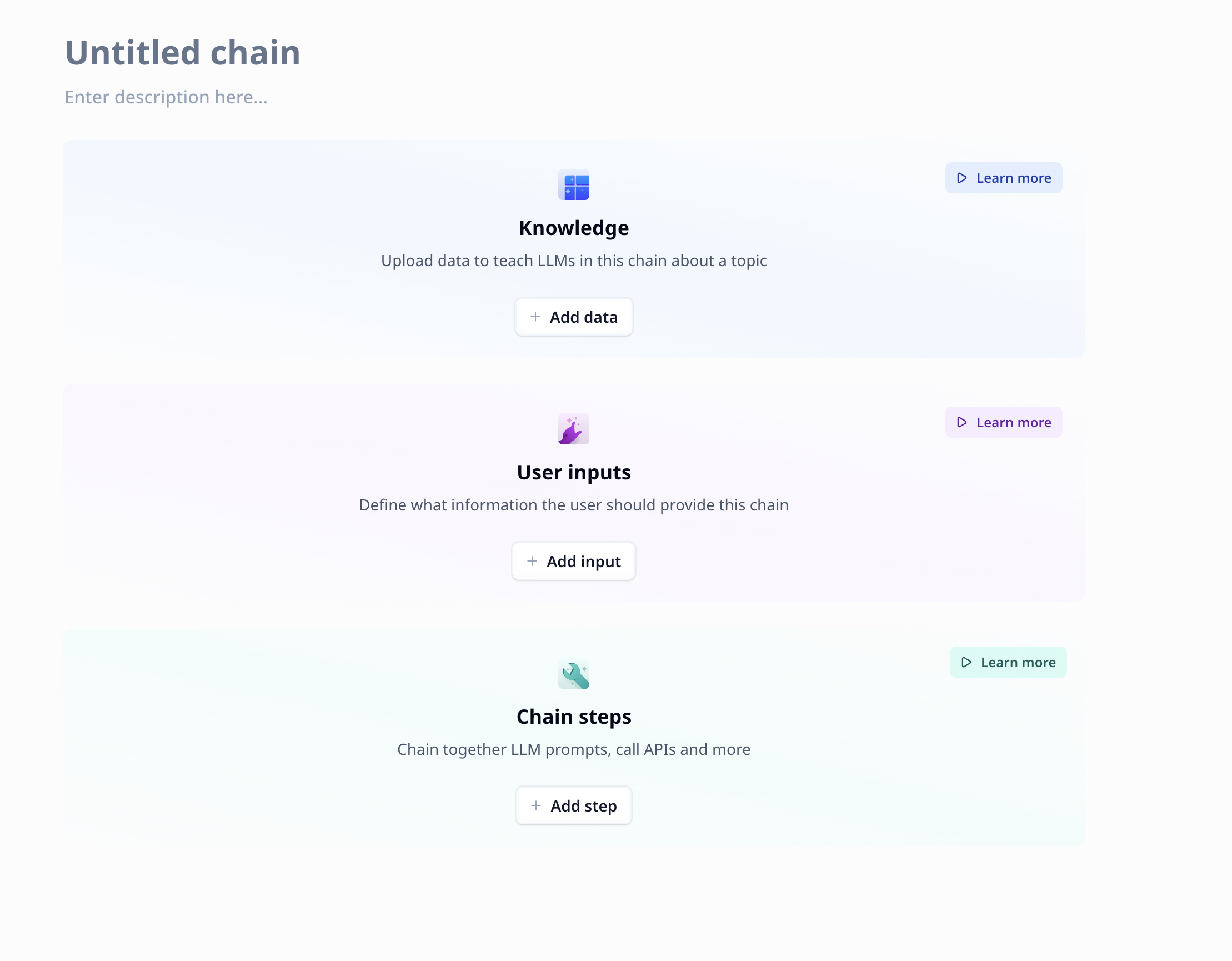 1. add knowledge
2. add inputs
3. **add Tool steps**
4. access some video tutorials
In the next pages, we will learn about all the supported Tool steps on Relevance.
Tips:
1. Each step has a set of inputs, with some visible under "**Advanced options**". These inputs are used to configure the step. You can either specify the value or switch to variable mode by pressing "**{}**" next to each input. This will instead set the value to the variable you reference.
2. Each step will have a set of outputs. These are the values that will be passed on to the next step. You can configure the outputs by pressing "**Configure output**" and selecting the variable names you want to keep.
3. Each step has a variable name, shown in green on the tool, which is used to reference the step and access the output in other steps. For example, you can use `{{steps.step_name.output.variable_name}}` to reference it. It can be changed just like the inputs.
4. The order of a step can be changed using the drag indicator or the up and down buttons. Steps can be ran individually, which is helpful for testing, by pressing the play icon.
## General Tool step features
1. add knowledge
2. add inputs
3. **add Tool steps**
4. access some video tutorials
In the next pages, we will learn about all the supported Tool steps on Relevance.
Tips:
1. Each step has a set of inputs, with some visible under "**Advanced options**". These inputs are used to configure the step. You can either specify the value or switch to variable mode by pressing "**{}**" next to each input. This will instead set the value to the variable you reference.
2. Each step will have a set of outputs. These are the values that will be passed on to the next step. You can configure the outputs by pressing "**Configure output**" and selecting the variable names you want to keep.
3. Each step has a variable name, shown in green on the tool, which is used to reference the step and access the output in other steps. For example, you can use `{{steps.step_name.output.variable_name}}` to reference it. It can be changed just like the inputs.
4. The order of a step can be changed using the drag indicator or the up and down buttons. Steps can be ran individually, which is helpful for testing, by pressing the play icon.
## General Tool step features