> ## Documentation Index
> Fetch the complete documentation index at: https://relevanceai.com/docs/llms.txt
> Use this file to discover all available pages before exploring further.
# How to handle too much text in a prompt
> Ways of managing too large context when working with LLMs
LLMs have a limit on the context size they can take as input.
Relevance has provided you with great features to help you manage context size and prevent facing run-time error.
## Handling large content
In an LLM component and under "Advanced options", you can see a section for `How to handle too much content`.
All variables that are included in the prompt should be listed in this section with an `Edit` button in the front.
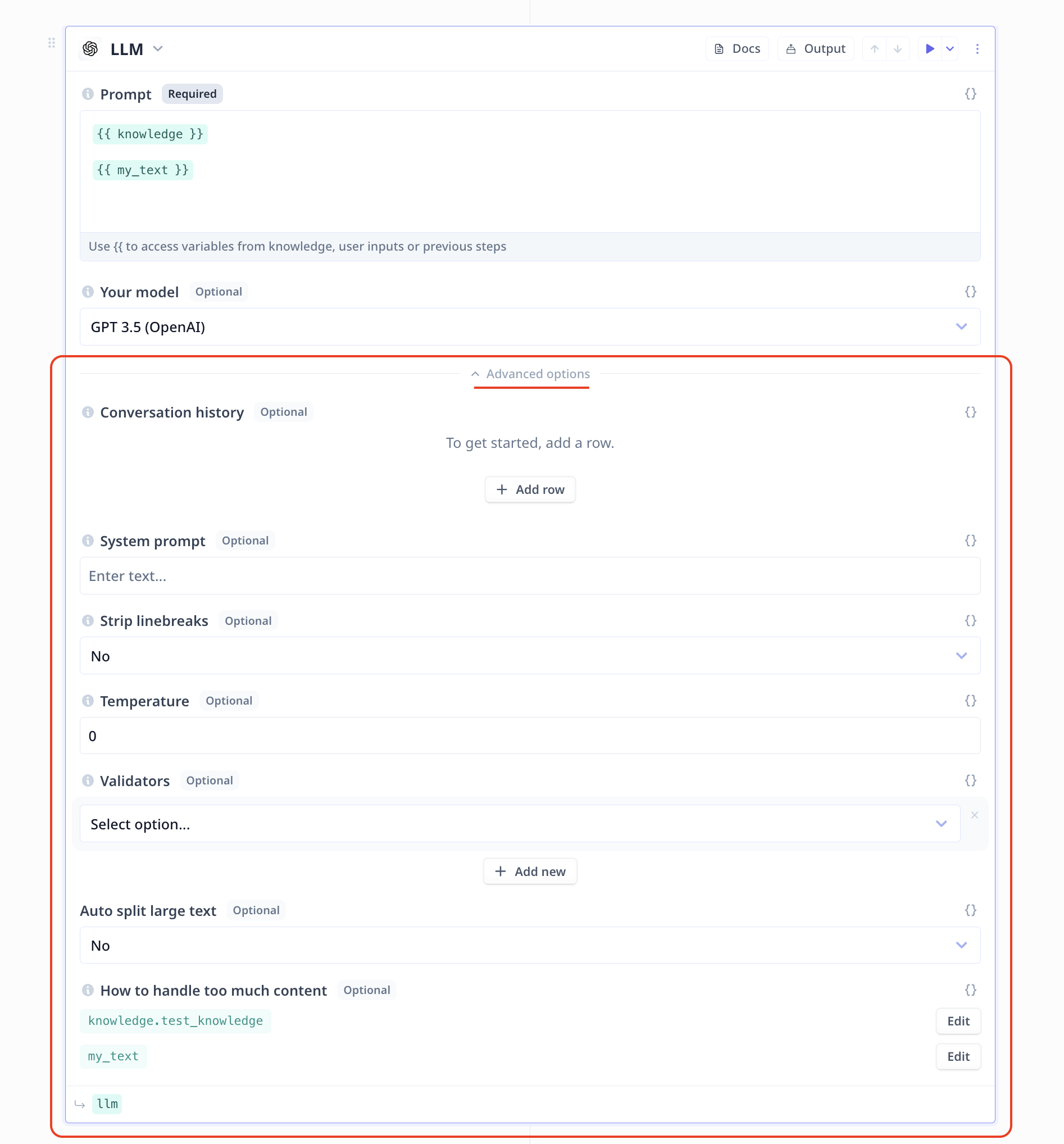 Small contents can be fed to LLMs directly but for large contents such as a Knowledge, Relevance provide you with two
options:
* Summarize the content
* Select the most relevant content to the query/goal (Vector search)
Clicking on `Edit`, you will access the options.
Small contents can be fed to LLMs directly but for large contents such as a Knowledge, Relevance provide you with two
options:
* Summarize the content
* Select the most relevant content to the query/goal (Vector search)
Clicking on `Edit`, you will access the options.
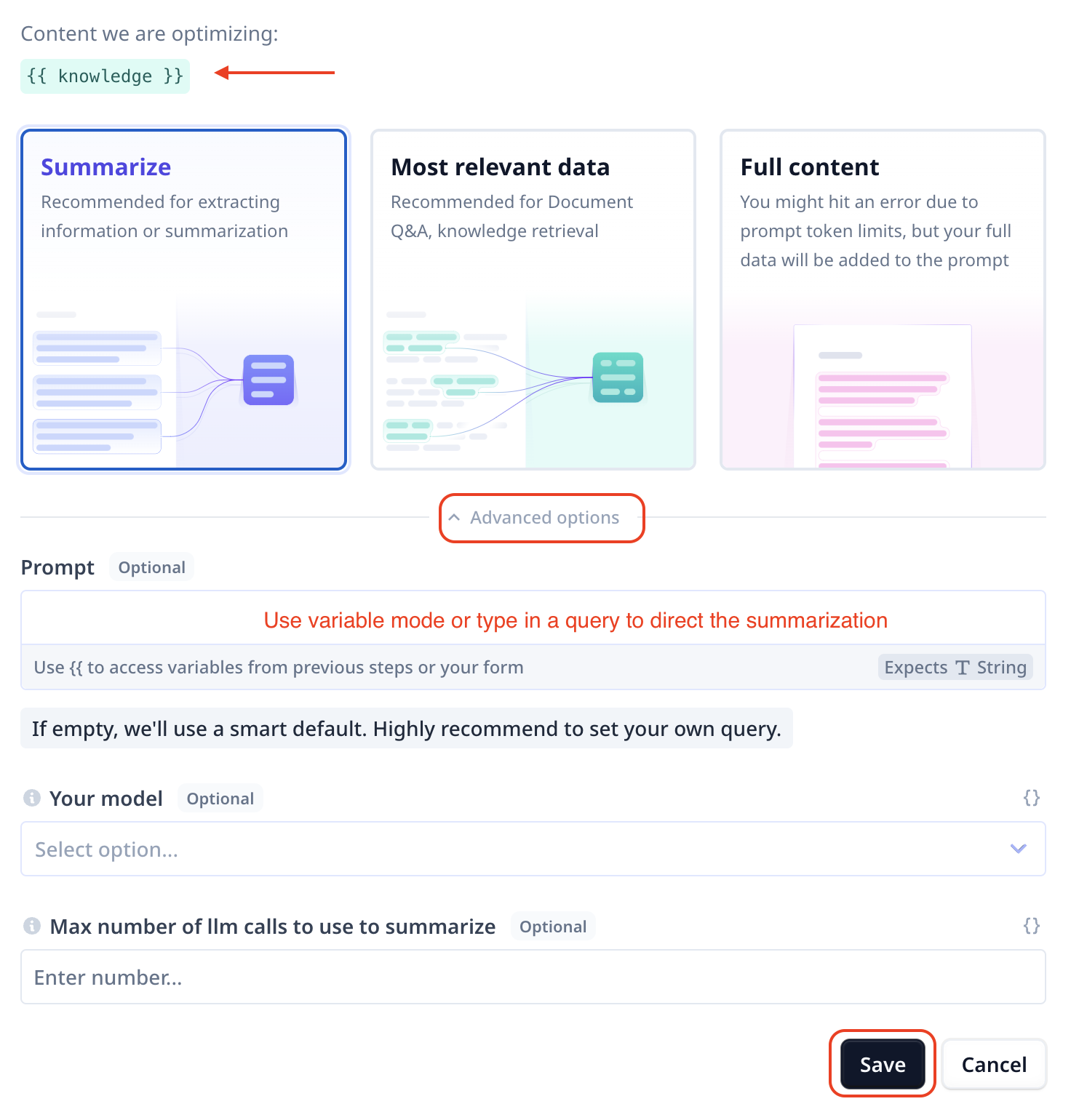
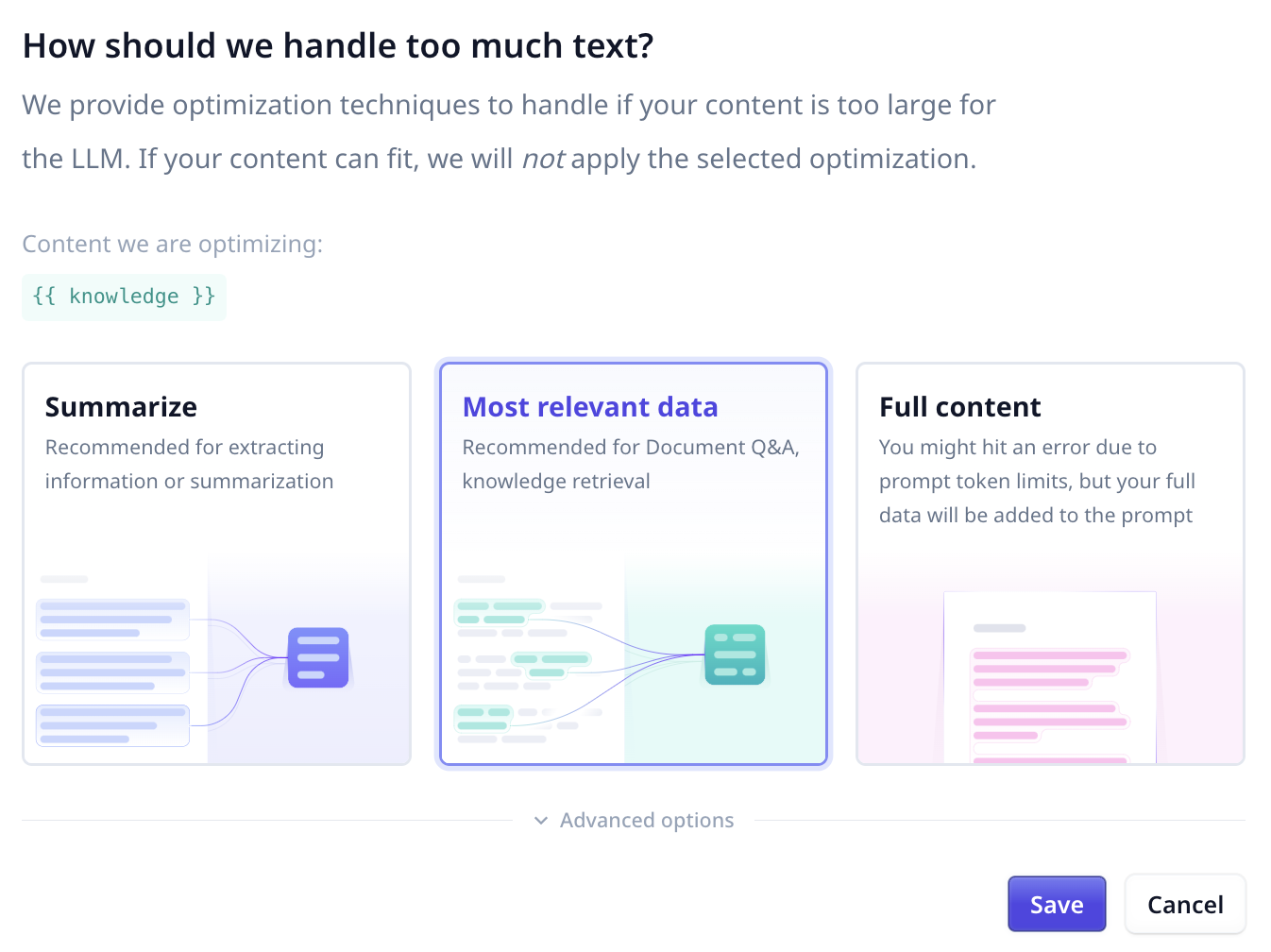 ### Summarize
This option reads the provided content and produce a summary.
Under advanced setting you can provide a prompt for better and more guided summarization.
For example you can note the objective or goal of the analysis.
You can also specify the large language model you wish to use for summarization.
### Summarize
This option reads the provided content and produce a summary.
Under advanced setting you can provide a prompt for better and more guided summarization.
For example you can note the objective or goal of the analysis.
You can also specify the large language model you wish to use for summarization.
 ### Most relevant data
This option will run a semantic search through the data to extract the most relevant parts to
the provided query.
### Most relevant data
This option will run a semantic search through the data to extract the most relevant parts to
the provided query.
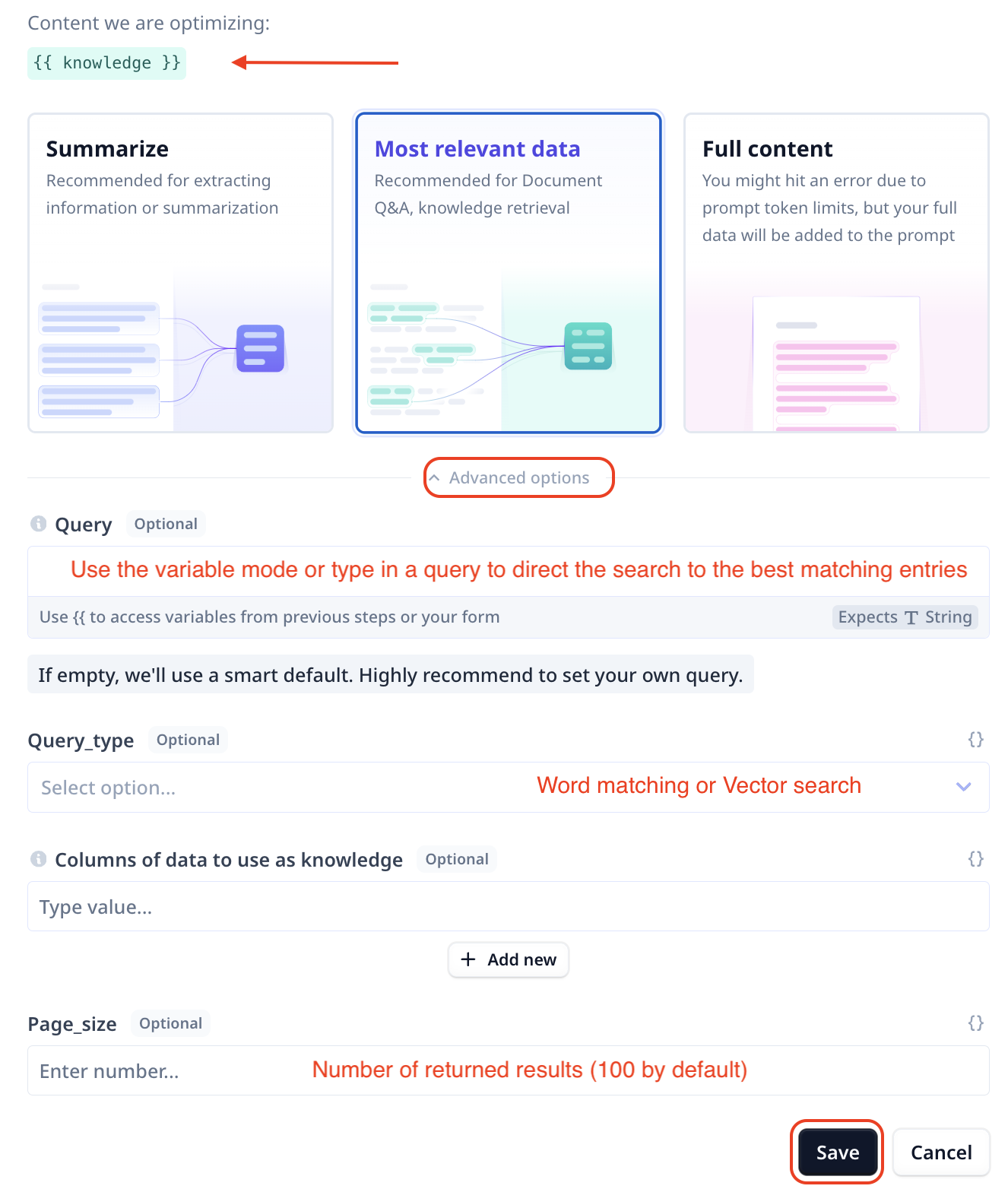 There are some useful advances options:
* **Query**:
By default, we extract the query from the original prompt. However, it is highly recommended to
set a custom value for the search query. You can type in a query or use `{{}}` to include a variable,
for example `{{ question }}` or `{{ search_query }}`.
* **Query type**: You can select between vector and keyword search
* **Columns**
By default, all columns from the row of data are included in the results. However, you can
specify a subset of columns in order to exclude unnecessary data.
* **Page\_size**
This parameter indicates the number of matching entries to be fetched as the search results. It is set to 100 by default.
### Full
This option will return the entire content (e.g. the whole knowledge base).
Note that too large content can cause run-time error and this option is not recommended when
working with large data.
There are some useful advances options:
* **Query**:
By default, we extract the query from the original prompt. However, it is highly recommended to
set a custom value for the search query. You can type in a query or use `{{}}` to include a variable,
for example `{{ question }}` or `{{ search_query }}`.
* **Query type**: You can select between vector and keyword search
* **Columns**
By default, all columns from the row of data are included in the results. However, you can
specify a subset of columns in order to exclude unnecessary data.
* **Page\_size**
This parameter indicates the number of matching entries to be fetched as the search results. It is set to 100 by default.
### Full
This option will return the entire content (e.g. the whole knowledge base).
Note that too large content can cause run-time error and this option is not recommended when
working with large data.