> ## Documentation Index
> Fetch the complete documentation index at: https://relevanceai.com/docs/llms.txt
> Use this file to discover all available pages before exploring further.
# File to URL
> Temporarily save your input file on the cloud
## What is a File to URL input
File to URL input is an input component that allows you to upload a file to the cloud and access it
via a temporarily URL. This URL can be used in other steps such as Audio transcription, or PDF-to-Text
to access the content of the file.
Relevance does not store your file permanently for security reasons. This means the provided URL is
temporary and expires within 3 days after upload. Therefore, it is recommended to apply the desired analysis
steps right after upload.
## When to use the File to URL component
The File to URL input component is suitable for when you need to provide a file as an input to another component.
For instance to an OCR step.
## How to add a File to text input to my custom Tool
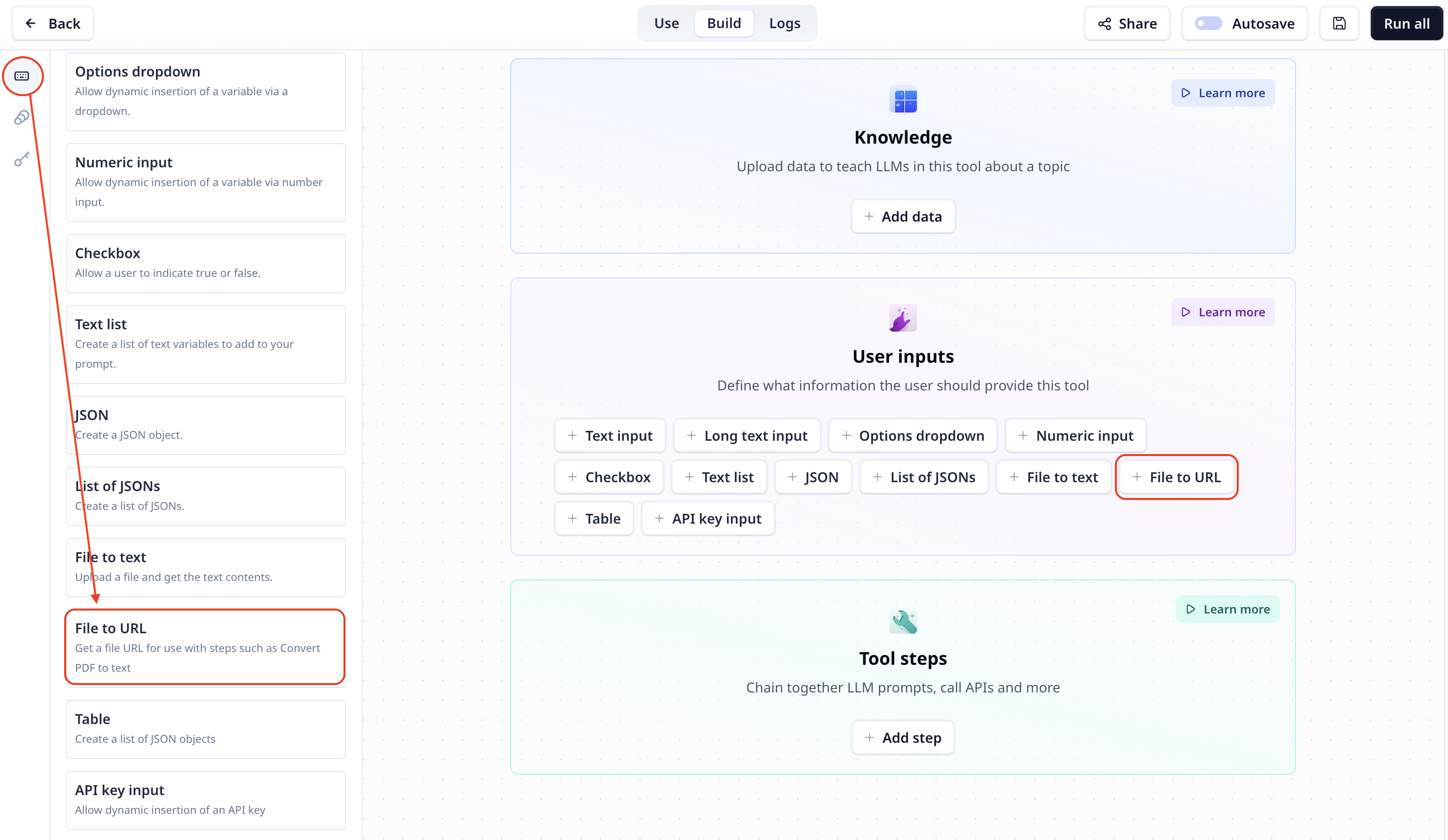
The File to URL input component is listed under User inputs. You can add it to your
Tool using the main section or the side-bar.
 ## File to URL setting
## Access the URL
To access the URL output use the variable mode `{{}}` and the input step name. Under the default setting it is accessible
via `{{file_url}}` (or `params.file_url` in a JavaScript step).
## File to URL setting
## Access the URL
To access the URL output use the variable mode `{{}}` and the input step name. Under the default setting it is accessible
via `{{file_url}}` (or `params.file_url` in a JavaScript step).