> ## Documentation Index
> Fetch the complete documentation index at: https://relevanceai.com/docs/llms.txt
> Use this file to discover all available pages before exploring further.
# Options drop down
> Input values from a drop-down menu
## What is a Drop-down input
Drop-down input is an input component that allows you to enter a list of options, one of which can be selected by the user.
## When to use the Drop-down input component
The Drop-down input component is suitable for situations when users needs to select an option. For example, when they wish
to perform "Basic analysis" and "Advanced analysis" in a Tool that provides two different analysis flow.
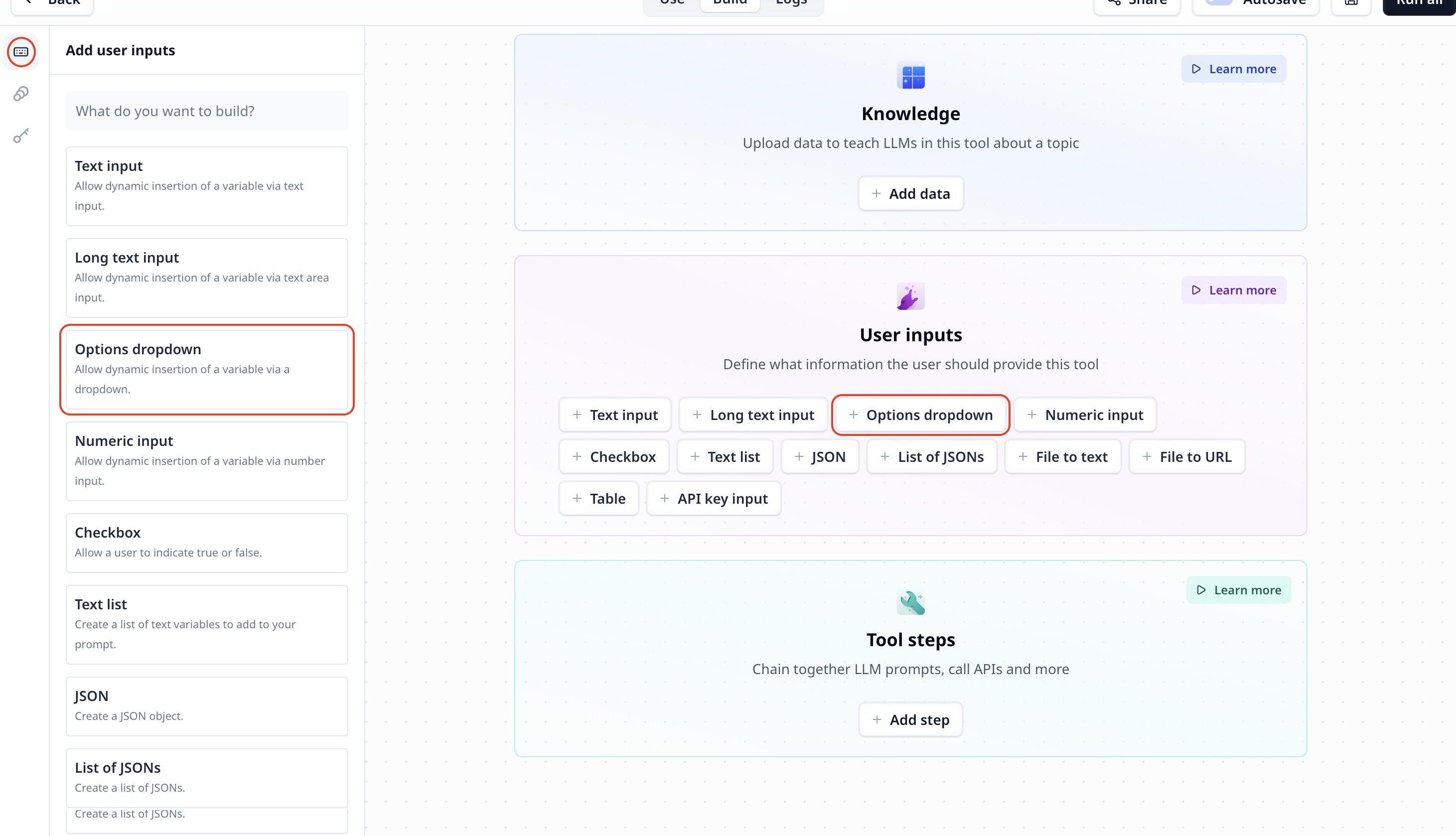
## How to add a Drop-down input to my custom Tool
The Drop-down input component is listed under User inputs. You can add it to your Tool using the main section
or the side-bar.
 ## Drop-down input setting
After entering the options to be shown in the drop-down, do not forget to save the default values.
## Access the entered selected option in the drop-down
To access the entered text use the variable mode `{{}}` and the input step name. Under the default setting it is accessible
via `{{options}}` (or `params.options` in a JavaScript step).
## Drop-down input setting
After entering the options to be shown in the drop-down, do not forget to save the default values.
## Access the entered selected option in the drop-down
To access the entered text use the variable mode `{{}}` and the input step name. Under the default setting it is accessible
via `{{options}}` (or `params.options` in a JavaScript step).