> ## Documentation Index
> Fetch the complete documentation index at: https://relevanceai.com/docs/llms.txt
> Use this file to discover all available pages before exploring further.
# Default organization and project
> Auto-assign users to the right organization and project
 Default Organization & Project simplifies enterprise onboarding by automatically placing new users in the correct organization and project when they sign up with their company email. This eliminates manual assignments and ensures immediate access to the right resources from day one.
## Prerequisites
Before you can set a default organization and project, your company email domain must be configured by the Relevance AI team. This is a required first step.
Setting up a default organization and project is a **two-step process**:
**Contact the Relevance AI team** to configure your company email domain (e.g., @betacorp.com, @acmecorp.io, @techstartup.com). This step is typically completed during your [SSO setup](/enterprise/sso-setup) or can be configured separately.
This configuration allows Relevance AI to recognize users signing up with your company email domain and automatically route them to your organization instead of creating separate personal organizations.
Once your email domain is configured, organization admins can set a default project following the instructions below.
### What You'll Need
To complete the setup after email domain configuration:
* **Enterprise subscription** with Relevance AI
* **Organization Admin** role or higher
* Your company email domain already configured by Relevance AI (Step 1 above)
***
## How do I set a default organization and project?
To set a default organization and project, you must have an Enterprise subscription and be an organization admin. Your company email domain must also be configured by the Relevance AI team (see Prerequisites above).
Default Organization & Project simplifies enterprise onboarding by automatically placing new users in the correct organization and project when they sign up with their company email. This eliminates manual assignments and ensures immediate access to the right resources from day one.
## Prerequisites
Before you can set a default organization and project, your company email domain must be configured by the Relevance AI team. This is a required first step.
Setting up a default organization and project is a **two-step process**:
**Contact the Relevance AI team** to configure your company email domain (e.g., @betacorp.com, @acmecorp.io, @techstartup.com). This step is typically completed during your [SSO setup](/enterprise/sso-setup) or can be configured separately.
This configuration allows Relevance AI to recognize users signing up with your company email domain and automatically route them to your organization instead of creating separate personal organizations.
Once your email domain is configured, organization admins can set a default project following the instructions below.
### What You'll Need
To complete the setup after email domain configuration:
* **Enterprise subscription** with Relevance AI
* **Organization Admin** role or higher
* Your company email domain already configured by Relevance AI (Step 1 above)
***
## How do I set a default organization and project?
To set a default organization and project, you must have an Enterprise subscription and be an organization admin. Your company email domain must also be configured by the Relevance AI team (see Prerequisites above).
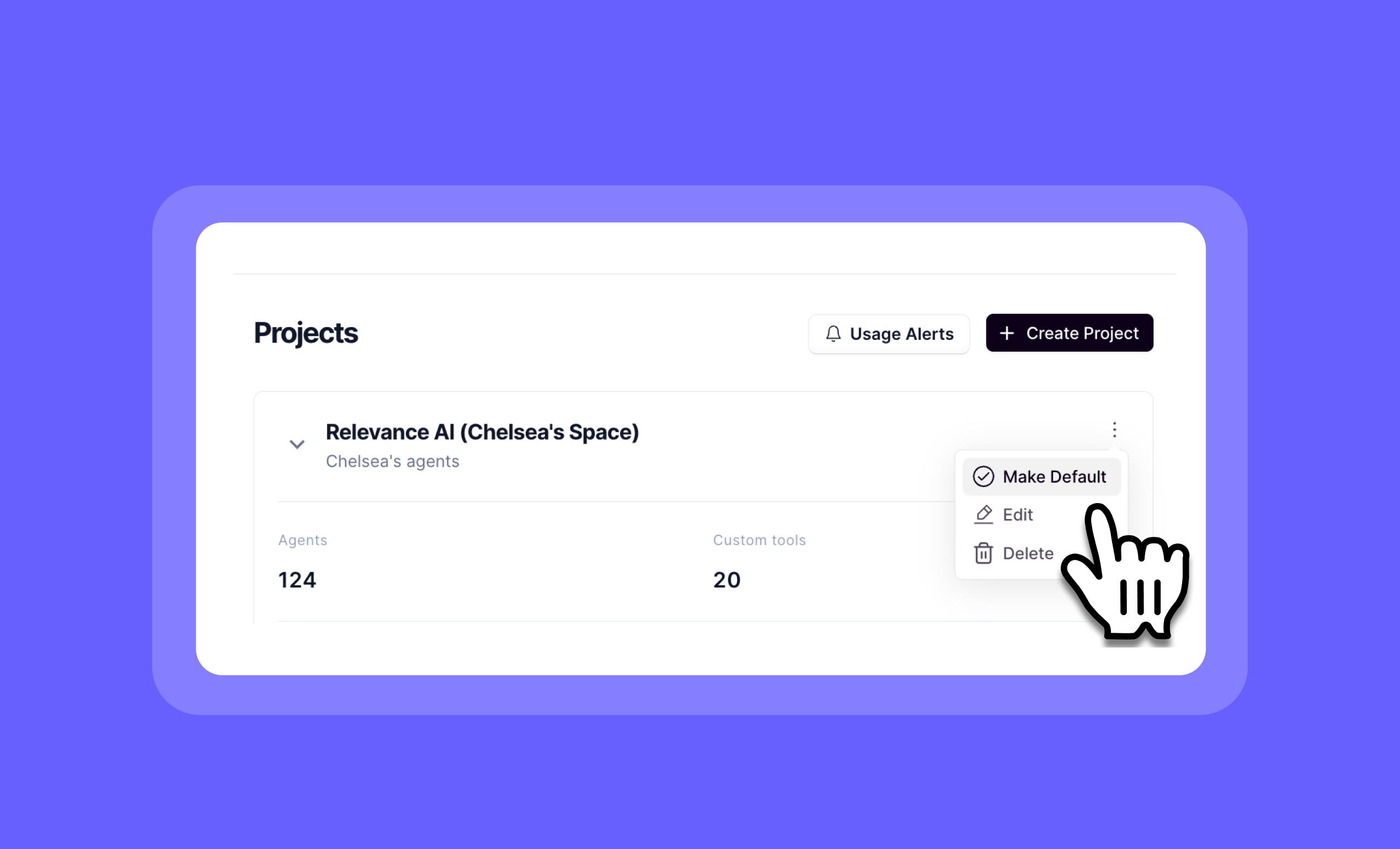
1. Click 'Settings' in the sidebar of Relevance AI
2. Then, select the project you want to set as default
3. Click on the three dots button in the top right of the project modal
4. Then, select 'Make Default'
Once you set a default project, new users with your company email domain(s) will be automatically added to this project in your organization when they create a new account.
### User Permissions for New Users
When new users are automatically added to your organization and default project, they receive the following permissions:
* **Organization-level**: Organization Viewer
* **Project-level**: Project Viewer
Organization and project admins can adjust these permissions after users join. Learn more about managing user permissions in our [Role-Based Access Controls (RBAC)](/enterprise/rbac) documentation.
***
## Frequently asked questions (FAQs)
If you're unable to set a default organization and project, the most common reason is that your company email domain hasn't been configured yet. Contact the Relevance AI team to have your email domain configured. This is typically done during [SSO setup](/enterprise/sso-setup) but can also be configured separately.
You must also:
* Have an Enterprise subscription
* Be an organization admin or owner
New users who are automatically added through the default organization feature receive:
* **Organization Viewer** permissions at the organization level
* **Project Viewer** permissions at the project level
These are the most restrictive permissions, ensuring security by default. Organization and project admins can upgrade permissions as needed. See our [RBAC documentation](/enterprise/rbac) for details on all available roles and permissions.
Once they create their account, they'll be added to both the default project and the project they were invited to.
No, they'll be added to your organization and the default project in that organization. This is only possible after your company email domain has been configured by the Relevance AI team.
No, email domain configuration must be done by the Relevance AI team for security reasons. Contact your Relevance AI representative to request this configuration. If you're setting up SSO, this will typically be handled as part of that process.