> ## Documentation Index
> Fetch the complete documentation index at: https://relevanceai.com/docs/llms.txt
> Use this file to discover all available pages before exploring further.
# File system
> Persistent storage for documents and reference material that the agent can access across all conversations
The file system is the agent's persistent storage. It holds shared documents, reference material, deliverables, and working files that the agent can read from or write to as instructed. It's completely separate from your integration connections (HubSpot, Gmail, Slack, etc.) — the agent works with those directly.
Think of the file system as a shared drive for your project. Anything you want the agent (or your team) to have access to across conversations lives here.
## Where to find files
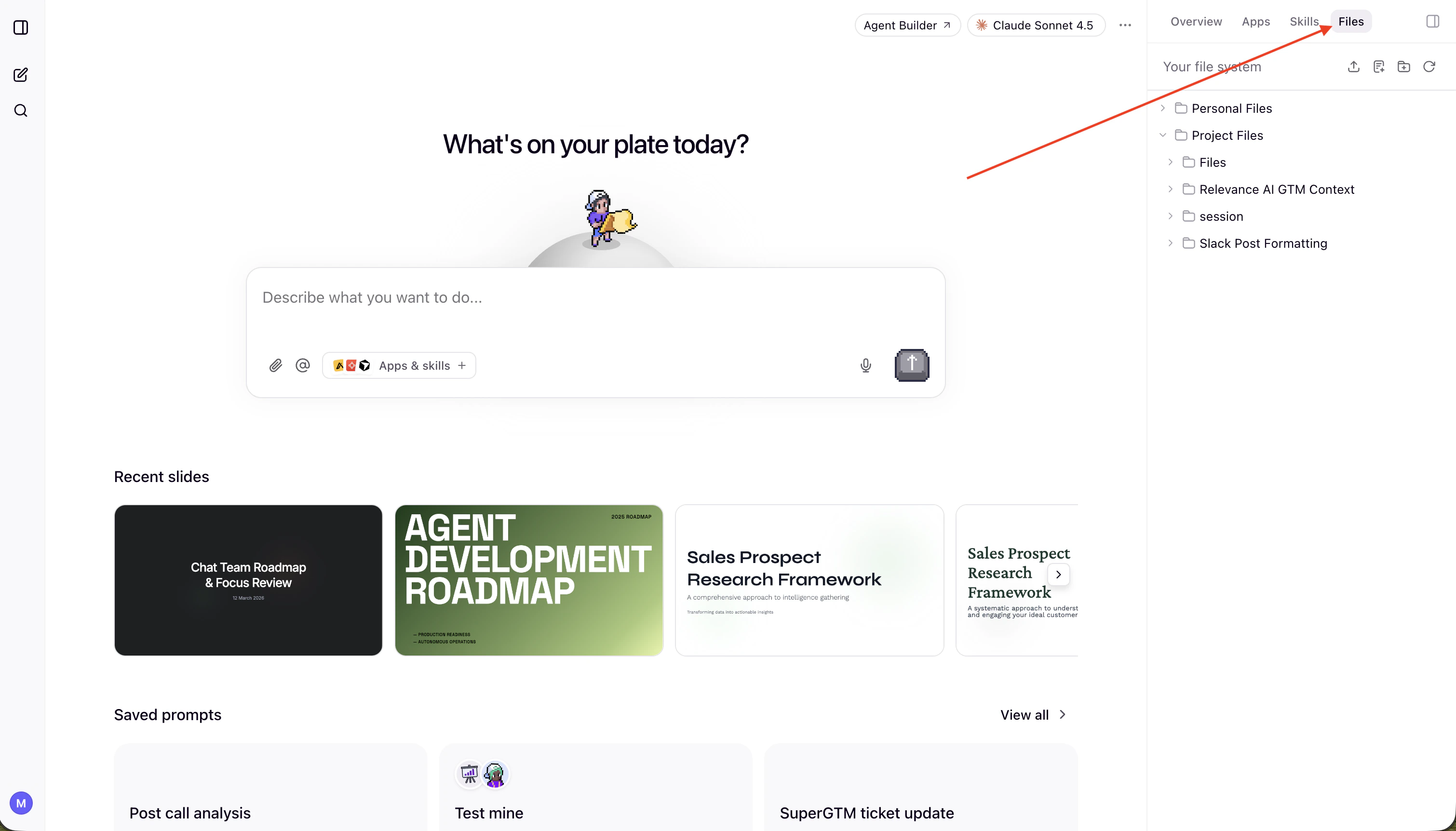
You can view and manage your files in the **Files** tab. From here you can browse all project files, upload new documents, and see what the agent has saved.
 ## Key areas
Persistent storage shared across your project. This is where shared knowledge lives — company context, reference documents, templates, and anything the team needs access to across conversations.
To add something to project files, just ask the agent:
> "Save this report to the project files"
> "Create a document in project files called Q3 Campaign Brief"
You can also ask the agent to read, search, or update anything already stored there:
> "What's in the project files?"
> "Find the competitive analysis in project files"
> "Update the onboarding checklist with the new step"
Project files are managed by project admins.
Workspace scoped to a conversation. The agent uses this for working files — exploration results, execution plans, and task lists. Session files persist across sessions in a folder matching the conversation ID, but they're separate from shared project files.
You generally don't need to interact with session files directly. The agent manages them as part of its workflow.
## How skills use the file system
Skills can optionally pull context from the file system. Each skill can have its own `/references` or `/assets` folder for skill-specific context, or reference shared project files when the same document is relevant across multiple skills.
When a skill runs, the agent fetches the relevant files at that moment — you can update a reference file once and all skills that use it pick up the new version automatically.
This is useful for storing things like:
* Templates that skills use as a starting point
* Reference documents (brand guidelines, process docs, competitive intel)
* Deliverables the agent produces that should persist across conversations
* Ways of working that the whole team should follow
## Key areas
Persistent storage shared across your project. This is where shared knowledge lives — company context, reference documents, templates, and anything the team needs access to across conversations.
To add something to project files, just ask the agent:
> "Save this report to the project files"
> "Create a document in project files called Q3 Campaign Brief"
You can also ask the agent to read, search, or update anything already stored there:
> "What's in the project files?"
> "Find the competitive analysis in project files"
> "Update the onboarding checklist with the new step"
Project files are managed by project admins.
Workspace scoped to a conversation. The agent uses this for working files — exploration results, execution plans, and task lists. Session files persist across sessions in a folder matching the conversation ID, but they're separate from shared project files.
You generally don't need to interact with session files directly. The agent manages them as part of its workflow.
## How skills use the file system
Skills can optionally pull context from the file system. Each skill can have its own `/references` or `/assets` folder for skill-specific context, or reference shared project files when the same document is relevant across multiple skills.
When a skill runs, the agent fetches the relevant files at that moment — you can update a reference file once and all skills that use it pick up the new version automatically.
This is useful for storing things like:
* Templates that skills use as a starting point
* Reference documents (brand guidelines, process docs, competitive intel)
* Deliverables the agent produces that should persist across conversations
* Ways of working that the whole team should follow