> ## Documentation Index
> Fetch the complete documentation index at: https://relevanceai.com/docs/llms.txt
> Use this file to discover all available pages before exploring further.
# Using Agents and Workforces in Relevance Chat
> Utilize your Agents and Workforces in Chat conversations
Mention any Agent you have access to in your project using @, and Chat will integrate their capabilities into your conversation. Hover over any Agent in the @ menu to see a pop-up with its name, description, and other details — making it easy to pick the right one without leaving the chat.
Use a single Agent for specific tasks
Combine different Agents in the same conversation for complex workflows
Use teams of Agents working together on complex tasks
Use pre-built Agents cloned from the [Marketplace](/get-started/marketplace/introduction)
Pre-built Agents for websites, research, images, and slides
## Agent visibility
By default, every Agent in your project appears in Chat's @-mention menu and "Browse agents" list. You can hide an Agent from Chat discovery using the **Visible in Chat** toggle.
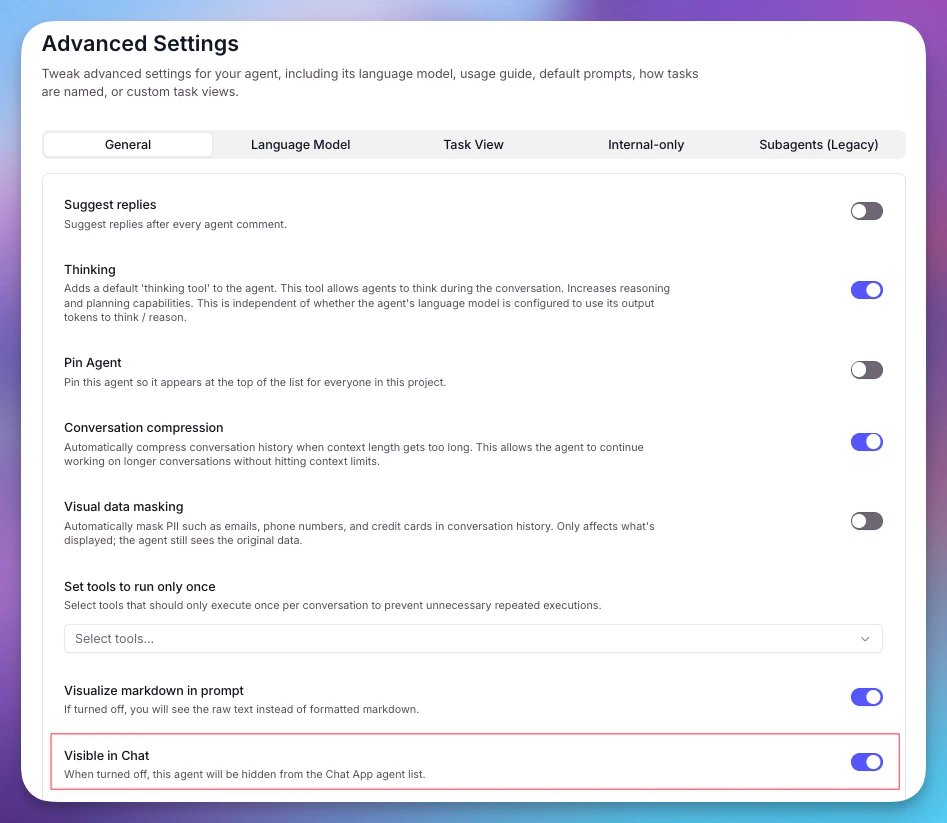 To change an Agent's visibility:
1. Open the Agent in the builder
2. Go to **Advanced Settings > General**
3. Toggle **Visible in Chat** on or off
Hiding an Agent from Chat does not disable it. Hidden Agents remain fully accessible in the builder's app, via API, and direct links.
## Built-in Agents
Chat includes several pre-built Agents you can use without any setup. Mention them with @ in any conversation.
| Agent | Description | Credit cost |
| ---------------------------------------------------------------- | ------------------------------------------------------------------------ | -------------------- |
| [Slide Builder](/get-started/chat/slide-builder) | Generate branded slide decks from prompts, files, or other agent outputs | Varies by deck size |
| [Website Builder](/get-started/chat/chat-agents/website-builder) | Build websites from a prompt or description | 100+ credits per run |
| [Image Generator](/get-started/chat/chat-agents/image-generator) | Generate images from text prompts | 10+ credits per run |
| [Deep Researcher](/get-started/chat/chat-agents/deep-researcher) | Conduct comprehensive research on a topic | 100+ credits per run |
## Providing feedback on responses
To change an Agent's visibility:
1. Open the Agent in the builder
2. Go to **Advanced Settings > General**
3. Toggle **Visible in Chat** on or off
Hiding an Agent from Chat does not disable it. Hidden Agents remain fully accessible in the builder's app, via API, and direct links.
## Built-in Agents
Chat includes several pre-built Agents you can use without any setup. Mention them with @ in any conversation.
| Agent | Description | Credit cost |
| ---------------------------------------------------------------- | ------------------------------------------------------------------------ | -------------------- |
| [Slide Builder](/get-started/chat/slide-builder) | Generate branded slide decks from prompts, files, or other agent outputs | Varies by deck size |
| [Website Builder](/get-started/chat/chat-agents/website-builder) | Build websites from a prompt or description | 100+ credits per run |
| [Image Generator](/get-started/chat/chat-agents/image-generator) | Generate images from text prompts | 10+ credits per run |
| [Deep Researcher](/get-started/chat/chat-agents/deep-researcher) | Conduct comprehensive research on a topic | 100+ credits per run |
## Providing feedback on responses
Rate any response using the thumbs up and thumbs down icons that appear alongside the copy button at the bottom of each message. You can optionally add written feedback in the modal dialog that appears after rating.
Use when a response is incorrect, incomplete, or unhelpful. Describe what went wrong to
help improve the agent's performance.
Reinforce good behaviors when a response is particularly helpful, accurate, or
well-formatted.
Add details about what worked or didn't work to make your feedback more actionable.