> ## Documentation Index
> Fetch the complete documentation index at: https://relevanceai.com/docs/llms.txt
> Use this file to discover all available pages before exploring further.
# Google's Gemini LLM models
> Learn more about Google's Gemini LLM models and how to access them via Google AI Studio and Google Cloud Platform
Google's Gemini LLM models are known for strong coding ability and task complexity handling (especially Google Gemini 2.5 models).
Software development agents, complex task execution.
Credits charged per 1,000 tokens processed.
Gemini models can process each of the following files:
* .pdf
* .jpg
* .jpeg
* .png
* .webp
* .gif
* .wav
* .mp3
* .aac
* .ogg
* .aiff
* .flac
* .mp4
* .mpeg
* .mov
* .avi
* .flv
* .mpg
* .webm
* .wmv
## Understanding pricing & context caching
Gemini models automatically cache repeated input tokens (like agent instructions and tool definitions) in multi-turn conversations, charging them at **90% less** than uncached tokens. This happens automatically with no code changes required.
### Pricing example: Gemini 1.5 Pro
| Token Type | Cost per 1,000 tokens |
| ------------------------- | --------------------- |
| **Uncached input tokens** | 0.315 credits |
| **Cached input tokens** | 0.0315 credits |
| **Output tokens** | 1.26 credits |
**Example:** An agent with 19,000 tokens of instructions makes two calls:
* **First call:** 19,000 input (uncached) + 2,000 output = 8.51 credits
* **Second call:** 6,000 input (uncached) + 13,000 input (cached) + 1,500 output = 4.19 credits
* **Without caching**, the second call would cost 7.88 credits
* **Savings: 47% reduction** on the second call
### Why UI numbers may look different
The task credit breakdown displays **uncached input tokens only**. Cached tokens are charged separately at the lower rate but not shown in the breakdown. The **total cost is accurate** and includes both.
If you see "6,000 input tokens" in the UI, there may be additional cached tokens charged at 90% less. Your actual costs are **lower than expected** because of automatic caching.
**No markup policy:** Relevance AI passes through Google's exact pricing, including all caching discounts. We do not add any markup to Vendor Credits.
For technical details about Gemini's context caching implementation, see [Gemini's Context Caching Documentation](https://ai.google.dev/gemini-api/docs/caching).
If you connect your own Google AI Studio or Google Cloud Platform credentials, you'll see the same caching behavior and cost savings directly in your Google billing.
## Accessing Gemini models using Google AI Studio
If you use Google AI Studio, you can add your API key to Relevance AI, which will allow you to use your Google AI Studio credits as opposed to your Relevance AI credits.
You can add your Google AI Studio API key to Relevance AI by following these steps:
1. Generate your API key at [Google AI Studio](https://aistudio.google.com/welcome)
2. Log into Relevance AI and head to 'Integrations & API Keys'
3. Search for 'Google AI Studio Gemini API Key' and add your API key
Once you've successfully added your API key, you will not be charged Relevance AI credits when you use Google Gemini models in your LLM Tool steps and Agents.
## Accessing Gemini models using Vertex AI on Google Cloud Platform
If you use Google Cloud Platform, you can connect your Vertex AI API key to Relevance AI, which will allow you to use your Google Cloud Platform credits as opposed to your Relevance AI credits.
You can do this by following these steps:
In Google Cloud Console, enable the Vertex AI API by following the instructions [here](https://cloud.google.com/vertex-ai/docs/featurestore/setup#configure_project).
Create a service account in the Google Cloud Console following the instructions at [https://cloud.google.com/iam/docs/service-accounts-create](https://cloud.google.com/iam/docs/service-accounts-create). **Make note of the project ID used to create the account.** The service account can have any name and description desired.
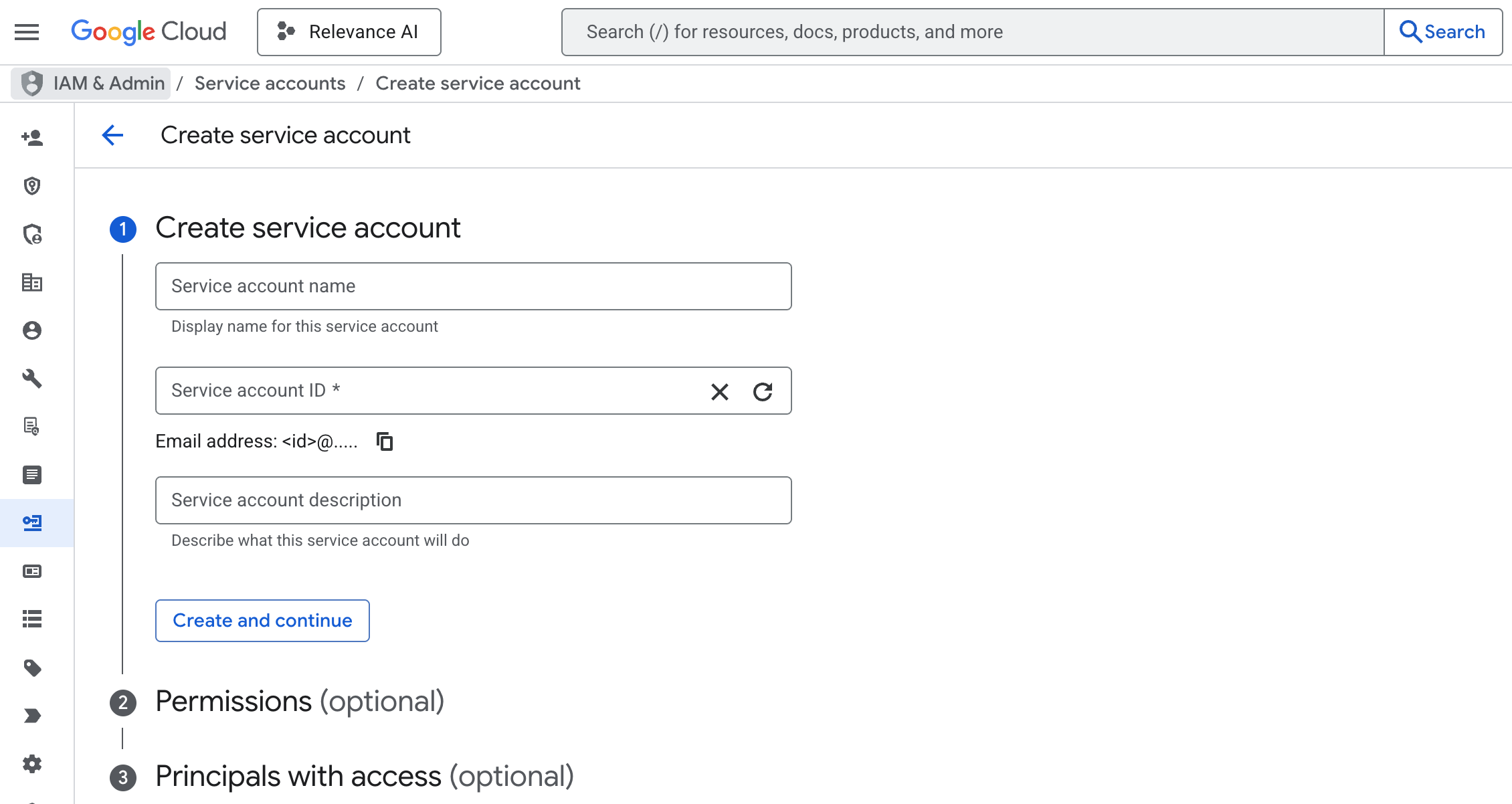 Give the service account the Vertex AI Service Agent IAM role. This means the service account is permitted to use Vertex AI and call LLMs in Google Cloud.
Create a JSON private key for the service account, and download the key file.
In the key file, extract the client\_email and private\_key fields exactly as they are written, removing the quotation marks.
The client\_email should be an email address that normally ends with iam.gserviceaccount.com.
The private\_key should be formatted as follows:
```shell theme={null}
-----BEGIN PRIVATE KEY-----\\nLOTS OF LETTERS AND NUMBERS HERE\\n-----END PRIVATE KEY-----\\n
```
Log into Relevance AI and head to 'Integrations & API Keys'. Search for Google Cloud Platform, and add the Client Email and Private Key, and the Project ID from earlier in step 2.
Optionally, if the Gemini models are deployed into a particular Google Cloud Region, enter the region. Otherwise, leave it blank. If you enter a region that isn't deployed properly, calling models will fail. See [https://cloud.google.com/vertex-ai/generative-ai/docs/learn/locations](https://cloud.google.com/vertex-ai/generative-ai/docs/learn/locations) for a list of regions and what the string should look like.
Once your Google Cloud Platform details are added correctly, you will not be charged Relevance AI credits for Google Gemini models.
Give the service account the Vertex AI Service Agent IAM role. This means the service account is permitted to use Vertex AI and call LLMs in Google Cloud.
Create a JSON private key for the service account, and download the key file.
In the key file, extract the client\_email and private\_key fields exactly as they are written, removing the quotation marks.
The client\_email should be an email address that normally ends with iam.gserviceaccount.com.
The private\_key should be formatted as follows:
```shell theme={null}
-----BEGIN PRIVATE KEY-----\\nLOTS OF LETTERS AND NUMBERS HERE\\n-----END PRIVATE KEY-----\\n
```
Log into Relevance AI and head to 'Integrations & API Keys'. Search for Google Cloud Platform, and add the Client Email and Private Key, and the Project ID from earlier in step 2.
Optionally, if the Gemini models are deployed into a particular Google Cloud Region, enter the region. Otherwise, leave it blank. If you enter a region that isn't deployed properly, calling models will fail. See [https://cloud.google.com/vertex-ai/generative-ai/docs/learn/locations](https://cloud.google.com/vertex-ai/generative-ai/docs/learn/locations) for a list of regions and what the string should look like.
Once your Google Cloud Platform details are added correctly, you will not be charged Relevance AI credits for Google Gemini models.