> ## Documentation Index
> Fetch the complete documentation index at: https://relevanceai.com/docs/llms.txt
> Use this file to discover all available pages before exploring further.
# Chrome Extension
> Extract content from any web page and send it directly to an AI agent chat in Relevance AI.
The Relevance AI Chrome Extension lets you extract content from any web page and send it directly to an AI agent chat, without copy-pasting.
Install the extension from the [Chrome Web Store](https://chromewebstore.google.com/detail/relevance-ai/oeejdfhhhceikclacdlikdgfenhehgcp).
### Supported browsers
Any Chromium-based browser that supports Manifest V3 is compatible. Firefox is not supported.
## Installation and setup
### Installing the extension
1. Open the [Chrome Web Store listing](https://chromewebstore.google.com/detail/relevance-ai/oeejdfhhhceikclacdlikdgfenhehgcp) in a supported browser.
2. Click **Add to Chrome** and confirm the prompt.
3. The Relevance AI icon appears in your browser toolbar. Pin it for easy access.
### Signing in
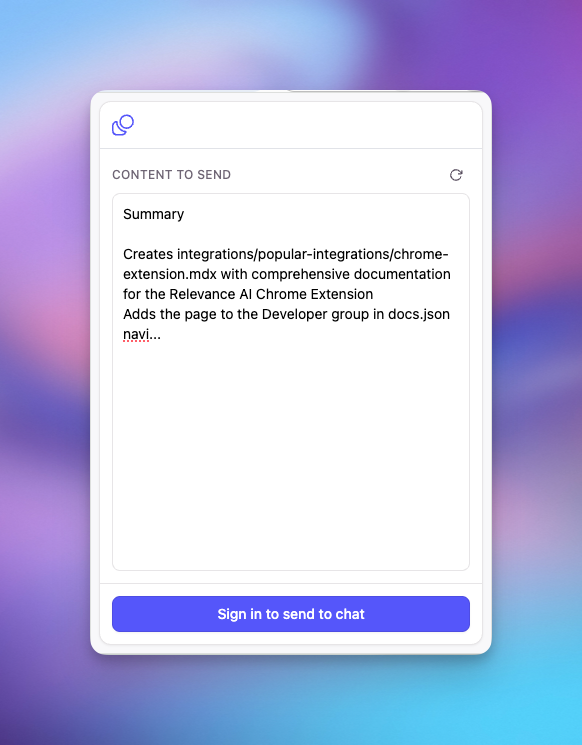 Click the extension icon in your toolbar, then click **Sign in to send to chat**. An OAuth popup opens through `app.relevanceai.com/auth` where you authorize the extension with your Relevance AI account. Tokens are stored locally and refreshed automatically, so you stay signed in across browser sessions.
### Selecting a project and region
After signing in, click your user avatar in the extension popup header to open a dropdown where you can switch projects and regions. Your selection persists across sessions.
## Using the extension
### Main workflow
Navigate to the page you want to extract content from.
Click the toolbar icon, or use the keyboard shortcut: **Mac:** `Cmd+Shift+S` / **Windows/Linux:** `Ctrl+Shift+S`
The extension automatically extracts content from the page and displays it in an editable text area. Edit as needed.
Click **Start new chat** to open a new agent conversation with the content as the first message.
Click **Open in Chat** to jump directly to the conversation in Relevance AI.
### Use the extension without opening the popup
Click the extension icon in your toolbar, then click **Sign in to send to chat**. An OAuth popup opens through `app.relevanceai.com/auth` where you authorize the extension with your Relevance AI account. Tokens are stored locally and refreshed automatically, so you stay signed in across browser sessions.
### Selecting a project and region
After signing in, click your user avatar in the extension popup header to open a dropdown where you can switch projects and regions. Your selection persists across sessions.
## Using the extension
### Main workflow
Navigate to the page you want to extract content from.
Click the toolbar icon, or use the keyboard shortcut: **Mac:** `Cmd+Shift+S` / **Windows/Linux:** `Ctrl+Shift+S`
The extension automatically extracts content from the page and displays it in an editable text area. Edit as needed.
Click **Start new chat** to open a new agent conversation with the content as the first message.
Click **Open in Chat** to jump directly to the conversation in Relevance AI.
### Use the extension without opening the popup
You can also trigger the extension without opening the popup:
1. Right-click anywhere on a page, or right-click on selected text.
2. Choose **Send to Chat** from the context menu.
3. The extension popup opens with content pre-loaded.
While content is pending, a badge notification ("1") appears on the extension icon as a reminder.
## Content extraction
The extension uses a multi-stage extraction pipeline that selects the appropriate method based on the page type.
Extracts name, headline, company, location, about section, experience, education, skills, and profile URL. Handles LinkedIn's single-page app navigation, including iframe-based content.
Uses Mozilla Readability (the same library as Firefox Reader View) to extract the title, author, published date, and body text, plus the canonical URL. Works on most news sites and blog platforms.
Extracts the page title, meta description, body text (up to 4,000 characters), and structured data including JSON-LD and Open Graph tags.
If you have text selected on the page when you open the extension, that selection is included alongside the page extraction.
Extracted content is formatted as markdown and wrapped with metadata before being sent to the agent. When you click **Start new chat**, the extension calls the TriggerWorkforceChat API to create a new conversation, and the extracted content becomes the first message.
The extension cannot extract content from browser-internal pages such as `chrome://`, `about:`, or other extension pages.
## Permissions and network access
Read the current tab's URL and extract page content. Only used when you actively open the extension or trigger it via the context menu.
Adds the **Send to Chat** option to your browser's right-click menu.
Stores authentication tokens, your project selection, and other preferences in local browser storage. Nothing is transmitted to a third party.
Detects tab URL changes to handle LinkedIn's single-page app navigation and the OAuth callback after sign-in.
## Frequently asked questions (FAQs)
Try clicking the refresh button in the content area to re-run extraction. For pages that extract poorly, you can manually edit the content in the text area before sending.
Click your user avatar in the extension popup header and select **Sign out** from the dropdown.
Content is sent directly to your Relevance AI account as the first message in a new agent chat. It is not stored by the extension beyond what is needed to display it in the popup before you send.
The extension creates a new chat session in your selected project. The agent that handles the chat depends on your project configuration in Relevance AI.