> ## Documentation Index
> Fetch the complete documentation index at: https://relevanceai.com/docs/llms.txt
> Use this file to discover all available pages before exploring further.
# Microsoft Teams
> Microsoft Teams is a collaboration platform that combines workplace chat, video meetings, file storage, and application integration.
With Relevance AI's Microsoft Teams integration, you can connect your Teams workspace to your AI agents, enabling them to monitor channels, respond to messages, and automate communication workflows directly within Teams.
Relevance AI uses a unified Microsoft authentication that works across **Teams**, **Outlook**, **SharePoint**, and **OneDrive** — connecting one account gives you access to all services. See the [Outlook integration](/integrations/popular-integrations/outlook) and [SharePoint knowledge source](/build/knowledge/integrated-knowledge-sources/sharepoint) pages for details on those services.
## Prerequisites
Before setting up the Microsoft Teams integration, ensure you have:
An active project in Relevance AI
Desktop or web app within your organization
Enterprise organizations may require admin consent from a Global Administrator or Teams Administrator (see [Admin consent & permissions](#admin-consent-permissions))
At least one channel or chat where you want your agent to operate
## Setup overview
Setting up Microsoft Teams requires two separate steps. Both are required — completing only one is not enough.
Authenticate via OAuth in Relevance AI to grant access to Microsoft services.
Add the app from the Teams app store to the channels and chats where your agent should operate.
## Step 1 - Connect the integration
In the Relevance AI dashboard, click **Integrations & API Keys** in the sidebar.
Locate **Microsoft (Teams, Outlook, SharePoint, OneDrive)** in the list of available integrations.
Click **Add Integration**. A pop-up window will open for Microsoft sign-in.
If a pop-up window doesn't appear, check your browser's pop-up blocker settings and allow pop-ups from Relevance AI.
Enter your Microsoft credentials in the pop-up window and sign in.
The Microsoft account you sign in with determines which Teams, channels, and chats are visible to the integration. Use the account that has access to the channels your agent needs to operate in.
Review the requested permissions and click **Accept**. These permissions allow Relevance AI to read and send messages, access channel and team information, and maintain a persistent connection.
If you see a "Need admin approval" message, your organization's Azure AD / Entra ID tenant restricts third-party app consent. See [Admin consent & permissions](#admin-consent-permissions) for next steps.
For a full list of requested scopes, see the [Permissions reference](#permissions-reference).
Once complete, you'll see a green **Connected** status indicator next to the Microsoft integration in Relevance AI.
### Linking your account via magic link
Both the magic link flow and the standard OAuth flow achieve the same outcome — your Microsoft Teams account is linked to your Relevance AI account.
You may receive a magic link from Microsoft Teams or via email inviting you to connect your accounts. This is an alternative to the standard OAuth flow above and achieves the same result.
1. Click the magic link in Microsoft Teams or your email.
2. If you're not logged in to Relevance AI, you'll be redirected to sign in first. After signing in, you'll be returned to the consent page automatically.
3. On the consent page, review your Relevance AI account email and your Microsoft Teams account details shown.
4. Click **Confirm** to link the accounts, or **Cancel** to abort the connection.
## Step 2 - Install the Relevance AI app in Microsoft Teams
After connecting your Microsoft account, you need to install the Relevance AI app in Teams so your agents can interact with channels and chats.
The Relevance AI app must be added to every channel and group chat where you want your agent to respond. Triggers and tool steps will not work in channels or chats where the app has not been added.
In Microsoft Teams, click on **Apps** in the left sidebar.
Type **Relevance AI** in the search bar and locate the app in the results.
If you don't see the Relevance AI app, your organization may restrict third-party app installations. See [Admin consent & permissions](#admin-consent-permissions) for how to request approval.
Click **Add** or **Install** to add the Relevance AI app to your Teams workspace.
After installing, add the app to each channel or group chat where you want your agent to operate.
1. Navigate to the channel where you want your agent to work
2. Click the **+** icon at the top of the channel to add a tab or app
3. Search for **Relevance AI** in the app picker
4. Select the app and click **Save**
1. Open the group chat where you want your agent to work
2. Click the **+** icon or **Add apps** button
3. Search for and select **Relevance AI**
4. Add the app to the chat
Confirm the Relevance AI app appears in the channel's app list and that the channel shows up in the trigger setup dropdown in Relevance AI.
## Triggers
 Triggers let your agents respond to Teams messages automatically, so your team can get answers, run workflows, and escalate issues without leaving their existing conversations. Instead of switching to a separate tool, users interact with agents right where they already communicate.
The Relevance AI app is available on the Microsoft Teams marketplace. Users can @mention or message the app in channels, group chats, or direct messages to trigger agents and have two-way conversations directly in Teams. The same trigger setup also works for [workforces](/build/workforces/create-a-workforce).
Teams triggers activate only on new messages. They do not trigger on new chat creation, group creation, or webhooks.
### Setting up a trigger
Before setting up a trigger, confirm that you have completed both Step 1: Connect the integration and Step 2: Install the Relevance AI app.
Triggers let your agents respond to Teams messages automatically, so your team can get answers, run workflows, and escalate issues without leaving their existing conversations. Instead of switching to a separate tool, users interact with agents right where they already communicate.
The Relevance AI app is available on the Microsoft Teams marketplace. Users can @mention or message the app in channels, group chats, or direct messages to trigger agents and have two-way conversations directly in Teams. The same trigger setup also works for [workforces](/build/workforces/create-a-workforce).
Teams triggers activate only on new messages. They do not trigger on new chat creation, group creation, or webhooks.
### Setting up a trigger
Before setting up a trigger, confirm that you have completed both Step 1: Connect the integration and Step 2: Install the Relevance AI app.
Navigate to your agent in Relevance AI and go to the **Triggers** section.
Click **Add Trigger** and select **Microsoft Teams** from the list.
Choose the Microsoft account you connected, then select the **Team** and specific **channel** or **chat** you want to monitor.
Only channels where the authenticated user is a member and the Relevance AI app has been added will appear in the dropdown.
Set up **keyword matching** to filter which messages activate your agent. Leave the keyword field empty to trigger on all messages, or enter specific keywords separated by commas. The trigger checks whether any of the keywords appear anywhere in the message text (case-insensitive).
In the **Core Instructions** section, write a prompt that guides how your agent should respond — including its role, tone, and when to respond.
Set tool permissions to "approval mode" initially so your agent asks before sending messages. Switch to autopilot once you're confident.
### Advanced trigger settings
#### Thread reply method
 The Thread Reply Method controls whether your agent posts a response back to the Teams thread after processing a message. The setting is per-trigger and opt-in, so the default keeps existing triggers behaving exactly as before.
Default. The agent processes the message and posts its response back into the Teams thread.
The agent processes the message silently. Use this when the output goes somewhere other than Teams — a database write, an email, or a downstream workflow.
Go to your agent's **Microsoft Teams** trigger in Relevance AI.
Click **Advanced Settings** to reveal the additional trigger options.
Select **Agent auto-reply** or **No reply** under **Thread Reply Method**.
When "No reply" is selected, you won't see confirmation in Teams that your agent processed the message. Monitor the agent's task history in Relevance AI to verify it's working correctly.
#### Outreach replies only
Enable this toggle to restrict the agent to responding only to replies to messages it previously sent in the channel, rather than all new messages.
This is useful for outreach workflows where the agent sends messages to users and needs to follow up only with those who respond. Rather than monitoring all channel activity, the agent stays focused on conversations it initiated.
Go to your agent's **Microsoft Teams** trigger in Relevance AI.
Locate the **Outreach replies only** toggle, turn it on, and save your configuration.
When enabled, the trigger subtitle changes to **"On replies to outreach messages"**. The agent triggers only when a user replies to a message the agent itself sent — new messages posted by other users will not activate it.
### How triggered conversations work
Once a trigger fires, the agent responds directly inside Teams with the following capabilities:
Agent replies are threaded in the channel. Conversation threads stay active for 30 minutes.
Responses are delivered as Microsoft Adaptive Cards — rich, interactive messages inside Teams.
Teams displays a typing indicator while the agent is processing a response.
Agents can receive and process inline images, pasted screenshots, and uploaded files (PDFs, documents, images) from Teams conversations.
Agents can proactively initiate conversations in Teams DMs without waiting for user input first. Context is maintained across the full conversation, enabling back-and-forth exchanges after the initial outreach.
Teams messages can trigger an entire workforce, not just an individual agent.
Messages that contain only attachments with no text will show a "\[N attachments]" indicator to the agent.
## Tool steps for Microsoft Teams
The Thread Reply Method controls whether your agent posts a response back to the Teams thread after processing a message. The setting is per-trigger and opt-in, so the default keeps existing triggers behaving exactly as before.
Default. The agent processes the message and posts its response back into the Teams thread.
The agent processes the message silently. Use this when the output goes somewhere other than Teams — a database write, an email, or a downstream workflow.
Go to your agent's **Microsoft Teams** trigger in Relevance AI.
Click **Advanced Settings** to reveal the additional trigger options.
Select **Agent auto-reply** or **No reply** under **Thread Reply Method**.
When "No reply" is selected, you won't see confirmation in Teams that your agent processed the message. Monitor the agent's task history in Relevance AI to verify it's working correctly.
#### Outreach replies only
Enable this toggle to restrict the agent to responding only to replies to messages it previously sent in the channel, rather than all new messages.
This is useful for outreach workflows where the agent sends messages to users and needs to follow up only with those who respond. Rather than monitoring all channel activity, the agent stays focused on conversations it initiated.
Go to your agent's **Microsoft Teams** trigger in Relevance AI.
Locate the **Outreach replies only** toggle, turn it on, and save your configuration.
When enabled, the trigger subtitle changes to **"On replies to outreach messages"**. The agent triggers only when a user replies to a message the agent itself sent — new messages posted by other users will not activate it.
### How triggered conversations work
Once a trigger fires, the agent responds directly inside Teams with the following capabilities:
Agent replies are threaded in the channel. Conversation threads stay active for 30 minutes.
Responses are delivered as Microsoft Adaptive Cards — rich, interactive messages inside Teams.
Teams displays a typing indicator while the agent is processing a response.
Agents can receive and process inline images, pasted screenshots, and uploaded files (PDFs, documents, images) from Teams conversations.
Agents can proactively initiate conversations in Teams DMs without waiting for user input first. Context is maintained across the full conversation, enabling back-and-forth exchanges after the initial outreach.
Teams messages can trigger an entire workforce, not just an individual agent.
Messages that contain only attachments with no text will show a "\[N attachments]" indicator to the agent.
## Tool steps for Microsoft Teams
The Microsoft Teams integration provides actions your agents can use as tool steps in their workflows.
Post a message to a specific Teams channel
Send a direct message in Teams
Create a new channel in a Team
Get all teams the authenticated user belongs to
Get all channels in a Team
Fetch messages from a specific chat conversation
Search for messages across Teams channels and chats
Retrieve shift information from Teams
Make custom calls to Microsoft Graph API
Most Microsoft Teams tool steps are currently in beta. Please report any issues to our support team.
## Agent alerts
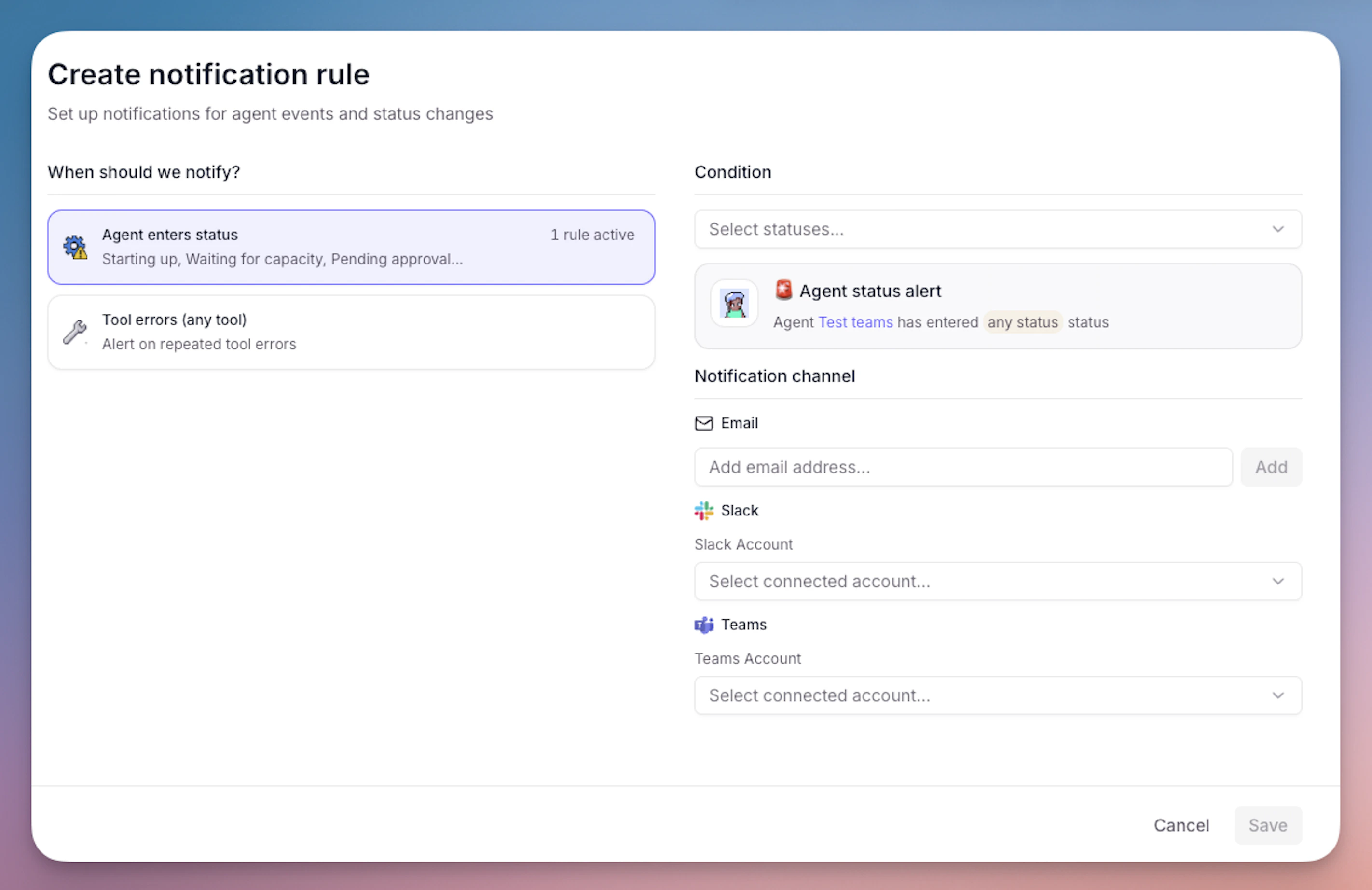 You can receive notifications in Microsoft Teams when your agents enter specific statuses or encounter tool errors. This helps you monitor agent activity and respond quickly when issues occur.
Agent notifications are currently in beta and may not be available for all accounts.
### Setting up Teams notifications
Navigate to your agent and click the **Build** tab, then click **Escalations** in the left sidebar.
Under "Agent Notifications", click **Add agent notification**.
Select **Microsoft Teams** as the platform, then choose the notification trigger: **Agent enters status** (select specific task statuses such as "Running", "Completed", or "Failed") or **Tool errors (any tool)** to get notified when any tool encounters an error. Select a Microsoft Teams account and the channel where you want to receive notifications. If no accounts appear, complete the [connection steps](#step-1-connect-the-integration) first.
Click **Publish changes** to save your notification configuration.
Test the notification by running your agent — you should receive a notification in your selected Teams channel based on your configured triggers.
### What you'll receive
When a notification is triggered, you'll receive a message in your Teams channel containing:
Agent name, status, and task details
Link to view the full task in Relevance AI
For tool errors: which tool failed and why
## Admin consent & permissions
Enterprise organizations often require administrator approval before users can connect third-party applications or install apps in Microsoft Teams.
### Understanding admin consent
Microsoft Azure AD (Entra ID) allows tenant administrators to restrict whether users can grant consent to third-party apps on their own. When this restriction is active, individual users will see a "Need admin approval" screen during the OAuth flow instead of the standard consent prompt. This is a tenant-level policy — it is not specific to Relevance AI.
If you see "Need admin approval" or "This app requires admin approval", follow the steps below.
If you see an admin approval message when connecting your Microsoft account:
Copy the **consent URL** that appears in the Microsoft login window. This URL contains the specific permissions Relevance AI is requesting.
Send the URL to your **Microsoft 365 Global Administrator or Application Administrator** with a request to grant consent. Include a brief explanation of what Relevance AI is and how it will be used.
Your administrator will open the URL, review the requested permissions, and click **Accept** to grant consent on behalf of the organization.
Return to Relevance AI and **retry the Microsoft integration connection**. The consent prompt should no longer appear.
If your organization requires admin approval for app installations:
Request approval to install the Relevance AI app in Microsoft Teams.
Your administrator will go to the [Microsoft Teams Admin Center](https://admin.teams.microsoft.com), navigate to **Teams apps** > **Manage apps**, search for **Relevance AI**, and change the app status to **Allowed**.
Once approved, follow the steps in [Step 2: Install the Relevance AI app](#step-2-install-the-relevance-ai-app-in-microsoft-teams).
## Permissions reference
The following OAuth scopes are requested when you connect your Microsoft account. These permissions allow Relevance AI to read and send messages, access team and channel metadata, and maintain persistent access.
| Scope | Description |
| ------------------------- | -------------------------------------------------------------- |
| `offline_access` | Maintains access without requiring frequent re-authentication |
| `Chat.Create` | Create new chats |
| `Chat.ReadWrite` | Read and write to chats the user has access to |
| `ChatMessage.Read` | Read chat messages |
| `ChatMessage.Send` | Send chat messages |
| `ChannelMessage.Read.All` | Read messages in channels the user has access to |
| `ChannelMessage.Send` | Send messages to channels |
| `Channel.ReadBasic.All` | Read basic channel information (name, description, ID) |
| `Team.ReadBasic.All` | Read basic team information (name, description, ID) |
| `User.Read` | Read the signed-in user's profile |
| `User.Read.All` | List users in the organization (used for trigger user filters) |
These permissions may evolve as new features are added to the integration. Any changes will be reflected in the OAuth consent prompt.
## Troubleshooting
This error means your Azure AD / Entra ID tenant has not granted consent for Relevance AI. Ask your Microsoft 365 Global Administrator to grant admin consent using the steps in [Admin consent & permissions](#admin-consent-permissions). Once consent is granted, retry the connection from the Integrations page.
This occurs when you or your administrator explicitly declined the permissions request during the OAuth flow. To resolve this, retry the integration connection from the Integrations page and click **Accept** when prompted. If the consent was denied by an admin policy, your administrator will need to grant consent on your behalf.
If the Relevance AI app does not appear in the Teams app store, your organization likely restricts third-party app installations. Ask your IT administrator to allow the app in the [Microsoft Teams Admin Center](https://admin.teams.microsoft.com) under **Teams apps** > **Manage apps**. See [Admin consent & permissions](#admin-consent-permissions) for detailed steps.
Some Teams features are controlled by feature flags and may not be enabled for all accounts. If you don't see Microsoft Teams as a trigger option in your agent or workforce settings, [contact our support team](/get-started/support) to check whether the feature needs to be enabled for your account.
Verify that the Relevance AI app has been added to the specific channel or chat being monitored (not just installed in Teams), and that the Microsoft account used for the trigger is a member of the channel. Confirm the trigger is enabled and published in your agent's settings. If keyword matching is configured, check that messages contain the expected keywords. Review the agent's task logs in Relevance AI for errors — a `401 Unauthorized` error indicates the OAuth token has expired or been revoked, and you should reconnect the Microsoft integration.
Magic links are time-limited and may expire before you click them. If your magic link no longer works, connect your Microsoft Teams account directly through the standard OAuth flow: go to **Integrations & API Keys** in the sidebar, find the Microsoft integration, and click **Add Integration**.
The consent page shows two email addresses: your Relevance AI account email and your Microsoft Teams account email. If either address looks incorrect, click **Cancel** and verify that you're logged in to the correct Relevance AI account before trying again. To switch accounts, sign out of Relevance AI and sign in with the correct account, then click the magic link again.
## Frequently asked questions (FAQs)
The Microsoft Teams integration is built and maintained by Relevance AI. For integration-specific questions, [contact our support team](/get-started/support). For Microsoft Teams platform issues, contact [Microsoft support](https://support.microsoft.com/).
The most common cause is that the Relevance AI app has not been installed in Teams or added to the specific channel. The Microsoft account you connected must also be a member of that channel. If your organization requires admin consent, the app may not be visible until an administrator approves it. Verify that you've completed both setup steps and added the app to the channel.
Yes, you can connect multiple Microsoft accounts through the Integrations & API Keys page. Each account can be used for different triggers and tool steps.
Yes, Teams triggers can monitor both channel messages and private chats. To monitor direct messages, select the "Direct chats with Relevance AI" option when configuring your trigger instead of a specific channel.
Yes. Set the Thread Reply Method to "No reply" in your MS Teams trigger's Advanced Settings. This allows your agent to process messages without posting a response back to Teams — useful when the agent's output goes somewhere else, such as a database, email, or another workflow. The default is "Agent auto-reply", which maintains existing behavior. To verify the agent is running correctly, check the task history in Relevance AI.
Yes, files shared in Teams channels are stored in SharePoint. You can access them through the Microsoft API Call tool step via the Microsoft Graph API.
Pre-built tool steps (like "Send Channel Message") are designed for common tasks with simplified interfaces. The Microsoft API Call tool step gives you full access to Microsoft Graph API for advanced operations not covered by pre-built steps.
Yes, Microsoft Graph API enforces rate limits depending on your Microsoft 365 subscription. Microsoft returns a `429 Too Many Requests` status code when limits are exceeded.
Go to the **Integrations & API Keys** page from the sidebar, find **Microsoft (Teams, Outlook, SharePoint, OneDrive)**, click "..." on the account you want to remove, and click "Remove" and confirm. This will disable all triggers and tool steps using this account across Teams, Outlook, SharePoint, and OneDrive. To also remove the app from Microsoft Teams, go to **Apps** in Teams, find Relevance AI, and click **Uninstall**.
A magic link is an alternative way to connect your Microsoft Teams account to Relevance AI. When you click the link, you're taken to a consent page in Relevance AI that shows your Relevance AI account email and your Microsoft Teams account details. Click **Confirm** to complete the connection or **Cancel** to abort it. The magic link method achieves the same result as connecting via the standard OAuth flow on the Integrations page.
Both methods work and achieve the same result. You can connect your Microsoft Teams account through the standard OAuth flow on the **Integrations & API Keys** page, or by clicking a magic link you received from Microsoft Teams or via email. Use whichever is more convenient.
If you're not logged in to Relevance AI when you click the magic link, you'll be redirected to the sign-in page. After signing in, you'll be automatically returned to the consent page to complete the account linking.
You can receive notifications in Microsoft Teams when your agents enter specific statuses or encounter tool errors. This helps you monitor agent activity and respond quickly when issues occur.
Agent notifications are currently in beta and may not be available for all accounts.
### Setting up Teams notifications
Navigate to your agent and click the **Build** tab, then click **Escalations** in the left sidebar.
Under "Agent Notifications", click **Add agent notification**.
Select **Microsoft Teams** as the platform, then choose the notification trigger: **Agent enters status** (select specific task statuses such as "Running", "Completed", or "Failed") or **Tool errors (any tool)** to get notified when any tool encounters an error. Select a Microsoft Teams account and the channel where you want to receive notifications. If no accounts appear, complete the [connection steps](#step-1-connect-the-integration) first.
Click **Publish changes** to save your notification configuration.
Test the notification by running your agent — you should receive a notification in your selected Teams channel based on your configured triggers.
### What you'll receive
When a notification is triggered, you'll receive a message in your Teams channel containing:
Agent name, status, and task details
Link to view the full task in Relevance AI
For tool errors: which tool failed and why
## Admin consent & permissions
Enterprise organizations often require administrator approval before users can connect third-party applications or install apps in Microsoft Teams.
### Understanding admin consent
Microsoft Azure AD (Entra ID) allows tenant administrators to restrict whether users can grant consent to third-party apps on their own. When this restriction is active, individual users will see a "Need admin approval" screen during the OAuth flow instead of the standard consent prompt. This is a tenant-level policy — it is not specific to Relevance AI.
If you see "Need admin approval" or "This app requires admin approval", follow the steps below.
If you see an admin approval message when connecting your Microsoft account:
Copy the **consent URL** that appears in the Microsoft login window. This URL contains the specific permissions Relevance AI is requesting.
Send the URL to your **Microsoft 365 Global Administrator or Application Administrator** with a request to grant consent. Include a brief explanation of what Relevance AI is and how it will be used.
Your administrator will open the URL, review the requested permissions, and click **Accept** to grant consent on behalf of the organization.
Return to Relevance AI and **retry the Microsoft integration connection**. The consent prompt should no longer appear.
If your organization requires admin approval for app installations:
Request approval to install the Relevance AI app in Microsoft Teams.
Your administrator will go to the [Microsoft Teams Admin Center](https://admin.teams.microsoft.com), navigate to **Teams apps** > **Manage apps**, search for **Relevance AI**, and change the app status to **Allowed**.
Once approved, follow the steps in [Step 2: Install the Relevance AI app](#step-2-install-the-relevance-ai-app-in-microsoft-teams).
## Permissions reference
The following OAuth scopes are requested when you connect your Microsoft account. These permissions allow Relevance AI to read and send messages, access team and channel metadata, and maintain persistent access.
| Scope | Description |
| ------------------------- | -------------------------------------------------------------- |
| `offline_access` | Maintains access without requiring frequent re-authentication |
| `Chat.Create` | Create new chats |
| `Chat.ReadWrite` | Read and write to chats the user has access to |
| `ChatMessage.Read` | Read chat messages |
| `ChatMessage.Send` | Send chat messages |
| `ChannelMessage.Read.All` | Read messages in channels the user has access to |
| `ChannelMessage.Send` | Send messages to channels |
| `Channel.ReadBasic.All` | Read basic channel information (name, description, ID) |
| `Team.ReadBasic.All` | Read basic team information (name, description, ID) |
| `User.Read` | Read the signed-in user's profile |
| `User.Read.All` | List users in the organization (used for trigger user filters) |
These permissions may evolve as new features are added to the integration. Any changes will be reflected in the OAuth consent prompt.
## Troubleshooting
This error means your Azure AD / Entra ID tenant has not granted consent for Relevance AI. Ask your Microsoft 365 Global Administrator to grant admin consent using the steps in [Admin consent & permissions](#admin-consent-permissions). Once consent is granted, retry the connection from the Integrations page.
This occurs when you or your administrator explicitly declined the permissions request during the OAuth flow. To resolve this, retry the integration connection from the Integrations page and click **Accept** when prompted. If the consent was denied by an admin policy, your administrator will need to grant consent on your behalf.
If the Relevance AI app does not appear in the Teams app store, your organization likely restricts third-party app installations. Ask your IT administrator to allow the app in the [Microsoft Teams Admin Center](https://admin.teams.microsoft.com) under **Teams apps** > **Manage apps**. See [Admin consent & permissions](#admin-consent-permissions) for detailed steps.
Some Teams features are controlled by feature flags and may not be enabled for all accounts. If you don't see Microsoft Teams as a trigger option in your agent or workforce settings, [contact our support team](/get-started/support) to check whether the feature needs to be enabled for your account.
Verify that the Relevance AI app has been added to the specific channel or chat being monitored (not just installed in Teams), and that the Microsoft account used for the trigger is a member of the channel. Confirm the trigger is enabled and published in your agent's settings. If keyword matching is configured, check that messages contain the expected keywords. Review the agent's task logs in Relevance AI for errors — a `401 Unauthorized` error indicates the OAuth token has expired or been revoked, and you should reconnect the Microsoft integration.
Magic links are time-limited and may expire before you click them. If your magic link no longer works, connect your Microsoft Teams account directly through the standard OAuth flow: go to **Integrations & API Keys** in the sidebar, find the Microsoft integration, and click **Add Integration**.
The consent page shows two email addresses: your Relevance AI account email and your Microsoft Teams account email. If either address looks incorrect, click **Cancel** and verify that you're logged in to the correct Relevance AI account before trying again. To switch accounts, sign out of Relevance AI and sign in with the correct account, then click the magic link again.
## Frequently asked questions (FAQs)
The Microsoft Teams integration is built and maintained by Relevance AI. For integration-specific questions, [contact our support team](/get-started/support). For Microsoft Teams platform issues, contact [Microsoft support](https://support.microsoft.com/).
The most common cause is that the Relevance AI app has not been installed in Teams or added to the specific channel. The Microsoft account you connected must also be a member of that channel. If your organization requires admin consent, the app may not be visible until an administrator approves it. Verify that you've completed both setup steps and added the app to the channel.
Yes, you can connect multiple Microsoft accounts through the Integrations & API Keys page. Each account can be used for different triggers and tool steps.
Yes, Teams triggers can monitor both channel messages and private chats. To monitor direct messages, select the "Direct chats with Relevance AI" option when configuring your trigger instead of a specific channel.
Yes. Set the Thread Reply Method to "No reply" in your MS Teams trigger's Advanced Settings. This allows your agent to process messages without posting a response back to Teams — useful when the agent's output goes somewhere else, such as a database, email, or another workflow. The default is "Agent auto-reply", which maintains existing behavior. To verify the agent is running correctly, check the task history in Relevance AI.
Yes, files shared in Teams channels are stored in SharePoint. You can access them through the Microsoft API Call tool step via the Microsoft Graph API.
Pre-built tool steps (like "Send Channel Message") are designed for common tasks with simplified interfaces. The Microsoft API Call tool step gives you full access to Microsoft Graph API for advanced operations not covered by pre-built steps.
Yes, Microsoft Graph API enforces rate limits depending on your Microsoft 365 subscription. Microsoft returns a `429 Too Many Requests` status code when limits are exceeded.
Go to the **Integrations & API Keys** page from the sidebar, find **Microsoft (Teams, Outlook, SharePoint, OneDrive)**, click "..." on the account you want to remove, and click "Remove" and confirm. This will disable all triggers and tool steps using this account across Teams, Outlook, SharePoint, and OneDrive. To also remove the app from Microsoft Teams, go to **Apps** in Teams, find Relevance AI, and click **Uninstall**.
A magic link is an alternative way to connect your Microsoft Teams account to Relevance AI. When you click the link, you're taken to a consent page in Relevance AI that shows your Relevance AI account email and your Microsoft Teams account details. Click **Confirm** to complete the connection or **Cancel** to abort it. The magic link method achieves the same result as connecting via the standard OAuth flow on the Integrations page.
Both methods work and achieve the same result. You can connect your Microsoft Teams account through the standard OAuth flow on the **Integrations & API Keys** page, or by clicking a magic link you received from Microsoft Teams or via email. Use whichever is more convenient.
If you're not logged in to Relevance AI when you click the magic link, you'll be redirected to the sign-in page. After signing in, you'll be automatically returned to the consent page to complete the account linking.