> ## Documentation Index
> Fetch the complete documentation index at: https://relevanceai.com/docs/llms.txt
> Use this file to discover all available pages before exploring further.
# Extract categories in data
> Suggest Categories/Tags/Labels/Code-frame by looking at a subset of the data
## Introduction
Welcome to the documentation for the "Extract Categories in Data" Tool! This Tool is designed to analyze text data and
suggest a list of main categories (i.e. themes and topics) seen in the data. Whether you are a data analyst, marketer,
or researcher, this Tool will assist you in organizing and understanding your data more effectively.
With its advanced AI capabilities and user-friendly interface, this Tool is a game-changer in fast data understanding.
## Overview
The "Extract Categories in Data" Tool leverages cutting-edge large langue models to analyze text data and extract meaningful categories.
It goes beyond simple keyword matching and provides a comprehensive analysis of the data to identify the main themes and topics.
By extracting categories, this Tool enables you to gain a deeper understanding of your data and uncover hidden patterns and trends.
With its powerful capabilities and intuitive design, it is the perfect solution for understanding unstructured data.
The suggested categories can be used for [text categorization](/templates/text-categorizer-classifier).
 ## Key Features
1. **Accurate Categorization**:
The "Extract Categories in Data" Tool utilizes advanced AI to accurately categorize text data. It analyzes the content and context
to identify the main categories and themes. This feature ensures that you receive reliable and accurate categorization results, allowing
you to make informed decisions based on the insights gained.
2. **Customizable Word Count**:
You have the flexibility to customize the word count for each category or theme. Whether you want a more detailed analysis or a broader overview,
you can specify the wordiness of the suggested categories.
3. **Flexible Taxonomy Count**:
The Tool allows you to specify the total number of categories or themes to be extracted from the data. Whether you need a few key categories or
a more comprehensive taxonomy, you can customize the count accordingly. This flexibility ensures that the extracted categories provide a meaningful
representation of your data.
4. **Objective-Focused Analysis**:
You can define the objective or focus for categorization, such as "Customer service" or "Product feedback." By specifying the objective, the Tool
directs the LLM model to a certain perspective. This objective-focused analysis enables you to extract categories that are relevant and valuable
for your particular use case.
## How to use the Tool
Follow these steps to extract categories from your text data:
* **Upload Data**: Upload your CSV file containing the text you wish to understand (e.g. a CSV file of survey responses).
* **Specify Field Name**: Enter the header of the target column, **exactly as it appears in your CSV** file. This field contains the text data
that you want to analyze.
* **Specify what subset to look at**: You can specify a subset of the file to be looked at. This is to replicate the data understanding process.
No matter how large the number of survey responses are, the discussed topic are more or less the same over the file.
- To have a uniform coverage of the topics, avoid using alphabetically sorted CSV files.
- Use the "Extract categories in data" Tool on different subsets of your file (i.e. multiple runs
for different ranges of rows). Copy the suggestions to a text file and finalize the category
suggestion list by applying your domain knowledge considering the
[next step](/templates/text-categorizer-classifier) requirements.
- LLMs have limited capacity for receiving input data. Instead of using your whole file
(i.e. first row to the last row) use subsets of the file to analyze the data for category
suggestions.
* **Customize Word Count (Optional)**: If desired, you can customize the word count for each category or theme. This allows you to control the
wordiness of suggested categories. If left unspecified, the default word count will be used.
* **Specify Taxonomy Count (Optional)**: You can specify the total number of categories or themes to be extracted from the data. This customization
allows you to control the breadth of the extracted categories. If left unspecified, the default taxonomy count will be used.
* **Define Objective (Optional)**: If you have a specific objective or focus for categorization, you can define it here. This objective-focused
analysis ensures that the extracted categories align with your specific goals. If left unspecified, a general objective will be used.
* **Example (Optional)**: You can provide sample(s) of category extraction done by you. LLMs are proven to work better when they see samples.
Provide sample(s) of your text data and the categories you would annotate for the samples.
- Using `,` you can provide multiple categories per sample
- Keep the writing style uniform (e.g. Capital each word)
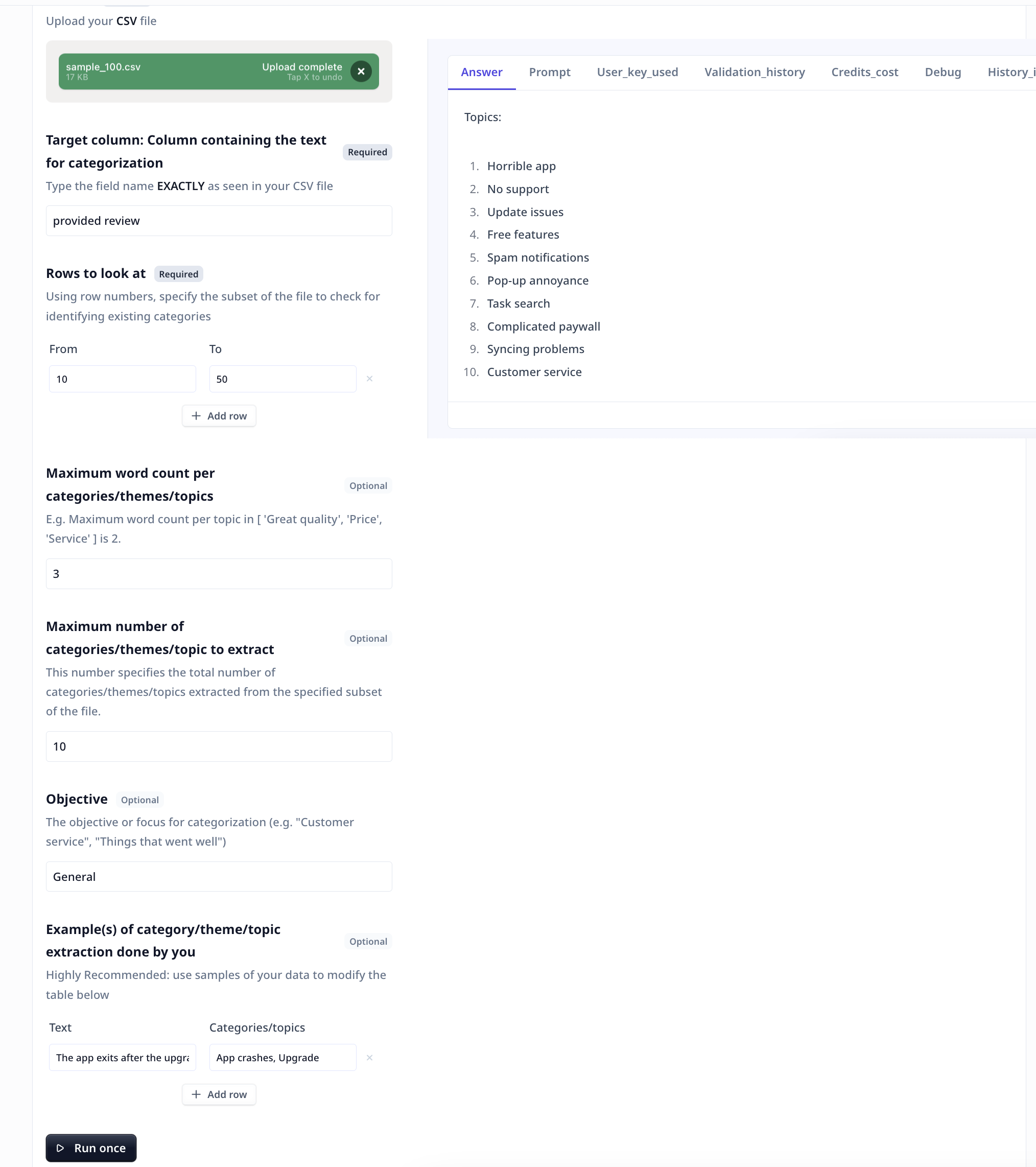
* **Run the Tool**: Once you have uploaded the CSV file and filled the form, click the "Run Tool" button (on the App page) or use
the run options on your data table (bulk/single run) to initiate the categorization process. The Tool will analyze the data and
generate a list of main categories, themes, and topics based on the content and context of the text.
#### Tool execution at Relevance
* **View Results**: The Tool will provide you with the extracted categories in a clear and organized format. You can explore the main categories, themes,
and topics identified in your data. The results will help you gain a deeper understanding of your text data and uncover valuable insights.
We Highly recommend
* running this Tool on different subsets of your file
* checking the received suggestions from multiple runs all together
* finalizing the category list using your domain knowledge and the goals for text categorization
* use the finalized list in the [Text categorizer/Classifier](/templates/text-categorizer-classifier) Tool.
## Deep dive in the Tool
### User inputs
## Key Features
1. **Accurate Categorization**:
The "Extract Categories in Data" Tool utilizes advanced AI to accurately categorize text data. It analyzes the content and context
to identify the main categories and themes. This feature ensures that you receive reliable and accurate categorization results, allowing
you to make informed decisions based on the insights gained.
2. **Customizable Word Count**:
You have the flexibility to customize the word count for each category or theme. Whether you want a more detailed analysis or a broader overview,
you can specify the wordiness of the suggested categories.
3. **Flexible Taxonomy Count**:
The Tool allows you to specify the total number of categories or themes to be extracted from the data. Whether you need a few key categories or
a more comprehensive taxonomy, you can customize the count accordingly. This flexibility ensures that the extracted categories provide a meaningful
representation of your data.
4. **Objective-Focused Analysis**:
You can define the objective or focus for categorization, such as "Customer service" or "Product feedback." By specifying the objective, the Tool
directs the LLM model to a certain perspective. This objective-focused analysis enables you to extract categories that are relevant and valuable
for your particular use case.
## How to use the Tool
Follow these steps to extract categories from your text data:
* **Upload Data**: Upload your CSV file containing the text you wish to understand (e.g. a CSV file of survey responses).
* **Specify Field Name**: Enter the header of the target column, **exactly as it appears in your CSV** file. This field contains the text data
that you want to analyze.
* **Specify what subset to look at**: You can specify a subset of the file to be looked at. This is to replicate the data understanding process.
No matter how large the number of survey responses are, the discussed topic are more or less the same over the file.
- To have a uniform coverage of the topics, avoid using alphabetically sorted CSV files.
- Use the "Extract categories in data" Tool on different subsets of your file (i.e. multiple runs
for different ranges of rows). Copy the suggestions to a text file and finalize the category
suggestion list by applying your domain knowledge considering the
[next step](/templates/text-categorizer-classifier) requirements.
- LLMs have limited capacity for receiving input data. Instead of using your whole file
(i.e. first row to the last row) use subsets of the file to analyze the data for category
suggestions.
* **Customize Word Count (Optional)**: If desired, you can customize the word count for each category or theme. This allows you to control the
wordiness of suggested categories. If left unspecified, the default word count will be used.
* **Specify Taxonomy Count (Optional)**: You can specify the total number of categories or themes to be extracted from the data. This customization
allows you to control the breadth of the extracted categories. If left unspecified, the default taxonomy count will be used.
* **Define Objective (Optional)**: If you have a specific objective or focus for categorization, you can define it here. This objective-focused
analysis ensures that the extracted categories align with your specific goals. If left unspecified, a general objective will be used.
* **Example (Optional)**: You can provide sample(s) of category extraction done by you. LLMs are proven to work better when they see samples.
Provide sample(s) of your text data and the categories you would annotate for the samples.
- Using `,` you can provide multiple categories per sample
- Keep the writing style uniform (e.g. Capital each word)
* **Run the Tool**: Once you have uploaded the CSV file and filled the form, click the "Run Tool" button (on the App page) or use
the run options on your data table (bulk/single run) to initiate the categorization process. The Tool will analyze the data and
generate a list of main categories, themes, and topics based on the content and context of the text.
#### Tool execution at Relevance
* **View Results**: The Tool will provide you with the extracted categories in a clear and organized format. You can explore the main categories, themes,
and topics identified in your data. The results will help you gain a deeper understanding of your text data and uncover valuable insights.
We Highly recommend
* running this Tool on different subsets of your file
* checking the received suggestions from multiple runs all together
* finalizing the category list using your domain knowledge and the goals for text categorization
* use the finalized list in the [Text categorizer/Classifier](/templates/text-categorizer-classifier) Tool.
## Deep dive in the Tool
### User inputs
 1.
2.
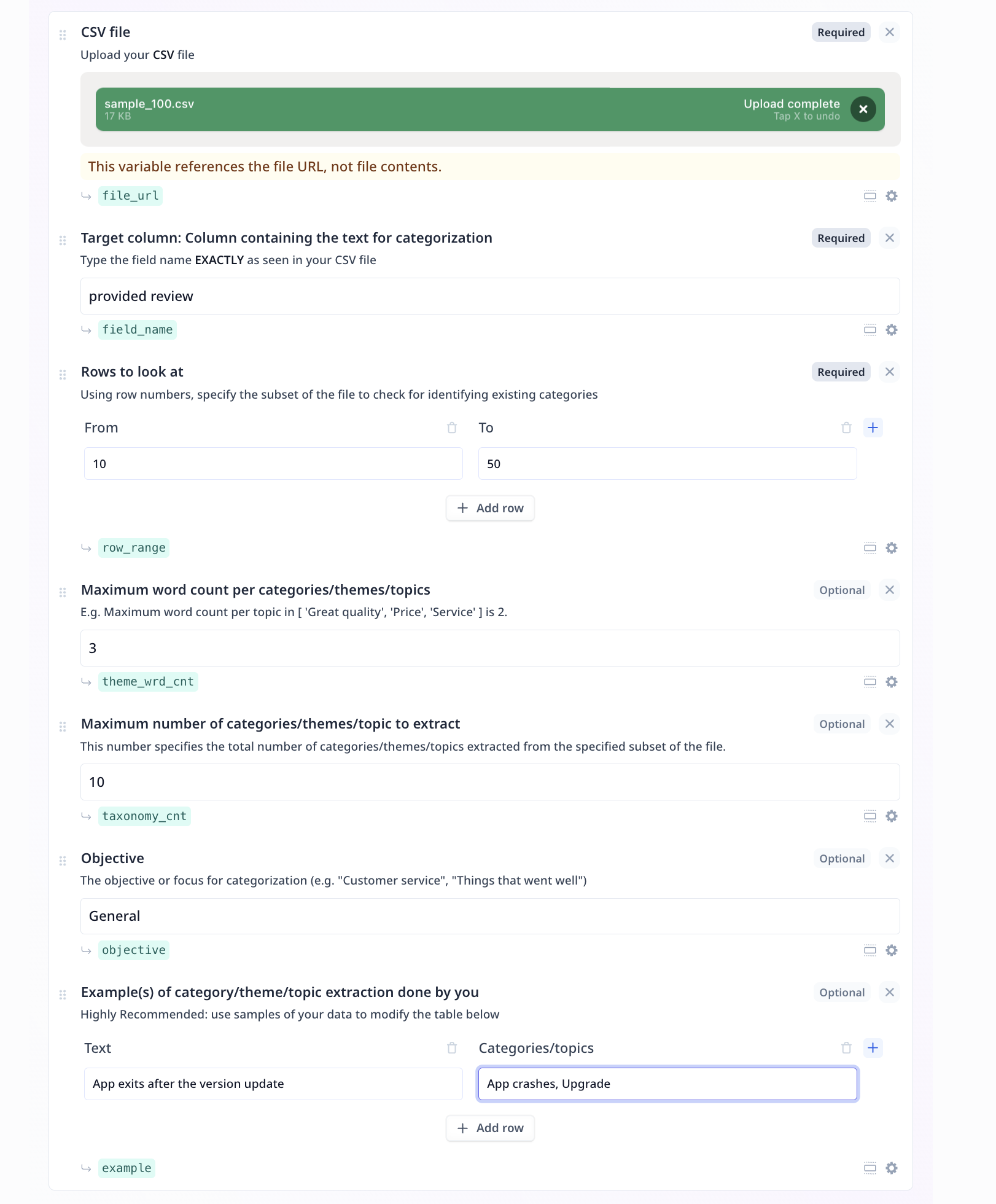
This component is used twice in this Tool. Target column and the objective are both of Text
inputs.
3.
This component is used twice in this Tool. Row range (from - to) and well as Examples
(Text - Categories/topics) are both samples of structured input data.
4.
This component is used twice in this Tool. Both maximum word count per category and maximum
number of suggested categories are of numeric inputs.
### Tool steps
There are 4 components under the Tool steps in this analysis flow. These components take care of three
tasks: loading the specified subset of the file, properly formatting the provided samples,
and the LLM step.
#### Loading the specified subset of the file
1. Loading the file into readable json format
1.
2.
This component is used twice in this Tool. Target column and the objective are both of Text
inputs.
3.
This component is used twice in this Tool. Row range (from - to) and well as Examples
(Text - Categories/topics) are both samples of structured input data.
4.
This component is used twice in this Tool. Both maximum word count per category and maximum
number of suggested categories are of numeric inputs.
### Tool steps
There are 4 components under the Tool steps in this analysis flow. These components take care of three
tasks: loading the specified subset of the file, properly formatting the provided samples,
and the LLM step.
#### Loading the specified subset of the file
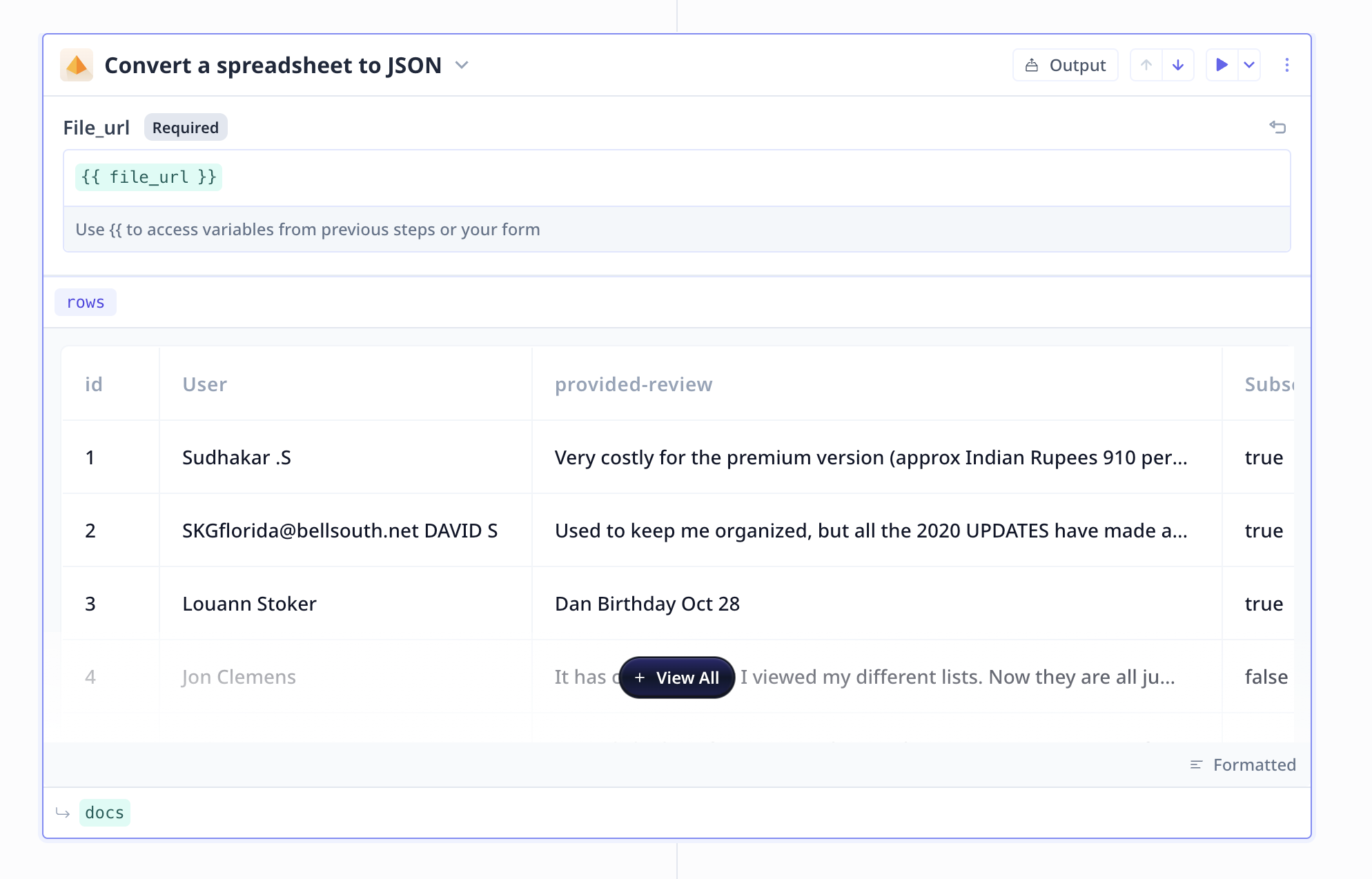
1. Loading the file into readable json format
 2. Selecting the specified subset of the data
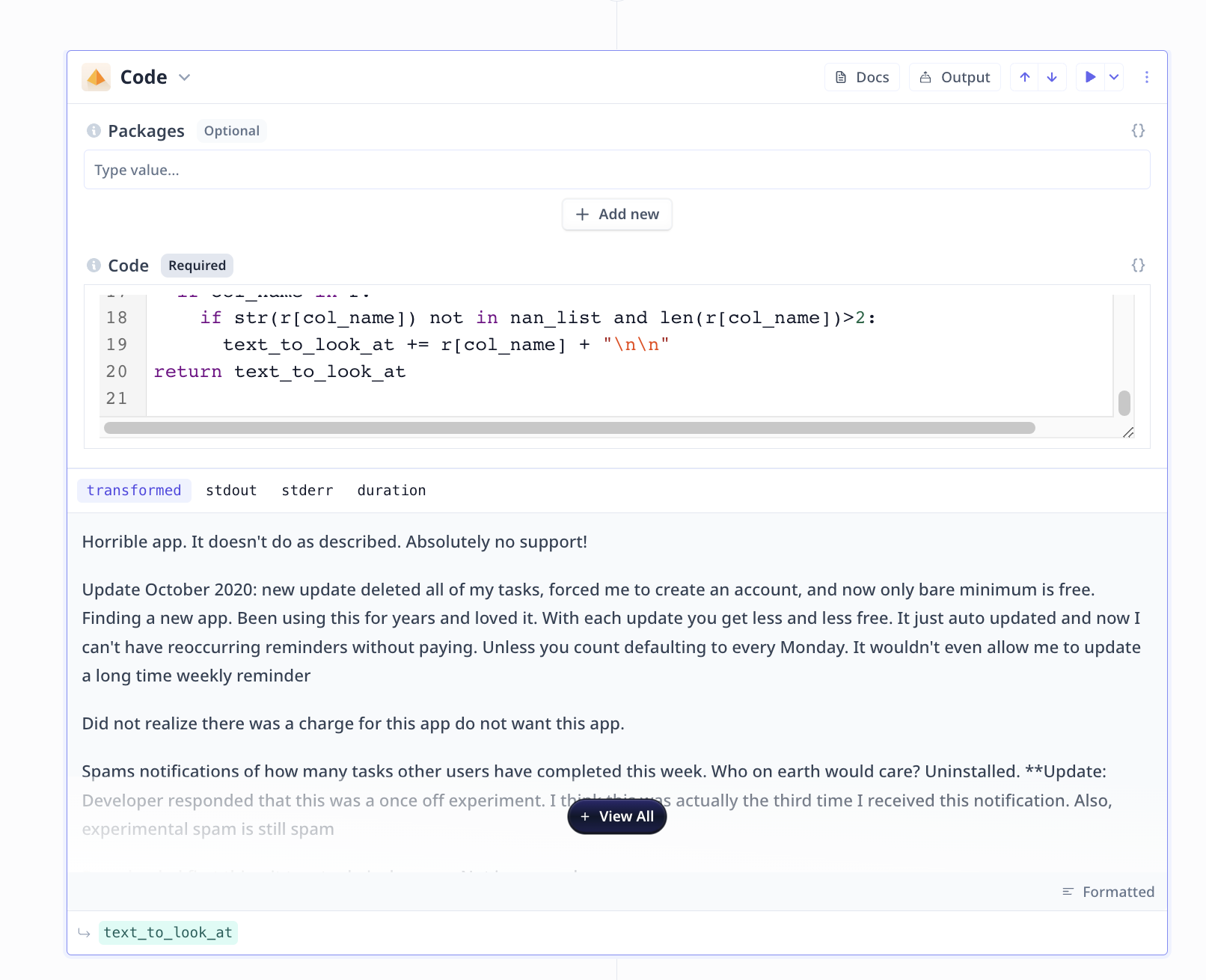 In this case, the Python code, filters out any rows that is not in the specified range.
#### Properly formatting the provided samples
In this case, the Python code, filters out any rows that is not in the specified range.
#### Properly formatting the provided samples
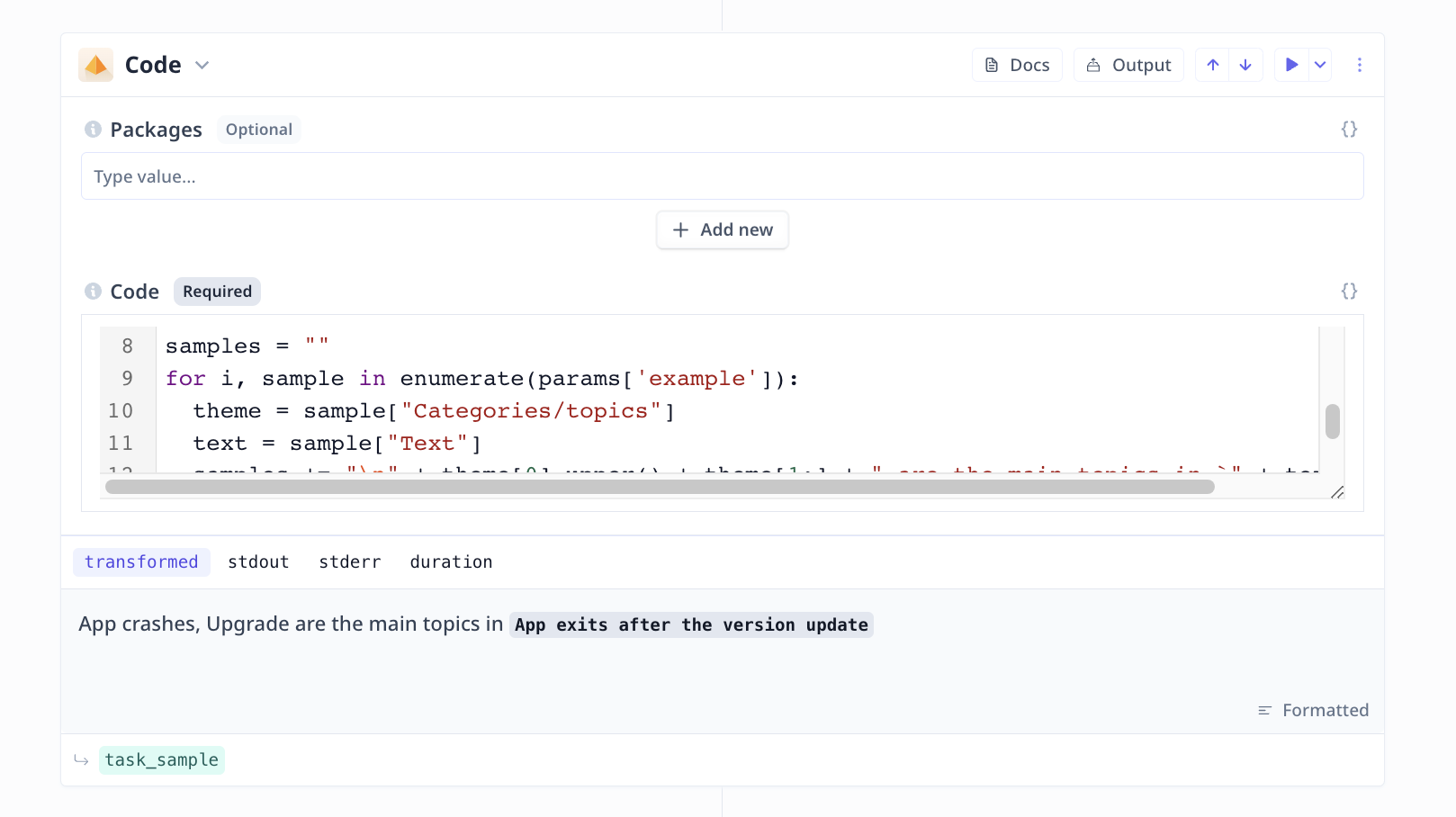 In this case, the Python code, forms the entered samples in the format that is suitable
abd compatible to the prompt.
#### Large Language Model (LLM)
In this case, the Python code, forms the entered samples in the format that is suitable
abd compatible to the prompt.
#### Large Language Model (LLM)
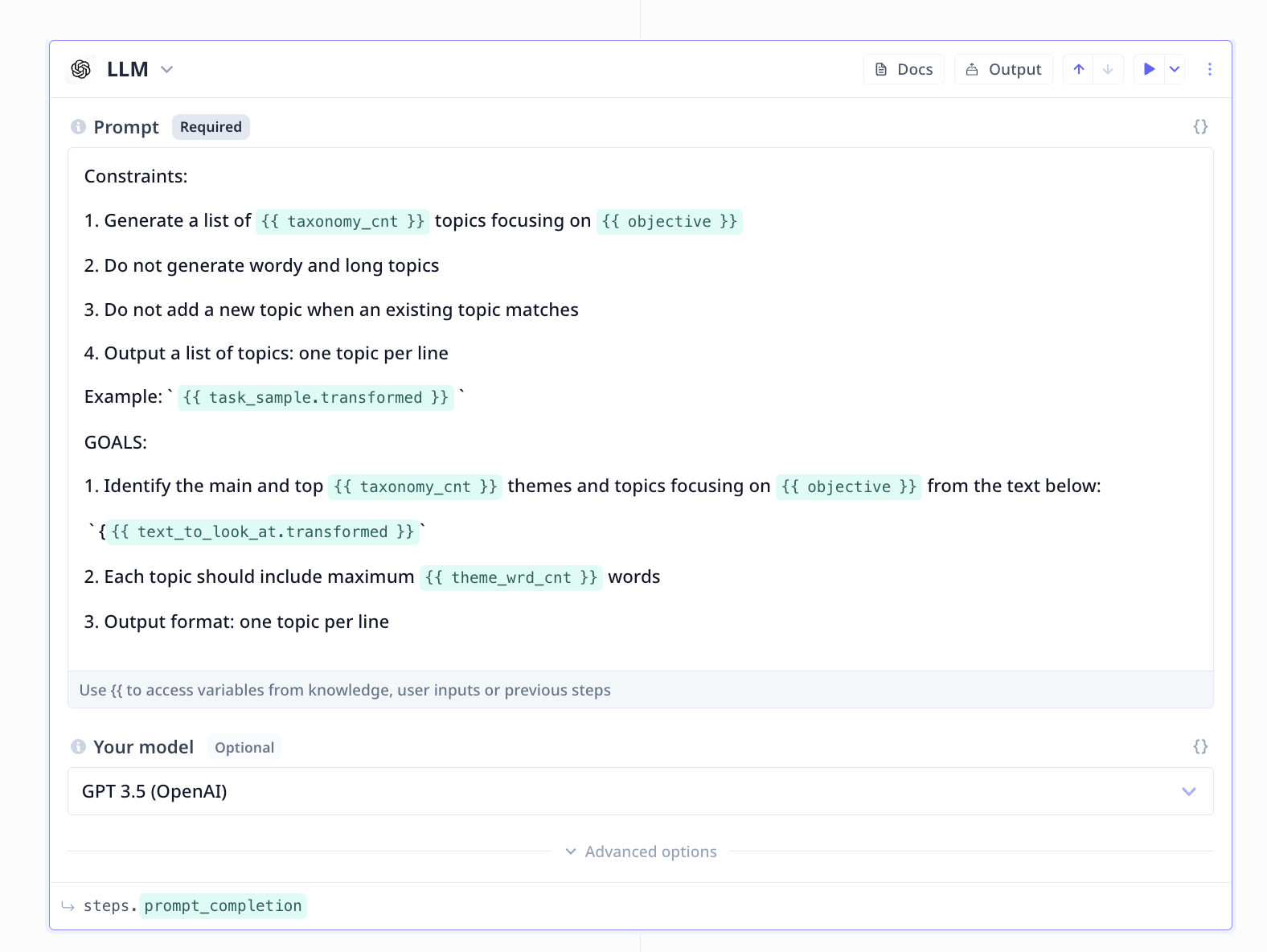 **[A Good Prompt](/build/tools/tool-steps/llms/prompt)**
1. Be short and precise with your instruction/request from the LLM
2. Explicitly note constraints and goals
3. Include formatting instruction when necessary
**[A Good Prompt](/build/tools/tool-steps/llms/prompt)**
1. Be short and precise with your instruction/request from the LLM
2. Explicitly note constraints and goals
3. Include formatting instruction when necessary