> ## Documentation Index
> Fetch the complete documentation index at: https://relevanceai.com/docs/llms.txt
> Use this file to discover all available pages before exploring further.
# Extract data from PDF
> Extract specific information from a PDF
## Introduction
Welcome to the documentation for the "Extract data from PDF" Tool! This Tool is designed to automate the extraction of data from PDF files.
Whether you are a data analyst, researcher, or business professional, this Tool will assist you in effortlessly extracting valuable information
from PDF documents. With its powerful capabilities and user-friendly interface, this Tool is a great asset in the field of data extraction.
## Overview
The "Extract data from PDF" Tool leverages advanced algorithms and machine learning techniques to extract data from PDFs. It eliminates the
need for manual data entry and saves you valuable time and effort. By automating the extraction process, this Tool ensures accuracy and efficiency
in handling PDF documents. With its intuitive design and robust features, it is the perfect solution for extracting data from PDFs of any size.
 ## Key Features
1. **Automated Data Extraction**:
The "Extract data from PDF" Tool automates the process of extracting data from PDF documents. It analyzes the structure and content of the PDF to
identify and extract the relevant data points. This eliminates the need for manual data entry, reducing errors and saving you valuable time.
2. **Data Point Customization**:
The Tool allows you to customize the data points you want to extract from the PDF. Whether it is extracting invoice details, financial data, or customer
information, you can specify the data points you need. This flexibility ensures that you extract the specific information that is relevant to your analysis
or business needs.
3. **Handling Image PDFs and difficult structure**:
Relevance supports OCR for image PDFs and complex structures.
Use the Build page to access the set up and activate OCR - more details are provided in the Deep dive in the Tool section.
4. **Export and Integration**:
The "Extract data from PDF" Tool allows you to export the extracted data in the CSV format. This enables seamless integration with other tools or systems,
making it easy to further analyze or process the extracted data.
## How to use the Tool
Follow these steps to extract data from your PDF documents:
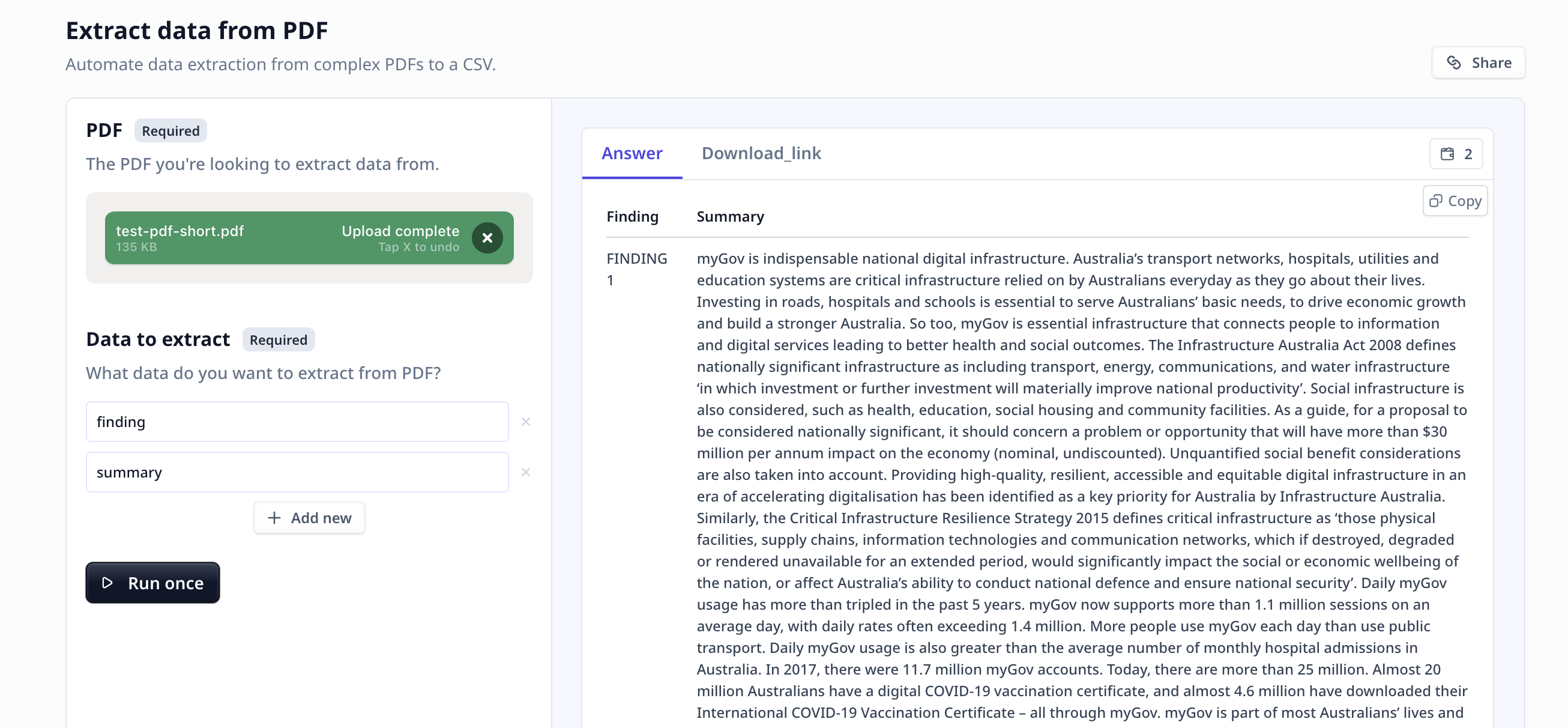
* **Upload PDF**: Upload the PDF file you want to extract data from.
* **Specify Data Points**: Customize the data points you want to extract from the PDF. This could include fields such as "Legal name," "Invoice number,"
"Invoice date," "Bank details," or "Invoice items breakdown." Specify the data points that are relevant to your analysis or business needs.
LLMs are not designed or trained for statistical analysis. Hence, it is recommended
to ask for topics or subjects that are clearly mentioned in the text.
* **Run the Tool**: Once you have uploaded the file and entered your data points, click the "Run Tool" button (on the App page) or use
the run options on your data table (bulk/single run) to initiate the the analysis process. The Tool will analyze the PDF document and
extract the specified data points. Sit back and relax while the Tool does the work for you.
#### Tool execution at Relevance
* **Export and Integrate**: Click on "Export" and the extracted data be downloaded to your computer as a CSV file. This CSV contains
columns representing the extracted data. You can then integrate the data with other tools or systems for further analysis or processing.
## Deep dive in the Tool
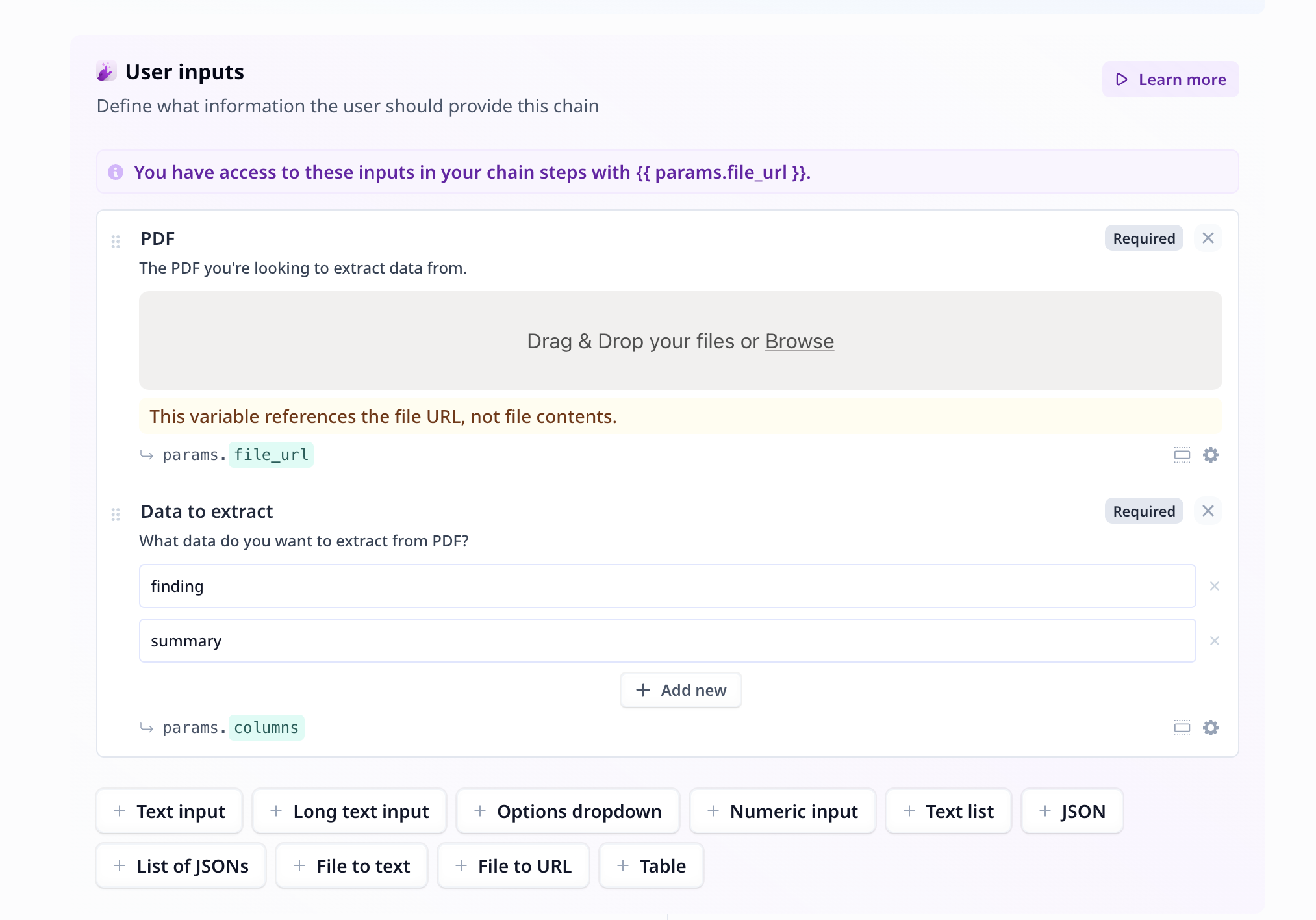
### User inputs
## Key Features
1. **Automated Data Extraction**:
The "Extract data from PDF" Tool automates the process of extracting data from PDF documents. It analyzes the structure and content of the PDF to
identify and extract the relevant data points. This eliminates the need for manual data entry, reducing errors and saving you valuable time.
2. **Data Point Customization**:
The Tool allows you to customize the data points you want to extract from the PDF. Whether it is extracting invoice details, financial data, or customer
information, you can specify the data points you need. This flexibility ensures that you extract the specific information that is relevant to your analysis
or business needs.
3. **Handling Image PDFs and difficult structure**:
Relevance supports OCR for image PDFs and complex structures.
Use the Build page to access the set up and activate OCR - more details are provided in the Deep dive in the Tool section.
4. **Export and Integration**:
The "Extract data from PDF" Tool allows you to export the extracted data in the CSV format. This enables seamless integration with other tools or systems,
making it easy to further analyze or process the extracted data.
## How to use the Tool
Follow these steps to extract data from your PDF documents:
* **Upload PDF**: Upload the PDF file you want to extract data from.
* **Specify Data Points**: Customize the data points you want to extract from the PDF. This could include fields such as "Legal name," "Invoice number,"
"Invoice date," "Bank details," or "Invoice items breakdown." Specify the data points that are relevant to your analysis or business needs.
LLMs are not designed or trained for statistical analysis. Hence, it is recommended
to ask for topics or subjects that are clearly mentioned in the text.
* **Run the Tool**: Once you have uploaded the file and entered your data points, click the "Run Tool" button (on the App page) or use
the run options on your data table (bulk/single run) to initiate the the analysis process. The Tool will analyze the PDF document and
extract the specified data points. Sit back and relax while the Tool does the work for you.
#### Tool execution at Relevance
* **Export and Integrate**: Click on "Export" and the extracted data be downloaded to your computer as a CSV file. This CSV contains
columns representing the extracted data. You can then integrate the data with other tools or systems for further analysis or processing.
## Deep dive in the Tool
### User inputs
 1.
2.
### Tool steps
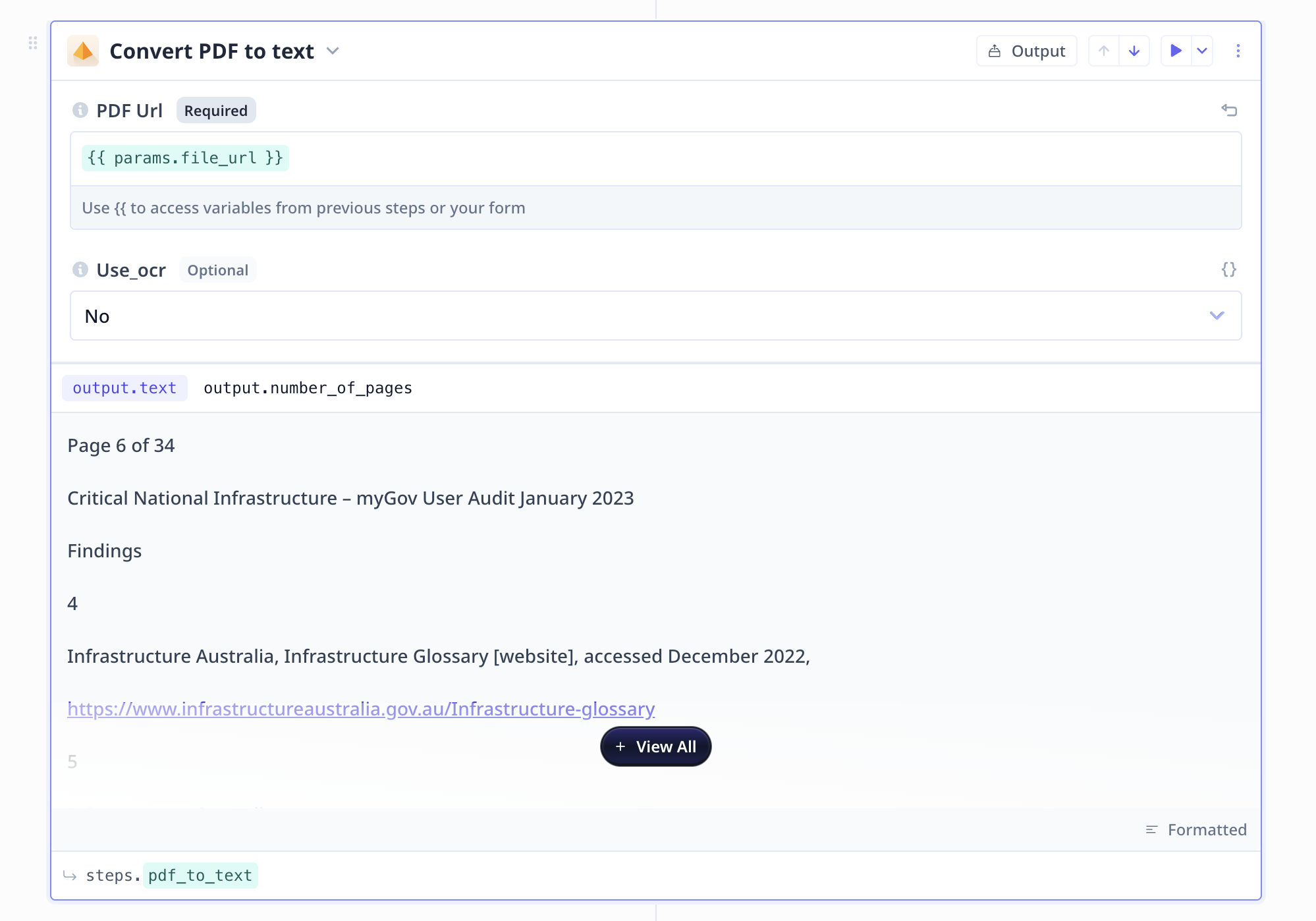
There are 5 components under the Tool steps in this analysis flow. These components take care of three
tasks: converting PDF to text, the LLM step, and formatting for CSV export.
#### Converting PDF to text
1.
2.
### Tool steps
There are 5 components under the Tool steps in this analysis flow. These components take care of three
tasks: converting PDF to text, the LLM step, and formatting for CSV export.
#### Converting PDF to text
 #### Large Language Model (LLM)
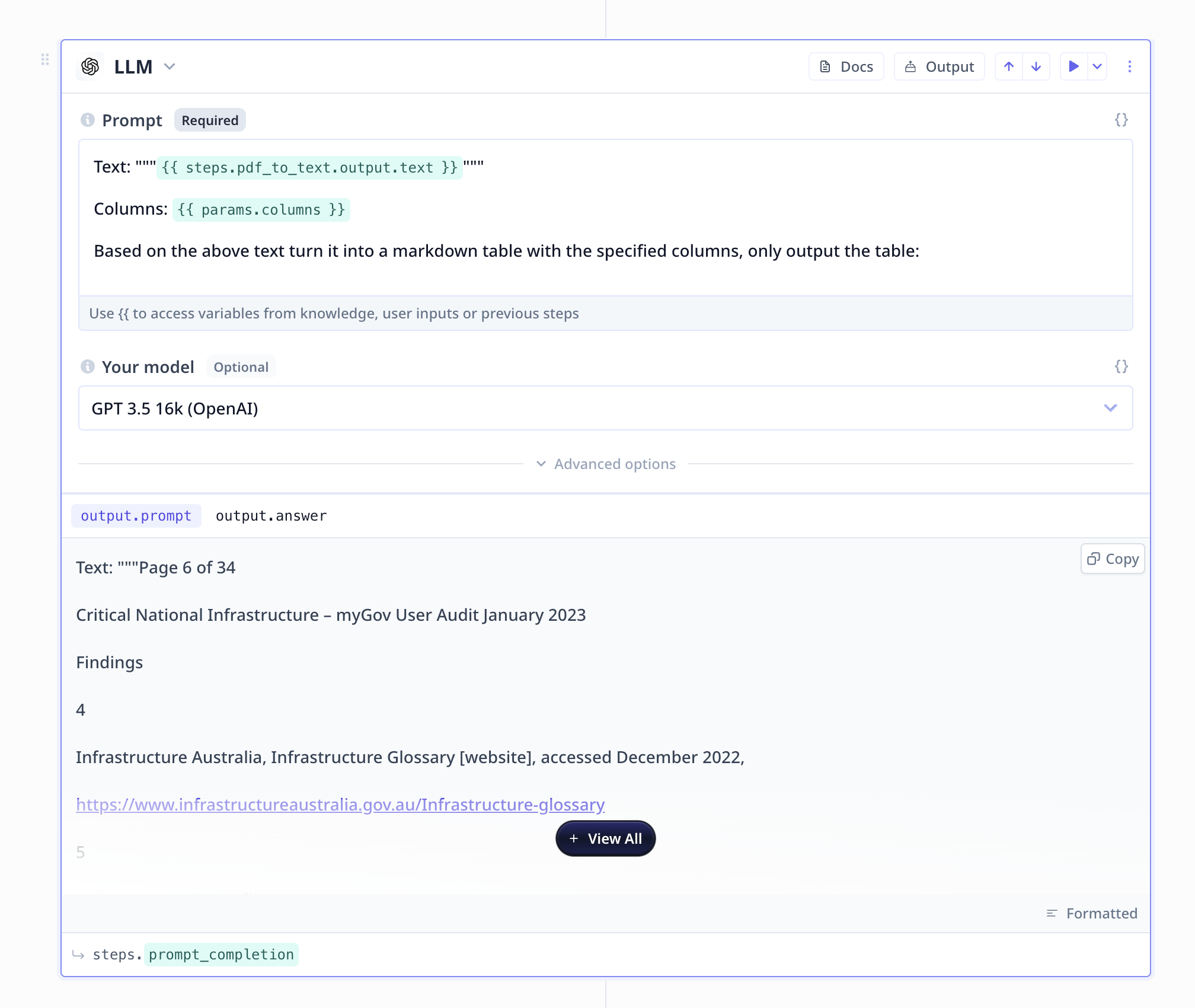 1. Be short and precise with your instruction/request from the LLM
2. Include formatting instruction when necessary
3. Specify the scope using `"`, `"""` or similar identifiers
#### Formatting for CSV export
1. Markdown to CSV
1. Be short and precise with your instruction/request from the LLM
2. Include formatting instruction when necessary
3. Specify the scope using `"`, `"""` or similar identifiers
#### Formatting for CSV export
1. Markdown to CSV
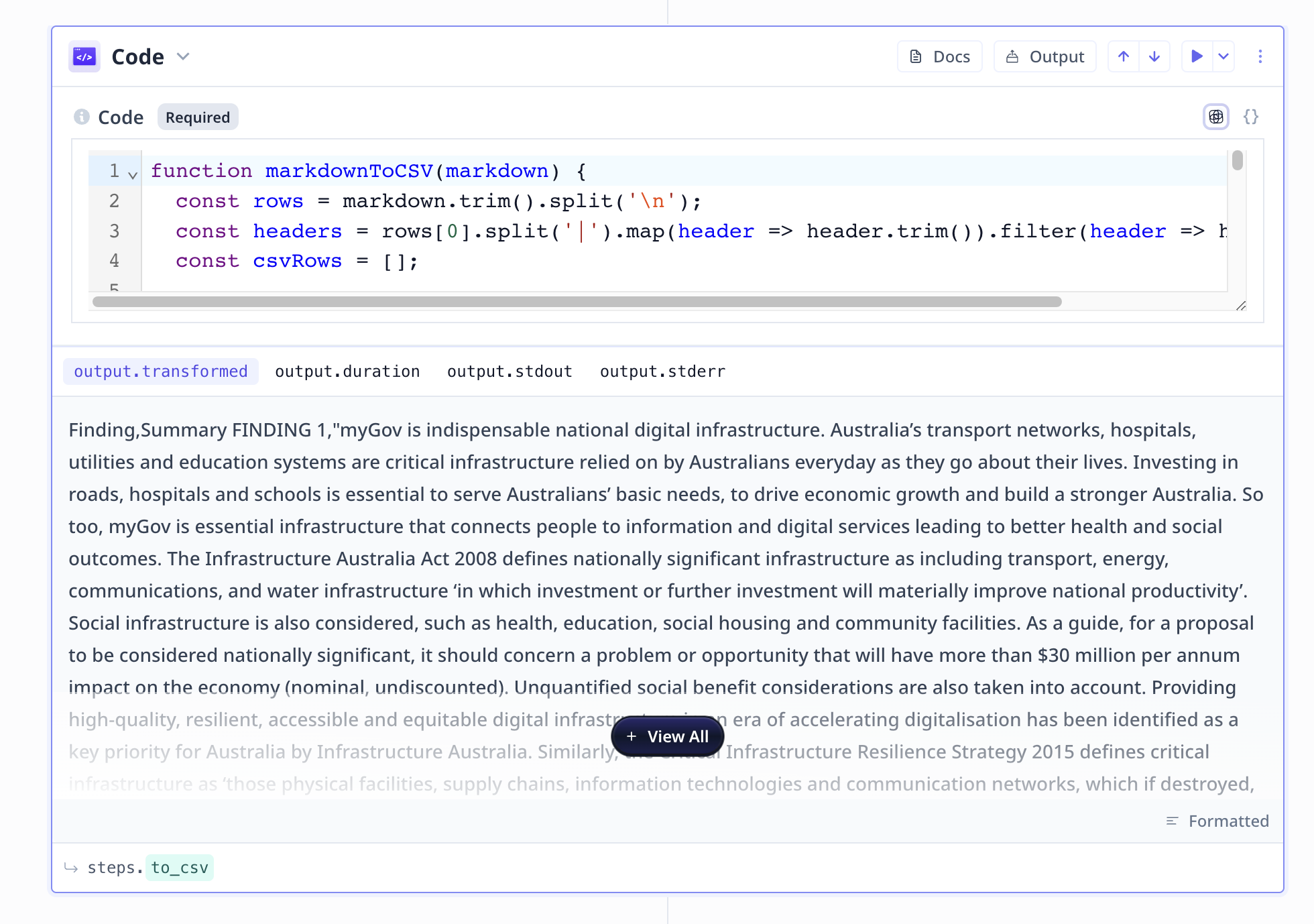 In this Tool, the code-snippet turns the Markdown format to a CSV.
2. A temporary downloadable file
In this Tool, the code-snippet turns the Markdown format to a CSV.
2. A temporary downloadable file
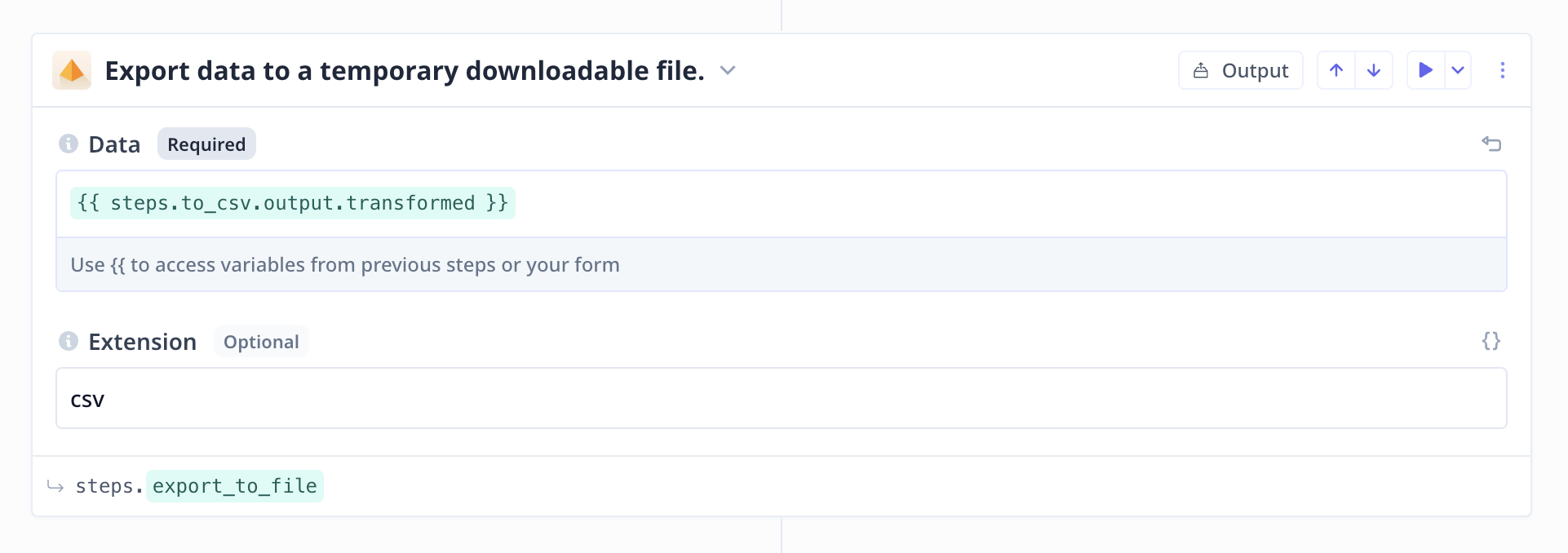 3. Export to CSV
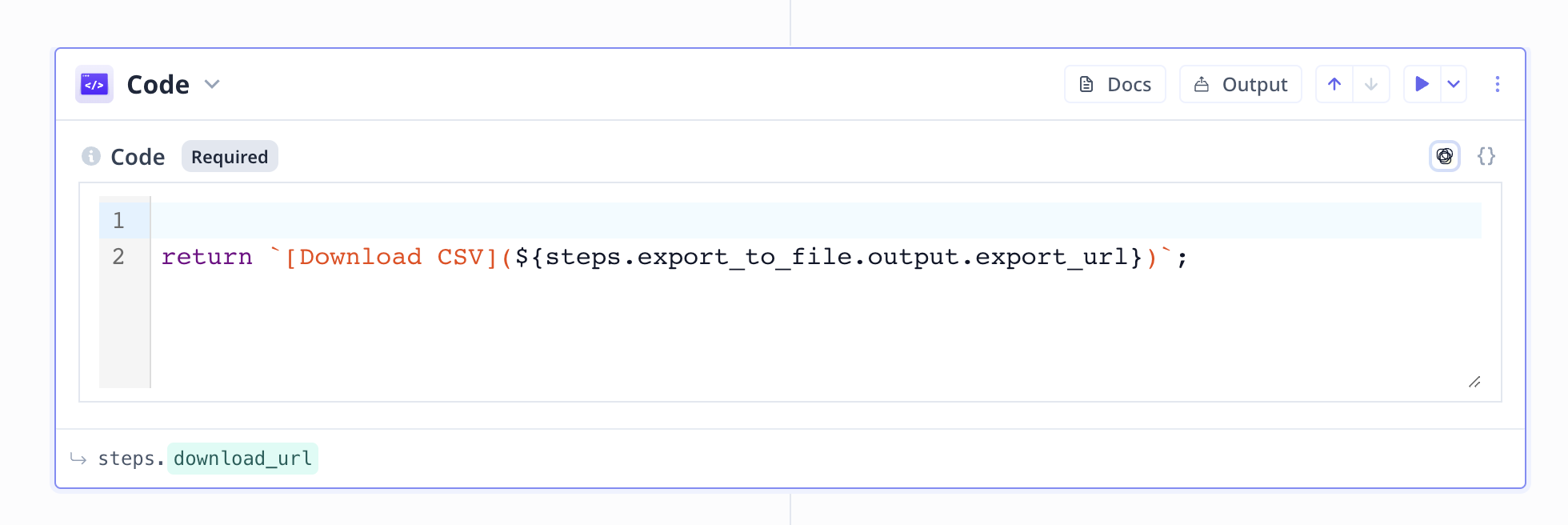 In this Tool, the second code-snippet simply returns the downloadable URL to the output file.