> ## Documentation Index
> Fetch the complete documentation index at: https://relevanceai.com/docs/llms.txt
> Use this file to discover all available pages before exploring further.
# GPT on my website
> Ask GPT to find the answer to your question in a web-page
## Introduction
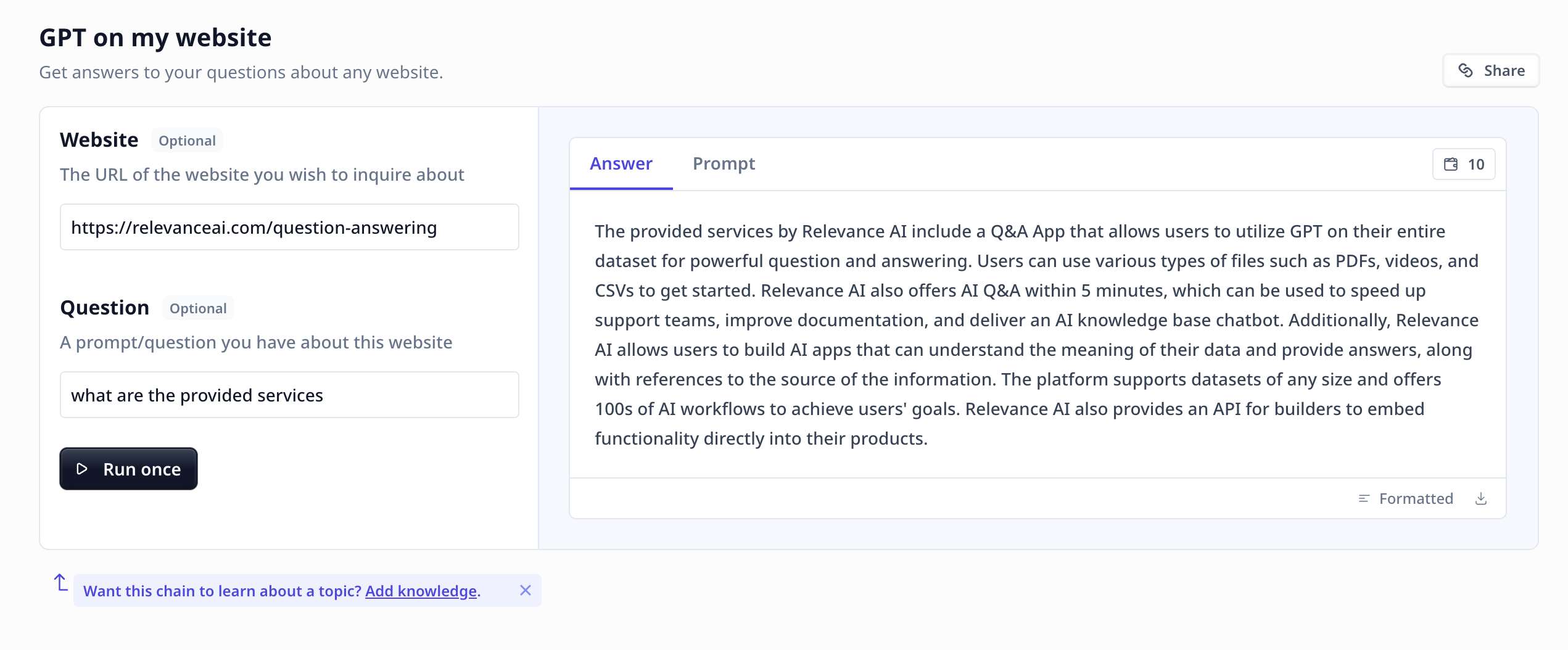
Welcome to the documentation for the "GPT on My Website" Tool! This Tool is designed to provide you with answers
to your questions about any website using the power of GPT. Whether you are a marketer, researcher, or business owner,
this Tool will assist you in gaining valuable insights and information about any website effortlessly.
## Overview
The "GPT on My Website" Tool leverages advanced natural language processing and machine learning techniques to analyze
the content of a website and generate accurate responses to your questions. By inputting a website URL and a question,
the Tool harnesses the power of GPT to provide you with insightful answers based on the website's content.
With its user-friendly interface and powerful AI capabilities, this Tool makes extracting knowledge from websites
more accessible and efficient.
 ## Key Features
1. **Website Analysis**:
The "GPT on My Website" Tool performs a comprehensive analysis of the content on the specified website. It examines the text to
gain a deep understanding of the website's information. This analysis enables the Tool to provide accurate and relevant answers
to your questions.
2. **Natural Language Processing and Machine Learning Capabilities**:
The Tool utilizes natural language processing techniques to understand the context and meaning of your questions. It analyzes the
content of the website to generate accurate and informative responses. This ensures that you receive insightful answers that
address your specific queries.
3. **User-Friendly Interface**:
The "GPT on My Website" Tool features a user-friendly interface. Simply enter the URL of the website and your question, and the
Tool will generate prompt and informative responses. The intuitive design ensures a seamless and enjoyable user experience, allowing
you to focus on the insights rather than the technicalities.
## How to use the Tool
Follow these steps to extract valuable insights from any website:
* **Enter Website URL**: Provide the URL of the website you want to analyze. Ensure that the website is accessible and available online.
The Tool will analyze the content of the website to generate responses to your questions.
* **Input Question**: Enter your question or prompt in the designated field. Be clear and specific to receive accurate and relevant responses.
The Tool utilizes natural language processing to understand the context of your question.
You can even instruct the Tool to format the output in your desired way.
LLMs are not designed or trained for statistical analysis. Questions like
"How many projects were conducted?" or "What was the overall success on the x projects?"
are likely to raise the "I could not find the answer" response unless there is a note in
the provided information stating the answer.
* **Run the Tool**: Once you have entered the website URL and your question, click the "Run Tool" button (on the App page) or use
the run options on your data table (bulk/single run) to initiate the the analysis process.
The Tool will process the website's content and generate a response based on the information extracted from the website.
#### Tool execution at Relevance
* **View Answer**: The Tool will provide you with a response to your question based on the content and context of the website.
The answer will be displayed in a clear and concise format, allowing you to quickly access the insights you need.
## Deep dive in the Tool
### User inputs
## Key Features
1. **Website Analysis**:
The "GPT on My Website" Tool performs a comprehensive analysis of the content on the specified website. It examines the text to
gain a deep understanding of the website's information. This analysis enables the Tool to provide accurate and relevant answers
to your questions.
2. **Natural Language Processing and Machine Learning Capabilities**:
The Tool utilizes natural language processing techniques to understand the context and meaning of your questions. It analyzes the
content of the website to generate accurate and informative responses. This ensures that you receive insightful answers that
address your specific queries.
3. **User-Friendly Interface**:
The "GPT on My Website" Tool features a user-friendly interface. Simply enter the URL of the website and your question, and the
Tool will generate prompt and informative responses. The intuitive design ensures a seamless and enjoyable user experience, allowing
you to focus on the insights rather than the technicalities.
## How to use the Tool
Follow these steps to extract valuable insights from any website:
* **Enter Website URL**: Provide the URL of the website you want to analyze. Ensure that the website is accessible and available online.
The Tool will analyze the content of the website to generate responses to your questions.
* **Input Question**: Enter your question or prompt in the designated field. Be clear and specific to receive accurate and relevant responses.
The Tool utilizes natural language processing to understand the context of your question.
You can even instruct the Tool to format the output in your desired way.
LLMs are not designed or trained for statistical analysis. Questions like
"How many projects were conducted?" or "What was the overall success on the x projects?"
are likely to raise the "I could not find the answer" response unless there is a note in
the provided information stating the answer.
* **Run the Tool**: Once you have entered the website URL and your question, click the "Run Tool" button (on the App page) or use
the run options on your data table (bulk/single run) to initiate the the analysis process.
The Tool will process the website's content and generate a response based on the information extracted from the website.
#### Tool execution at Relevance
* **View Answer**: The Tool will provide you with a response to your question based on the content and context of the website.
The answer will be displayed in a clear and concise format, allowing you to quickly access the insights you need.
## Deep dive in the Tool
### User inputs
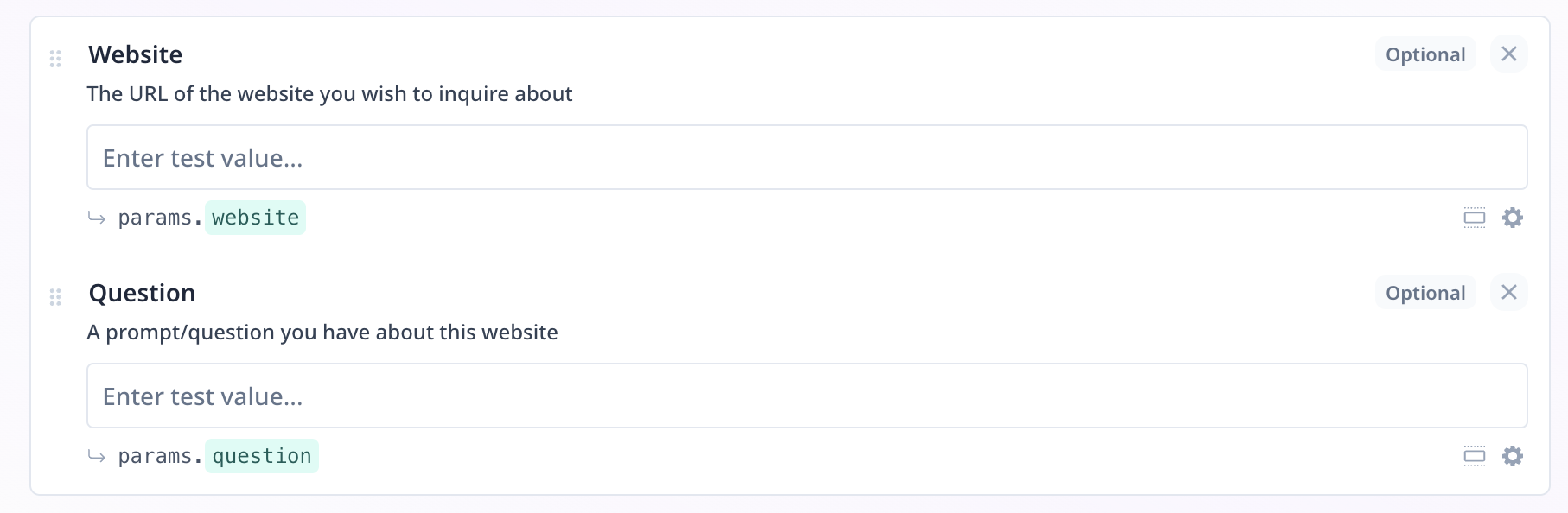 Both inputs in this Tool are of Text input. The first one is to provide a URL and the second
one to enter a question.
### Tool steps
There are 5 components under the Tool steps in this analysis flow. These components take care of three
tasks: extracting the website content, preparing the data for search, and the LLM step.
#### Extract the website Content
1. URL control
Both inputs in this Tool are of Text input. The first one is to provide a URL and the second
one to enter a question.
### Tool steps
There are 5 components under the Tool steps in this analysis flow. These components take care of three
tasks: extracting the website content, preparing the data for search, and the LLM step.
#### Extract the website Content
1. URL control
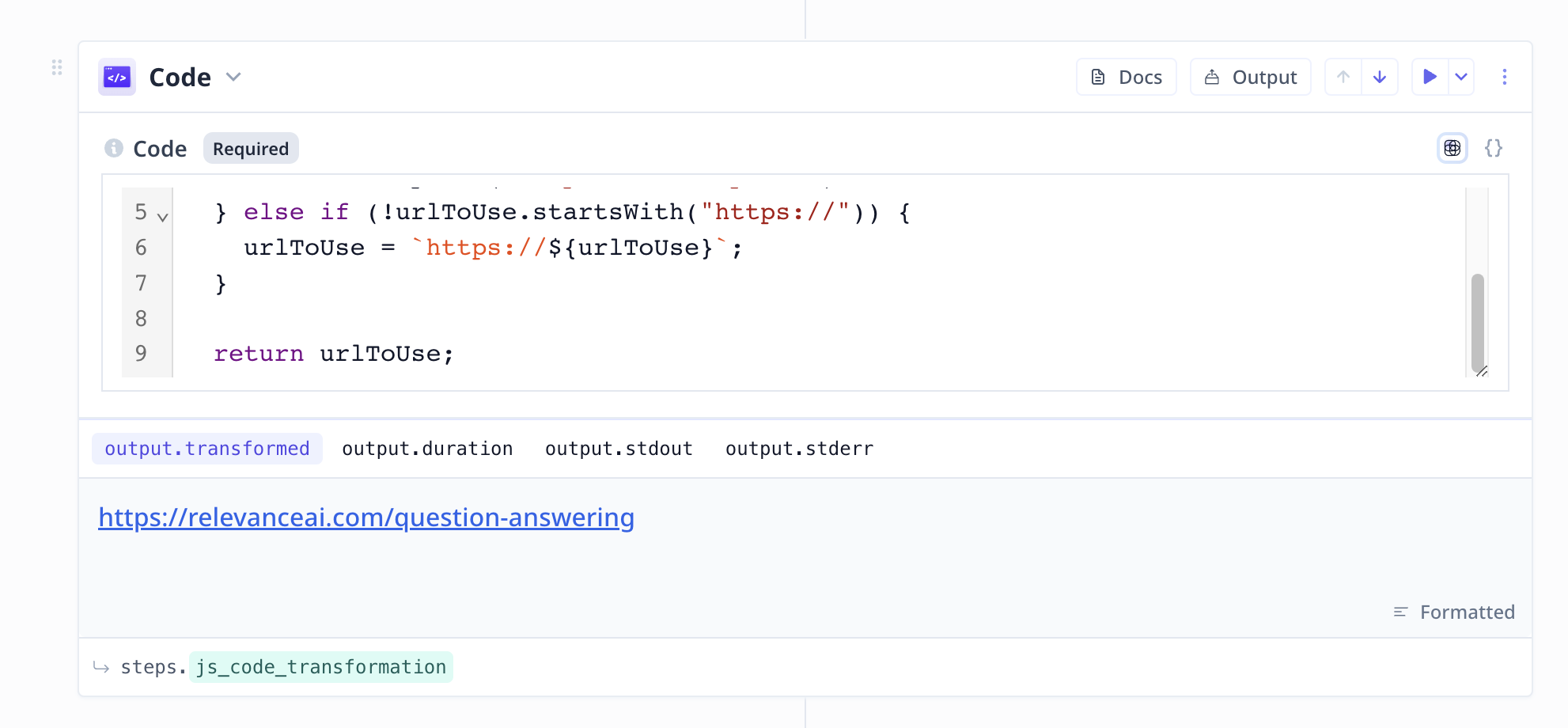 In this Tool, the code-snippet checks the URL format.
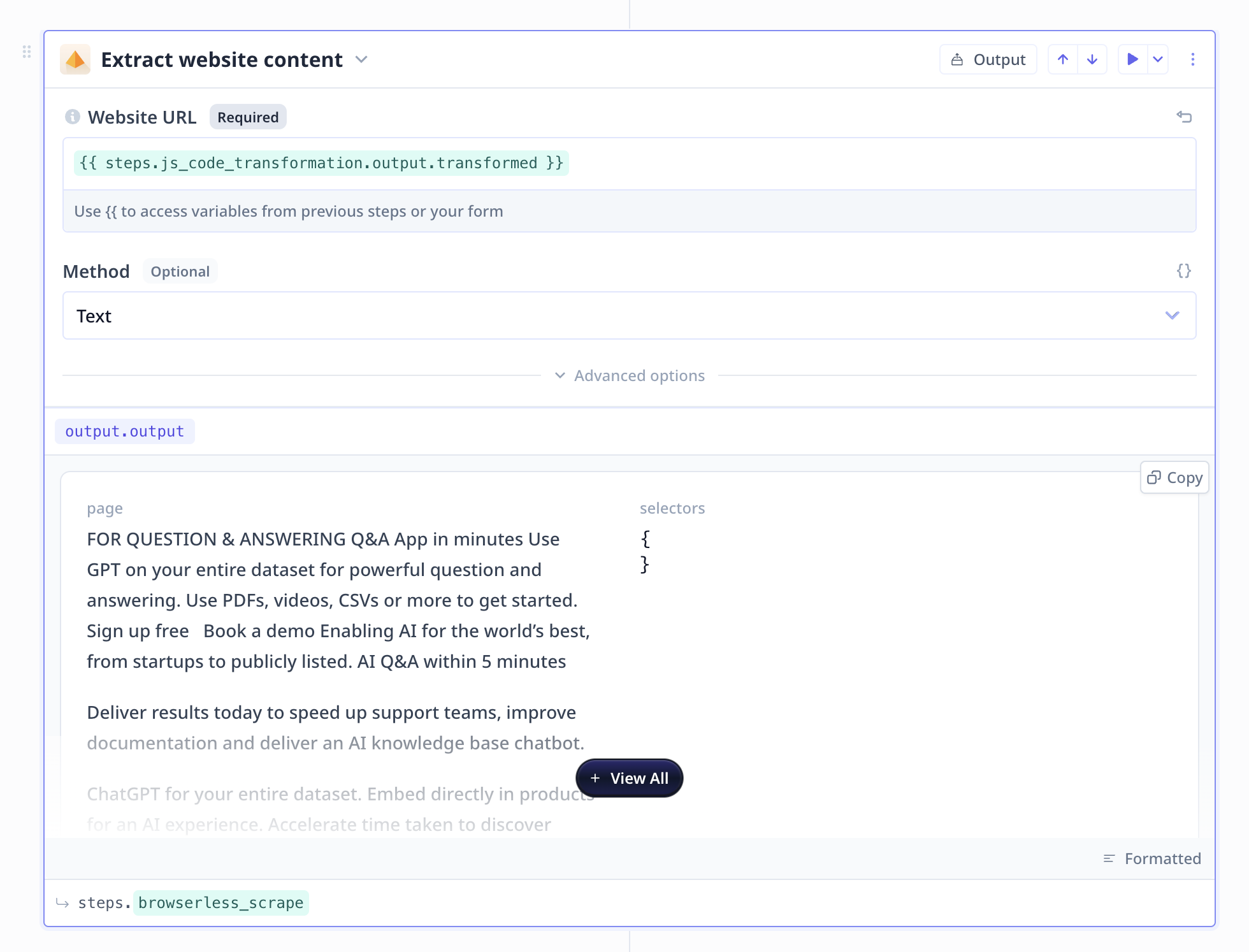
2. Scrape the website
In this Tool, the code-snippet checks the URL format.
2. Scrape the website
 #### Data preparation and vector search
1. Split text
#### Data preparation and vector search
1. Split text
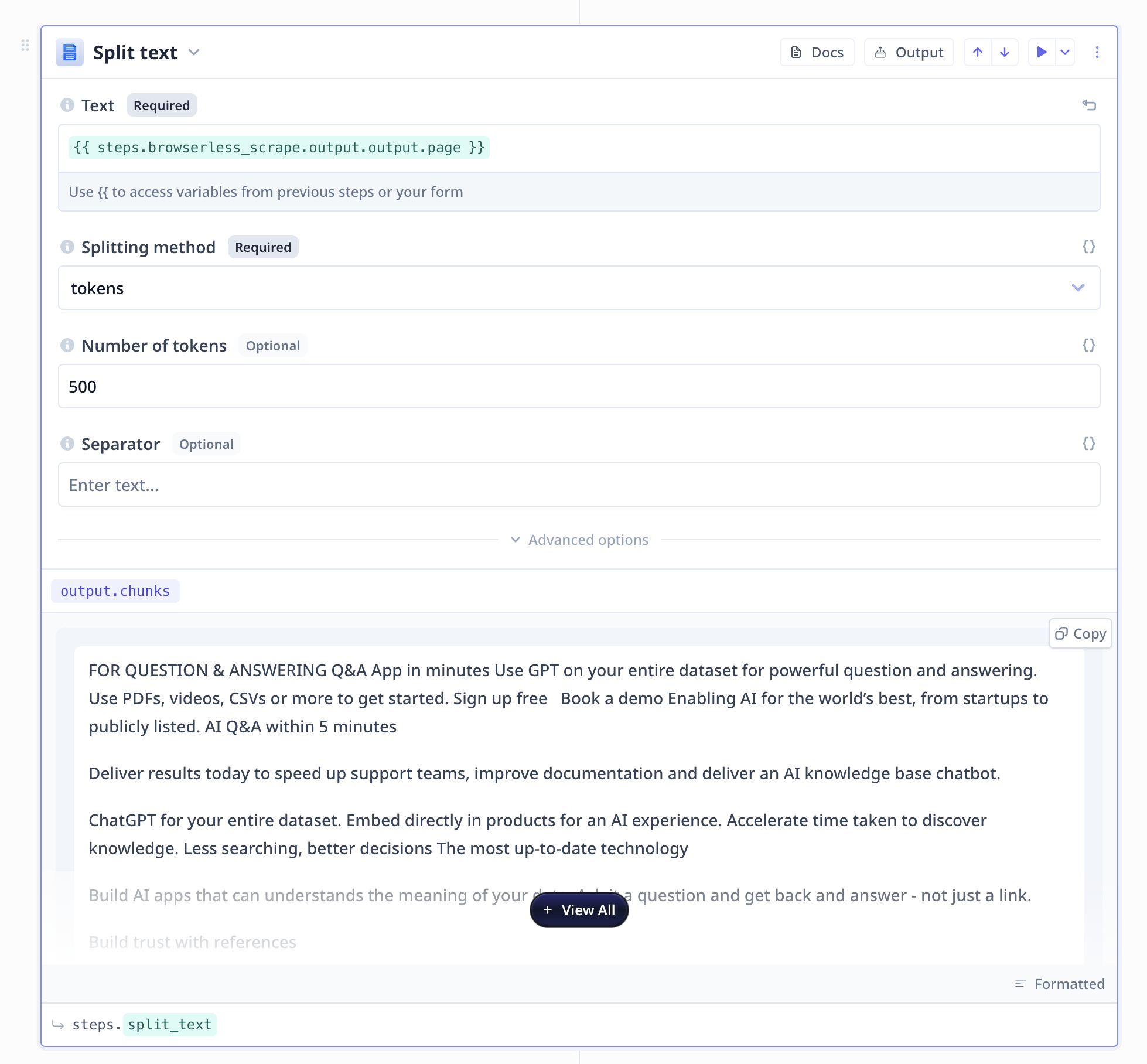 2. Vectorize and search array
 #### Large Language Model (LLM)
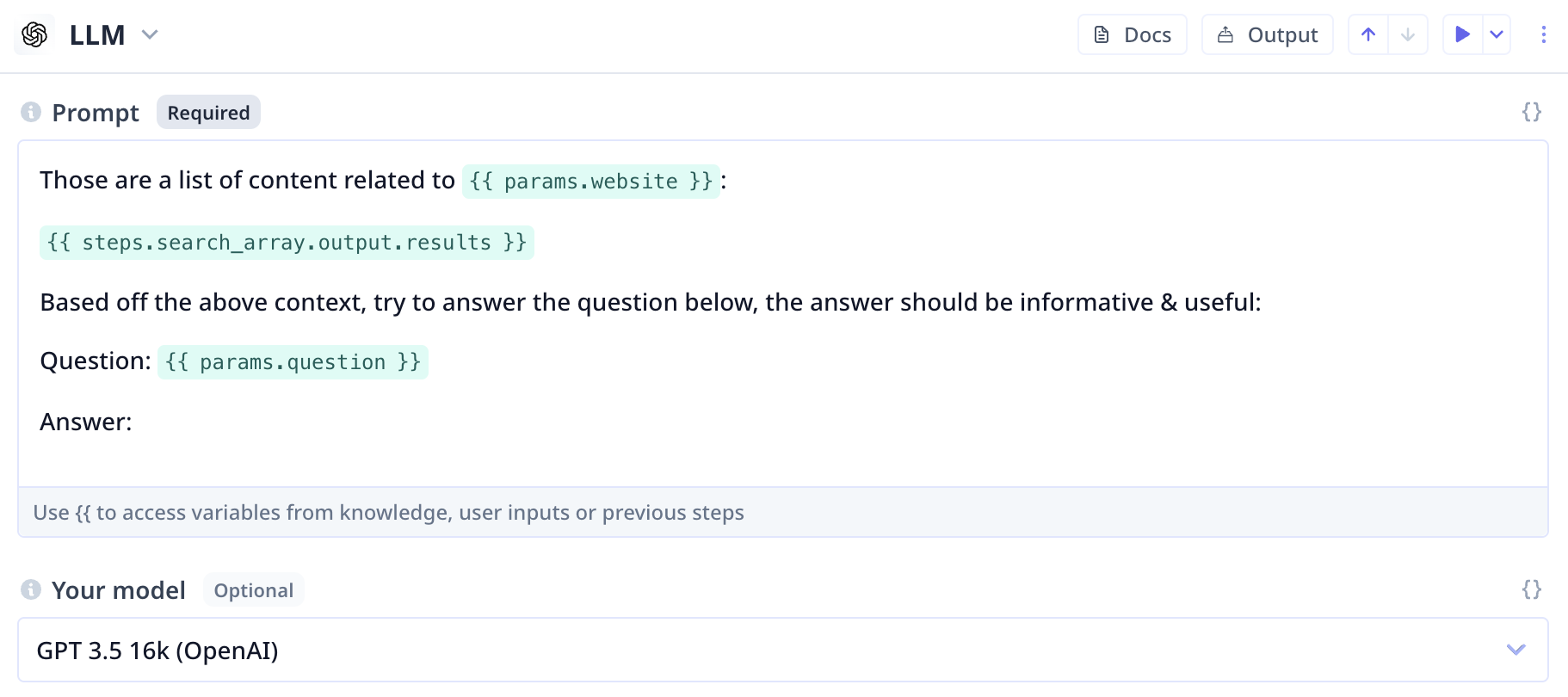 1. Provide the context at the top
2. Be short and precise with your instruction/request from the LLM
3. Note what you expect instead of noting what you don't want
1. Provide the context at the top
2. Be short and precise with your instruction/request from the LLM
3. Note what you expect instead of noting what you don't want