

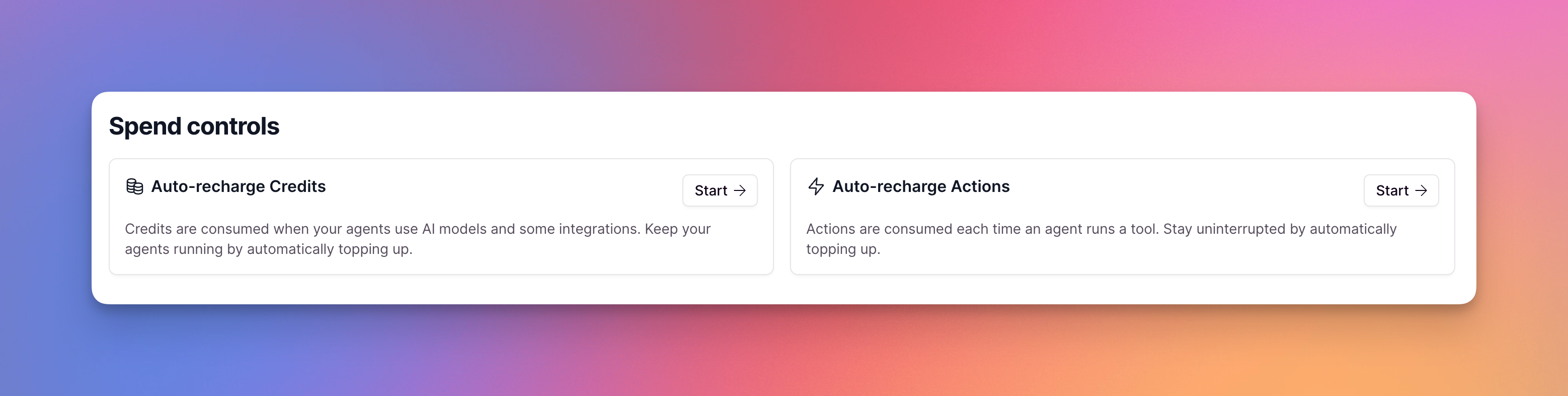
Spend Controls is available to Pro and Team plan users (monthly and annual). You must be on our new pricing model to access this feature. If you’re still on the old pricing model with Credits (not Actions and Vendor Credits), you won’t have access to Spend Controls yet.
How to configure spend controls
- Click on Settings in the sidebar, then select Spend controls
- Click Start on either auto-recharge for Actions or Vendor Credits
- Set your minimum threshold (the credit balance that triggers an automatic top-up when your balance falls below this limit)
- Set your top-up amount (the amount added above your minimum threshold when a top-up occurs)
The same configuration process applies to both Actions and Vendor Credits. You can set up separate limits for each type of credit based on your usage patterns.
How top-ups work
When your balance drops below your minimum threshold, you’ll automatically be charged to bring your balance up to your minimum threshold + top-up amount. For example, if you have 1000 credits remaining with a minimum threshold of 10000 and a top-up amount of 1000, you’ll be charged for 10000 credits to bring your balance to 11000 — not just 1000 credits.Frequently asked questions (FAQs)
Can I set different limits for Actions and Vendor Credits?
Can I set different limits for Actions and Vendor Credits?
Yes! Spend Controls works for both Actions and Vendor Credits independently. You can configure separate minimum thresholds and top-up amounts for each type of credit based on your specific needs and usage patterns.
What happens if my payment method fails?
What happens if my payment method fails?
If your payment method fails when an automatic top-up is triggered, you’ll receive a notification and your account may be temporarily limited until the payment issue is resolved. Make sure to keep your payment information up to date.
When do top-ups occur?
When do top-ups occur?
Top-ups are triggered automatically when your balance falls below the minimum threshold you’ve set. The charge will be processed immediately to ensure uninterrupted service.
Can I modify or disable spend controls after setting it up?
Can I modify or disable spend controls after setting it up?
Yes, you can modify or disable Spend Controls at any time by going to Settings > Spend controls. Changes take effect immediately.
Will I be notified when a top-up occurs?
Will I be notified when a top-up occurs?
Yes, you’ll receive a notification when an automatic top-up is triggered and processed. You can also view your top-up history in your billing section.
Is there a limit to how many times I can top up?
Is there a limit to how many times I can top up?
There’s no limit to the number of automatic top-ups. However, you should monitor your usage and adjust your settings if you’re experiencing frequent top-ups to ensure you’re on the right plan for your needs.
Can Enterprise customers use spend controls?
Can Enterprise customers use spend controls?
Spend Controls is currently designed for Pro and Team plan users. Enterprise customers have custom billing arrangements and should contact their account manager for credit management options.