

What you can do with Super GTM
Deep integrations
Connect your CRM, calendar, email, call recordings, support tickets, and other GTM tools
Agent execution
Run any agent you’ve built in Relevance AI directly from Chat
End-to-end autonomy
Execute multi-step workflows across your connected tools
Persistent context
Memories, files, tasks, and skills that carry across sessions
Getting started
Prerequisites
- You must be on an Enterprise plan with Relevance AI.
- Requires enrollment in the Super GTM closed beta. Contact your account team to request access.
Enrollment
Super GTM is enabled by Relevance staff after discussion with your Account Executive (AE).By user
Provide a list of email addresses to your AE
By domain
Enable for all users with a specific email domain
Accessing Super GTM
- Web
- iOS (TestFlight)
- Navigate to chat.relevanceai.com
- Click the model picker in the chat interface
- Enable the Super GTM mode toggle
- Start working across your GTM stack
Configuring Super GTM
Tailor Super GTM to your workflow across three areas:Integrations
Connect your CRM, calendar, email, and other tools across your GTM stack
Capabilities
Control content creation, file editing, user preferences, and memory
Agents
Choose which of your Relevance AI agents are available, such as Slide Builder
Integrations
To get the most out of Super GTM, start by connecting your integrations. Click the gear icon next to the Super GTM toggle to open the settings panel, find the integration you want to enable, and click “Connect account” or “Add API key”.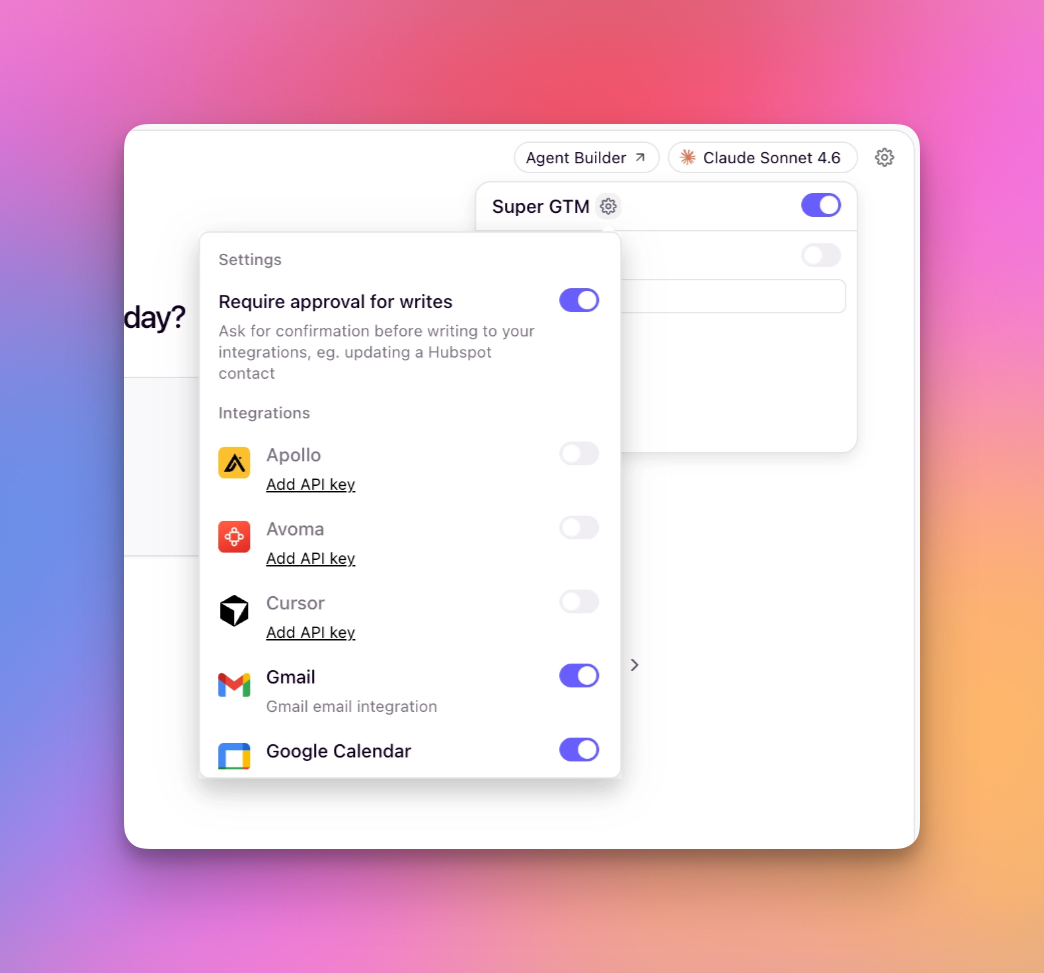
- OAuth: Each user authorizes their own connection via a popup modal. Each user needs to connect their apps individually.
- API key: Add an API key to a Relevance project, which can be used by all users in that project. These can be centrally managed on a project basis in the builders app under Integrations & API Keys.
Depending on how your organization has configured each external application, you may need to request admin access to enable OAuth access or to obtain an API key. Check with your IT team or admin of the external application to confirm.
Supported integrations
- OAuth
- API Key
- Planned next
| Application | Permissions |
|---|---|
| HubSpot | Read, create, update, delete and search CRM objects (contacts, companies, deals, etc.). List owners. |
| GSuite (Calendar, Gmail, Docs) | Gmail: Read, send, draft and label emails. Calendar: Create events and check availability. Docs: Read and edit documents. |
| Linear | Read, create, update and archive issues. Read, create and update comments. Read projects and labels. |
| Notion | Read, create and update pages. Query and create databases. Create comments. Manage blocks. Search workspace. |
| Slack | Read and post messages. Search messages. Manage channels. List users. Add reactions. |
| Salesforce | Read and write CRM data via API. Run SOQL queries. |
| Microsoft Calendar | Create and manage calendar events including on shared calendars. |
| Microsoft Outlook | Read, send and draft emails. Manage labels and mailbox settings. |
| Microsoft Teams | Read and send chat and channel messages. Read meeting transcripts. Manage online meetings. |
Action approval
The agent can never send, create, update, or delete anything without your explicit confirmation.
- Approve the action to let it proceed as-is.
- Reject the action to prevent it from executing.
Filesystem explorer
Super GTM includes a filesystem explorer that shows which files your agent has access to during a conversation. As the agent works, the file tree displays visual indicators so you can see at a glance which files it has interacted with — without reviewing individual tool call logs.- Amber dot + amber text — the agent wrote to this file
- Gray dot — the agent read this file but did not modify it
- Folder icons also display these indicators when any file inside was accessed
Example use cases
- Integrations
- Agents
Once your integrations are configured, simply ask Super GTM to work with them naturally:
- “Find all open deals in Salesforce for ACME Corp”
- “Schedule a follow-up meeting with Sarah next Tuesday at 2pm”
- “Draft an email to the customer about their support ticket”
- “Create a new contact in HubSpot for John Smith at Example Inc”
Frequently asked questions
How do I get access to Super GTM?
How do I get access to Super GTM?
Super GTM is in closed beta (started March 2, 2026) for Enterprise customers. Contact your Account Executive to discuss enrollment. Access is enabled on a per-user or per-domain basis by Relevance staff after discussion with your AE.
Can I disable the approval flow?
Can I disable the approval flow?
No. The approval flow is a core safety feature of Super GTM and cannot be disabled. It ensures you maintain control over all actions that modify data in your systems.
What happens if I reject an action?
What happens if I reject an action?
If you reject an action, Super GTM will not execute it. The agent will ask how you’d like to proceed. You can provide different instructions, modify the action, or cancel the task entirely.
Can I use Super GTM with my existing agents?
Can I use Super GTM with my existing agents?
Yes! Super GTM can run any agent you’ve built in Relevance AI. Just configure which agents to make available in the Super GTM settings.
What's the difference between OAuth and API key integrations?
What's the difference between OAuth and API key integrations?
OAuth creates individual connections where each user authorizes their own account via a popup modal. API keys are added to a Relevance project and shared across all users in that project. These can be centrally managed in the builders app at app.relevanceai.com under “Integrations & API Keys”. Depending on your organization’s configuration, you may need admin access for either method. Check with your IT team.
Does Super GTM work on mobile?
Does Super GTM work on mobile?
Yes! Super GTM is available on iOS via TestFlight. Install the TestFlight app, then open the beta invite link to install Relevance AI. Turn on automatic updates in TestFlight to stay up-to-date.
What integrations are supported?
What integrations are supported?
Currently available: HubSpot, GSuite (Calendar, Gmail, Docs), Linear, Notion, Slack, Cursor, Apollo, Salesforce, Gong, Microsoft Calendar, Microsoft Outlook, and Microsoft Teams. Google Drive, Google Sheets, Outreach, ZoomInfo, and Firmable are planned next. See the Supported Integrations table for full details on connection methods and permissions.
Can Super GTM access data from multiple tools at once?
Can Super GTM access data from multiple tools at once?
Yes! Super GTM can work across multiple tools simultaneously. For example, it can pull data from your CRM, check your calendar, and draft an email, all in a single conversation.