

Chat
Chat
Use AI Agents and Workforces in a chat interface on desktop, mobile, and browser
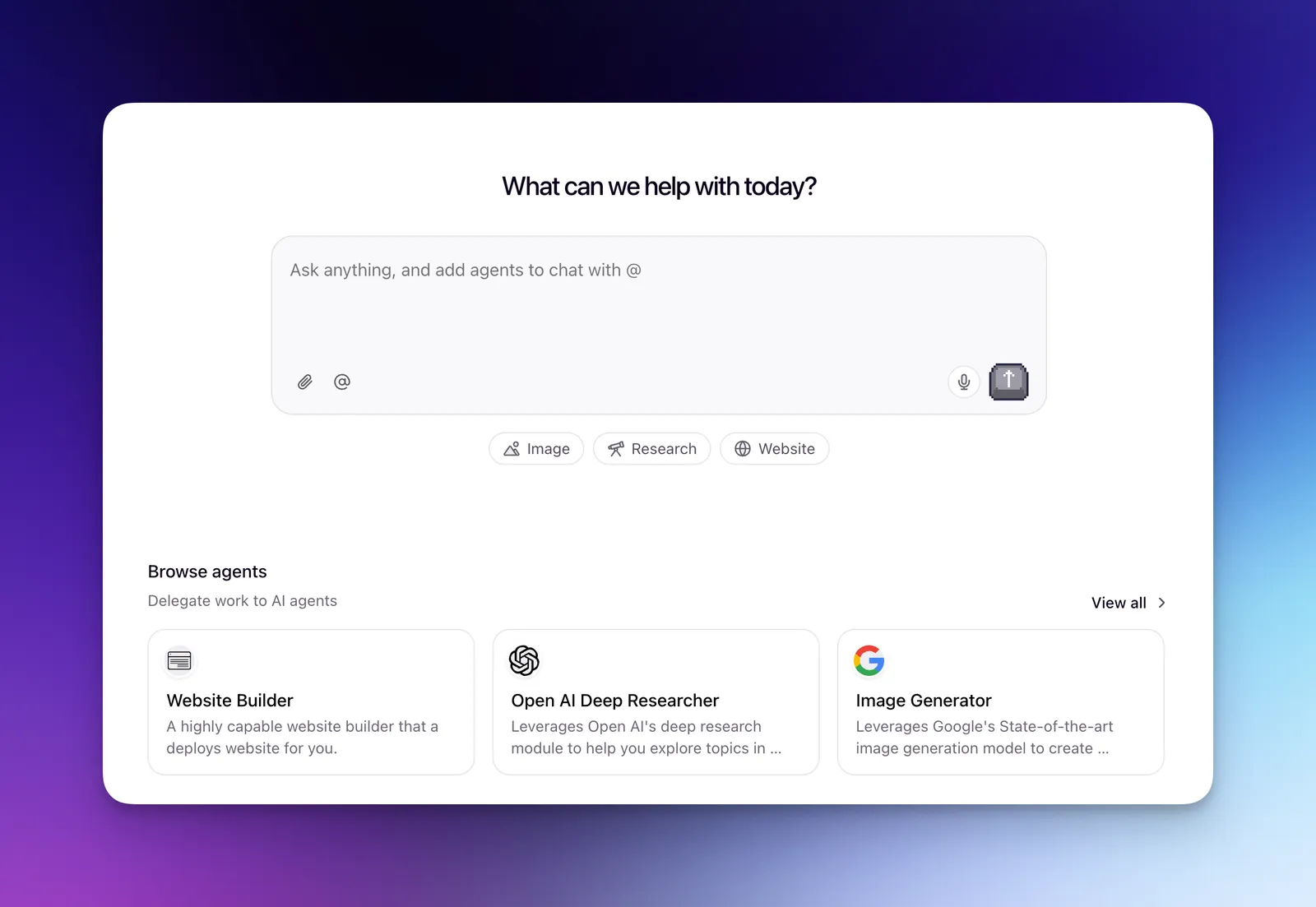
Chat is where you interact with your AI Agents and Workforces. @ mention any Agent, combine multiple Agents in one conversation, or use pre-built Agents for tasks like generating images, deep research, and building slides — all from chat.relevanceai.com, on desktop and mobile.
Once you build an Agent or clone one from the Marketplace, you can use it in Chat — and control which Agents are visible to your team.
What you can do with Chat
Using Agents
Mention any Agent in your project to bring its capabilities into a conversation
Saved prompts
Reusable prompt templates shared across your team
Built-in Agents
Pre-built Agents for research, images, and slides
Getting started
Navigate to chat.relevanceai.com to start chatting. Chat works on desktop and mobile browsers, and is also available as a desktop app. Native Android and iOS apps are also available.
Selecting an LLM
You can choose which LLM to use for your conversation, or select Auto to let Chat pick the best model for your request.
Once you’ve selected your model, you can run Agents and Workforces in your Chat conversations.
Supported file types
Upload documents, images, and data files to give your conversations context, or generate new files from Agent responses. The following extensions are fully supported — other file types can still be uploaded but may not be processed reliably.
Chat can preview 70+ file types directly in the conversation. Pasting from clipboard is limited to images only.
Documents
pdf, doc, docx, ppt, pptx, xls, xlsx, csv, txt, md, xml, json, abw
Images
png, jpg, jpeg, webp, gif, svg, avif, bmp
Media
Audio: mp3, wav, ogg, m4a, aac, aiff, flac
Video: mp4, mpeg, mov, webm, avi, flv, mpg, wmv
Archives
zip, bin, arc
File capabilities by provider
Each provider supports different file types for reading (uploading files as context) and creating/exporting (generating new files from Chat responses).
File export is not supported for organizations in the AU region.
OpenAI
Size limits: 32 MiB per file, 50 MiB combined per message
Document files:
.docx— read and create/export.docxwith images — create/export only.xlsx— read (converted to text) and create/export.csv— read and create/export.pdf— read and create/export.pdfwith images — read and create/export.txt— read and create/export.md— read only (create/export available on request)
Image files:
.png— read and create/export.jpg/.jpeg— read and create/export (exported as PNG)
Not supported: .pptx
Anthropic
Size limits: 32 MiB per file, 32 MiB combined per message
Document files:
.docx— read and create/export.docxwith images — create/export only.xlsx— read (converted to text) and create/export.csv— read and create/export.pdf— read and create/export.pdfwith images — read and create/export.txt— read and create/export.md— read (limited) only (create/export available on request)
Image files:
.png— read and create/export.jpg/.jpeg— read and create/export (exported as PNG)
Not supported: .pptx
Gemini
Size limits: 32 MiB per file, 50 MiB combined per message
Document files:
.docx— read and create/export.docxwith images — create/export only.xlsx— read (converted to text) and create/export.csv— read and create/export.pdf— read and create/export.pdfwith images — read and create/export.txt— read and create/export.md— read only (create/export available on request)
Image files:
.png— read and create/export.jpg/.jpeg— read and create/export (exported as PNG)
Video and audio (Gemini Pro only):
- Video:
.mp4,.mpeg,.mov,.avi,.flv,.mpg,.webm,.wmv - Audio:
.wav,.mp3,.aiff,.aac,.ogg,.flac
Not supported: .pptx
Video and audio files are only supported with Gemini. If you attach a video using an Anthropic or OpenAI model, the send button is blocked.
Frequently asked questions (FAQs)
How does Chat usage affect my credits?
Chat credit usage will show up in the Plan & Billing credit monitoring section as ‘Chat Orchestrator’.
You’ll be charged credits based on:
- The LLM model you’re using in Chat
- How much you use Chat (number of messages and interactions)
Built-in agents like Slide Builder will also appear on this page when you use them in Chat.
To monitor your Chat credit usage, navigate to Settings > Plan & Billing to see a detailed breakdown of your credit expenses. Learn more about Plans and credits.
Can I use different LLMs in Chat?
Yes, you can select the LLM you want to use in Chat by following these steps:
- Click on the cog icon in the top right of your screen
- Choose the ‘Chat Model’ on the pop-up that appears
You can also add to the System Prompt for your Chat from this screen.
Can I use Relevance Chat on mobile?
Yes. Relevance Chat is available as a native Android and iOS app, and you can also use it in any mobile browser at chat.relevanceai.com. The main Relevance AI platform (app.relevanceai.com) is not available on mobile — the mobile apps are Chat-only.
Can Chat remember my previous conversations?
Yes! Chat Memory allows Relevance Chat to remember and reference your recent conversations. You can ask questions like “What did I ask about earlier?” or “Who did I compare X against recently?” and get contextual answers based on your chat history.
Important limitations: Chat Memory only remembers history within the same project, and you can only access your own chat history, not other users’ conversations in the same project. This is different from Agent memory, which is conversation-specific memory within individual Agent interactions.
How do I switch between projects in Chat?
You can switch between projects using the project selector in the bottom left of the Chat interface. You can also use Cmd + K (Mac) or Ctrl + K (Windows) for quick access. When you switch projects, you’ll have access to all agents available in that project.
For more details, see Learn how to switch projects in Chat.
What are Edge regions and how do I select them?
Edge regions (US Edge, AU Edge, and EU Edge) are available in the Chat browser extension and desktop app. If your project is in an Edge region, it will appear in the project switcher labeled with (Edge) — for example, US (Edge).
To select an Edge region project, open the project switcher and look for the (Edge) label next to the region name. For detailed instructions, see how to switch projects in Chat.
Edge regions aren’t available in the Android and iOS apps.
What keyboard shortcuts are available in Chat?
Chat supports the following keyboard shortcuts:
| Action | Mac | Windows |
|---|---|---|
| Toggle left panel (chat history) | Cmd+\ | Ctrl+\ |
| Switch projects | Cmd+K | Ctrl+K |