

Chat
Mobile app
Use Relevance Chat on Android and iOS
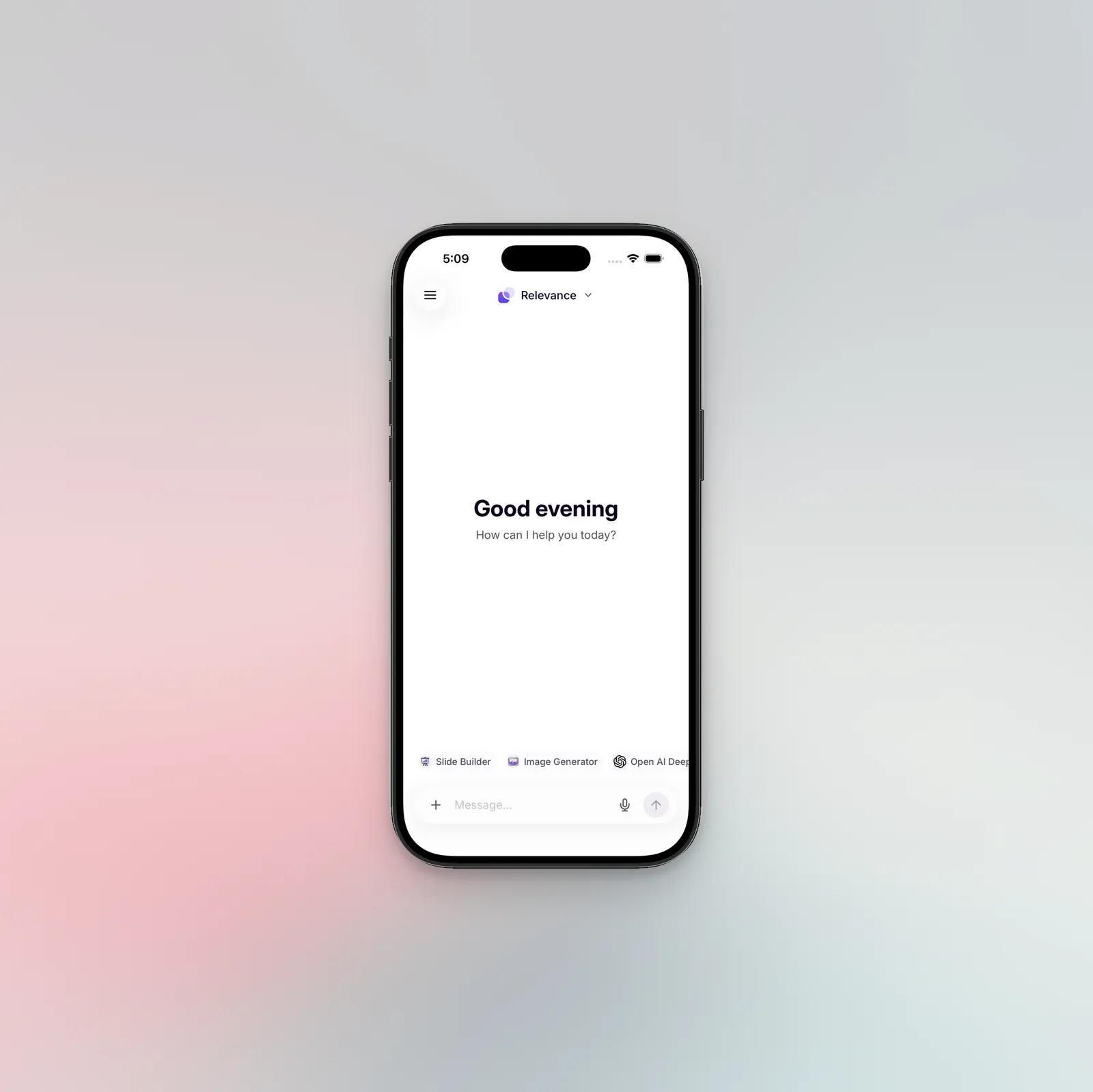
Take your Agents and Workforces on the go. Dictate messages with voice-to-text, attach photos straight from the camera, share content into Chat from any app on your device, and @ mention any Agent in the conversation.
Most features work the same as on chat.relevanceai.com, so workflows you’ve already set up keep working on mobile. This page covers what’s different, including mobile-only features and what works the same as Chat on web.
Where to download the Chat mobile app
How to sign in to the mobile app
Open the Relevance Chat app
Launch the app on your Android or iOS device.
Tap Enterprise login
The sign-in page opens inside the app.
Choose a sign-in method
Sign in with email and password, SSO, Google, or Apple.
What’s available on mobile
Voice-to-text input
Dictate directly into the chat input instead of typing
Camera attachments
Attach photos straight from the camera, alongside files and gallery images
Share into Chat
Use the Android or iOS share sheet from any app to start a new chat with the shared text, image, or one or more files
Native share sheet
Share a chat message or slide deck out through the OS share sheet
Light and dark theme
Follow the system theme, or override it in Settings
Thinking selector
Choose Off, Standard, or Extended thinking for the model under Settings → Preferences
The mobile apps share the core Chat experience with the web app, so workflows you’ve already set up keep working on the go.
@-mention Agents
Bring any Agent into a conversation with @ mentions
Saved prompts
Reuse prompt templates shared across your team
Slide builder
Generate slide decks from a chat conversation
Model selection
Pick the model used for new conversations
File attachments
Attach files to messages from your device
Image generation
Generate images directly inside a chat
Agent, Tool, and Workforce execution
Run Agents, Tools, and Workforces from chat
Message feedback
Rate responses to improve future replies
Project switching
Move between projects without signing out
Markdown rendering
Messages render formatted markdown the same as on web
How to navigate the mobile app
Two parts of the screen do most of the work — the action bar next to the chat input (for what you can do inside a conversation), and the side menu (for moving between conversations and reaching your account).
Inside a chat
Tap the + next to the message input to open the action menu. From there, browse the drop-down to pick a pre-built Agent, the slide builder, or the image generator. Tap the microphone to dictate instead of typing.
Between chats
Tap the menu icon to open the side panel. Start a new conversation with New chat, tap a previous chat to reopen it, or jump to your account from the same menu.
How to sign out of the Relevance Chat app
Open the side menu
Tap the menu icon in the top corner of the chat screen.
Go to Account
Open the Account section to see the user you’re signed in as.
Tap Sign out
Confirm to sign out of the app.
FAQ
Where can I download the mobile app?
Get Relevance Chat on Google Play for Android or the App Store for iOS.
Which sign-in methods are supported?
Tap Enterprise login on the sign-in page, then sign in with email and password, SSO, Google, or Apple.
How do I switch projects on mobile?
Open settings and go to Workspace to switch projects. You’ll also see your organization and region there (read-only).
How do I change the model used in chats?
Open settings and go to Chat to pick the model used for new conversations.
How do I adjust thinking level or theme?
Open settings and go to Preferences to set the thinking level (Off, Standard, Extended) and choose a light, dark, or system theme.
Open the settings menu to manage your account and customize Chat. It groups options into Account (signed-in user, sign out), Workspace (project, organization, region), Chat (model), Preferences (thinking level, theme), and About (app version and links).
How do I see the app version?
Open settings and go to About to see the installed app version and reference links.
Which features are web-only?
A few features aren’t in the mobile apps yet — Edge regions, browser extension page-aware actions, keyboard shortcuts, and clipboard paste for files and images. Use the Chat browser extension or desktop app if you need them.
Are Edge regions available on mobile?
No. US Edge, AU Edge, and EU Edge are only available in the Chat browser extension and desktop app.
Do browser extension features work on mobile?
No. Page-aware actions that rely on the browser extension itself aren’t available in the mobile apps.
Do keyboard shortcuts work on mobile?
No. The shortcuts listed in the Chat overview don’t apply on mobile.
Can I paste files or images from the clipboard?
No. Use the camera or attachment picker instead.