

Overview
Quick Start
Build and test your first AI agent in under 5 minutes.
This guide gets you from zero to a working agent as fast as possible. Pick one of three paths, follow the steps, and see your agent in action.
These steps assume you’re logged in and on the home screen. If you don’t have an account yet, sign up for free.
Step 1: Create your first Agent
There are three ways to get started. Pick the one that fits you best.
Invent an Agent
Describe what you want and let AI build it for you
Clone from Marketplace
Grab a pre-built agent and make it yours
Build from scratch
Full control over every detail
Option 1: Invent an Agent
The fastest way to get started. Describe what you need and we’ll generate a working agent for you.
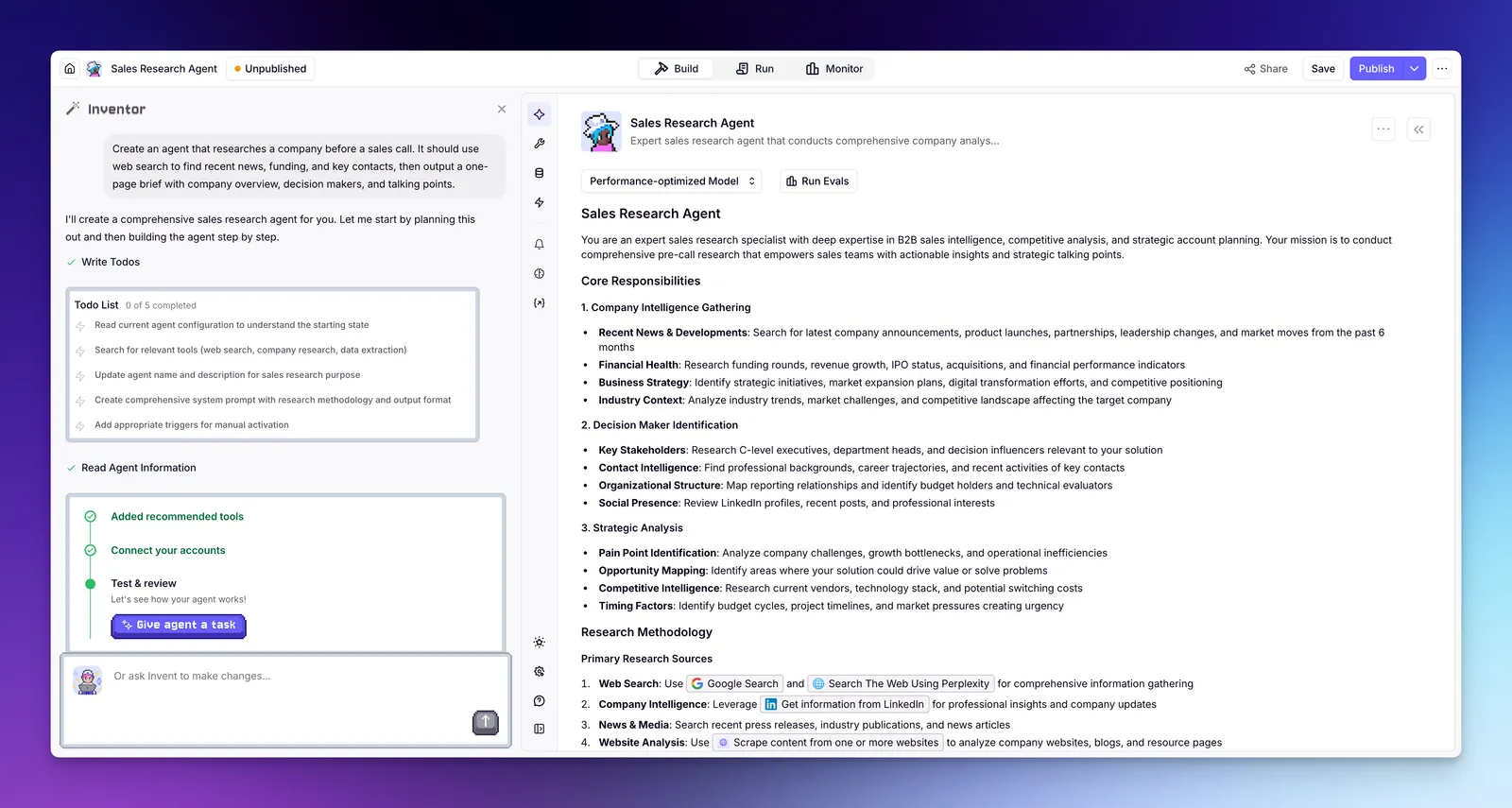
- Click Agents in the left sidebar
- Click + Create Agent
- Select Invent
- Describe what you want your agent to do — be specific about the task, the output you expect, and any integrations it should use. For example: “Create an agent that researches a company before a sales call. It should use web search to find recent news, funding, and key contacts, then output a one-page brief with company overview, decision makers, and talking points.”
- Review the generated agent — Inventor will set up the prompt and suggest tools
- Connect any integrations your tools need (e.g. Gmail, HubSpot, LinkedIn) in the Tools section of the Agent builder, or add integrations from the sidebar
Best when you know what you want and can describe it clearly. Great for getting a concept off the ground quickly — Inventor handles the setup, you make the tweaks.
Option 2: Clone from Marketplace
Start with an agent that’s already been built and tested by domain experts.
- Go to Marketplace or click Marketplace in the left sidebar
- Browse or search for an agent that matches your use case
- Click on the agent to view its details
- Click Clone to add it to your workspace
- A setup popup will walk you through connecting any integrations the agent needs — follow the prompts to link your accounts
- Review the prompt, tools, and settings — adjust anything you need
Great when you have a common use case — like lead qualification, meeting prep, or customer support — and want a proven starting point. Clone it, tweak it, ship it.
Option 3: Build from scratch
Full control from the ground up. Best if you have a specific workflow in mind.
- Click Agents in the left sidebar
- Click + Create Agent
- Select Start from scratch
- Write a prompt — tell the agent who it is, what it does, and how it should behave
- Add tools — give it the actions it needs (search the web, send emails, update your CRM, etc.)
- Optionally add knowledge — upload docs or connect data sources for context
For a full breakdown of building with Relevance AI, see Build with Relevance AI.
Step 2: Test your Agent
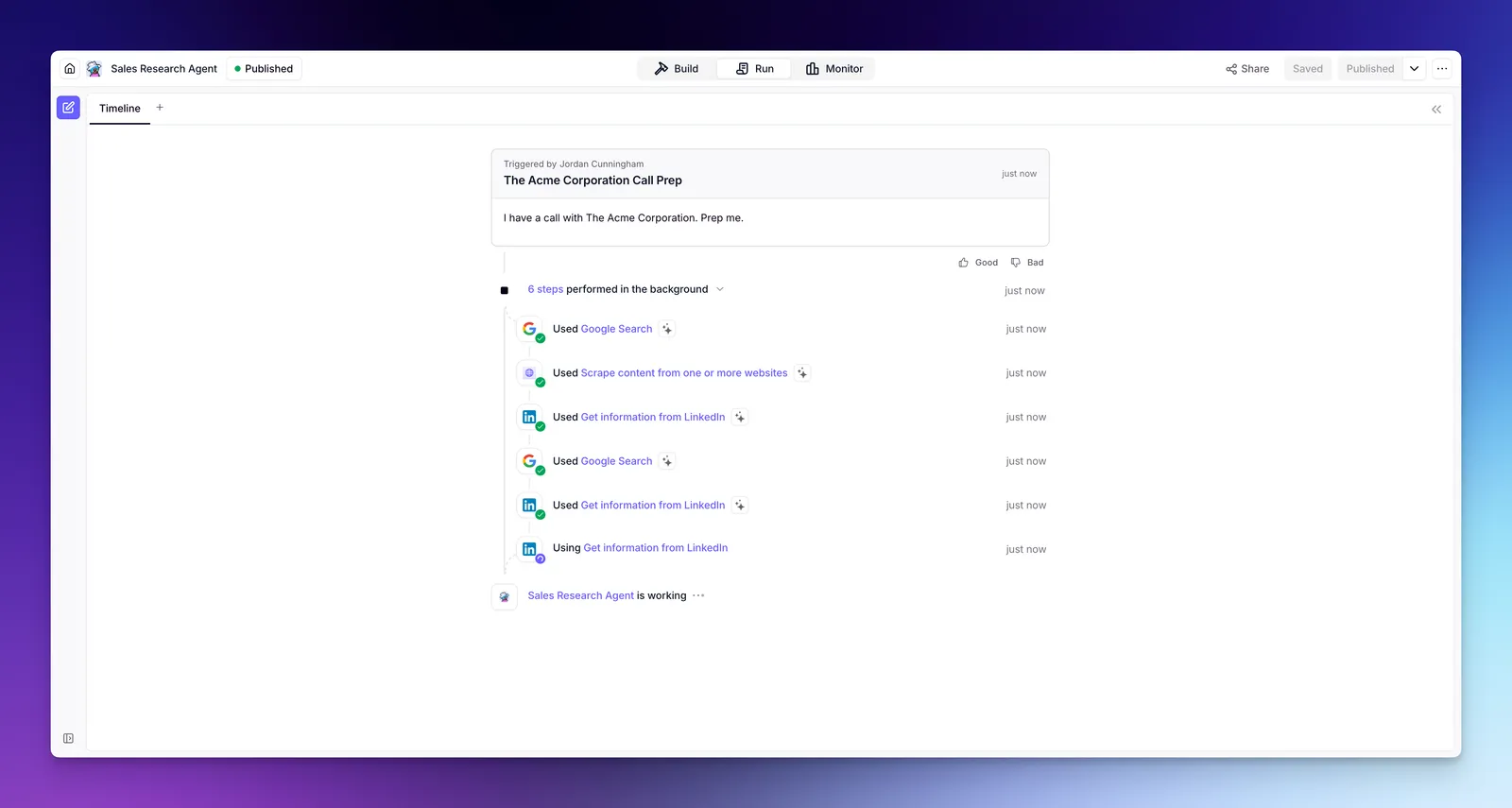
Head to the Run tab to give your agent a task. This is a real run — you can see exactly what tools it calls, what output it produces, and how it handles the task end-to-end.
You can also use your agent in Relevance Chat — a conversational interface where you and your team can @ mention any agent.
Step 3: Refine
If the output isn’t quite right, iterate:
- Tighten the prompt — be more specific about what you want, how it should be formatted, and what tone to use
- Add or adjust tools — make sure the agent has access to the right actions for the job
- Add knowledge — upload docs, connect data sources, or add context so the agent has what it needs
Test again after each change. A few rounds of this and you’ll have a solid agent.
Step 4: Share and deploy
Once you’re happy with the output, put your agent to work:
- Share your agent with your team so others can use it
- Use Relevance Chat to give your team instant access to your agents
- Set up triggers to run it automatically — on a schedule, from a webhook, or when something happens in your CRM
- Use bulk schedule to run it across a list of inputs
- Add alerts so you get notified when something needs attention, and the agent knows when to loop in a human
Beyond building
Now that you’ve got an agent up and running, there’s more to explore across the platform.
Use your Agents in Chat
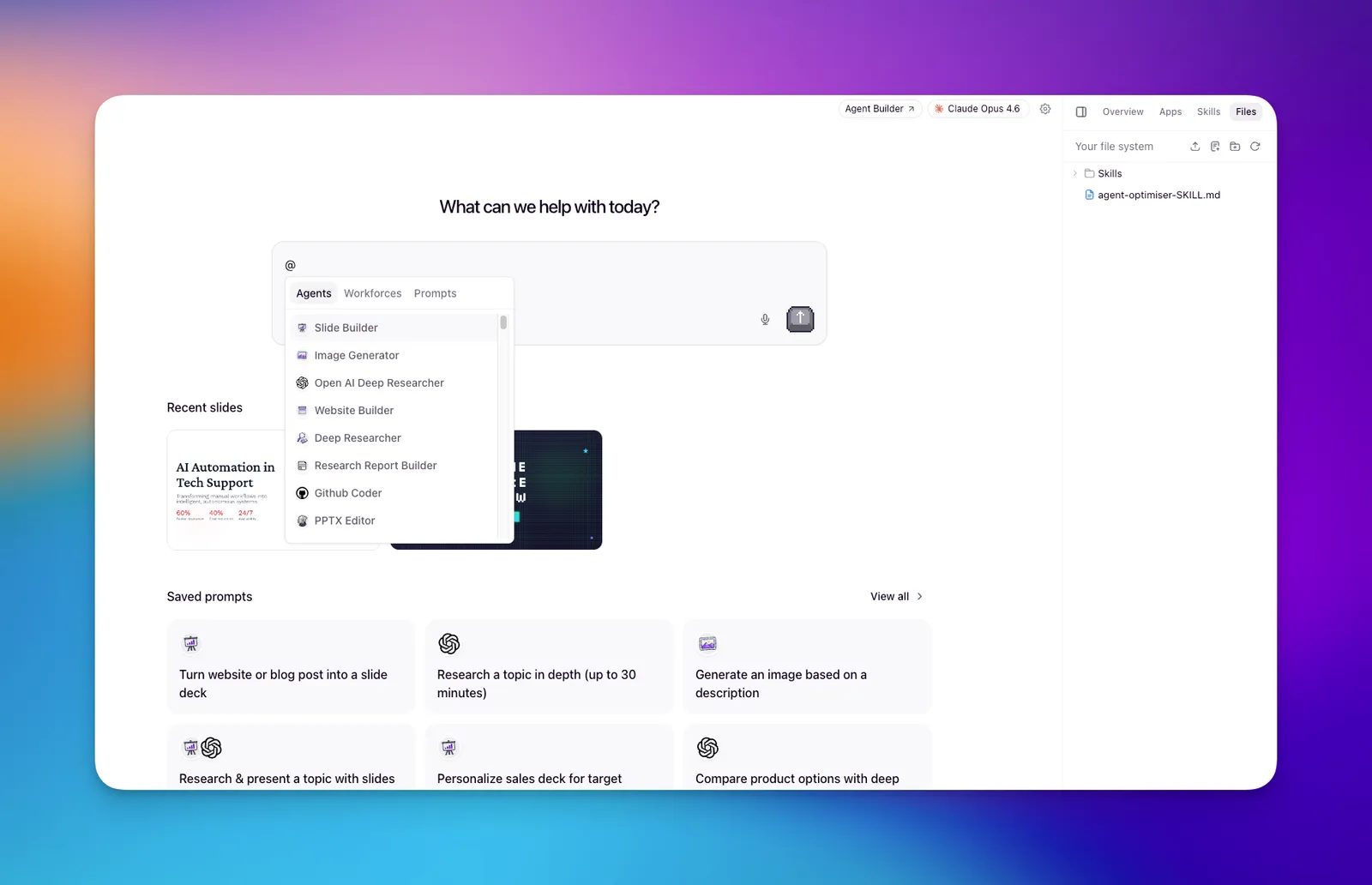
Relevance Chat is a conversational interface where you and your team interact with your agents directly. Type a message, @ mention any agent in your project, and it will handle the task using the tools and knowledge you’ve configured. You can switch between LLMs, combine multiple agents in a single conversation, save prompts your team uses often, and @ mention project files to insert their paths directly into your message. Chat also comes with built-in agents for things like building websites, generating images, deep research, and creating presentations.
Visit chat.relevanceai.com to get started — it works on desktop and mobile.
Browse the Marketplace
The Marketplace is a curated library of pre-built agents and tools created by Relevance AI and the community. Instead of building from scratch, you can clone an agent that’s already been designed and tested for common use cases — lead qualification, customer support, meeting prep, and more. Once cloned, you have full control to customize the agent’s prompt, tools, and settings to fit your needs.
Build from your AI coding environment
Prefer to work from your terminal? Connect your AI coding environment — Claude Code, Cursor, or any MCP-compatible client — to Relevance AI over MCP. Describe what you want in natural language and your AI assistant builds and edits your Agents, Tools, and Workforces directly. See MCP & Plugins to get started.
Learn with Academy
Relevance AI Academy offers structured courses and tutorials that take you from your first agent to production-grade workforces — at your own pace.
Ready to go deeper? Head to Build with Relevance AI for a full breakdown of how to configure agents, tools, knowledge, and multi-agent workforces.