

Key Features
Direct IDP Integration
Connect identity providers like Entra ID or Okta directly to Relevance AI through WorkOS
Bulk User Assignment
Assign entire groups to projects and assets instead of managing individual users
Group-Level Permissions
Set permissions at the group level for efficient access control across your organization
Automatic Synchronization
Groups sync from your IDP approximately every 60 minutes
Read-Only Groups
IDP groups are managed at the source and cannot be edited within Relevance AI
Unified Interface
Manage group assignments alongside individual users in the same UI
Groups are managed through your identity provider and sync automatically to Relevance AI. Changes made in your IDP will be reflected in Relevance AI approximately every 60 minutes.
Setting Up RBAC Groups
To use RBAC Groups, your organization must first connect your identity provider through WorkOS. WorkOS provides secure integrations with major identity providers including Entra ID (formerly Azure AD) and Okta.For detailed setup instructions, see the Setting Up Directory Sync section below.
Organization-Level Groups
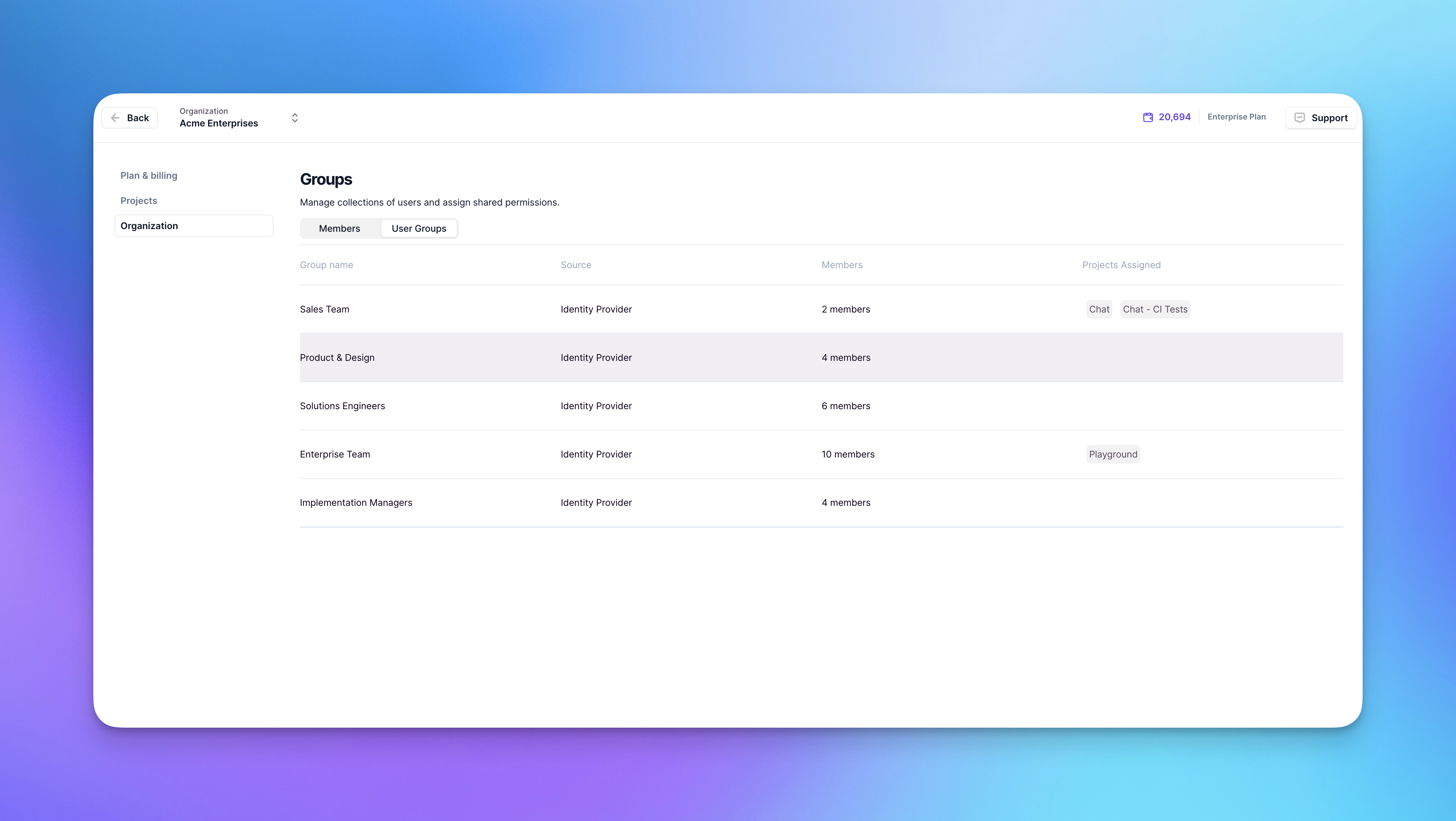
Organization-level groups are only accessible to organization admins and owners.
Accessing organization groups
To view organization-level groups:- Click Settings in the sidebar
- Select Organization
- Click the User Groups tab
IDP groups are read-only in Relevance AI. To modify group membership, make changes in your identity provider and they will sync automatically.
Project-Level Groups
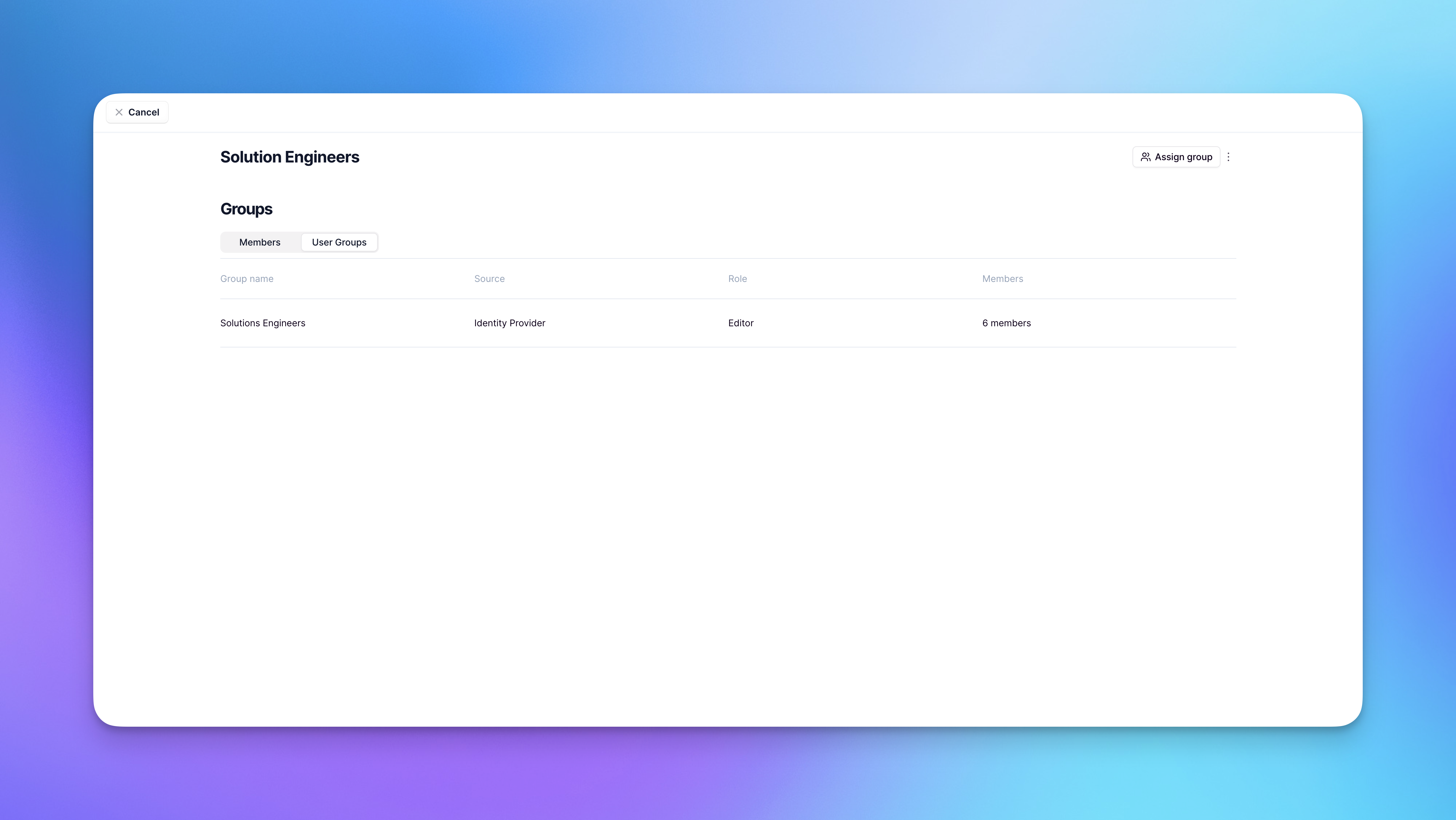
Adding groups to projects
- Head to the Invite to project screen (either through Settings or by clicking your profile picture in Relevance AI)
- Click Assign Group
- Select the group(s) you want to add
- Select the role you want the group to have (Admin, Editor, Member, Chat, or Viewer)
Asset-Level Groups
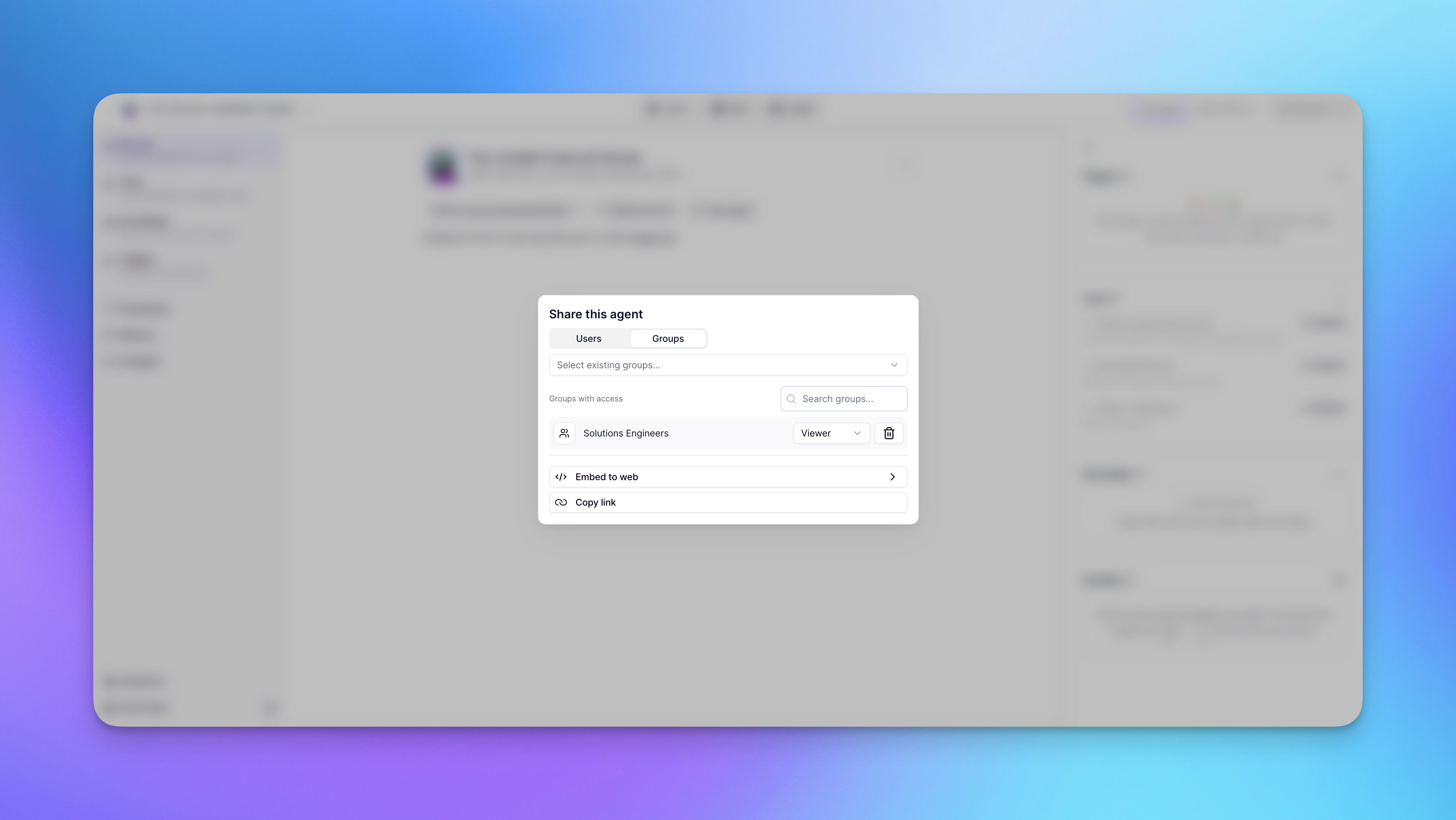
Adding groups to assets
- Open the asset you want to set permissions on
- Click Share
- Click Groups
- Choose the group you want to add
- Set the permission for the group (Admin, Member, or Viewer)
If a group is not already part of the asset’s parent project, adding it to the asset will automatically add all group members to the project as well.
How Group Synchronization Works
RBAC Groups maintains synchronization with your identity provider to ensure access control stays current with your organizational structure.Hourly Sync
Groups automatically sync from your IDP approximately every 60 minutes
New User Sign-Up
Group permissions are applied automatically during the sign-up process for new users
Background Processing
Syncs happen automatically without user intervention
New User Sign-Up Process
When onboarding new users with Directory Sync and Groups enabled, follow this workflow:Enable SSO for the user
Add the user to your identity provider and assign them access to the Relevance AI SSO application.
Verify required attributes
Ensure the user has the following required attributes correctly configured in your identity provider:
- First name
- Last name
- Email address
Wait for sync
The sync worker runs approximately every 60 minutes (could be slightly longer). Wait for the next sync cycle to complete.
User signs up
The user can now sign up to Relevance AI through SSO. Their group-based permissions will be automatically applied during the sign-up process.
Adding users to groups
When a user is added to an IDP group:- The change is detected during the next sync (approximately every 60 minutes)
- The user automatically gains access to all projects and assets assigned to that group
- The user inherits the group’s role and permissions for each resource
- No manual intervention is required in Relevance AI
For users not yet signed up to the platform, their group permissions will be applied during the sign-up process. Once they sign up, the user will be reflected as a member in the group.
Removing users from groups
When a user is removed from an IDP group:- The change is detected during the next sync (approximately every 60 minutes)
- The user’s group-based access to projects and assets is revoked
- If the user has individual (direct) permissions, those are retained
- If the user only had group-based access, they lose access to the resource
User Deprovisioning
User deprovisioning automatically removes user access when they are deprovisioned in your Identity Provider (IdP). This ensures that access control stays synchronized with your organization’s user lifecycle management.When is a user deprovisioned?
Any of the following actions in your Identity Provider (IdP) will deprovision a user (they lose access via Directory Sync):- Deprovisioning the user from the SCIM app in the IdP
- Removing the user from the group that grants access to the SCIM app (when that group controls provisioning to the app)
- Marking the user as inactive in the IdP
- Deleting the user in the IdP
Setting Up Directory Sync
To use RBAC Groups, you need to configure directory sync between your identity provider and Relevance AI through WorkOS. This guide walks you through the complete setup process.Prerequisites
Before setting up Directory Sync, you must first configure Single Sign-On (SSO) for your organization. Directory Sync builds on top of SSO to enable automated user provisioning and group management.Setup Process
Enable the Groups feature
Contact your dedicated sales representative or reach out to our support team via your Slack channel or other support methods to enable the “Groups” feature for your organization. Wait for confirmation before proceeding to the next step.
Configure your identity provider
Follow the WorkOS integration guide for your specific identity provider:
- Microsoft Entra ID (Azure AD): Entra ID SCIM Integration
- Google Workspace: Google Directory Sync Integration
- Okta: Okta SCIM Integration
- JumpCloud: JumpCloud SCIM Integration
Some UI elements in the WorkOS documentation may differ from their current interface.
Confirm setup with Relevance AI
After completing the configuration in your identity provider, contact your dedicated sales representative or reach out to our support team via your Slack channel or other support methods to confirm setup. We will monitor and validate that your sync is working correctly.
Current Limitations
The following features are not yet supported in the current version of RBAC Groups:Assigning Individual Roles to Group Members
Assigning Individual Roles to Group Members
Users who have access only through groups (with no direct access) will not appear in the project user list. They will still have access based on their group membership.If you want to give a specific user a different role than their group, you must:
- Invite them directly to the project (even if they already have access through a group)
- Assign them the desired role
The user will always receive the highest permission level from all their sources. For example, if they have Admin access through a group and you assign them Viewer access directly, they will retain Admin permissions because the highest permission always prevails.
Group Membership Visibility
Group Membership Visibility
Group membership is only visible on the organization settings page (requires admin access), not on the project invite page.
Empty Agent Folders
Empty Agent Folders
Folders without accessible agents will still be visible to users, even if they cannot access any agents within them.
Permission Downgrade
Permission Downgrade
Users can downgrade their own group’s permissions without warning or confirmation. Exercise caution when assigning admin permissions.
Frequently asked questions (FAQs)
Can I access RBAC Groups without upgrading to Enterprise?
Can I access RBAC Groups without upgrading to Enterprise?
No. RBAC Groups is available for Enterprise subscriptions only.
Which identity providers are supported?
Which identity providers are supported?
RBAC Groups supports major identity providers including Entra ID (formerly Azure AD) and Okta through WorkOS. For a complete list of supported providers, see the WorkOS integrations documentation.
Can I assign different roles to the same group at different levels?
Can I assign different roles to the same group at different levels?
Yes. A group can have different roles at the project level versus the asset level. For example, a group could be Members at the project level but Admins on a specific agent within that project.
What happens if a user is in multiple groups with different roles?
What happens if a user is in multiple groups with different roles?
If a user belongs to multiple groups assigned to the same resource with different roles, they receive the highest permission level among all their group memberships and individual assignments.
Can I use RBAC Groups with non-SSO users?
Can I use RBAC Groups with non-SSO users?
RBAC Groups requires users to authenticate via SSO through your identity provider. Users who sign in with email/password or other non-SSO methods cannot be managed through IDP groups.
What's the difference between RBAC and RBAC Groups?
What's the difference between RBAC and RBAC Groups?
RBAC (Role-Based Access Control) provides the permission framework and roles at organization, project, and asset levels. RBAC Groups extends this by allowing you to assign those roles to entire groups of users at once, rather than individually.