

Developer
Chrome Extension
Extract content from any web page and send it directly to an AI agent chat in Relevance AI.
The Relevance AI Chrome Extension lets you extract content from any web page and send it directly to an AI agent chat, without copy-pasting.
Supported browsers
Chrome
Edge
Brave
Arc
Any Chromium-based browser that supports Manifest V3 is compatible. Firefox is not supported.
Installation and setup
Installing the extension
- Open the Chrome Web Store listing in a supported browser.
- Click Add to Chrome and confirm the prompt.
- The Relevance AI icon appears in your browser toolbar. Pin it for easy access.
Signing in
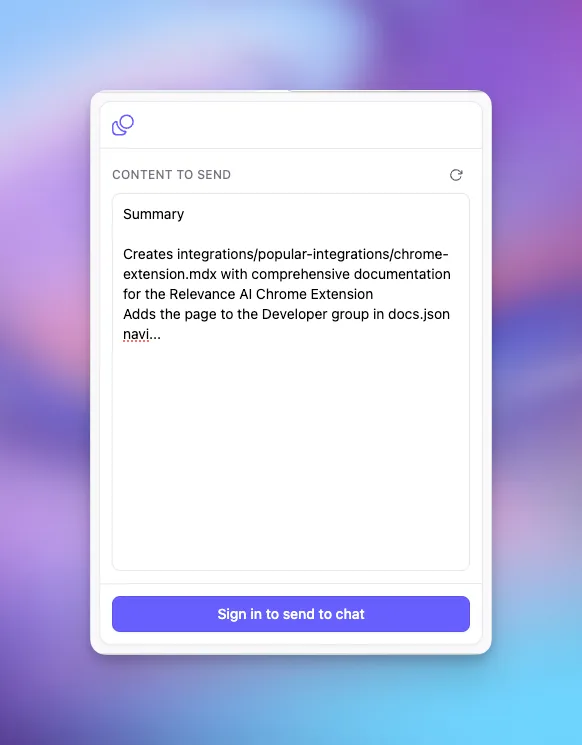
Click the extension icon in your toolbar, then click Sign in to send to chat. An OAuth popup opens through app.relevanceai.com/auth where you authorize the extension with your Relevance AI account. Tokens are stored locally and refreshed automatically, so you stay signed in across browser sessions.
Selecting a project and region
After signing in, click your user avatar in the extension popup header to open a dropdown where you can switch projects and regions. Your selection persists across sessions.
Using the extension
Main workflow
Browse to any web page
Navigate to the page you want to extract content from.
Open the extension
Click the toolbar icon, or use the keyboard shortcut: Mac: Cmd+Shift+S / Windows/Linux: Ctrl+Shift+S
Review extracted content
The extension automatically extracts content from the page and displays it in an editable text area. Edit as needed.
Send to chat
Click Start new chat to open a new agent conversation with the content as the first message.
Continue in Relevance AI
Click Open in Chat to jump directly to the conversation in Relevance AI.
Use the extension without opening the popup
You can also trigger the extension without opening the popup:
- Right-click anywhere on a page, or right-click on selected text.
- Choose Send to Chat from the context menu.
- The extension popup opens with content pre-loaded.
Content extraction
The extension uses a multi-stage extraction pipeline that selects the appropriate method based on the page type.
LinkedIn profiles
Extracts name, headline, company, location, about section, experience, education, skills, and profile URL. Handles LinkedIn’s single-page app navigation, including iframe-based content.
Articles and blog posts
Uses Mozilla Readability (the same library as Firefox Reader View) to extract the title, author, published date, and body text, plus the canonical URL. Works on most news sites and blog platforms.
Generic web pages
Extracts the page title, meta description, body text (up to 4,000 characters), and structured data including JSON-LD and Open Graph tags.
Selected text
If you have text selected on the page when you open the extension, that selection is included alongside the page extraction.
Extracted content is formatted as markdown and wrapped with metadata before being sent to the agent. When you click Start new chat, the extension calls the TriggerWorkforceChat API to create a new conversation, and the extracted content becomes the first message.
chrome://, about:, or other extension pages.Permissions and network access
activeTab
Read the current tab’s URL and extract page content. Only used when you actively open the extension or trigger it via the context menu.
contextMenus
Adds the Send to Chat option to your browser’s right-click menu.
storage
Stores authentication tokens, your project selection, and other preferences in local browser storage. Nothing is transmitted to a third party.
tabs
Detects tab URL changes to handle LinkedIn’s single-page app navigation and the OAuth callback after sign-in.
Frequently asked questions (FAQs)
What if a page won't extract content properly?
Try clicking the refresh button in the content area to re-run extraction. For pages that extract poorly, you can manually edit the content in the text area before sending.
How do I sign out?
Click your user avatar in the extension popup header and select Sign out from the dropdown.
What happens to my extracted content?
Content is sent directly to your Relevance AI account as the first message in a new agent chat. It is not stored by the extension beyond what is needed to display it in the popup before you send.
Can I use this with any agent?
The extension creates a new chat session in your selected project. The agent that handles the chat depends on your project configuration in Relevance AI.