

Communication
Microsoft Teams
Microsoft Teams is a collaboration platform that combines workplace chat, video meetings, file storage, and application integration.
With Relevance AI’s Microsoft Teams integration, you can connect your Teams workspace to your AI agents, enabling them to monitor channels, respond to messages, and automate communication workflows directly within Teams.
Relevance AI uses a unified Microsoft authentication that works across Teams, Outlook, SharePoint, and OneDrive — connecting one account gives you access to all services. See the Outlook integration and SharePoint knowledge source pages for details on those services.
Prerequisites
Before setting up the Microsoft Teams integration, ensure you have:
Relevance AI account
An active project in Relevance AI
Microsoft Teams access
Desktop or web app within your organization
Sufficient permissions
Enterprise organizations may require admin consent from a Global Administrator or Teams Administrator (see Admin consent & permissions)
A Teams channel or chat
At least one channel or chat where you want your agent to operate
Setup overview
Setting up Microsoft Teams requires two separate steps. Both are required — completing only one is not enough.
1. Connect your Microsoft account
Authenticate via OAuth in Relevance AI to grant access to Microsoft services.
2. Install the Relevance AI app in Teams
Add the app from the Teams app store to the channels and chats where your agent should operate.
Step 1 - Connect the integration
Open the Integrations page
In the Relevance AI dashboard, click Integrations & API Keys in the sidebar.
Find the Microsoft integration
Locate Microsoft (Teams, Outlook, SharePoint, OneDrive) in the list of available integrations.
Add the integration
Click Add Integration. A pop-up window will open for Microsoft sign-in.
Sign in to your Microsoft account
Enter your Microsoft credentials in the pop-up window and sign in.
Grant permissions
Review the requested permissions and click Accept. These permissions allow Relevance AI to read and send messages, access channel and team information, and maintain a persistent connection.
For a full list of requested scopes, see the Permissions reference.
Confirm the connection
Once complete, you’ll see a green Connected status indicator next to the Microsoft integration in Relevance AI.
Linking your account via magic link
You may receive a magic link from Microsoft Teams or via email inviting you to connect your accounts. This is an alternative to the standard OAuth flow above and achieves the same result.
- Click the magic link in Microsoft Teams or your email.
- If you’re not logged in to Relevance AI, you’ll be redirected to sign in first. After signing in, you’ll be returned to the consent page automatically.
- On the consent page, review your Relevance AI account email and your Microsoft Teams account details shown.
- Click Confirm to link the accounts, or Cancel to abort the connection.
Step 2 - Install the Relevance AI app in Microsoft Teams
After connecting your Microsoft account, you need to install the Relevance AI app in Teams so your agents can interact with channels and chats.
Open the Teams app store
In Microsoft Teams, click on Apps in the left sidebar.
Search for the Relevance AI app
Type Relevance AI in the search bar and locate the app in the results.
Install the app
Click Add or Install to add the Relevance AI app to your Teams workspace.
Add the app to specific channels and chats
After installing, add the app to each channel or group chat where you want your agent to operate.
- Navigate to the channel where you want your agent to work
- Click the + icon at the top of the channel to add a tab or app
- Search for Relevance AI in the app picker
- Select the app and click Save
- Open the group chat where you want your agent to work
- Click the + icon or Add apps button
- Search for and select Relevance AI
- Add the app to the chat
Verify the app is active
Confirm the Relevance AI app appears in the channel’s app list and that the channel shows up in the trigger setup dropdown in Relevance AI.
Triggers
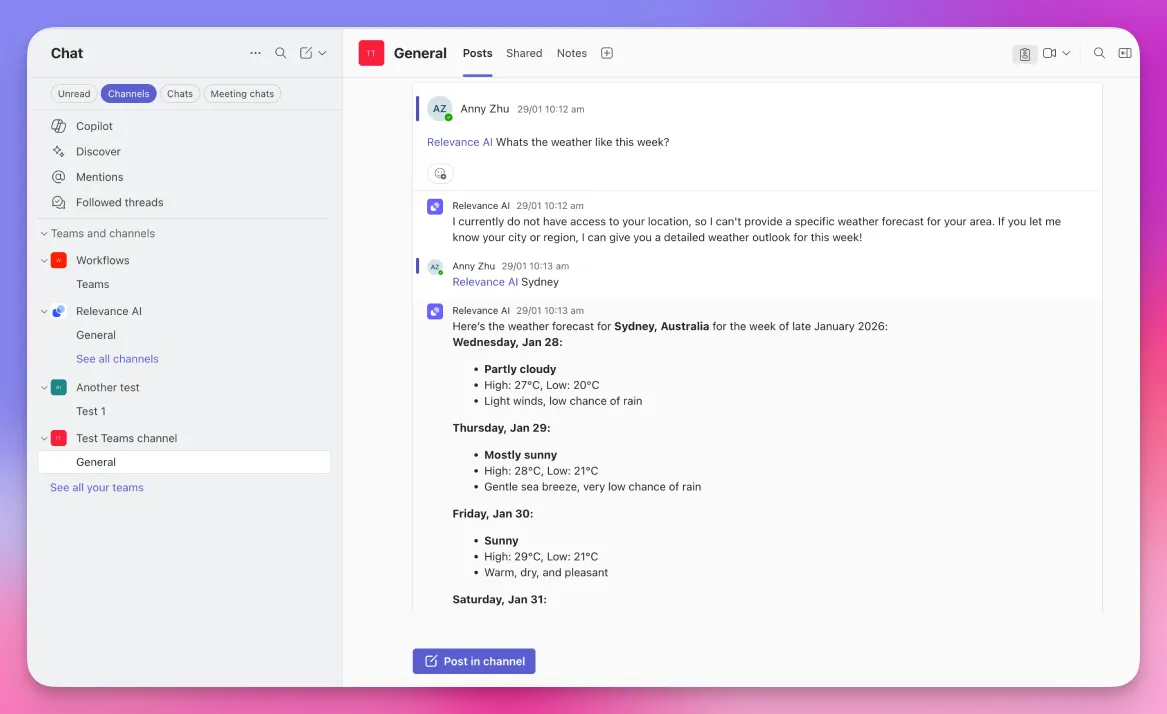
Triggers let your agents respond to Teams messages automatically, so your team can get answers, run workflows, and escalate issues without leaving their existing conversations. Instead of switching to a separate tool, users interact with agents right where they already communicate.
The Relevance AI app is available on the Microsoft Teams marketplace. Users can @mention or message the app in channels, group chats, or direct messages to trigger agents and have two-way conversations directly in Teams. The same trigger setup also works for workforces.
Setting up a trigger
Open your agent's settings
Navigate to your agent in Relevance AI and go to the Triggers section.
Add a Microsoft Teams trigger
Click Add Trigger and select Microsoft Teams from the list.
Select the Team and channel
Choose the Microsoft account you connected, then select the Team and specific channel or chat you want to monitor.
Configure trigger conditions (optional)
Set up keyword matching to filter which messages activate your agent. Leave the keyword field empty to trigger on all messages, or enter specific keywords separated by commas. The trigger checks whether any of the keywords appear anywhere in the message text (case-insensitive).
Write agent instructions
In the Core Instructions section, write a prompt that guides how your agent should respond — including its role, tone, and when to respond.
Advanced trigger settings
Thread reply method

The Thread Reply Method controls whether your agent posts a response back to the Teams thread after processing a message. The setting is per-trigger and opt-in, so the default keeps existing triggers behaving exactly as before.
Agent auto-reply
Default. The agent processes the message and posts its response back into the Teams thread.
No reply
The agent processes the message silently. Use this when the output goes somewhere other than Teams — a database write, an email, or a downstream workflow.
Open your trigger
Go to your agent’s Microsoft Teams trigger in Relevance AI.
Expand Advanced Settings
Click Advanced Settings to reveal the additional trigger options.
Choose a reply method
Select Agent auto-reply or No reply under Thread Reply Method.
When “No reply” is selected, you won’t see confirmation in Teams that your agent processed the message. Monitor the agent’s task history in Relevance AI to verify it’s working correctly.
Outreach replies only
Enable this toggle to restrict the agent to responding only to replies to messages it previously sent in the channel, rather than all new messages.
This is useful for outreach workflows where the agent sends messages to users and needs to follow up only with those who respond. Rather than monitoring all channel activity, the agent stays focused on conversations it initiated.
Open your trigger settings
Go to your agent’s Microsoft Teams trigger in Relevance AI.
Enable the toggle
Locate the Outreach replies only toggle, turn it on, and save your configuration.
When enabled, the trigger subtitle changes to “On replies to outreach messages”. The agent triggers only when a user replies to a message the agent itself sent — new messages posted by other users will not activate it.
How triggered conversations work
Once a trigger fires, the agent responds directly inside Teams with the following capabilities:
Threaded conversations
Agent replies are threaded in the channel. Conversation threads stay active for 30 minutes.
Adaptive Cards
Responses are delivered as Microsoft Adaptive Cards — rich, interactive messages inside Teams.
Typing indicator
Teams displays a typing indicator while the agent is processing a response.
File and image attachments
Agents can receive and process inline images, pasted screenshots, and uploaded files (PDFs, documents, images) from Teams conversations.
Proactive messages
Agents can proactively initiate conversations in Teams DMs without waiting for user input first. Context is maintained across the full conversation, enabling back-and-forth exchanges after the initial outreach.
Workforce triggers
Teams messages can trigger an entire workforce, not just an individual agent.
Tool steps for Microsoft Teams
The Microsoft Teams integration provides actions your agents can use as tool steps in their workflows.
Send Channel Message
Post a message to a specific Teams channel
Send Chat Message
Send a direct message in Teams
Create Channel
Create a new channel in a Team
List Teams
Get all teams the authenticated user belongs to
List Channels
Get all channels in a Team
Retrieve Chat Messages
Fetch messages from a specific chat conversation
Search Messages
Search for messages across Teams channels and chats
List Shifts
Retrieve shift information from Teams
Microsoft API Call
Make custom calls to Microsoft Graph API
Most Microsoft Teams tool steps are currently in beta. Please report any issues to our support team.
Agent alerts
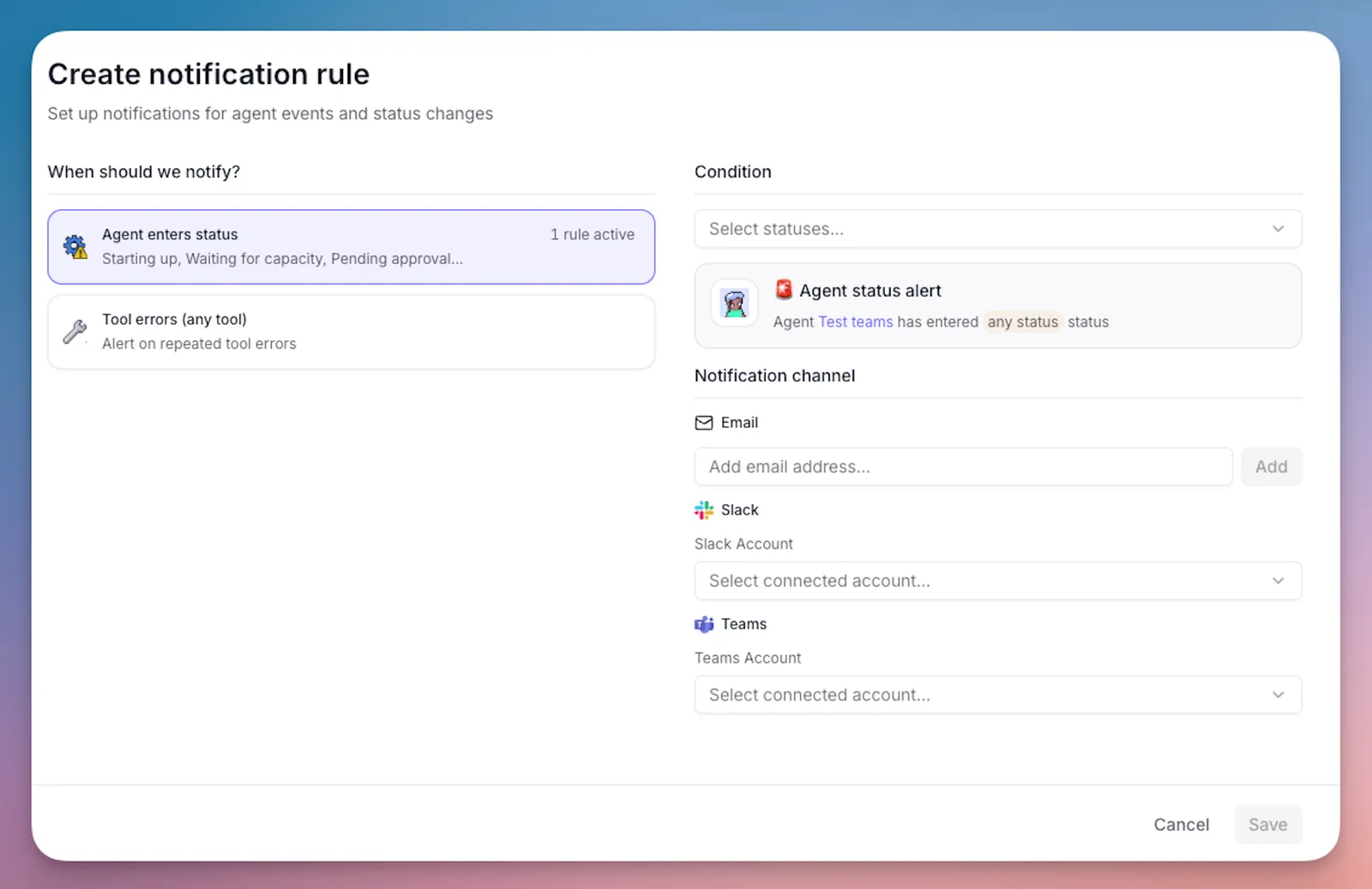
You can receive notifications in Microsoft Teams when your agents enter specific statuses or encounter tool errors. This helps you monitor agent activity and respond quickly when issues occur.
Setting up Teams notifications
Open the escalations panel
Navigate to your agent and click the Build tab, then click Escalations in the left sidebar.
Add an agent notification
Under “Agent Notifications”, click Add agent notification.
Configure notification settings
Select Microsoft Teams as the platform, then choose the notification trigger: Agent enters status (select specific task statuses such as “Running”, “Completed”, or “Failed”) or Tool errors (any tool) to get notified when any tool encounters an error. Select a Microsoft Teams account and the channel where you want to receive notifications. If no accounts appear, complete the connection steps first.
Publish changes
Click Publish changes to save your notification configuration.
What you’ll receive
When a notification is triggered, you’ll receive a message in your Teams channel containing:
Agent status and context
Agent name, status, and task details
Direct link
Link to view the full task in Relevance AI
Error details
For tool errors: which tool failed and why
Admin consent & permissions
Enterprise organizations often require administrator approval before users can connect third-party applications or install apps in Microsoft Teams.
Understanding admin consent
Microsoft Azure AD (Entra ID) allows tenant administrators to restrict whether users can grant consent to third-party apps on their own. When this restriction is active, individual users will see a “Need admin approval” screen during the OAuth flow instead of the standard consent prompt. This is a tenant-level policy — it is not specific to Relevance AI.
If you see “Need admin approval” or “This app requires admin approval”, follow the steps below.
If you see an admin approval message when connecting your Microsoft account:
Copy the consent URL
Copy the consent URL that appears in the Microsoft login window. This URL contains the specific permissions Relevance AI is requesting.
Forward the URL to your administrator
Send the URL to your Microsoft 365 Global Administrator or Application Administrator with a request to grant consent. Include a brief explanation of what Relevance AI is and how it will be used.
Wait for admin approval
Your administrator will open the URL, review the requested permissions, and click Accept to grant consent on behalf of the organization.
Retry the connection
Return to Relevance AI and retry the Microsoft integration connection. The consent prompt should no longer appear.
If your organization requires admin approval for app installations:
Contact your IT administrator
Request approval to install the Relevance AI app in Microsoft Teams.
Wait for admin approval
Your administrator will go to the Microsoft Teams Admin Center, navigate to Teams apps > Manage apps, search for Relevance AI, and change the app status to Allowed.
Install the app
Once approved, follow the steps in Step 2: Install the Relevance AI app.
Permissions reference
The following OAuth scopes are requested when you connect your Microsoft account. These permissions allow Relevance AI to read and send messages, access team and channel metadata, and maintain persistent access.
| Scope | Description |
|---|---|
offline_access | Maintains access without requiring frequent re-authentication |
Chat.Create | Create new chats |
Chat.ReadWrite | Read and write to chats the user has access to |
ChatMessage.Read | Read chat messages |
ChatMessage.Send | Send chat messages |
ChannelMessage.Read.All | Read messages in channels the user has access to |
ChannelMessage.Send | Send messages to channels |
Channel.ReadBasic.All | Read basic channel information (name, description, ID) |
Team.ReadBasic.All | Read basic team information (name, description, ID) |
User.Read | Read the signed-in user’s profile |
User.Read.All | List users in the organization (used for trigger user filters) |
Troubleshooting
'The application is not authorized' error
This error means your Azure AD / Entra ID tenant has not granted consent for Relevance AI. Ask your Microsoft 365 Global Administrator to grant admin consent using the steps in Admin consent & permissions. Once consent is granted, retry the connection from the Integrations page.
'Consent was denied' error
This occurs when you or your administrator explicitly declined the permissions request during the OAuth flow. To resolve this, retry the integration connection from the Integrations page and click Accept when prompted. If the consent was denied by an admin policy, your administrator will need to grant consent on your behalf.
Relevance AI app not visible in the Teams app store
If the Relevance AI app does not appear in the Teams app store, your organization likely restricts third-party app installations. Ask your IT administrator to allow the app in the Microsoft Teams Admin Center under Teams apps > Manage apps. See Admin consent & permissions for detailed steps.
Teams trigger option not visible in agent settings
Some Teams features are controlled by feature flags and may not be enabled for all accounts. If you don’t see Microsoft Teams as a trigger option in your agent or workforce settings, contact our support team to check whether the feature needs to be enabled for your account.
Trigger is configured but the agent isn't responding
Verify that the Relevance AI app has been added to the specific channel or chat being monitored (not just installed in Teams), and that the Microsoft account used for the trigger is a member of the channel. Confirm the trigger is enabled and published in your agent’s settings. If keyword matching is configured, check that messages contain the expected keywords. Review the agent’s task logs in Relevance AI for errors — a 401 Unauthorized error indicates the OAuth token has expired or been revoked, and you should reconnect the Microsoft integration.
Magic link expired or not working
Magic links are time-limited and may expire before you click them. If your magic link no longer works, connect your Microsoft Teams account directly through the standard OAuth flow: go to Integrations & API Keys in the sidebar, find the Microsoft integration, and click Add Integration.
Consent page shows wrong email address
The consent page shows two email addresses: your Relevance AI account email and your Microsoft Teams account email. If either address looks incorrect, click Cancel and verify that you’re logged in to the correct Relevance AI account before trying again. To switch accounts, sign out of Relevance AI and sign in with the correct account, then click the magic link again.
Frequently asked questions (FAQs)
Who supports the Microsoft Teams integration?
The Microsoft Teams integration is built and maintained by Relevance AI. For integration-specific questions, contact our support team. For Microsoft Teams platform issues, contact Microsoft support.
Why don't I see my Teams channel in the dropdown when setting up a trigger?
The most common cause is that the Relevance AI app has not been installed in Teams or added to the specific channel. The Microsoft account you connected must also be a member of that channel. If your organization requires admin consent, the app may not be visible until an administrator approves it. Verify that you’ve completed both setup steps and added the app to the channel.
Can I connect multiple Microsoft accounts?
Yes, you can connect multiple Microsoft accounts through the Integrations & API Keys page. Each account can be used for different triggers and tool steps.
Do triggers work for private messages?
Yes, Teams triggers can monitor both channel messages and private chats. To monitor direct messages, select the “Direct chats with Relevance AI” option when configuring your trigger instead of a specific channel.
Can my agent process Teams messages without replying?
Yes. Set the Thread Reply Method to “No reply” in your MS Teams trigger’s Advanced Settings. This allows your agent to process messages without posting a response back to Teams — useful when the agent’s output goes somewhere else, such as a database, email, or another workflow. The default is “Agent auto-reply”, which maintains existing behavior. To verify the agent is running correctly, check the task history in Relevance AI.
Yes, files shared in Teams channels are stored in SharePoint. You can access them through the Microsoft API Call tool step via the Microsoft Graph API.
What's the difference between the pre-built tool steps and the API Call tool step?
Pre-built tool steps (like “Send Channel Message”) are designed for common tasks with simplified interfaces. The Microsoft API Call tool step gives you full access to Microsoft Graph API for advanced operations not covered by pre-built steps.
Are there rate limits for Microsoft Teams API calls?
Yes, Microsoft Graph API enforces rate limits depending on your Microsoft 365 subscription. Microsoft returns a 429 Too Many Requests status code when limits are exceeded.
How do I remove the Microsoft Teams integration?
Go to the Integrations & API Keys page from the sidebar, find Microsoft (Teams, Outlook, SharePoint, OneDrive), click ”...” on the account you want to remove, and click “Remove” and confirm. This will disable all triggers and tool steps using this account across Teams, Outlook, SharePoint, and OneDrive. To also remove the app from Microsoft Teams, go to Apps in Teams, find Relevance AI, and click Uninstall.
What is the magic link I received from Microsoft Teams?
A magic link is an alternative way to connect your Microsoft Teams account to Relevance AI. When you click the link, you’re taken to a consent page in Relevance AI that shows your Relevance AI account email and your Microsoft Teams account details. Click Confirm to complete the connection or Cancel to abort it. The magic link method achieves the same result as connecting via the standard OAuth flow on the Integrations page.
Do I need to use the magic link or can I connect directly from Relevance AI?
Both methods work and achieve the same result. You can connect your Microsoft Teams account through the standard OAuth flow on the Integrations & API Keys page, or by clicking a magic link you received from Microsoft Teams or via email. Use whichever is more convenient.
What happens if I'm not logged in when I click the magic link?
If you’re not logged in to Relevance AI when you click the magic link, you’ll be redirected to the sign-in page. After signing in, you’ll be automatically returned to the consent page to complete the account linking.