

Understanding the Task Queue
When you set up triggers or create bulk schedules for your agent, tasks are organized into queues. The task queue gives you visibility and control over all tasks that are being processed, queued, or have been completed by your agent.How to Access the Task Queue
To access your agent’s task queue:- Navigate to your agent in the agent builder
- Click on the Run tab
- Look at the left sidebar (the task list area)
- Click on the Agent queue button
Task Statuses
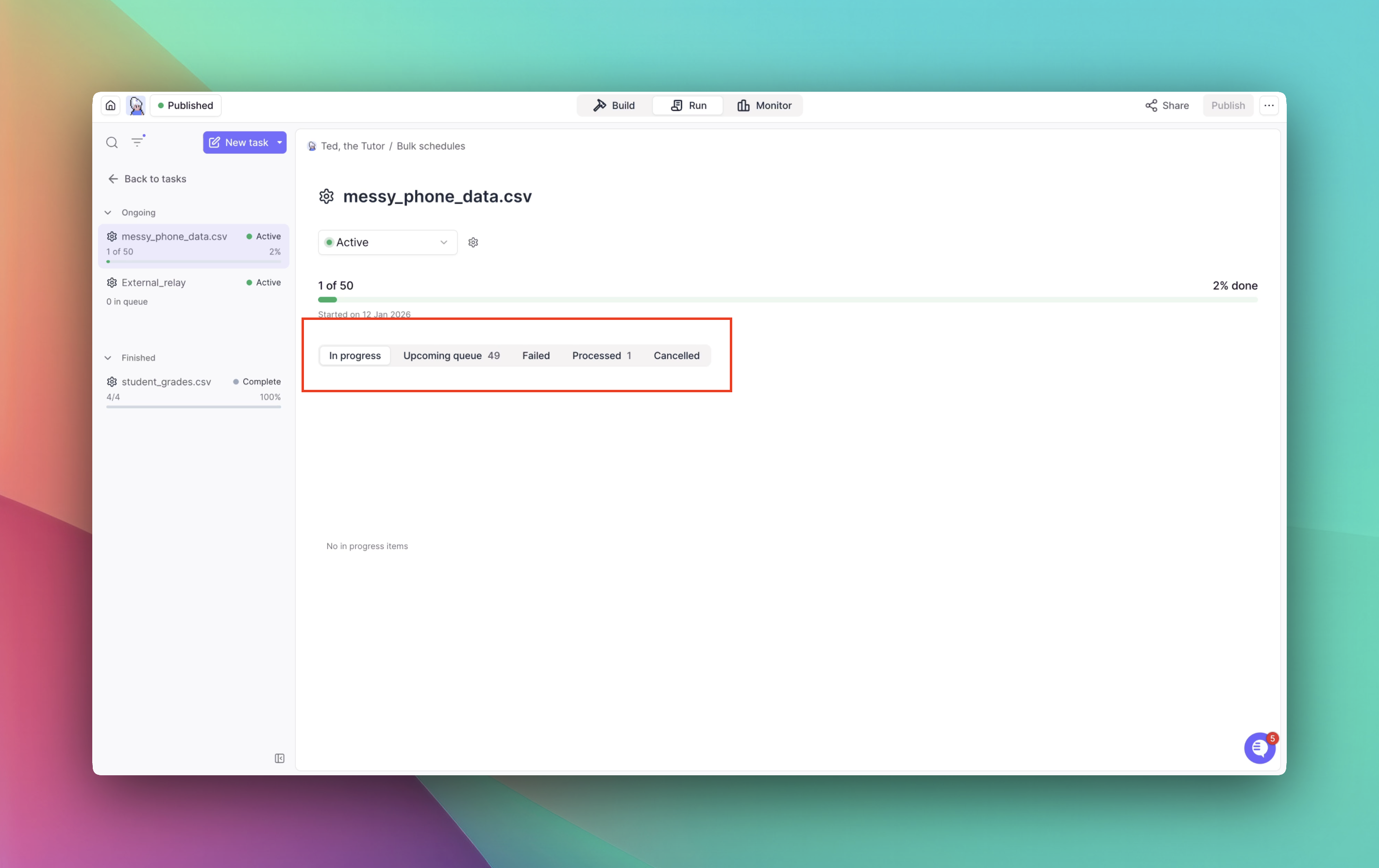
When you open agent queue, you’ll see different sections for each operation that creates tasks (per trigger or per bulk schedule). Within each section, tasks are organized by their current status. You can view tasks in the following categories:- In Progress: Tasks that are currently being processed by your agent
- Upcoming Queue: Tasks that are scheduled but haven’t started yet
- Failed: Tasks that encountered errors during execution
- Processed: Tasks that have completed successfully
- Cancelled: Tasks that have been cancelled
Cancelling Tasks
From the agent queue, you can cancel tasks in bulk. You can cancel all tasks within a specific queue section (like all upcoming tasks in a bulk schedule) To cancel tasks from the agent queue:- Navigate to the queue section you want to manage (e.g., a specific bulk schedule)
- Go to the Upcoming Queue view
- Click the Cancel All button to cancel all tasks in that queue
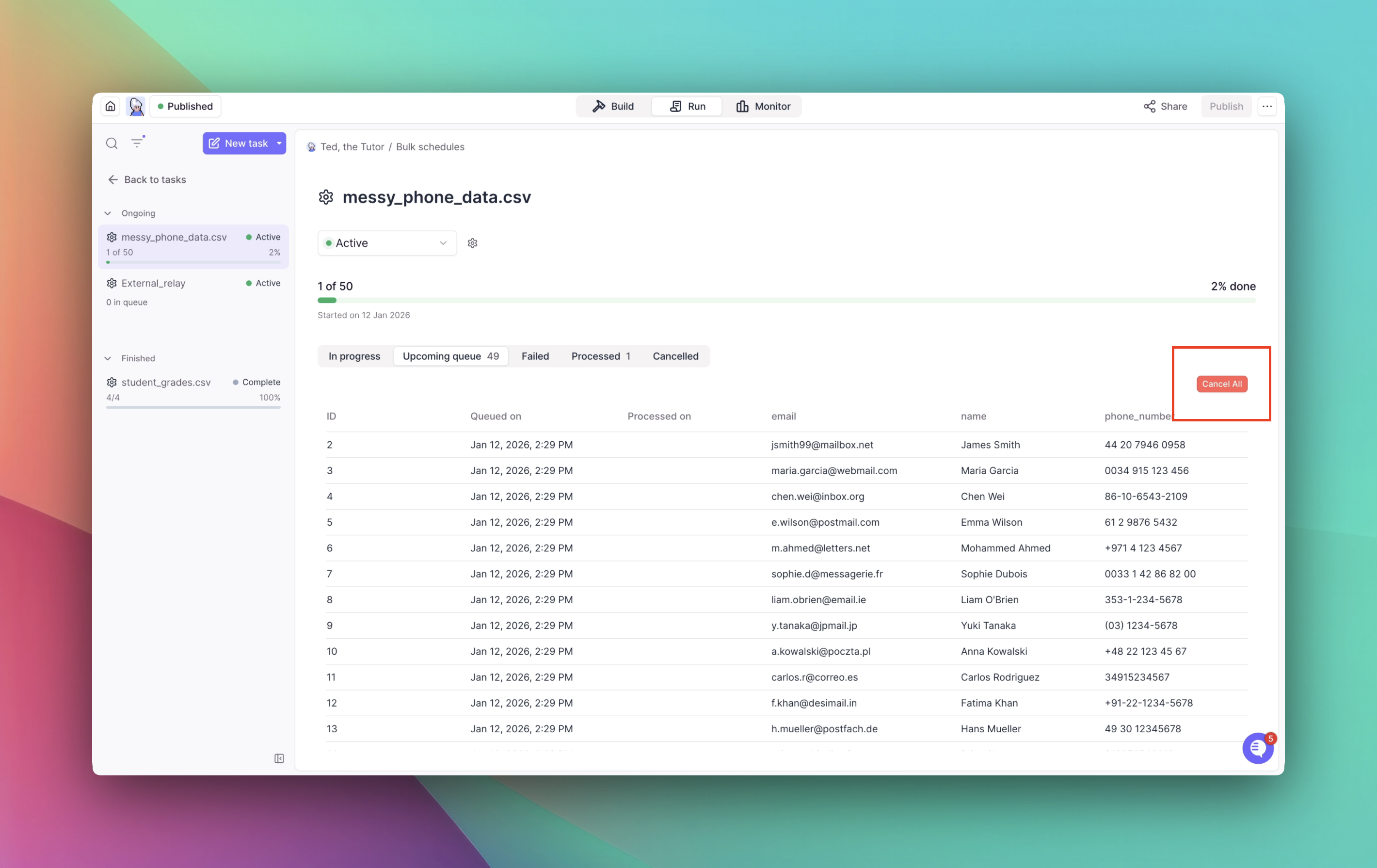
You can cancel, complete, or pause individual tasks (including tasks in progress) when viewing them in the normal task tab. However, from the agent queue view, you can only cancel tasks in bulk, and only tasks in the “Upcoming Queue” status can be cancelled from the queue.
Viewing Queue Insights
The task queue provides valuable insights about what’s being imported and processed:- Import status: See how many tasks have been imported from your CSV or knowledge table
- Processing progress: Track how many tasks have been processed versus how many are still queued
- Trigger activity: Monitor which triggers are generating tasks and how frequently
Best Practices
- Monitor regularly: Check your task queue regularly to ensure tasks are processing as expected
- Review failed tasks: Pay attention to failed tasks to identify patterns or issues that need addressing
- Plan cancellations: If you need to cancel tasks, do so from the “Upcoming Queue” view before they start processing
- Use insights: Leverage the queue insights to optimize your bulk schedules and trigger configurations
If you notice a high number of failed tasks, review your agent’s configuration, tool integrations, or the data format in your bulk schedule to identify and fix the root cause.