

CRM & Sales
Gong
Connect Gong to Relevance AI to access call recordings, transcripts, and revenue intelligence data.
Gong is a revenue intelligence platform that records, transcribes, and analyzes sales calls and customer conversations. It surfaces insights from your team’s interactions to help you understand deal health, coaching opportunities, and customer sentiment.
With the native Gong integration in Relevance AI, your agents can retrieve call data, pull transcripts, and interact with Gong’s API directly — without any third-party connectors.
Connect the integration
- Go to the Integrations & API Keys page in the sidebar of your Relevance AI dashboard.
- In the Integrations section, search for Gong.
- Click Gong — the native integration with the blue tick.
- In the pop-up window, sign into your Gong account and authorize the requested permissions.
- Once authenticated, your Gong account appears as a connected integration.
You need a Gong account with API access enabled. Gong API access typically requires Technical Admin permissions — check with your Gong administrator if you cannot complete the authorization.
Tool steps for Gong
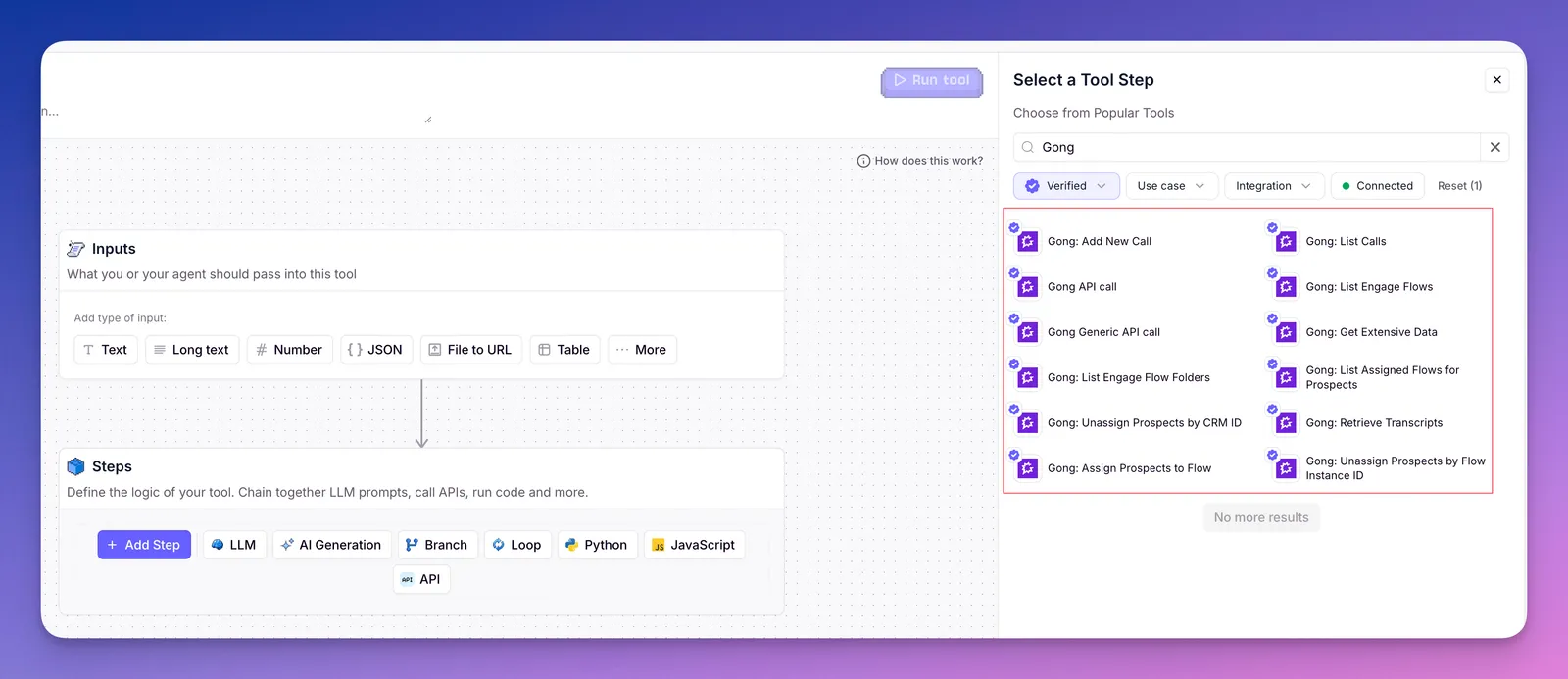
The Gong integration provides a range of tool steps that your agents can use to interact with your call data and Engage flows. Add these to any tool in the tool builder by searching for “Gong” in the tool step search bar.
Select a category below, then expand any tool step to see what it does.
List calls
Retrieve a list of calls from your Gong account, filterable by date range, participants, and other criteria.
Get extensive data
Fetch detailed metadata and analytics for a specific call, including duration, participants, talk ratios, and engagement metrics.
Retrieve transcripts
Pull the full transcript for a call, with speaker-identified turns and timestamps.
Add new call
Add a call record to Gong, such as uploading recordings from other platforms or logging external conversations.
List Engage flows
Retrieve the Gong Engage flows in your account.
List Engage flow folders
Retrieve the folders that organize your Gong Engage flows.
Assign prospects to flow
Add prospects to a Gong Engage flow.
List assigned flow for prospects
See which flows a set of prospects are currently assigned to.
Unassign prospects by CRM ID
Remove prospects from a flow using their CRM ID.
Unassign prospects by flow instance ID
Remove prospects from a flow using the flow instance ID.
API call
Call a specific Gong API endpoint.
Generic API call
Make any request to the Gong REST API. Use this when you need functionality beyond the pre-built tool steps.
How to add a tool step
Type “Gong” in the tool step search bar to see all available Gong actions when building your tools.
Frequently asked questions (FAQs)
What Gong permissions are required to connect?
You need a Gong account with API access. In most organizations, this requires Technical Admin permissions in Gong. Contact your Gong administrator if the OAuth authorization fails or you do not see an API access option in your Gong settings.
Can I connect multiple Gong accounts?
Yes. You can add multiple Gong integrations to your Relevance AI workspace, each authenticated with a different Gong account.
How do I migrate from the previous Pipedream-based Gong actions?
If you previously used Pipedream-based Gong actions, migrate to the native tools — they offer the same functionality with a simpler OAuth-based connection. Connect the native Gong integration via OAuth (see steps above), then replace any Pipedream-based Gong tool steps in your tools with the equivalent native tool steps. The native tools do not require a separate Pipedream account.
How can I tell which Gong tool steps are native?
Native tool steps have a blue tick beside them in the tool step search bar. Use these in preference to the Pipedream-based actions.
Can the integration access calls in real time?
The integration can only access calls that have already been processed and indexed in Gong. There is typically a short delay after a call ends before it is available via the API. Real-time call access is not supported.
Are there rate limits?
Gong enforces API rate limits based on your Gong plan and usage tier. If you encounter rate limit errors, reduce the frequency of API calls or contact Gong support to review your limits.