

Organization & Project Management
Organization, project and agent IDs
Learn how to find your organization, project and agent IDs
You may need to know your organization, project and agent IDs for various reasons. Here’s how to find them.
URL structure
Relevance AI URLs generally follow this pattern:
https://app.relevanceai.com/[SECTION]/[REGION_ID]/[PROJECT_ID]/[AGENT_ID]/...You can also tell what region your organization is in by looking at the URL.
- AU:
f1db6c - EU:
d7b62b - US:
bcbe5a
Here is an example of a Relevance AI URL, broken down into its sections:
https://app.relevanceai.com/agents/f1db6c/123456789012-46bf-9cf4-a98611e97a41/43c3a067-0734-4f31-b4c9-3c72dc816519/edit/instructions- Section:
agents - Region:
f1db6c - Project ID:
123456789012-46bf-9cf4-a98611e97a41 - Agent ID:
43c3a067-0734-4f31-b4c9-3c72dc816519
Organization Region
Your organization’s region is selected when you sign up to Relevance AI and create your organization. This determines where your data is stored and cannot be changed after creation.
How to identify your region
You can identify your organization’s region in two ways:
From the URL
Look at any Relevance AI URL while logged in. The region code appears immediately after the section name:
https://app.relevanceai.com/agents/[REGION_CODE]/...The region code will be one of:
- US (N. Virginia):
bcbe5a - EU (London):
d7b62b - AU (Sydney):
f1db6c
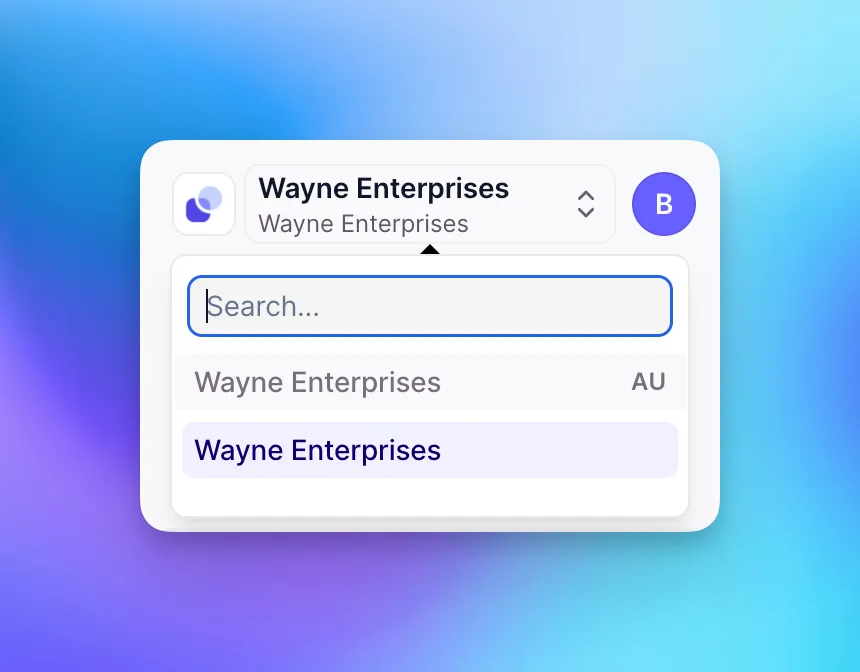
From the organization switcher
Your region is also displayed in the organization switcher in the Relevance AI interface, shown as a two-letter abbreviation (AU, EU, or US).
Available regions
Relevance AI operates in three regions:
US (N. Virginia)
Region code: bcbe5a
EU (London)
Region code: d7b62b
AU (Sydney)
Region code: f1db6c
Your organization’s region cannot be changed after creation. If you need to change regions, contact support to discuss your options.
How to find each ID
Organization ID
To find your organization ID, head to the Settings page in the sidebar of Relevance AI. The settings page will show a URL like the following below:
https://app.relevanceai.com/settings/organization/REGION_ID/ORG_ID/From here, you should be able get your organization ID.
Project ID
To find your project ID, head to any page in your project in Relevance AI. The URL will show a URL like the following below:
https://app.relevanceai.com/agents/REGION_ID/PROJECT_ID/AGENT_ID/...From here, you should be able get your project ID.
Agent ID
To find your agent ID, head to any page in your agent in Relevance AI. The URL will show a URL like the following below:
https://app.relevanceai.com/agents/REGION_ID/PROJECT_ID/AGENT_ID/...From here, you should be able get your agent ID.
Use a Tool in Relevance AI to grab your IDs
You can use this tool to get IDs from an Agent or Tool URL.
Frequently asked questions (FAQs)
Are IDs case sensitive?
Are forward slashes a valid character in an ID?
Can I change my organization's region after signup?
No, your organization’s region is permanent and cannot be changed after creation. If you need to use a different region, you must contact support to create a new organization in the desired region.
How do I know which region my organization is in?
You can identify your region by looking at the region code in your URL or in the organization switcher. See the Organization Region section above for details.