

Google Sheets Tool Steps
Create Spreadsheet
The Create Spreadsheet tool step allows you to create a new Google Sheet
Add the ‘Create Spreadsheet’ Tool step to your Tool
You can add the ‘Create Spreadsheet’ Tool step to your Tool by:
- Creating a new Tool, then searching for the ‘Create Spreadsheet’ Tool step
- Click ‘Expand’ to see the full Tool step
- Select the Drive you would like to use (defaults to “My Drive”).
- Select the name of the new spreadsheet you would like to create.
- Select the folder you would like to create the spreadsheet in.
- Optional: select the template you would like to use to create the spreadsheet.
- Click ‘Run step’ to test out the Tool
Using in an Agent
There are 3 ways to configure the tool step when using in an agent
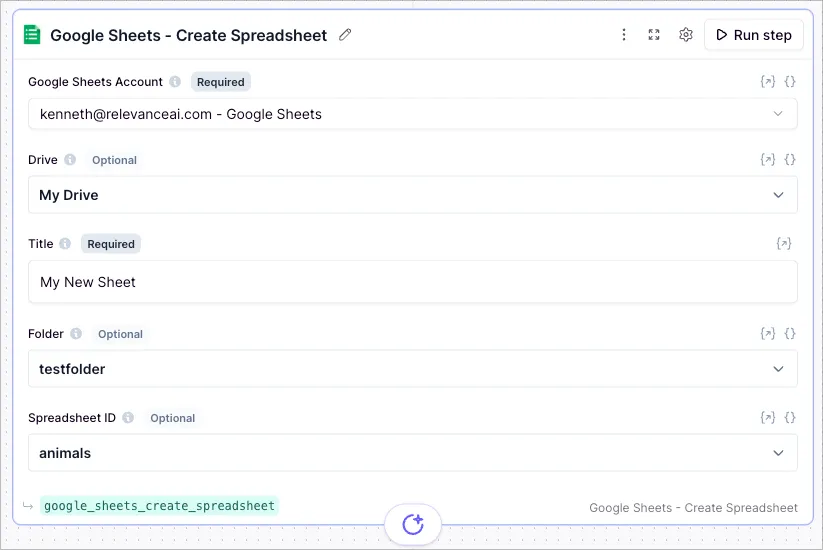
This is the easiest way to configure the tool step. You can select the Drive, Folder and Spreadsheet from a list of options via the dropdown menu.
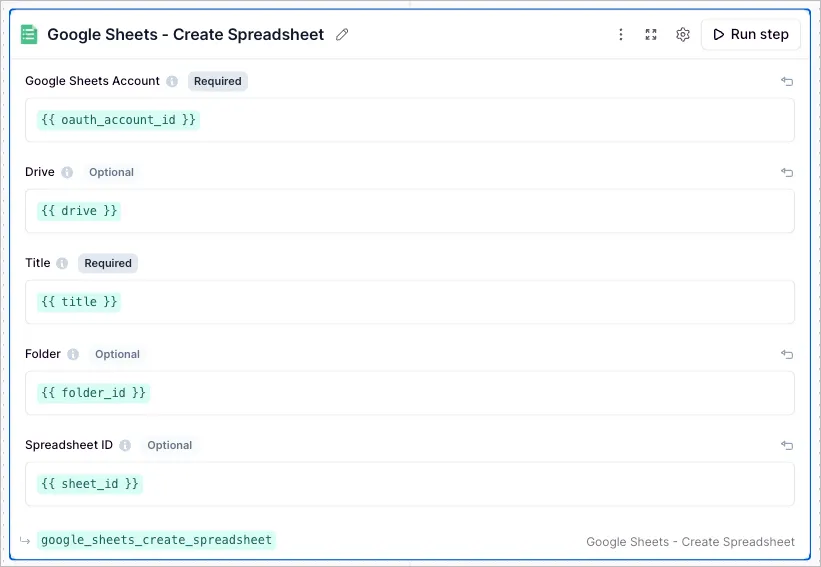
This option offers the most flexibility - you can use the same tool step for creating multiple spreadsheets, however you will need to manually provide the necessary Google Sheet IDs.
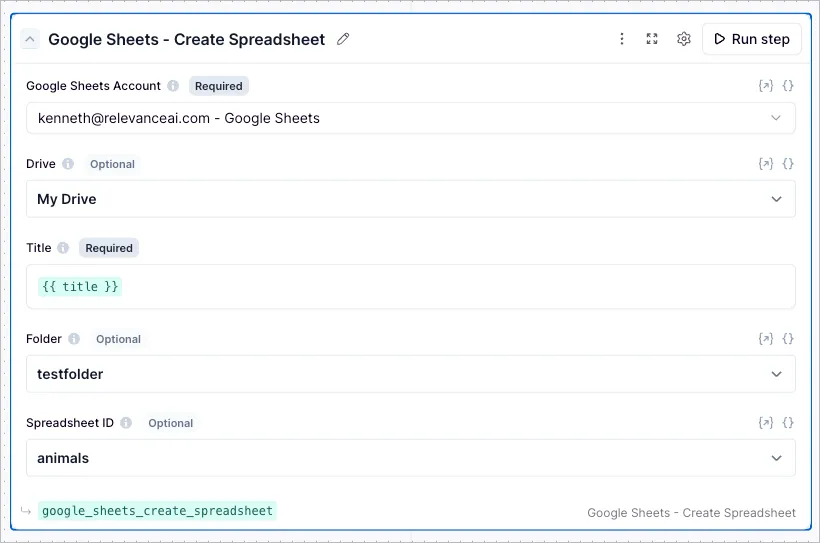
This option offers the best of both worlds. You can use the dropdown menu to select the Drive, Folder and Spreadsheet, and then use an input variable for “Title” to allow the agent to dynamically pick a name for the new spreadsheet.
Parameters
DrivestringThe Drive you want to use. By default, the tool uses “My Drive”.
TitlestringrequiredThe title of the new spreadsheet you want to create.
FolderstringThe folder you want to create the spreadsheet in. To get the folder ID, navigate to the folder and copy the ID from the URL (the long ID after /folders/).
Spreadsheet IDstringUse one of your existing spreadsheets as a template. Leave this field blank to create a new spreadsheet from scratch.
Frequently asked questions (FAQs)
The dropdown menu is the easiest way to configure the tool step. You can select the Drive, Folder and Spreadsheet from a list of options via the dropdown menu.
The input variables offer more flexibility e.g. you can use the same tool step for creating multiple spreadsheets, however you will need to manually provide the necessary Google Sheet IDs.
If you are using the tool in an agent, this is the recommended approach. You can use the dropdown menu to select the fields that don’t need to change, and then use the green input variables for “Title” to allow the agent to dynamically pick a name for the new sheet.