We have all been blown away by ChatGPT. In fact, you’re probably wondering if I wrote this guide or if GPT wrote it for me. Well, unfortunately GPT is yet to distill my winning personality and so I’ve had to do this the old school way.
In this guide, I’ll take you through how you can build your own conversational Q&A widget that is trained on your knowledge base.
By the end, you’ll get all of this for free:

Integrations with popular libraries
Store vectors and metadata
Deploy flexibly with different vector database backend
The beautiful thing is, all of these pieces are really easily tweak-able to fit your exact needs. So let’s dive in!

Step 1
Scaffolding our frontend
Start by setting up a default Nuxt 3 repo. I won’t bore you with the details, follow the
Getting Started steps.
We’re going to style this app with
TailwindCSS, but you can style your app however you like! To do this, I installed the
Nuxt Tailwind module and then added it to my
nuxt.config.ts:
export default defineNuxtConfig ({
modules: ['@nuxtjs/tailwindcss']
})
Let’s scaffold out a very simple UI with a form input, that we can use to start testing.To do this, I set up a simple component called ChatWidget, which houses our layout, and a nested component called Chain in the parts folder, where we can handle the UI around the chat chain (more on what this means soon, I promise!).
// components/ChatWidget.vue
<template>
<div class="w-screen h-screen flex flex-col bg-gray-50">
<div class="w-full relative overflow-hidden flex flex-grow">
<div class="flex flex-col w-full h-full">
<header
class="flex items-center px-6 h-14 w-full bg-white border-b border-gray-200 shadow-sm fixed top-0 z-10"
>
<h1 class="font-semibold text-lg">My Q&A chat tool</h1>
</header>
<div
class="p-6 mt-14 h-full flex flex-col-reverse overflow-y-auto"
>
<PartsChain />
</div>
</div>
</div>
</div>
</template>
// components/parts/Chain.vue
<template>
<form class="flex flex-col w-full">
<label class="font-medium text-gray-600 mb-2.5"
>Ask our knowledge base a question</label
>
<input
type="text"
placeholder="Ask your question..."
class="h-14 px-3 border border-gray-200 max-w-lg"
/>
<div class="font-medium text-xs text-gray-400 mt-1.5">
<p>Press enter to ask...</p>
</div>
</form>
</template>
Perfect! Now we have this:

Let’s add some logic to Chain.vue to simulate async messaging. This will allow us to scaffold out some basic loading state logic.
I’ll add a <script setup lang="ts"> and mock an askQuestion method with a setTimeout Promise hack.
<script setup lang="ts">
const error = ref<string | null>(null);
const isLoadingMessage = ref<boolean>(false);
async function askQuestion() {
try {
isLoadingMessage.value = true;
await new Promise((resolve) => setTimeout(resolve, 1000));
} catch (e) {
console.error(e);
error.value = 'Unfortunately, there was an error asking your question.';
} finally {
isLoadingMessage.value = false;
}
}
</script>
And now, let’s update the template:
<template>
<form @submit.prevent="askQuestion" class="flex flex-col w-full">
<label class="font-medium text-gray-600 mb-2.5"
>Ask our knowledge base a question</label
>
<input
type="text"
placeholder="Ask your question..."
class="h-14 px-3 border border-gray-200 max-w-lg"
/>
<div class="font-medium text-xs text-gray-400 mt-1.5">
<p v-if="!isLoadingMessage">Press enter to ask...</p>
<p class="animate-pulse" v-else>Analysing the knowledge base...</p>
</div>
</form>
</template>
Voila! We have our scaffolded chat interface. When you press enter in the form, it triggers askQuestion, which displays a loading state for 1000ms.
Advantage 3
Simplified collaboration and sharing
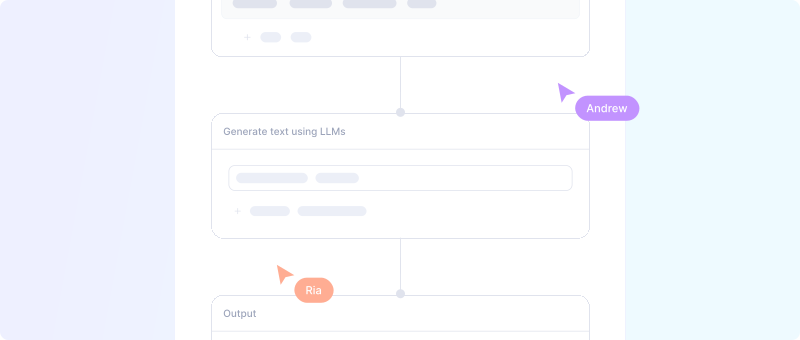
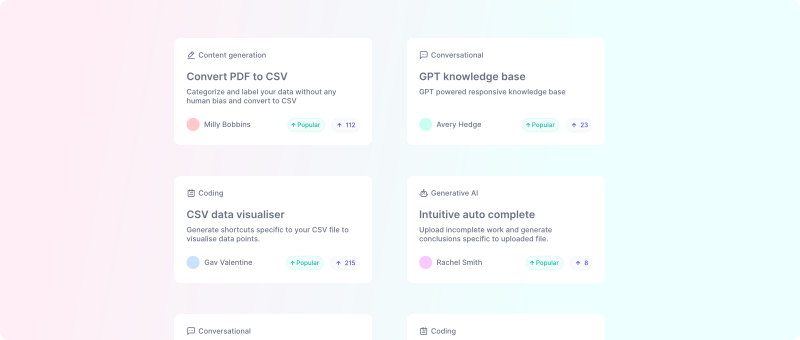
Relevance AI fosters teamwork by making it a breeze to collaborate and share AI chains with colleagues. Work together to create and deploy more effective prompts and models, ensuring you achieve your business goals and involve your non-technical team members. For complex projects requiring input from multiple team members, Relevance AI is a game-changer. With the OpenAI API, collaboration relies on email, Slack, and screenshots – far from ideal.
Advantage 4
Intuitive Notebook experience
Relevance AI's Notebook feature is designed for rapid experimentation with prompts. Test different prompts and view real-time results, helping you refine your models and improve their accuracy. With the OpenAI API, experimenting with prompts is more time-consuming and less user-friendly.
Advantage 5
Superior quality control
Relevance AI's Quality Control feature ensures LLM outputs meet a specific schema, matching the expected output and avoiding errors. This guarantees your models produce accurate results. With the OpenAI API, you're responsible for building the necessary checks to ensure output accuracy.In conclusion, Relevance AI offers an array of benefits that make it the ultimate solution for creating and deploying AI chains, even for single prompt requests to the OpenAI API. With improved monitoring and tracking, streamlined versioning control, simplified collaboration and sharing, seamless transition from single prompts to chains, effortless LLM switching, an intuitive Notebook experience, and superior quality control, Relevance AI is the ideal choice for businesses of all sizes. Sign up today and elevate your AI chains to new heights!
Advantage 6
Streamlined versioning control
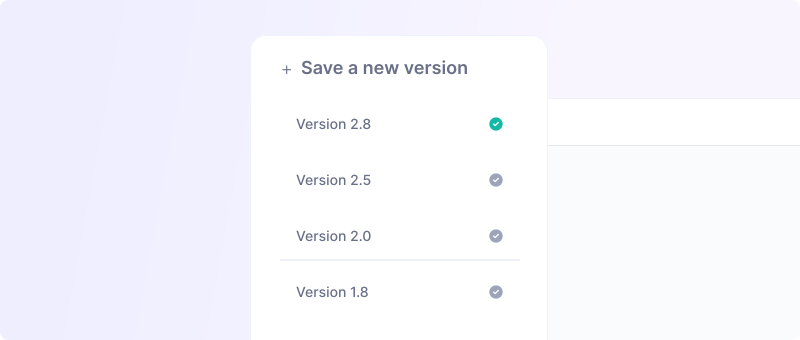
Easily manage different versions of your AI chains with Relevance AI's seamless versioning control. This feature is invaluable when testing various models or prompt changes. The OpenAI API leaves you to build and track these changes on your own, making versioning control more challenging.
Advantage 7
Effortless LLM switching
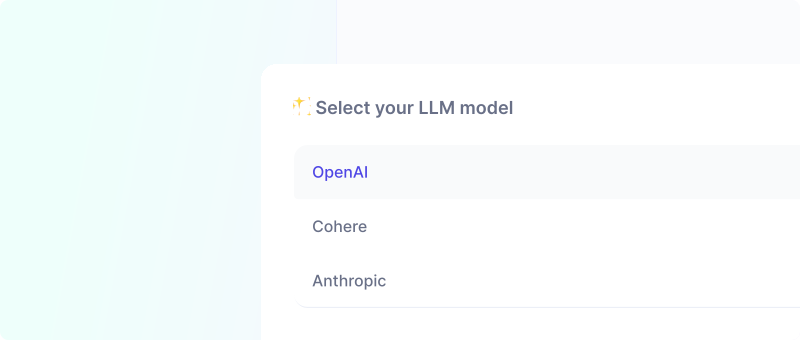
Relevance AI allows you to easily switch between different LLMs, enabling you to experiment and find the best fit for your specific use case. You're not limited to a single LLM, giving you greater flexibility and control over your AI chains. With the OpenAI API, switching LLMs is more challenging, especially if you depend on external tools to manage your models.